
Google Sheets is a powerful tool for managing data, and applying formulas across entire columns can streamline calculations and data analysis significantly. Whether you're a seasoned spreadsheet user or a beginner, understanding how to efficiently apply formulas to entire columns is essential. This guide will walk you through the process, step-by-step.
Introduction to Formulas in Google Sheets
Before diving into applying formulas to an entire column, it's important to grasp the basics. A formula in Google Sheets is used to perform calculations or manipulate data within the spreadsheet. These can range from simple arithmetic operations to complex functions involving data across multiple sheets.
Step-by-Step Guide to Applying Formulas to an Entire Column
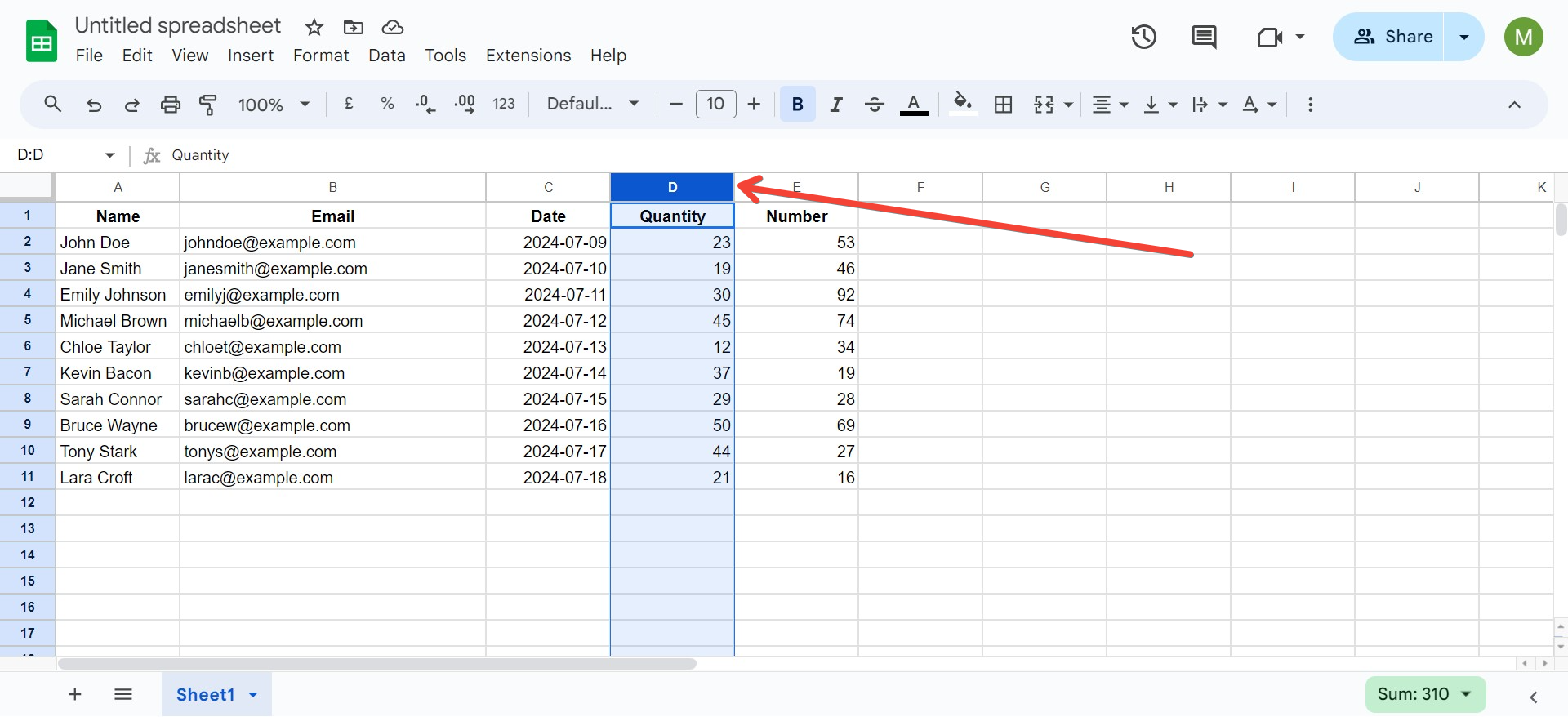
Step 1: Selecting the Column
To apply a formula to an entire column:
Step 2: Entering the Formula
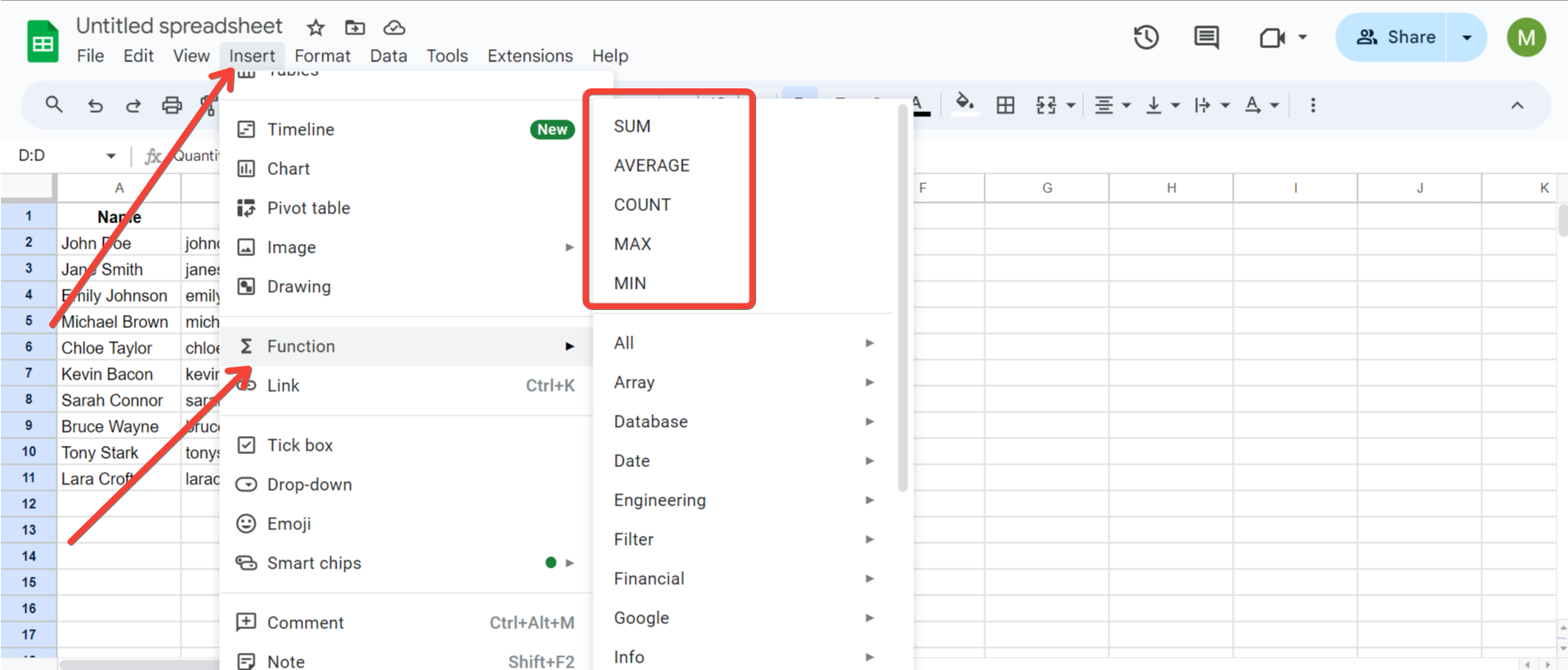
Step 3: Autofill the Formula
Google Sheets offers a powerful feature known as "Autofill" to extend a formula across a column:
Step 4: Using Array Formulas
For more advanced applications, especially when working with dynamic data ranges, using an array formula is beneficial:
This method is particularly useful when you want the formula to automatically expand to include new data as it's added.
Tips for Effective Formula Use
Conclusion
Applying formulas to an entire column in Google Sheets is a fundamental skill that can significantly enhance your productivity. By mastering this technique, you can automate calculations and data analysis, making your spreadsheets more dynamic and informative. Whether you're managing financial data, compiling results, or tracking inventory, efficient use of formulas in Google Sheets can lead to more accurate and faster outcomes.
For those who work frequently with spreadsheets and seek further simplifications, exploring advanced tools like SheetAI.app can be beneficial. SheetAI offers enhanced features that integrate seamlessly with Google Sheets, aiding in smarter data management and automation.