
Creating a bar graph in Google Sheets is an excellent way to visualize data clearly and compellingly. Whether you're presenting sales data, student performance, or any other kind of statistical information, bar graphs can help your audience quickly understand trends and comparisons. This guide will walk you through the steps of creating a bar graph in Google Sheets and briefly introduce how tools like Sheetai.app can enhance your data management and visualization capabilities.
Step 1: Prepare Your Data
The first step in creating a bar graph is to ensure that your data is well-organized. Typically, you will need two columns:
Here's an example of a simple data table:
sqlCopy code
Month       Sales
January     300
February    400
March       350
sql
Ensure your data is free of errors and arranged in rows and columns without any merged cells in the range you intend to graph.
Step 2: Select Your Data
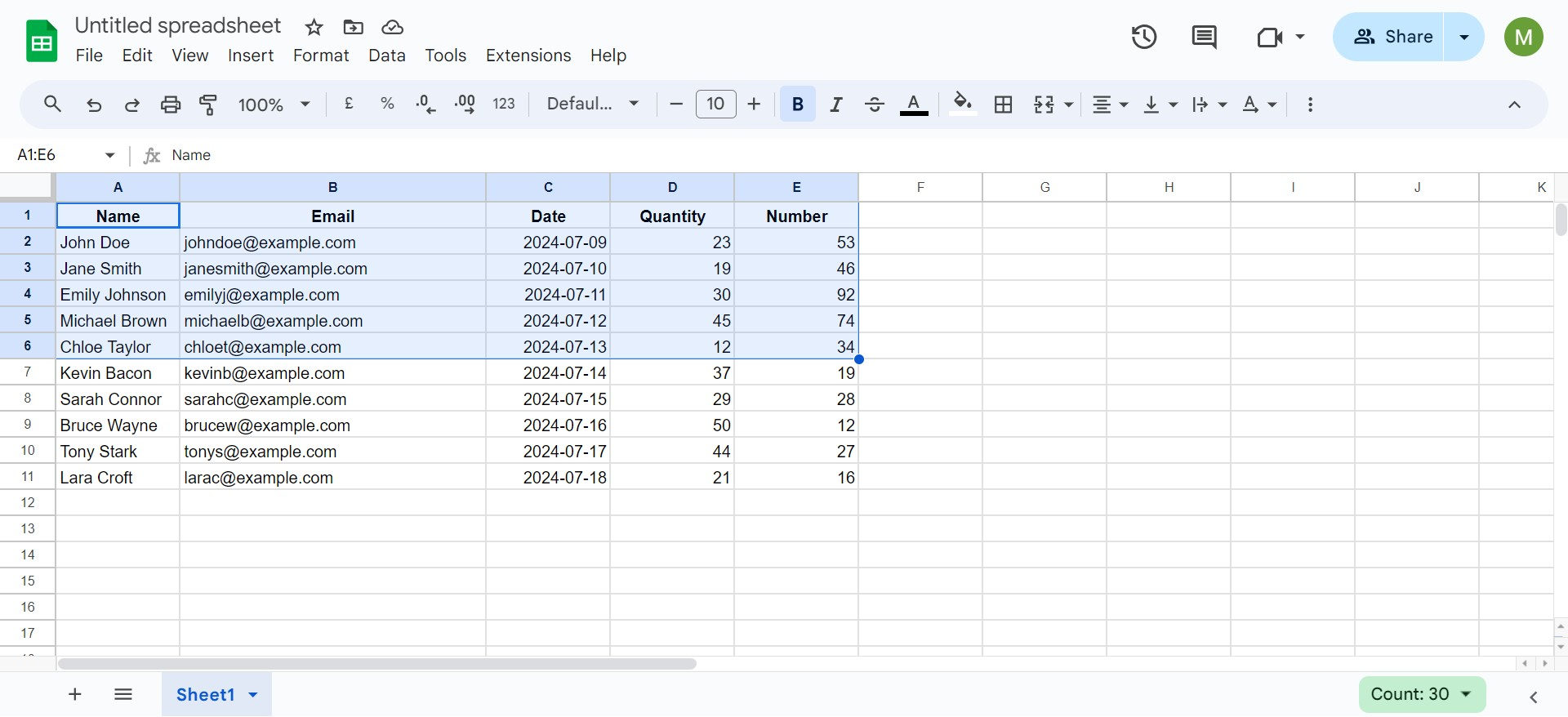
Click and drag to select the data you want to include in your bar graph. Be sure to include both the category labels and the corresponding values.
Step 3: Insert a Bar Graph
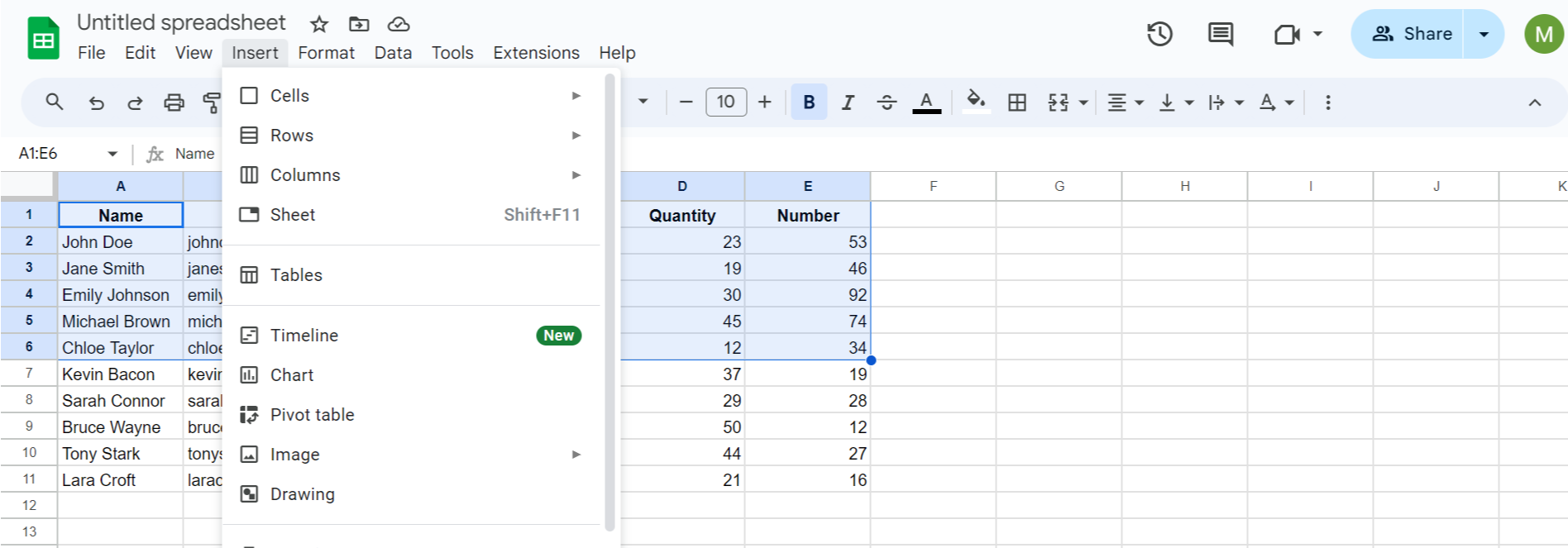
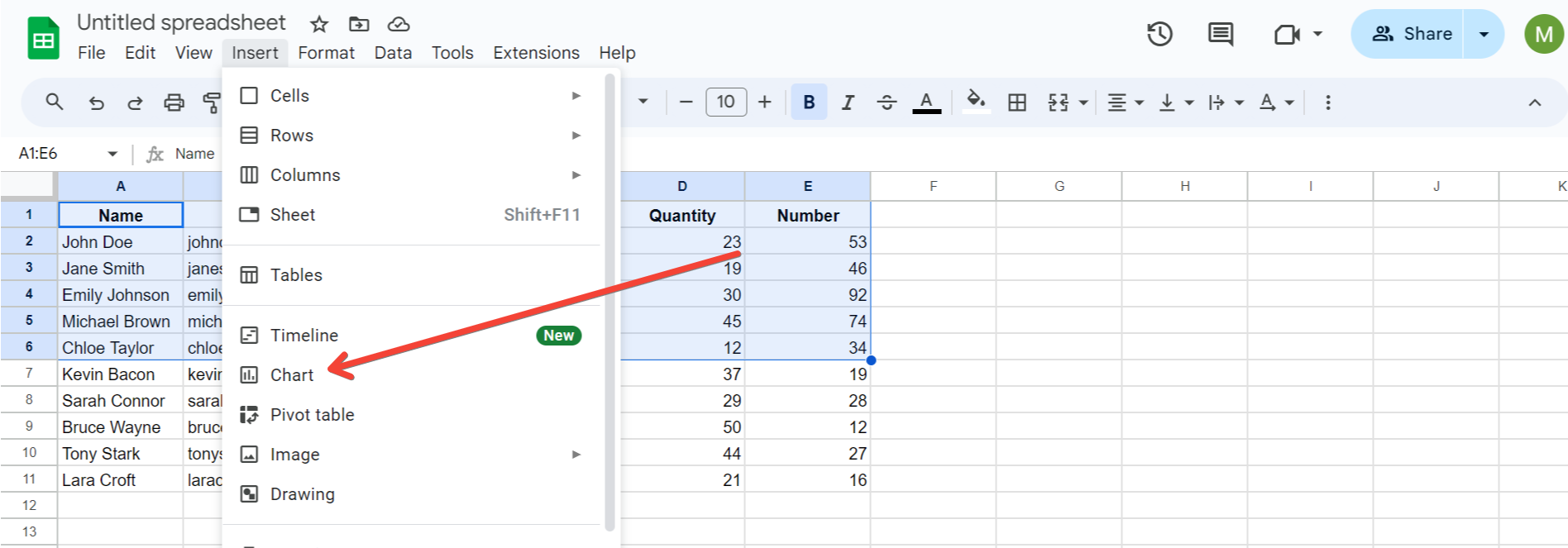
Once your data is selected, follow these steps to create a bar graph:
Step 4: Customize Your Bar Graph
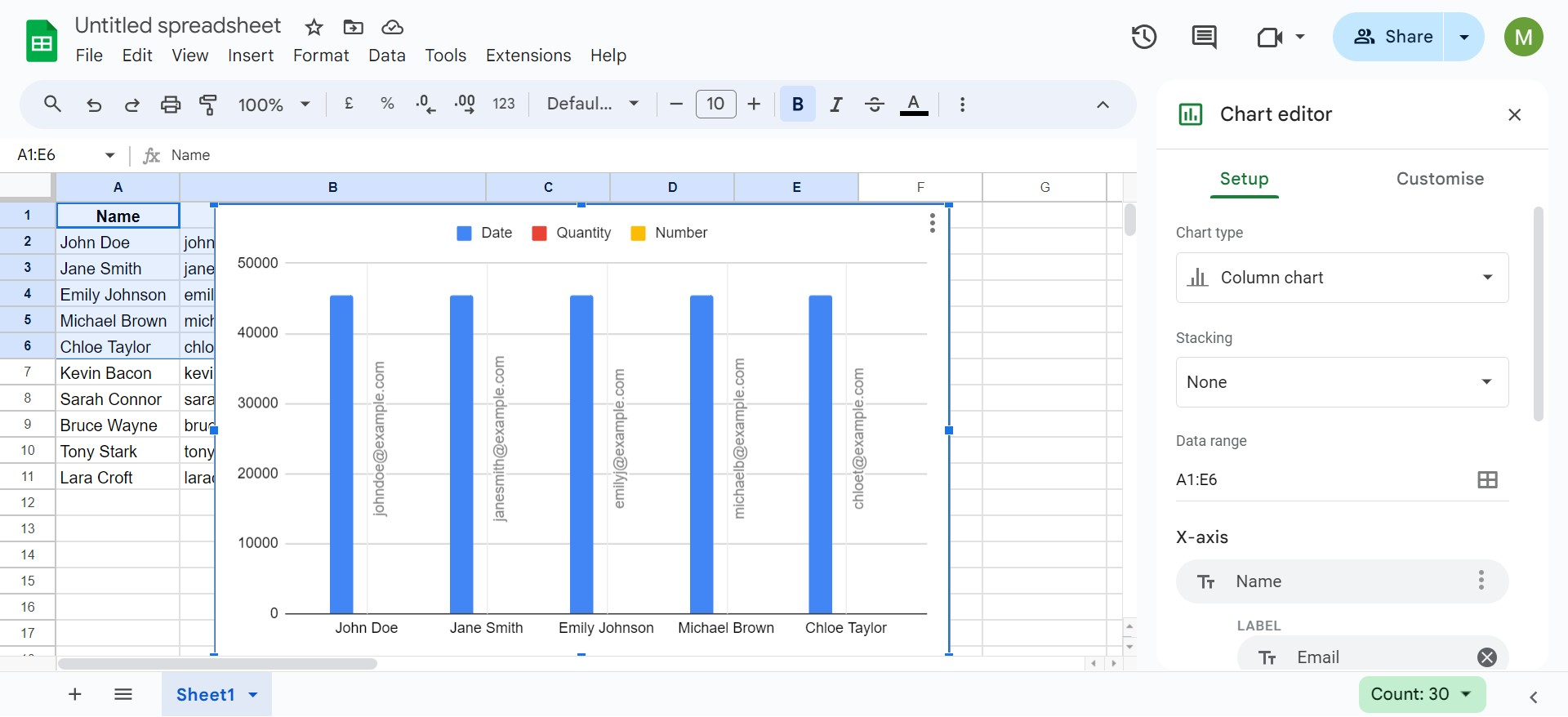
Google Sheets offers various customization options to tailor your bar graph to your needs:
Step 5: Advanced Customizations
For those who need more advanced features, such as dynamic data updates or customized visual themes, consider using a specialized tool like Sheetai.app. Sheetai.app enhances Google Sheets by offering advanced data processing capabilities, making it easier to manage large datasets and automate updates to your charts, which is particularly useful in business environments where data is continually evolving.
Step 6: Share and Publish
Once your bar graph is ready, you can easily share it with colleagues or stakeholders:
Conclusion
Bar graphs in Google Sheets are a powerful way to present data visually, making complex information more accessible and understandable. For professional or frequent users, enhancing Google Sheets with tools like Sheetai.app can significantly streamline your workflow, offering more robust data manipulation and visualization options that adapt as your data grows and changes. By following these steps, you can effectively convey your data's story through clear, impactful visualizations.