
Creating a schedule can often seem like a daunting task, especially if you're juggling multiple commitments. However, with the right tools and a bit of planning, it becomes much easier to manage your time effectively. Google Sheets, a powerful and versatile tool, is perfect for this purpose. In this blog post, we'll guide you through the process of creating a functional and visually appealing schedule using Google Sheets.
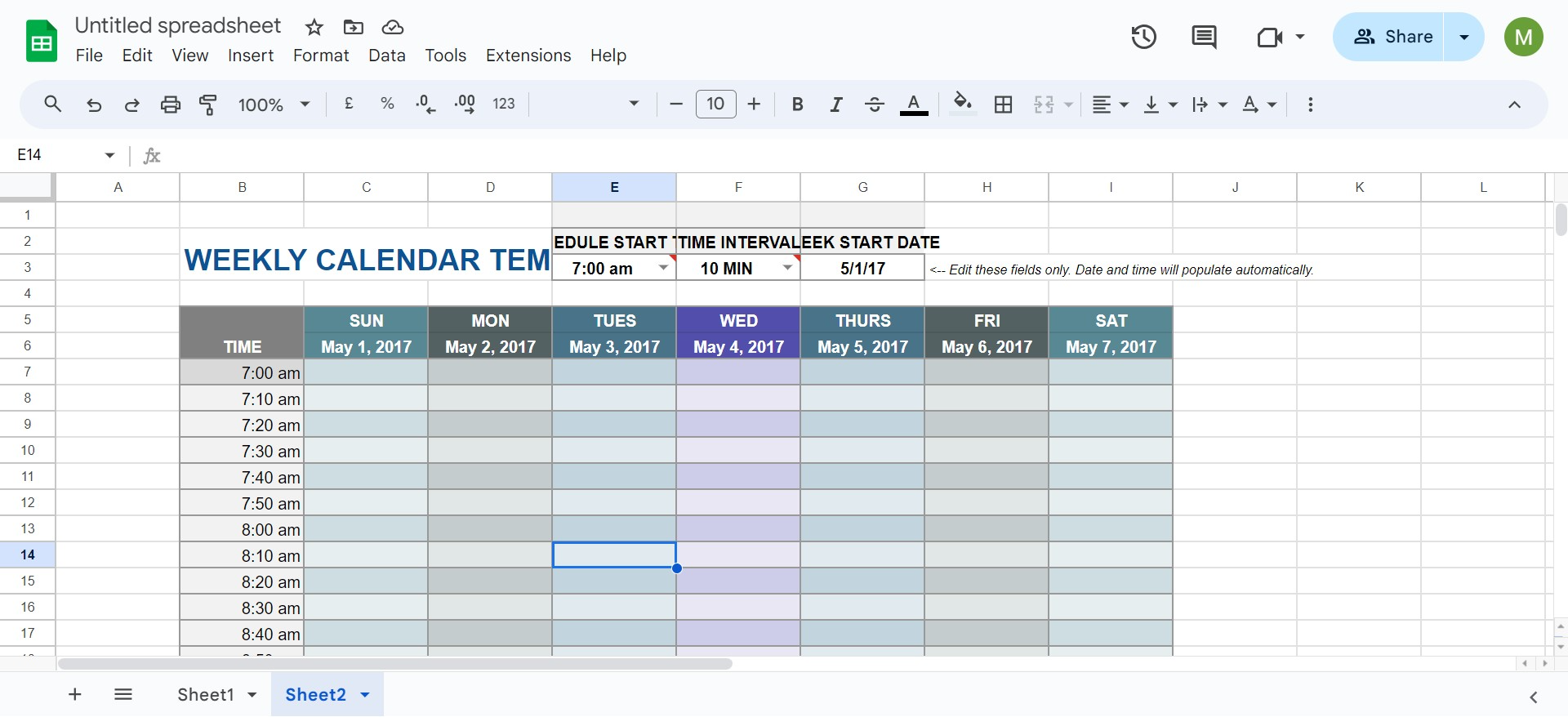
Why Use Google Sheets for Scheduling?
Before diving into the "how-to," let's explore why Google Sheets is an excellent choice for creating schedules:
Step 1: Setting Up Your Google Sheets Document
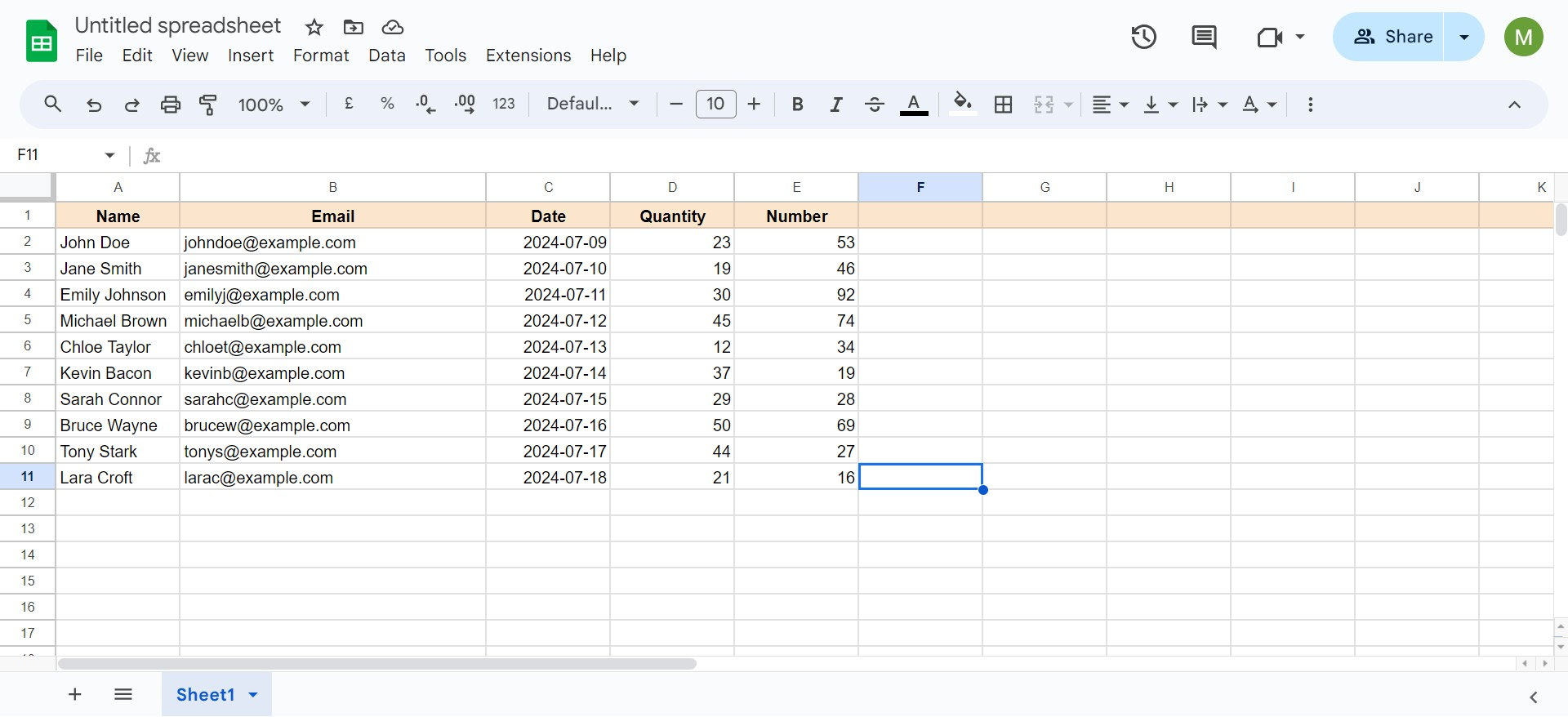
Step 2: Designing the Layout of Your Schedule
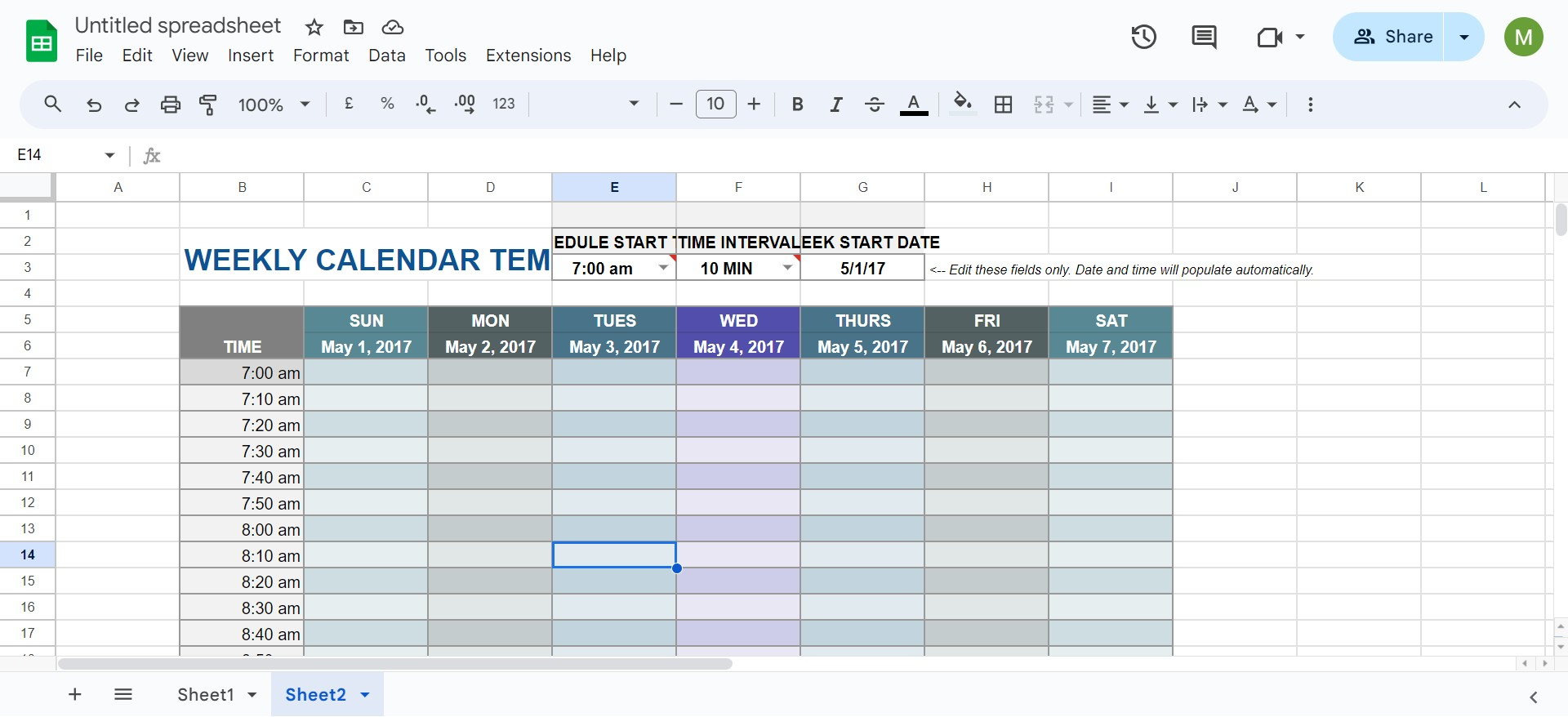
Step 3: Adding Tasks and Activities
Step 4: Implementing Formulas and Functions
Step 5: Making Your Schedule Dynamic
Step 6: Sharing and Collaboration
Step 7: Tips for Effective Scheduling
By following these steps, you can create a comprehensive and effective schedule in Google Sheets that helps manage your time efficiently. Whether for personal use, work, or collaboration with others, Google Sheets provides a flexible platform to accommodate all your scheduling needs.