Google Sheets is an incredibly versatile tool that caters to a vast array of needs, from simple task tracking to complex data analysis. One of its lesser-known but highly effective features is the ability to add checkboxes. These checkboxes can be used for a variety of purposes, such as to-do lists, project management, or any scenario where a simple binary choice is required.
In this detailed guide, we will explore how to insert checkboxes into your Google Sheets and mention how SheetAI.app can enhance your experience with advanced features.
Understanding the Utility of Checkboxes
Before we dive into the technical details, let's consider why you might want to use checkboxes in your spreadsheets:
Adding Checkboxes to Google Sheets
Here's a step-by-step guide on how to insert and use checkboxes in Google Sheets:
Step 1: Open Your Google Sheet
Begin by opening the Google Sheets document where you want to add checkboxes.
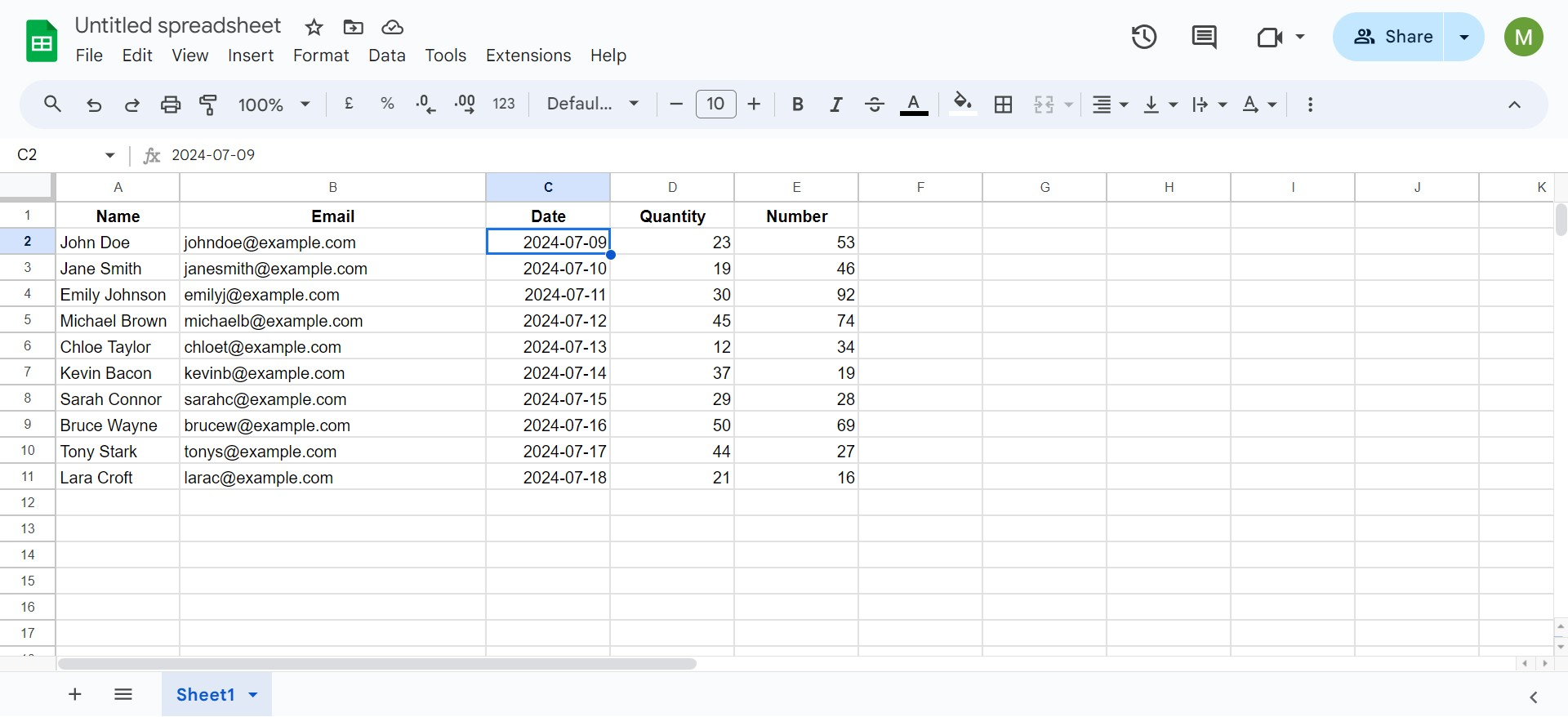
Step 2: Select the Cells
Click on the cell or drag over the range of cells where you want the checkboxes to appear.
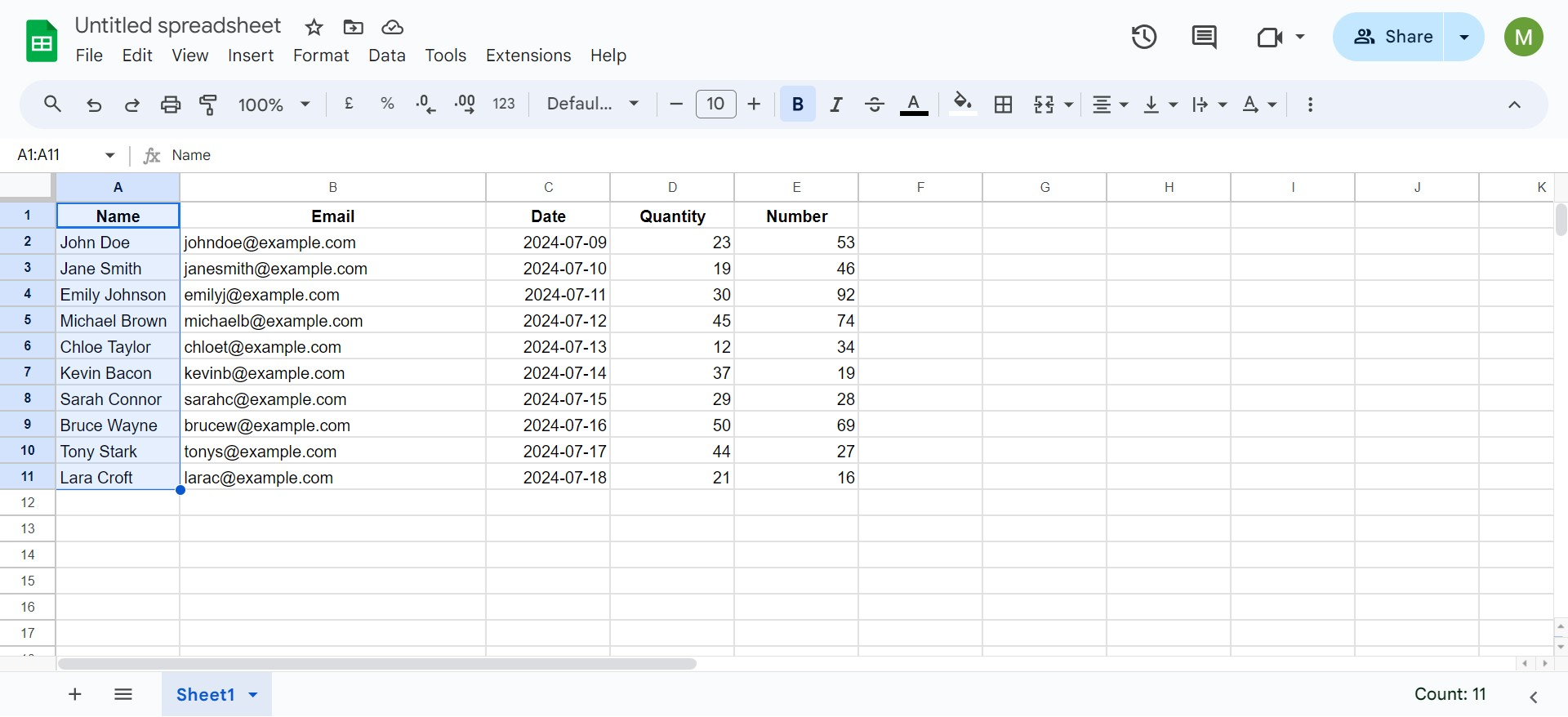
Step 3: Insert the Checkbox
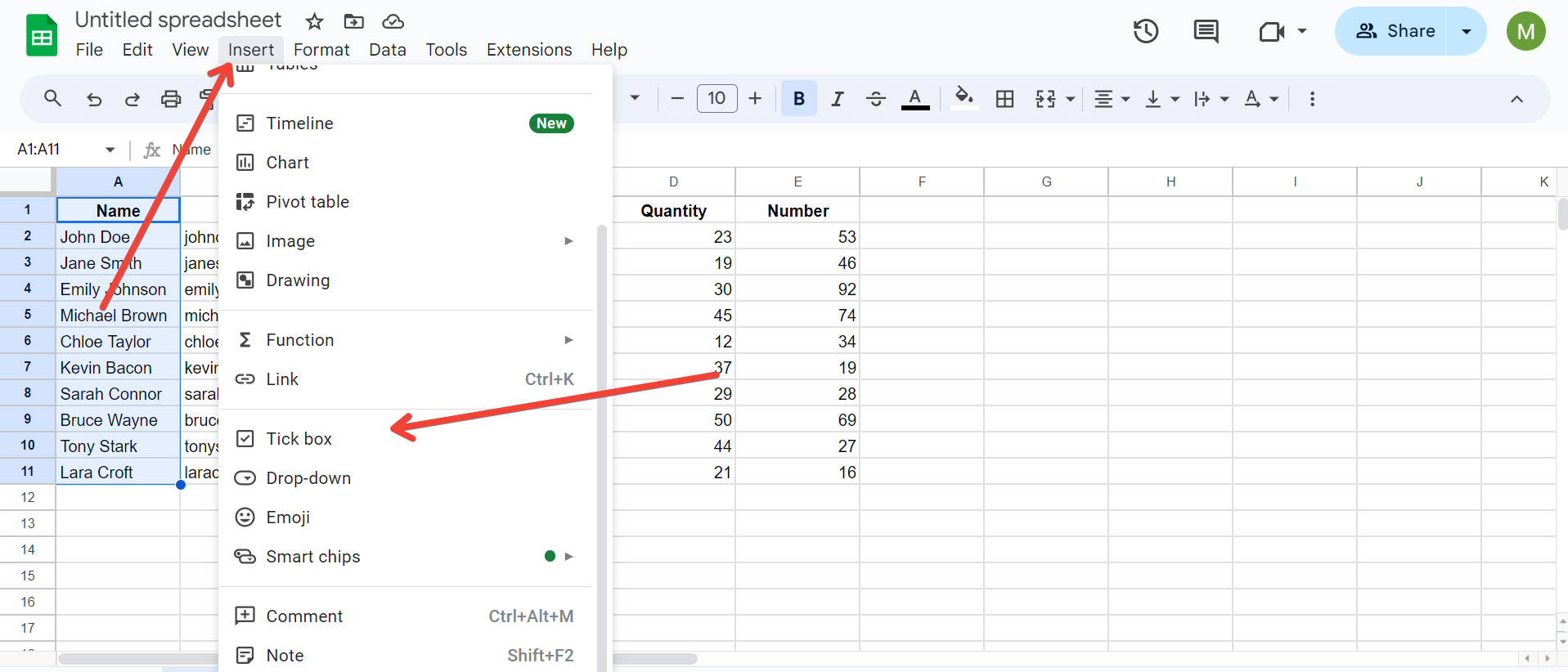
Step 4: Customize Checkbox Properties
You can customize the checkboxes by setting what values they represent:
Step 5: Apply Conditional Formatting (Optional)
To make your checkboxes more interactive, apply conditional formatting:
Automating Tasks with Checkboxes
Once your checkboxes are set up, you can automate tasks or actions based on their status. For instance, you can use Google Sheets formulas like COUNTIF to count how many items have been checked off.
Leveraging SheetAI.app to Enhance Your Google Sheets
While Google Sheets provides basic functionalities for data management, integrating with SheetAI.app can take your data manipulation capabilities to a new level. SheetAI.app enhances Google Sheets by enabling advanced data analysis and automation without any coding. Here's how SheetAI.app can complement your use of checkboxes:
By integrating SheetAI.app, you can transform a simple spreadsheet into a powerful tool for managing and analyzing your data more efficiently.
Conclusion
Adding checkboxes to your Google Sheets is a straightforward process that can significantly increase the interactivity and functionality of your spreadsheets. Whether for personal task management or complex business data operations, checkboxes are invaluable tools. Moreover, with enhancements from applications like SheetAI.app, the potential to leverage these simple elements within Google Sheets expands, enabling you to perform complex tasks effortlessly and make data-driven decisions quickly.
For those looking to explore further how AI can streamline their spreadsheet tasks, SheetAI.app offers a practical gateway into the world of advanced data manipulation and analysis, ensuring your spreadsheets are not only more interactive but also more intelligent.