
Remove Background in Google Slides With a Simple Step-by-Step Guide
Google Slides is one of the most popular presentation tools for students, educators, marketers, and business professionals. Its cloud-based accessibility and collaboration features make it more convenient. However, when designing visually appealing presentations, one common challenge users face is removing unwanted backgrounds, whether from a slide itself or from an image.
In this guide, let’s learn how to remove the background from Google Slides along with alternative methods and practical tips to make your slides cleaner and more impactful.
Why Remove the Background from Google Slides?
Before knowing the steps, let’s understand why removing a background can improve your presentation.
1. Improve Text Readability
Busy or dark backgrounds can make text difficult to read. Removing or simplifying the background ensures your message stands out clearly.
2. Create a Professional Look
Minimal and clean slides look more polished. Removing unnecessary backgrounds gives your presentation a modern and professional appearance.
3. Maintain Brand Consistency
If you are presenting for a business, you may need to replace default themes with brand-specific colors or designs.
4. Eliminate Distractions
Images with unwanted backgrounds can pull attention away from your core content. Removing them helps maintain focus.
5. Better Visual Hierarchy
A simple background allows your image, charts, and headlines to become the focal points of your slides.
How to Remove Background from Google Slides? (Step-by-Step Guide)
There are two common scenarios:
Let’s learn both methods.
Method 1: How to Remove Slide Background in Google Slides?
If you want to remove or change the background of an entire slide, follow these steps:
Step 1: Open Your Presentation
Go to Google Slides and open the presentation you want to edit.

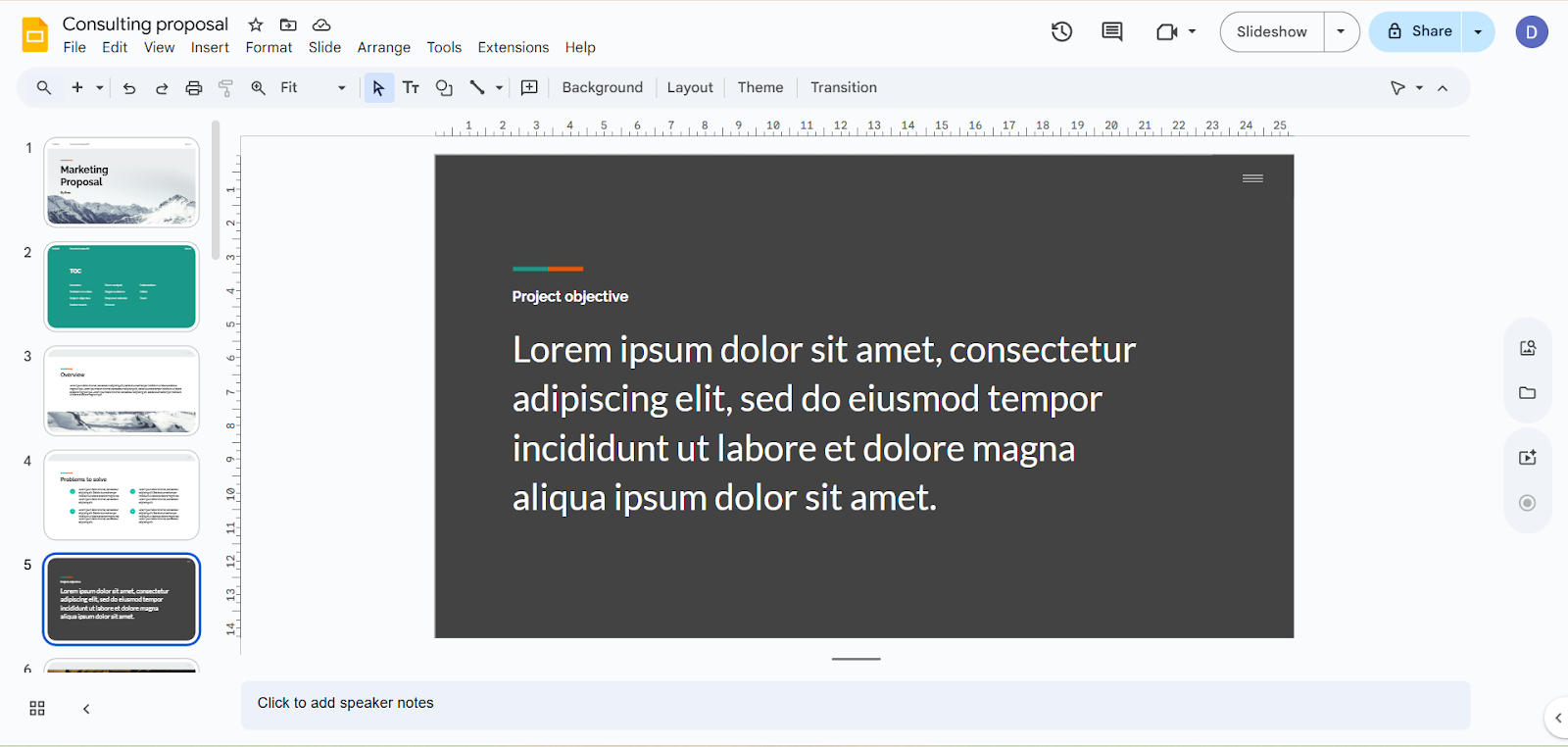
Step 2: Select the Slide
Click on the slide from the left sidebar where you want to remove or change the background.
Step 3: Click on “Background”
In the top toolbar, click on Slide, then select Background.
Or right-click on the slide and choose Change background.

Step 4: Remove the Background Image
Select “transparent” under the “Color” option
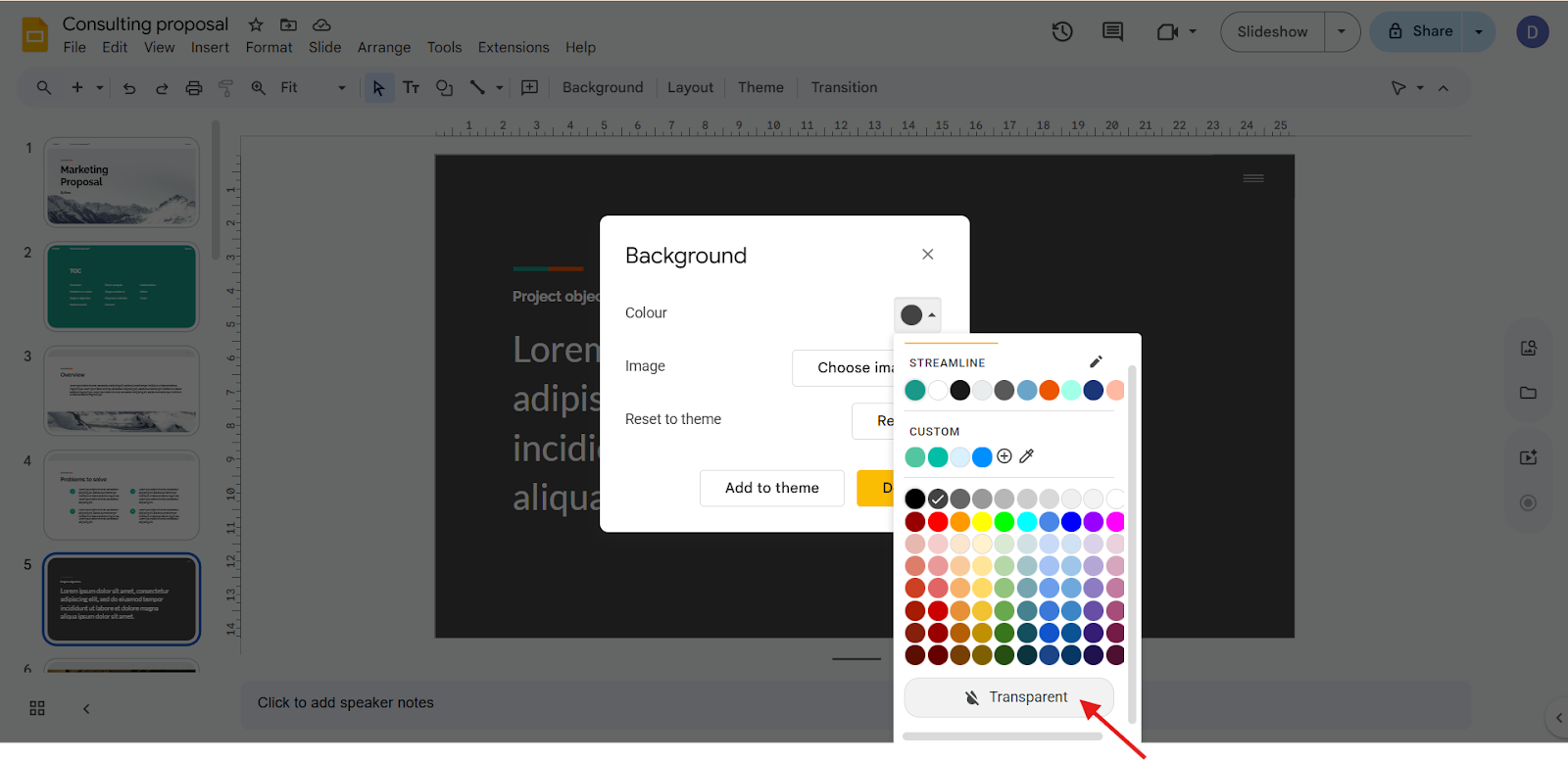
The Slide will return to a plain background

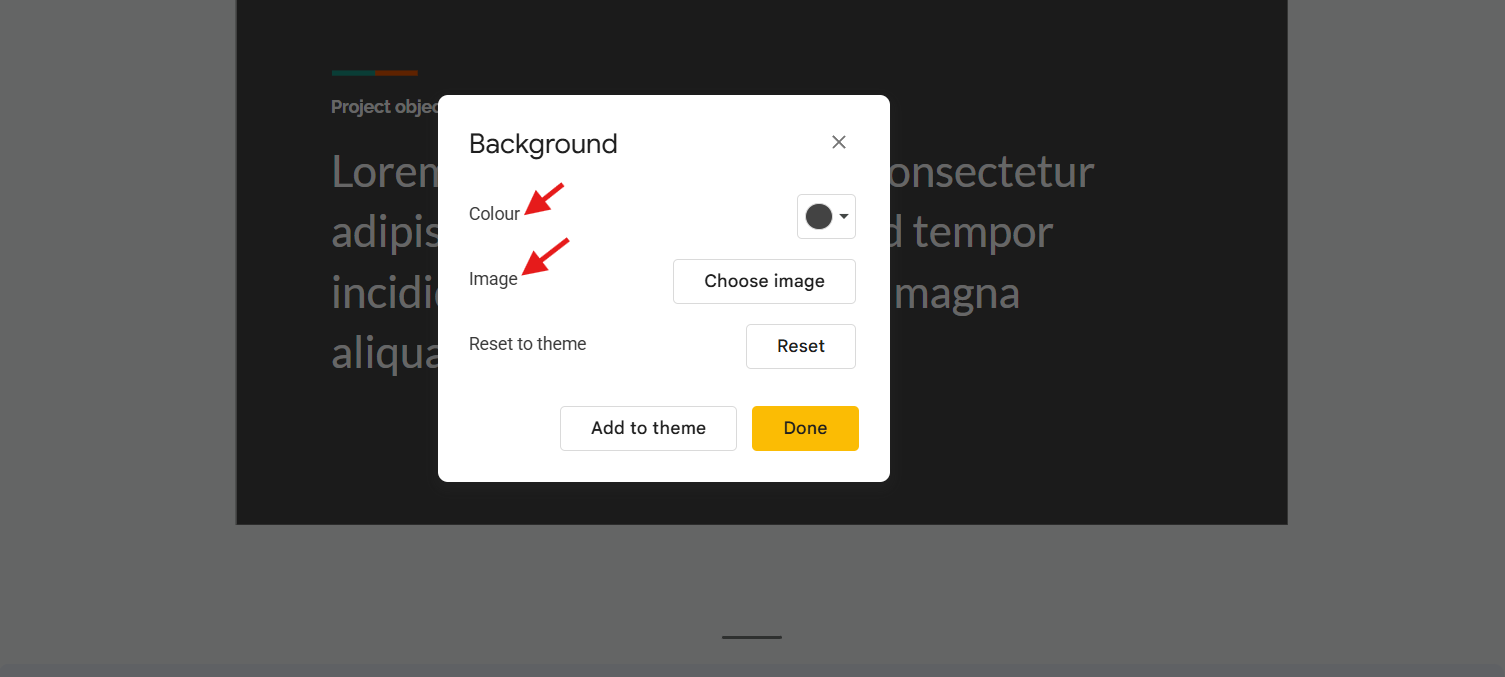
Step 5: Change Background Color or Image (Optional)
You can:
Step 6: Apply to All Slides (Optional)
If you want the same background removed from every slide:
Click Add to theme

This will update the entire presentation
Method 2: How to Remove Background from an Image in Google Slides?
Google Slides does not have a built-in background remover like some design tools.
However, you can use workarounds.
Option A: Use Google Slides Transparency Tool (Basic Adjustment)
This method doesn’t completely remove the background, but it can soften it.
Steps Involved
1. Click on the image.
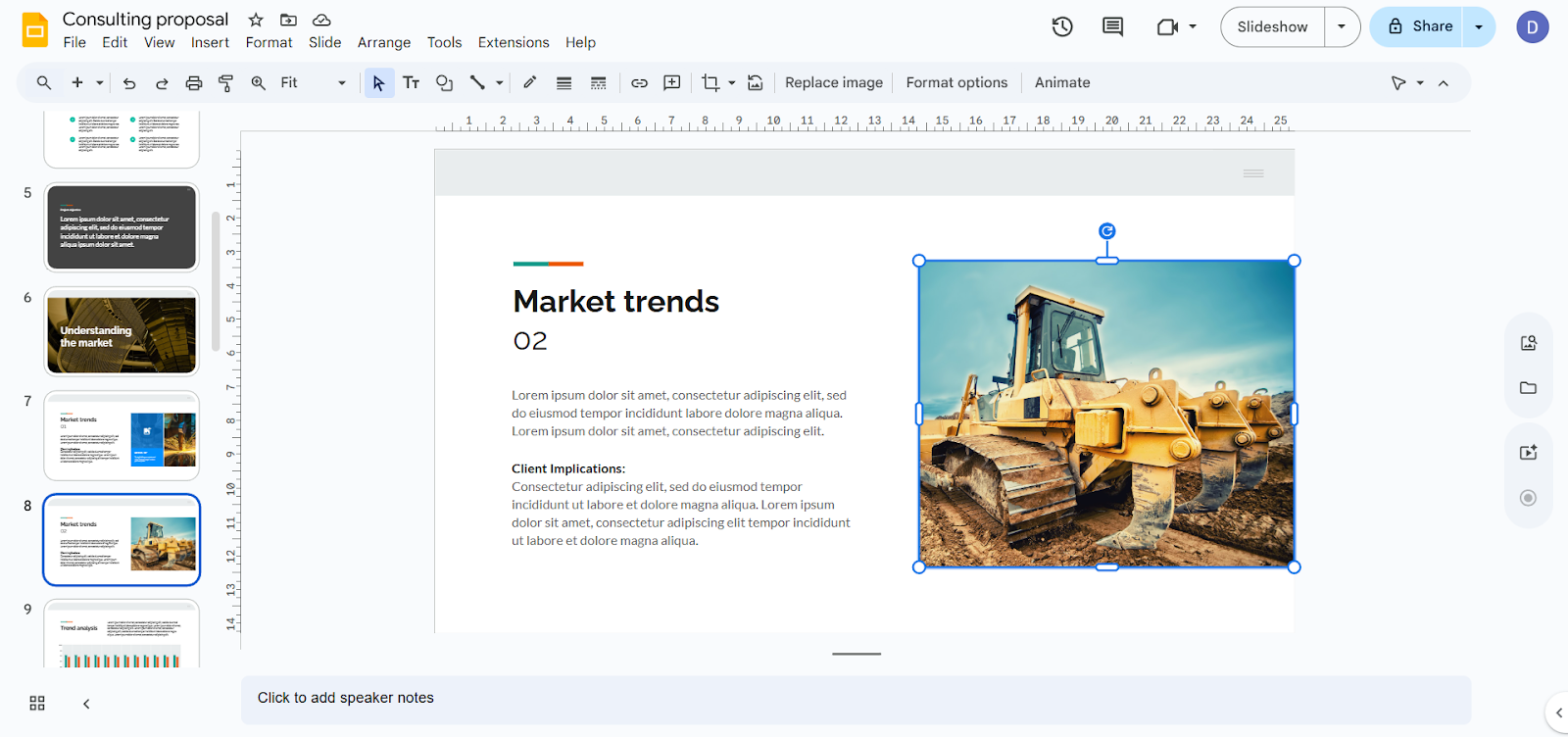
2. Select Format options from the toolbar.
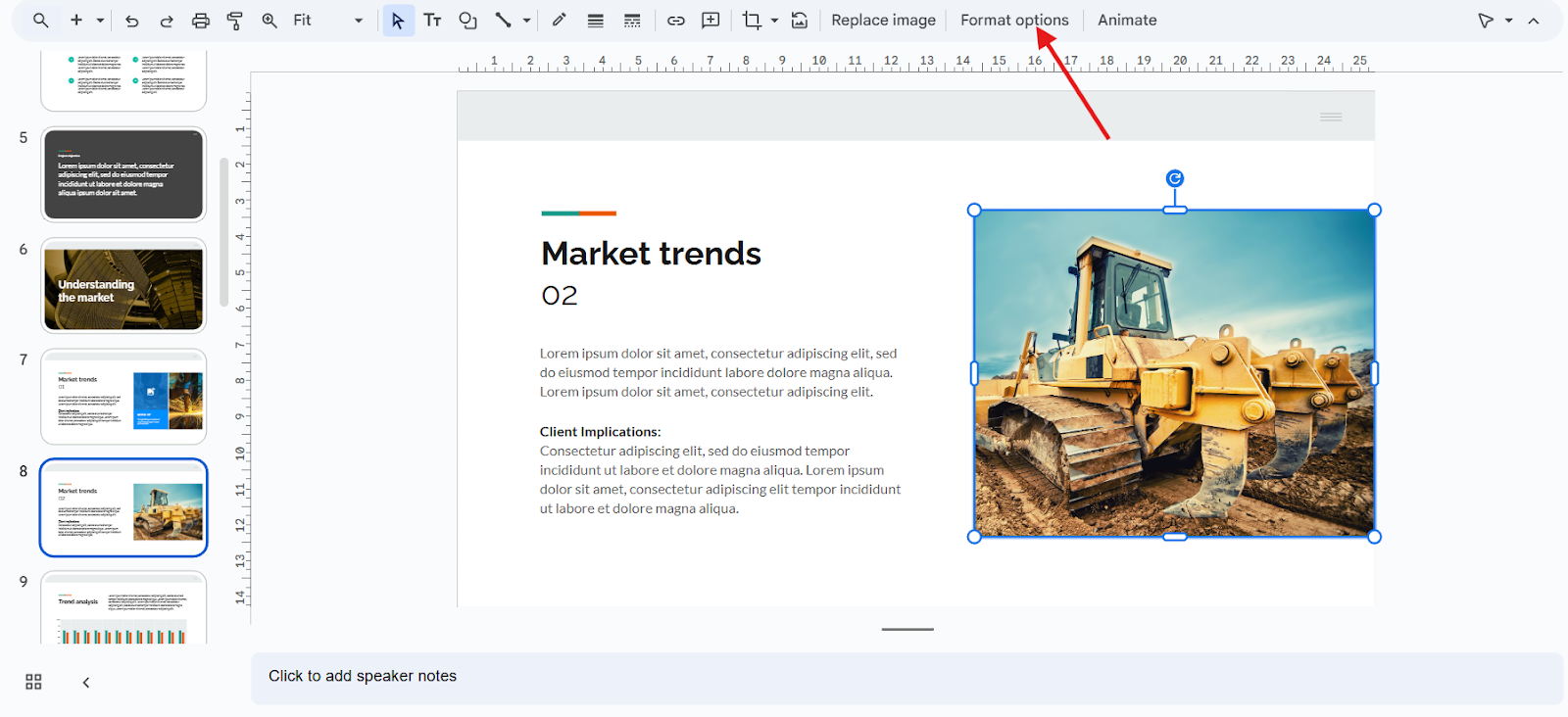
3. Adjust:

This works best for subtle background blending but won’t fully erase complex backgrounds.
Option B: Use Google Drawings (Free Method)
Google Drawings provides more flexibility.
Steps Involved
1. Go to Google Drawings
2. Insert your image.
3. Use the Format options and masking tools
4. Download the edited image as PNG.
5. Upload it back into Google Slides.
This works best for simple backgrounds.
Common Mistakes to Avoid While Removing Background in Google Slides
Here are the most common mistakes - and how to avoid them:
1. Using Low-Quality Images
Blurry images lead to rough, uneven edges after background removal.
2. Ignoring Rough Edges
Automatic tools aren’t perfect. Jagged outlines can make your slide look unprofessional
3. Not Maintaining Contrast
If the subject blends into the slide background, it loses impact.
4. Exporting in the Wrong Format
Saving as JPG removes transparency.
5. Overcomplicating the Slide
Adding too many elements after removing the background creates clutter.
Avoiding these mistakes will help you create cleaner, more professional Google Slides presentations.
Create Better Slides Faster with MagicSlides
While removing background helps make your slides cleaner and more professional, creating a complete presentation from scratch can still be time-consuming. Organizing content, designing layouts, and maintaining consistency often requires more effort.
To simplify this process, you can use MagicSlides, an AI-powered Google Slides add-on that creates a presentation in minutes. You cam generates slides from a PDF, Word document, image, link, plain text, or even just a topic.

How to Create a Presentation with MagicSlides
Using MagicSlides inside Google Slides is simple:
1. Open Google Slides and Select “Extensions” in the top menu
2. Select “Get add-ons, search for MagicSlides, and install it.
3. Choose your input format: PDF, Word, image, link, text, or topic.
3. Upload or paste your content.
4. Click “Generate,” and the AI will create a structured presentation in seconds.
You can then edit the slides, customize backgrounds, and apply the design tips discussed earlier to refine your final presentation.
Also Read: How to make a pie chart using Google Slides step-by-step guide for effective presentations.
Final Thoughts
Removing backgrounds in Google Slides is a simple yet powerful way to make your presentations cleaner, more professional, and easier to read. By eliminating distractions, improving text visibility, and maintaining brand consistency, your slides can communicate your ideas more effectively. Whether you are changing the slide background or isolating images, these adjustments can elevate the overall quality of your presentation.
Key Takeaways:
With the right approach and a tool like MagicSlides for rapid slide creation, you can save time while producing visually appealing, professional presentations that leave a lasting impression.
Quick FAQ’s
Q 1: Can I completely remove an image background in Google Slides?
Google Slides itself doesn’t offer a full background remover. You can soften backgrounds with transparency or use Google Drawings or third-party tools to fully remove them before importing the image.
Q 2: How do I remove the background from all slides at once?
After changing a slide’s background, click “Add to theme” to apply the new background across all slides for consistency.
Q 3: What image format should I use for transparent backgrounds?
Always use PNG for images with transparency. JPG will fill the background with a solid color and remove transparency.
Q 4: Can I remove a complex background with MagicSlides?
MagicSlides primarily generates complete presentations, but you can use it to create slides with isolated visuals and clean layouts. For precise background removal, combining it with image-editing tools is best.
Q 5: Are there alternative to Google Drawings for background removal?
Yes, free tools like Remove. Bg Canva, or Photoshop Express, can remove complex backgrounds before importing the image into Google Slides.