
How to Make a Pie Chart Using Google Slides? (Step-by-Step Guide)

Pie charts are one of the easiest and most effective ways to show data in presentations, reports, or dashboards. Instead of draining your audience in numbers, a pie chart lets them see the story behind the data at a glance. Each slice represents a part of the whole, making it simple to compare categories and understand proportions quickly.
Whether you’re sharing sales numbers, survey results, or how a budget is divided, a clear pie chart can turn complicated figures into something anyone can understand. It’s not just about looking nice; pie charts help highlight what’s important and make patterns in your data
In this guide, we will learn how to create pie charts in Google Slides from start to finish. You will learn how to add your data, choose colors and labels that make sense, and make your chart visually appealing. By the end, you will be able to turn raw numbers into easy-to-read, professional-looking charts that tell your story clearly and confidently.
What is a Pie Chart?
A Pie chart is a circular chart divided into segments, where each slice represents a portion of the whole dataset. The size of each slice reflects the relative value of the category. Pie charts are most useful when you want to show parts of a whole, like market share distribution, expense breakdowns, or survey results.
What You Need to Prepare a Pie Chart:
Before you start creating a pie chart, it’s important to have a few things ready. This will make the process much faster and ensure your chart is accurate and easy to read. Here’s what you need:
1. A dataset with categories and values:
You need a list of the items you want to show in your chart (these are categories) and the numbers associated with each item (these are the values).
2. Labels for each category
Make sure each category has a clear name or label. This is what will appear on your chart so that anyone looking at it knows what each slide represents. Avoid using vague labels; clarity is key.
3. Totals that make sense:
Check that the numbers you have actually added up correctly. A pie chart represents parts of a whole, so if your totals are off, the chart could be misleading. For example, the sum of all your category values should equal the total amount you are trying to show.
Once you have these elements ready, you’re set to create a pie chart in Google Slides. Having your data organized beforehand will help you quickly make a chart that is not only accurate but also visually appealing and easy for your audience to understand.
Method 1: How to Make a Pie Chart Using Google Slides (Step-by-Step Guide)
Creating a pie chart in Google Slides is quick and easy to use.
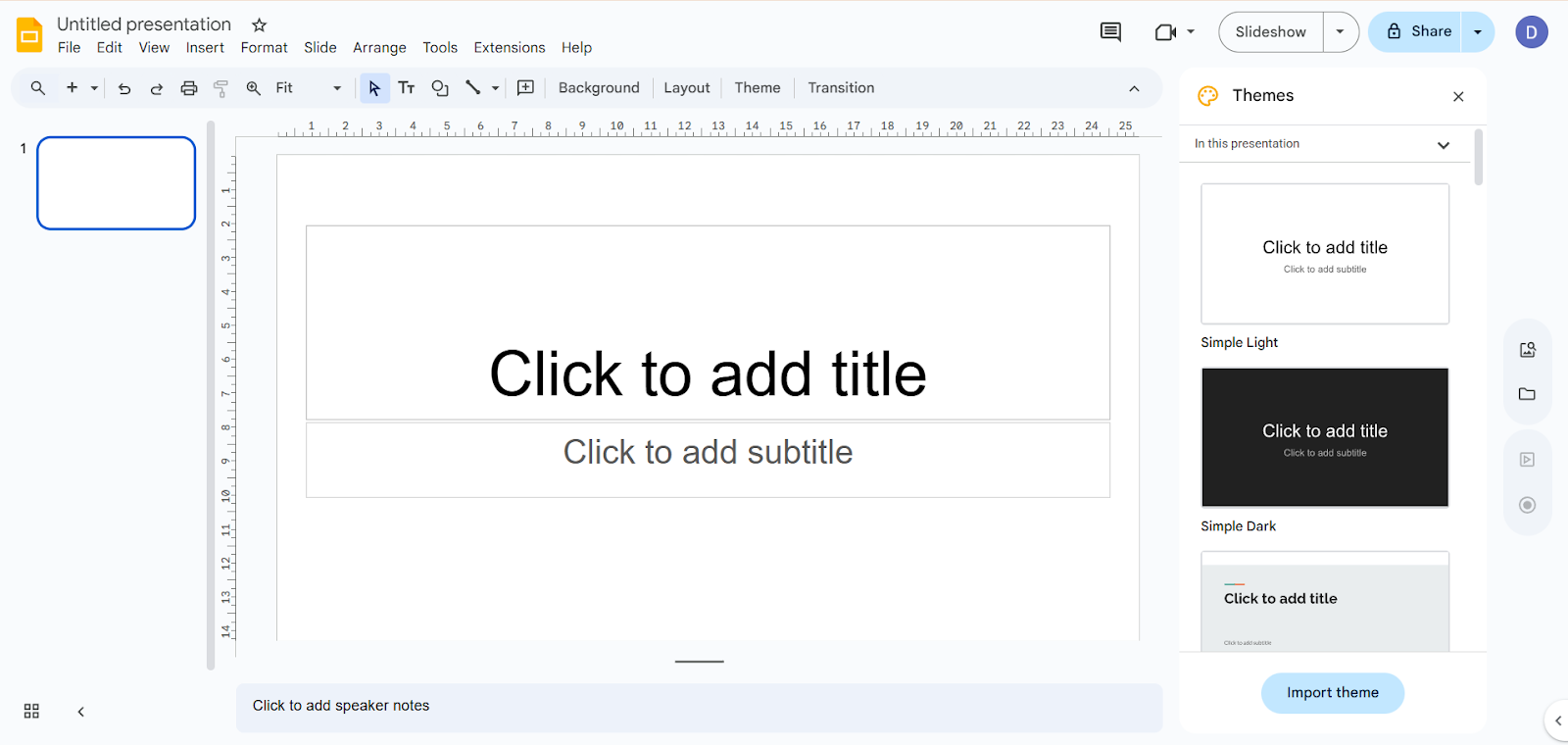
Step 1: Open Google Slides:
Visit Google Slides and open a new or existing presentation where you want to insert your pie chart.
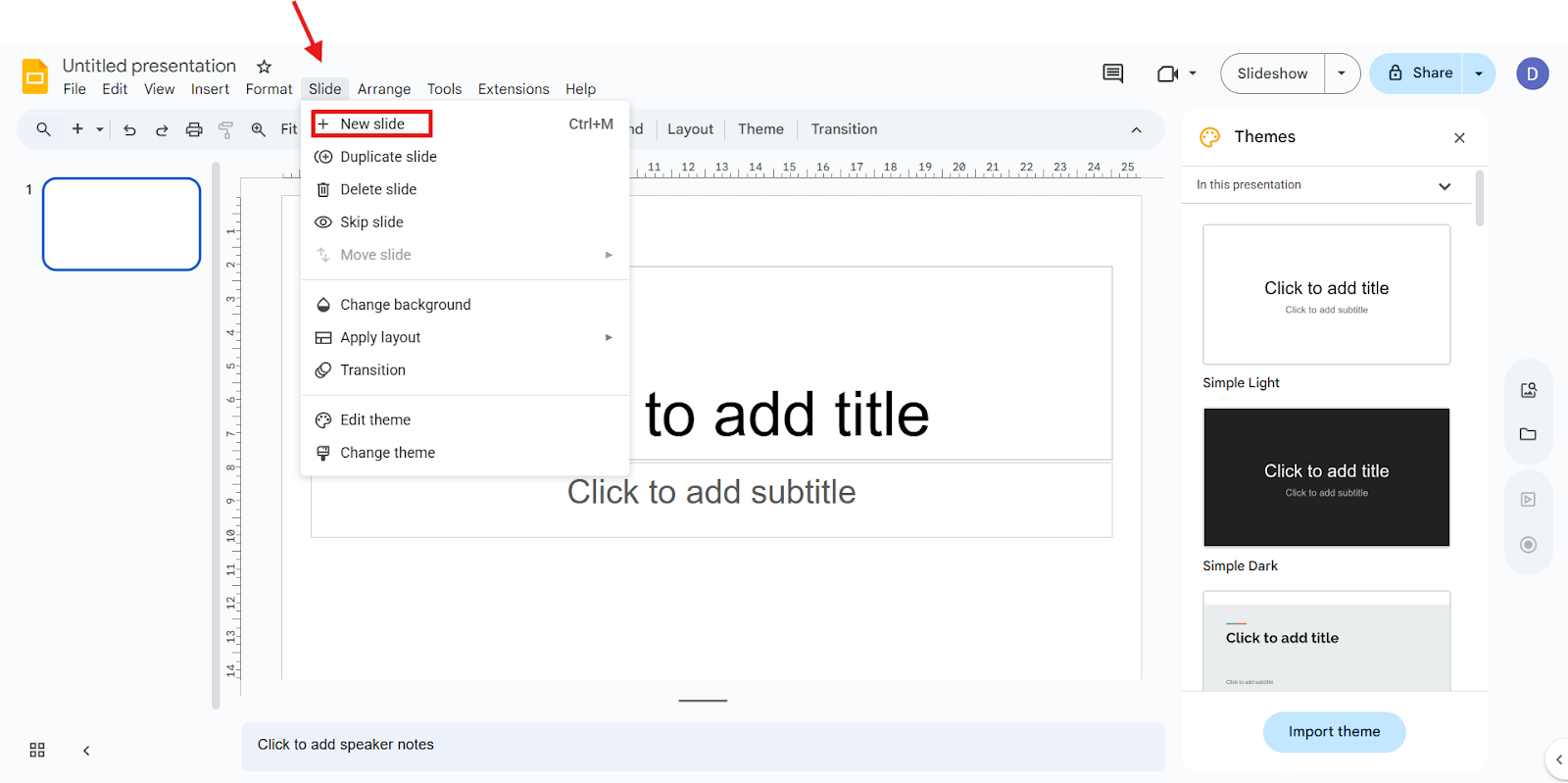
Step 2: Insert a Slide:
Select the slide where the chart should appear. If you want to create one, add a new one by clicking Slide in the top menu and choosing New Slide.
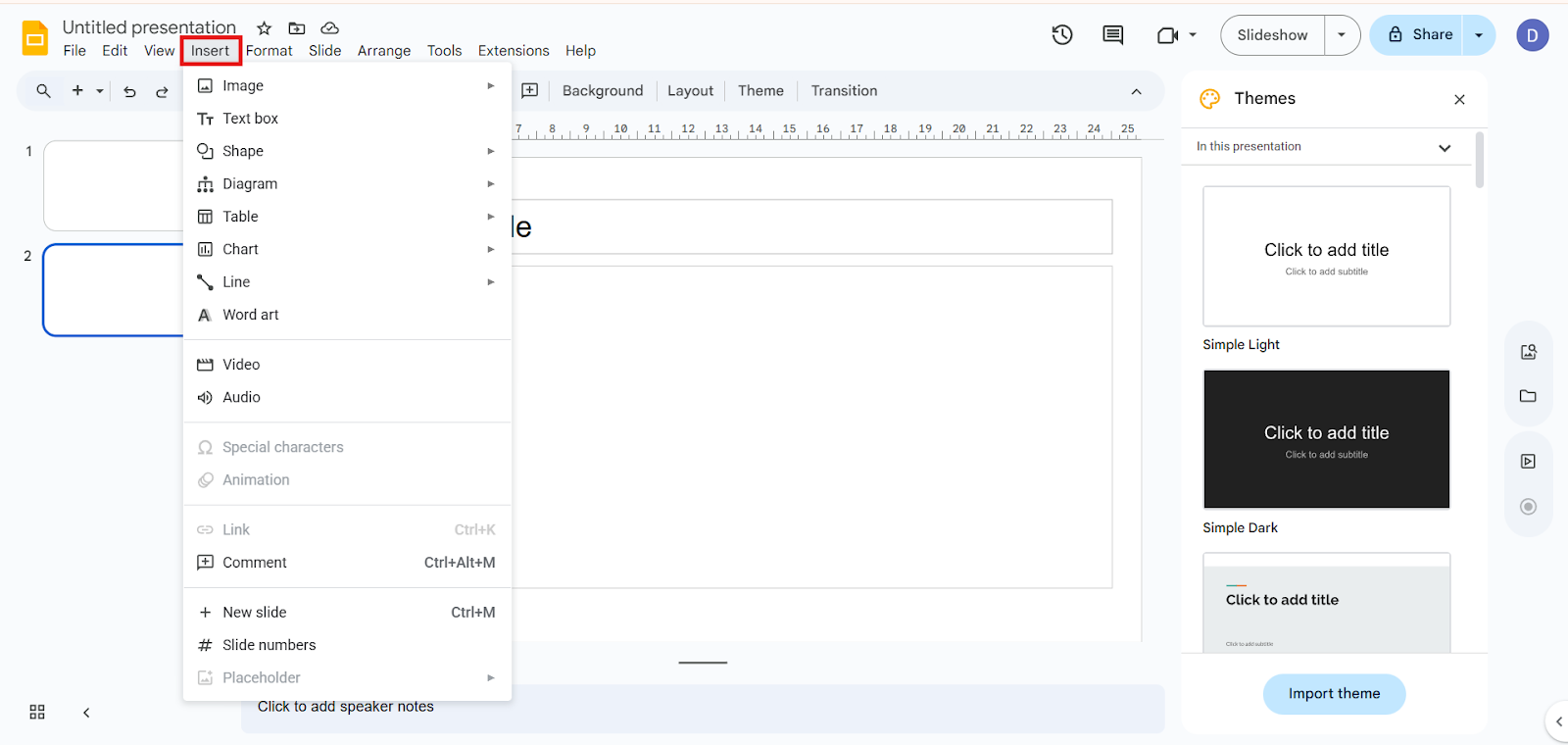
Step 3: Go to Insert:
Click the “Insert” menu at the top.
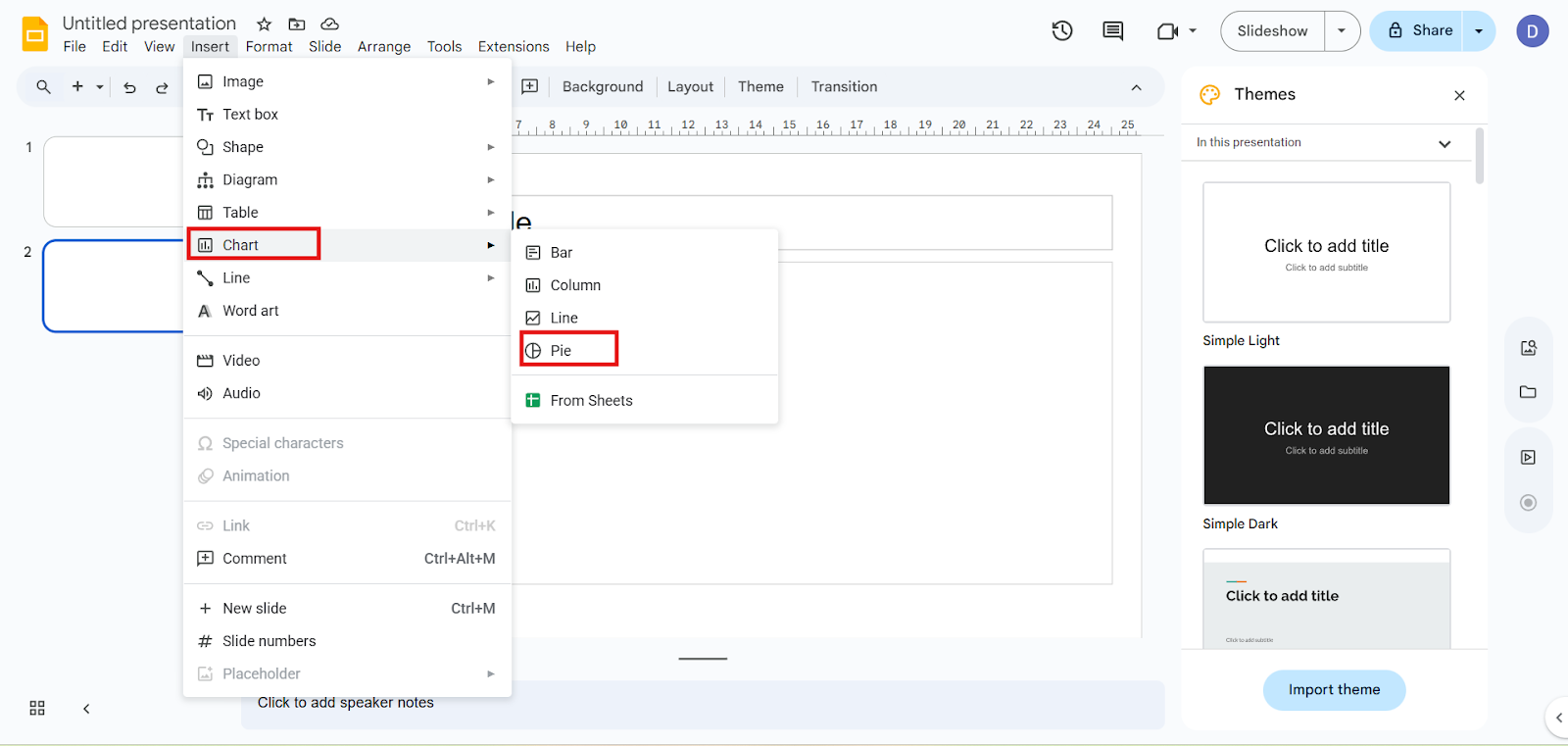
Step 4: Add a Pie Chart:
1. Choose Chart and select Pie Chart from the dropdown menu.
2. Google Slides will insert a default pie chart with sample data.
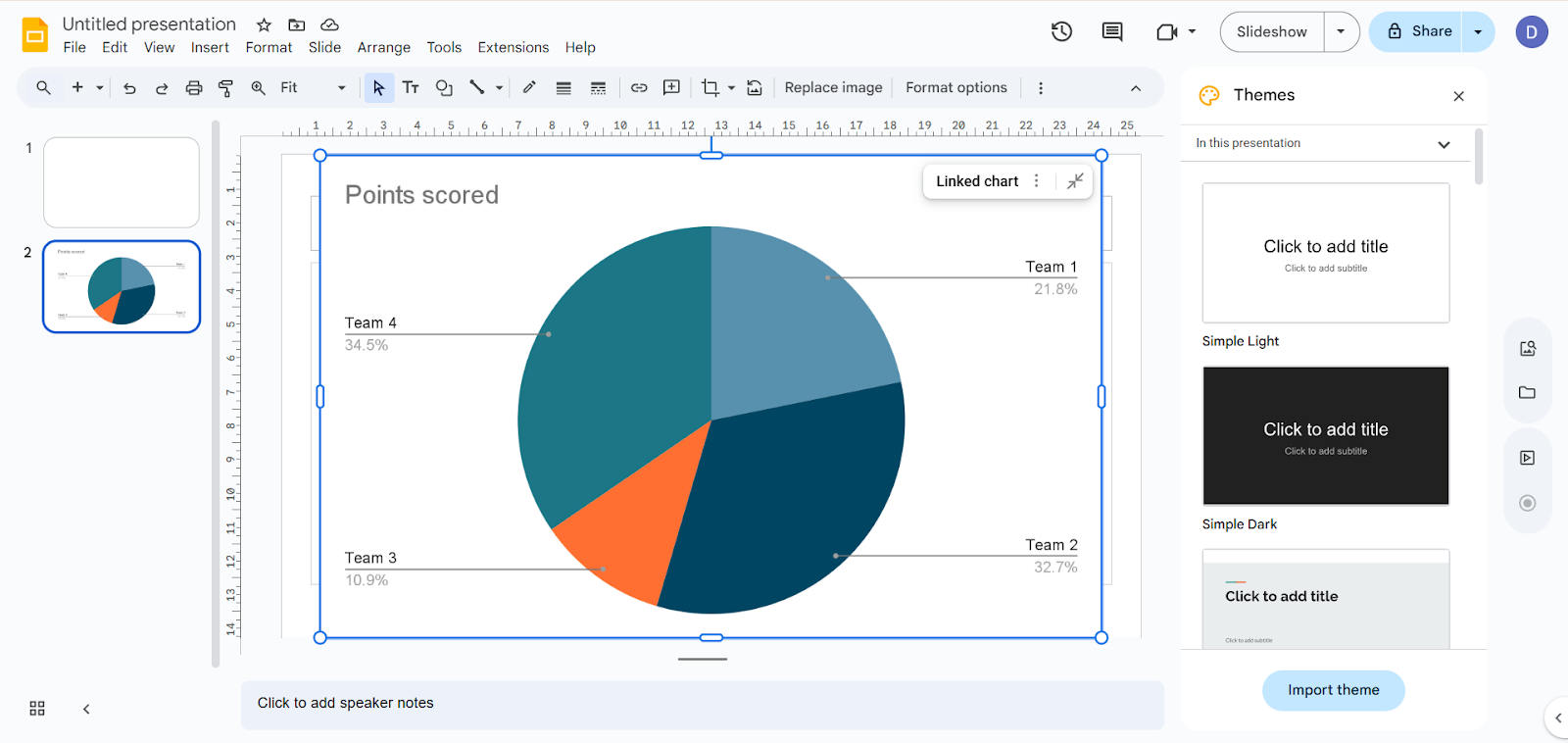
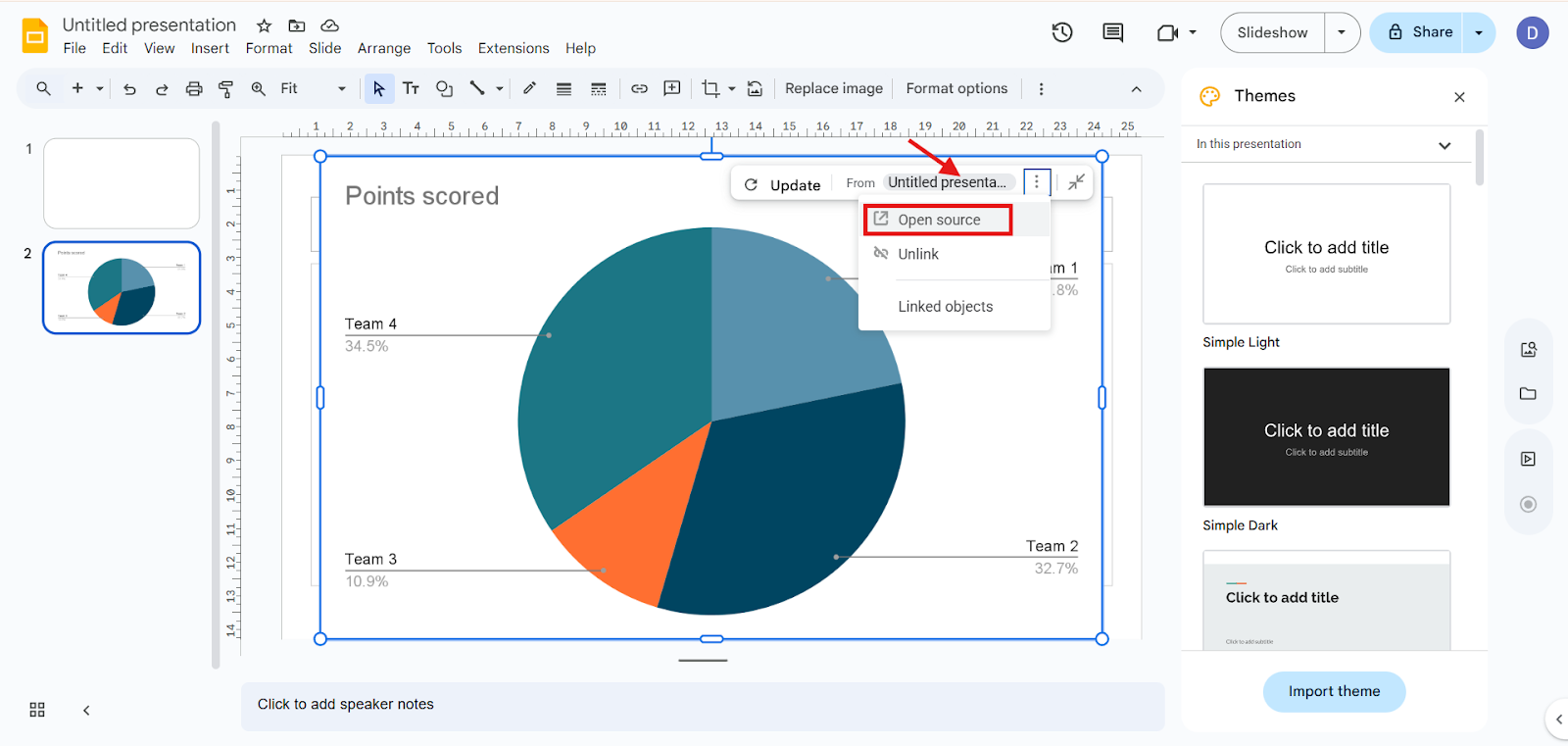
Step 5: Open Data Source:
Click the three dots at the top right of the chart and select “Open source.” This will automatically connect you to the Google Sheets.
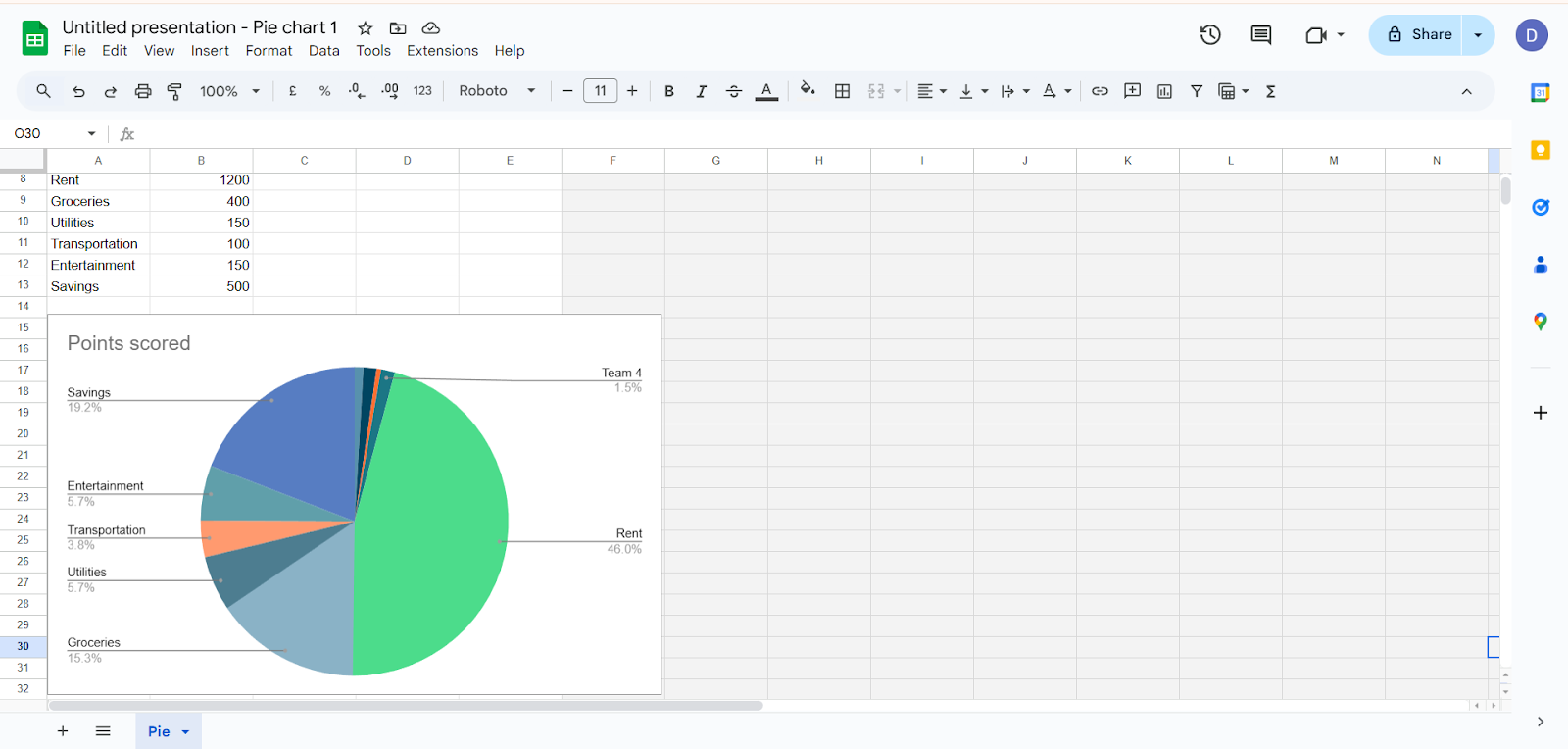
Edit the data with your own values in Google Sheets.
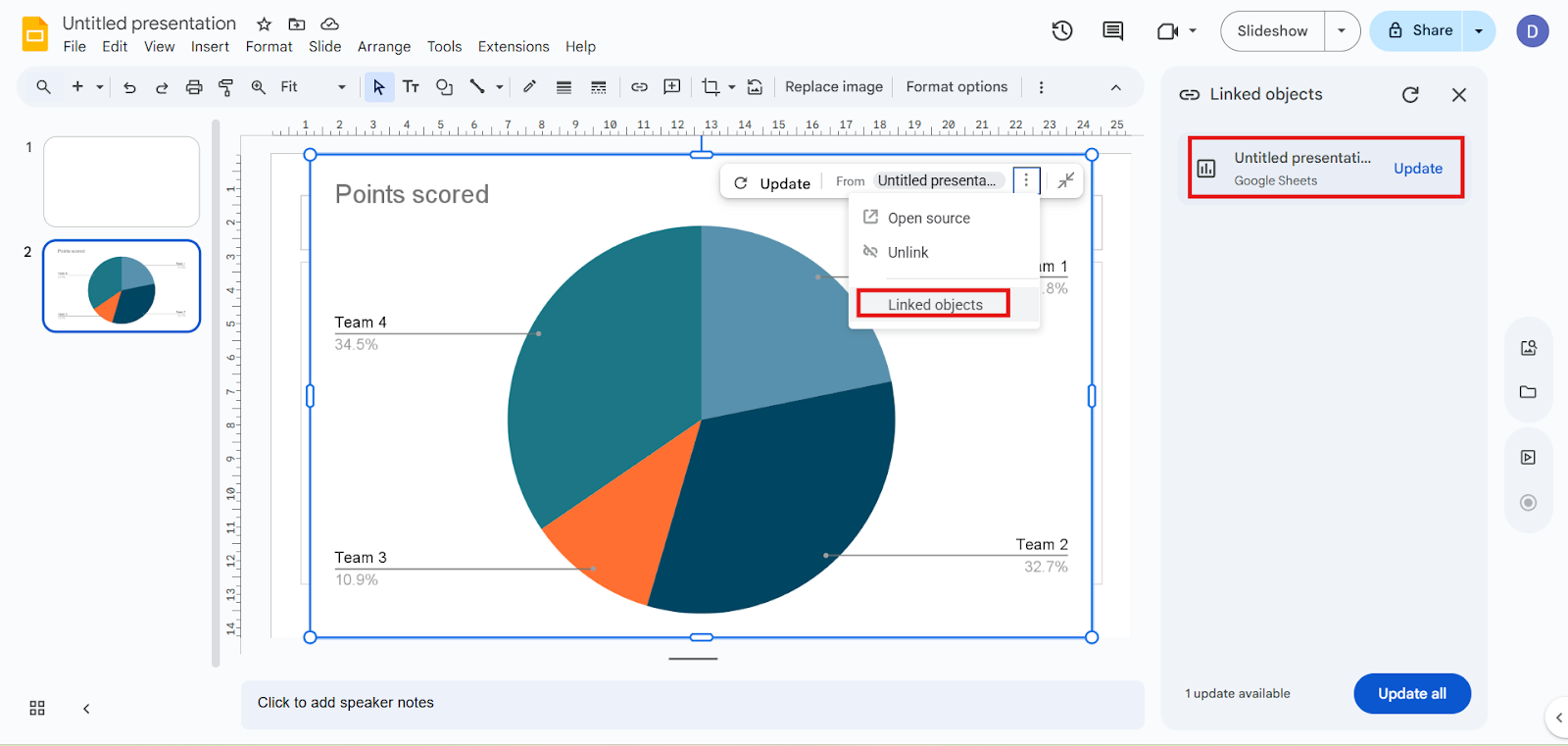
Step 6: Link the Objects:
Click the three dots at the top right of the chart and select “Linked Objects,” and update.
Now your pie chart is created with your data set.
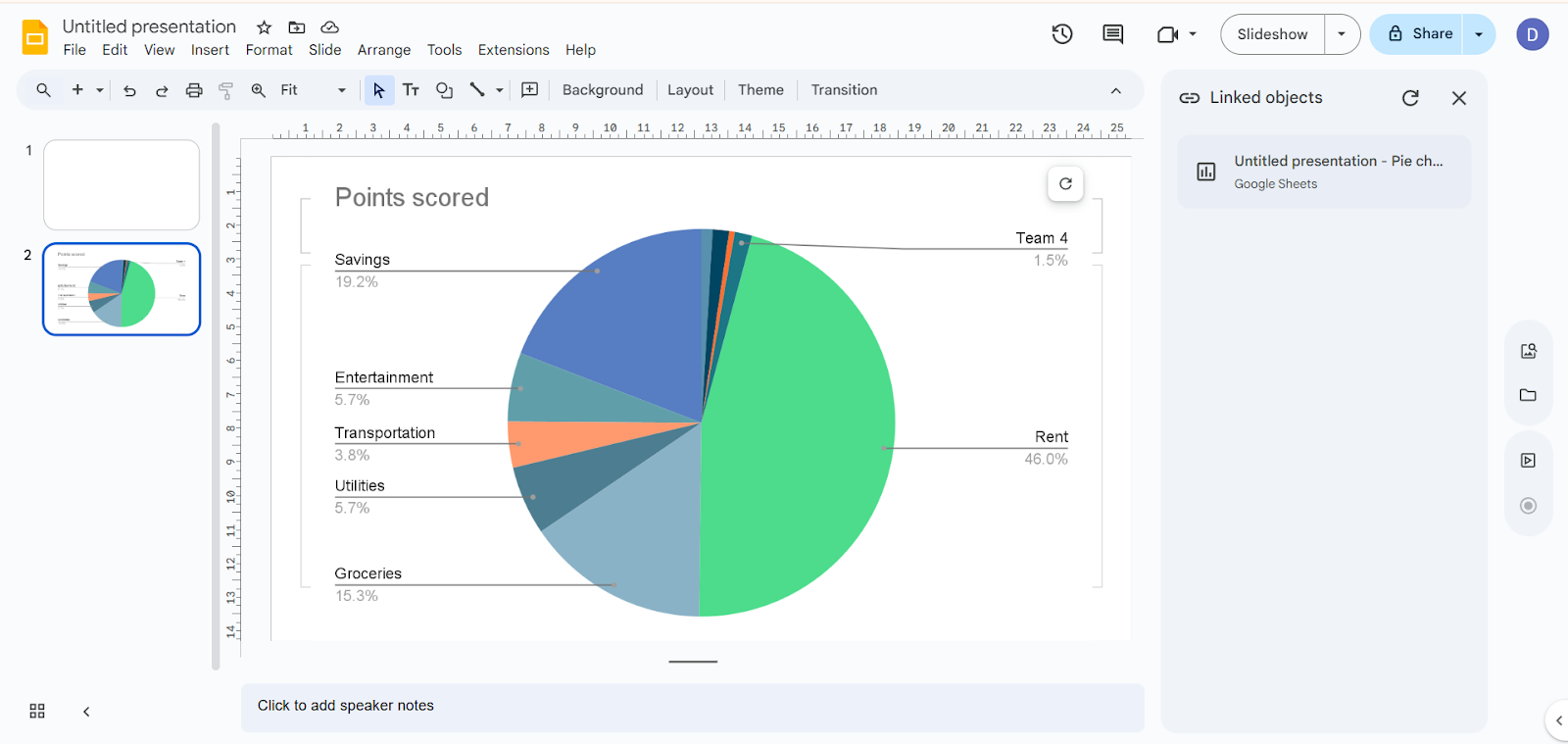
Step 7: Customize Your Chart:
In Slides, you can:
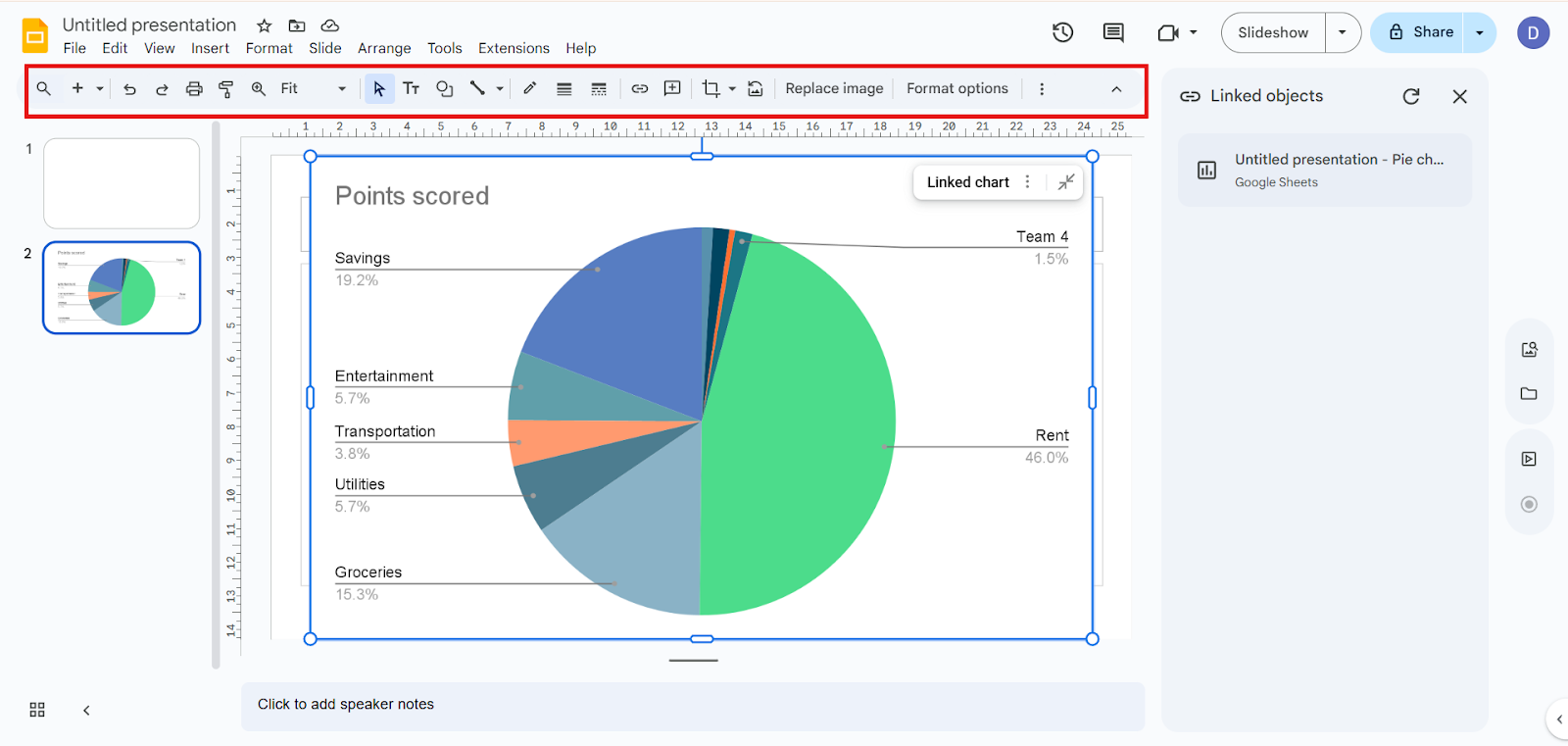
Step 8: Resize and Position:
Drag the chart to where you want it on the slide and resize as needed.
Step 9: Final Review:
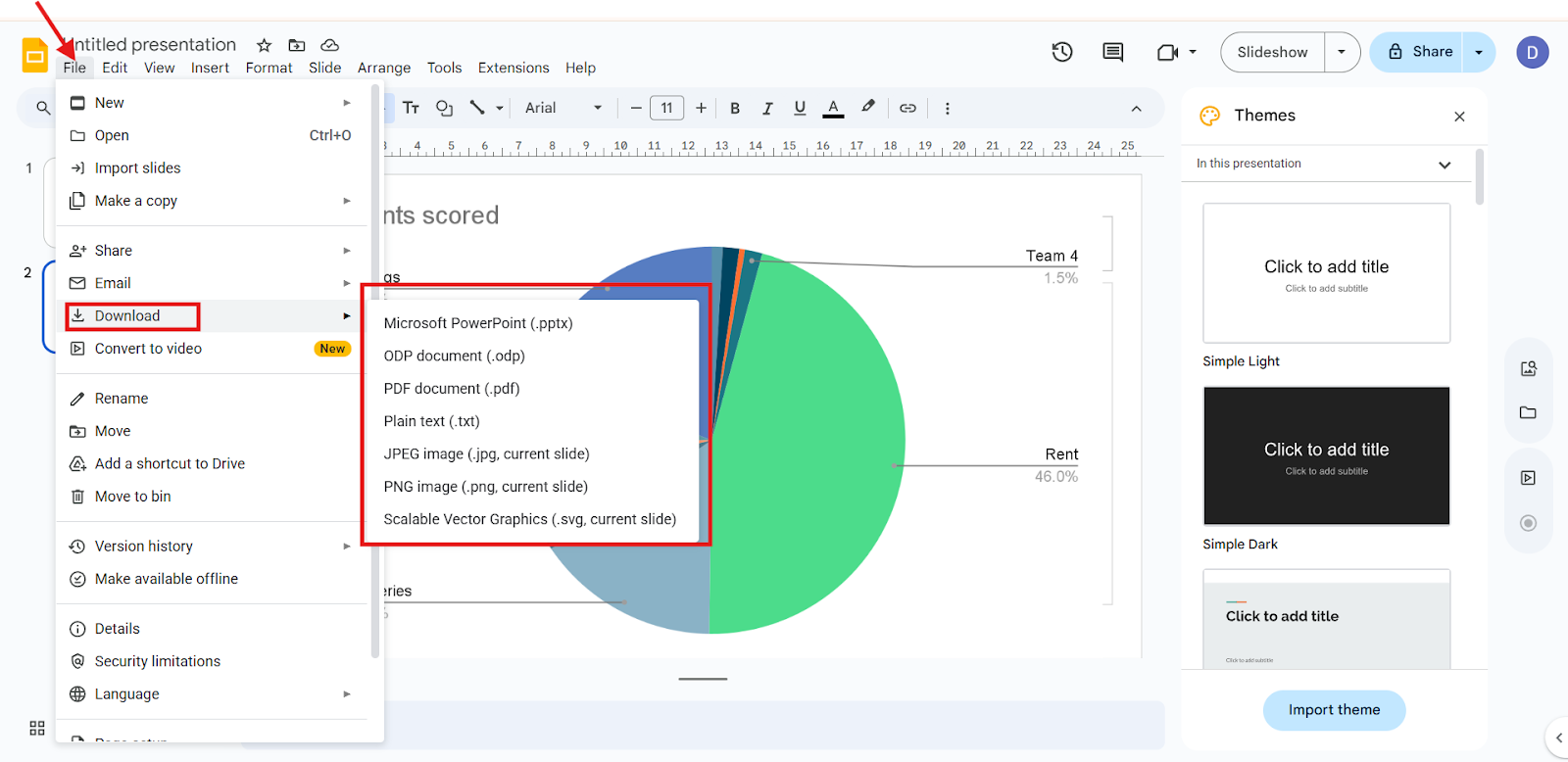
Check that data is accurate, visuals are clear, and your chart completes the slide design. And save your pie chart based on your format needs.
Make Stunning Pie Charts and Creative Slides in Google
Making a pie chart in Google is quick and easy. Just enter your data, and watch it come to life in colorful slices. But did you know you can also add drawings in Google Slides to make your charts even more exciting? It’s a great way to grab attention and explain ideas clearly. Follow along, and learn how to insert a drawing in Google Slides. Learn both the tricks and make your slides look smart, creative, and totally eye-catching.
Method 2: How to Make a Pie Chart Using Google Sheets
If you prefer building the chart in Sheets first, here’s how you can do it:
Step 1: Open Google Sheets:
Go to Google Sheets and create a new spreadsheet.
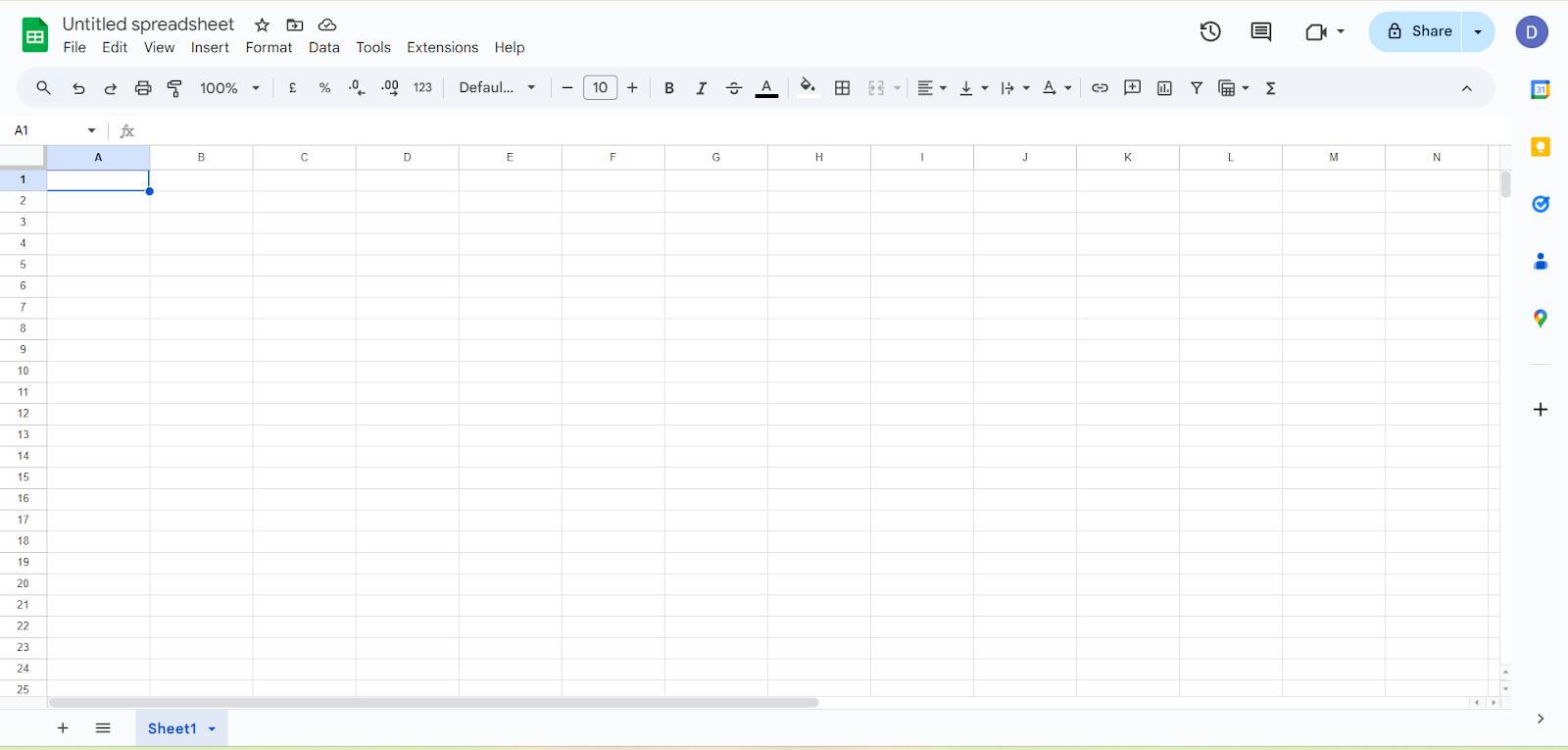
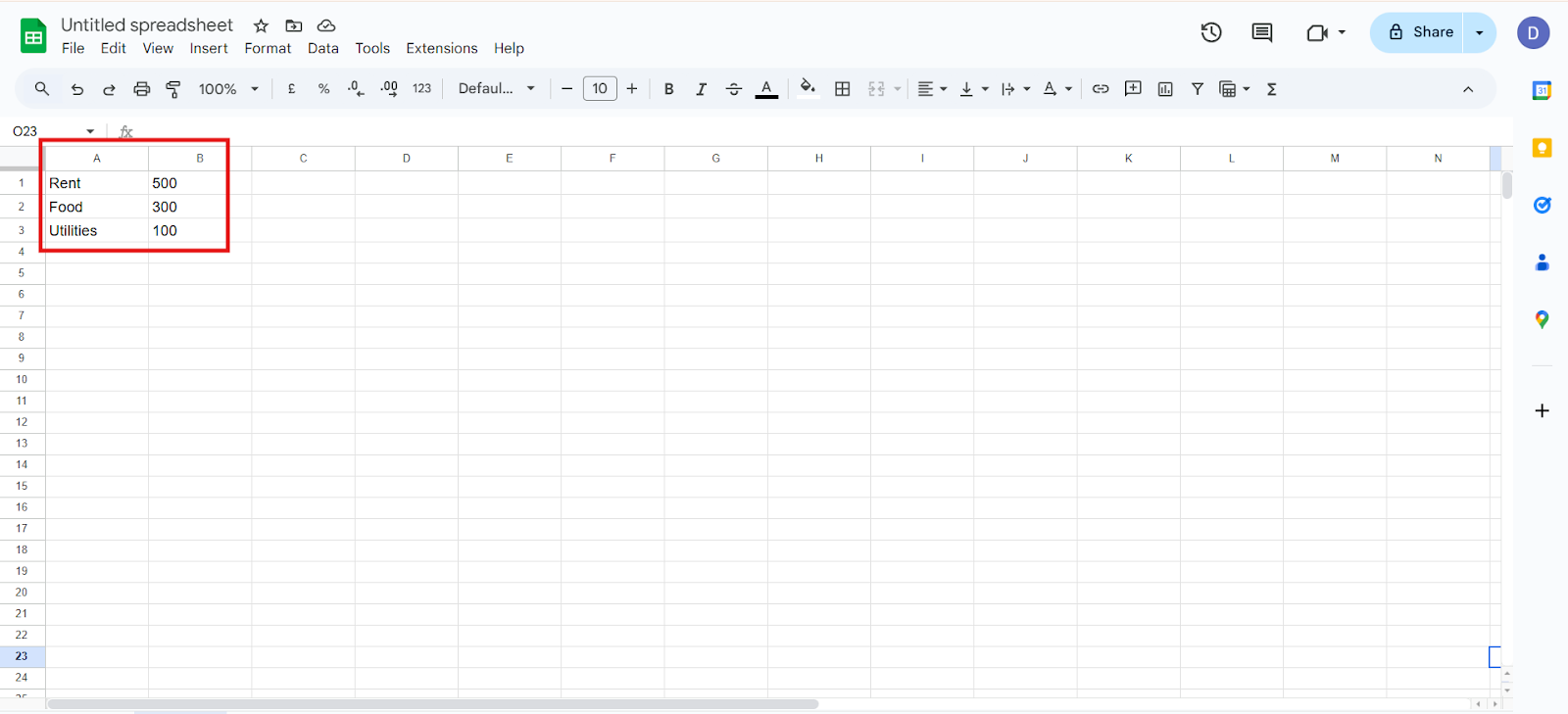
Step 2: Enter Your Data:
List your categories data in one column and their values in another column. It should be next to each other.
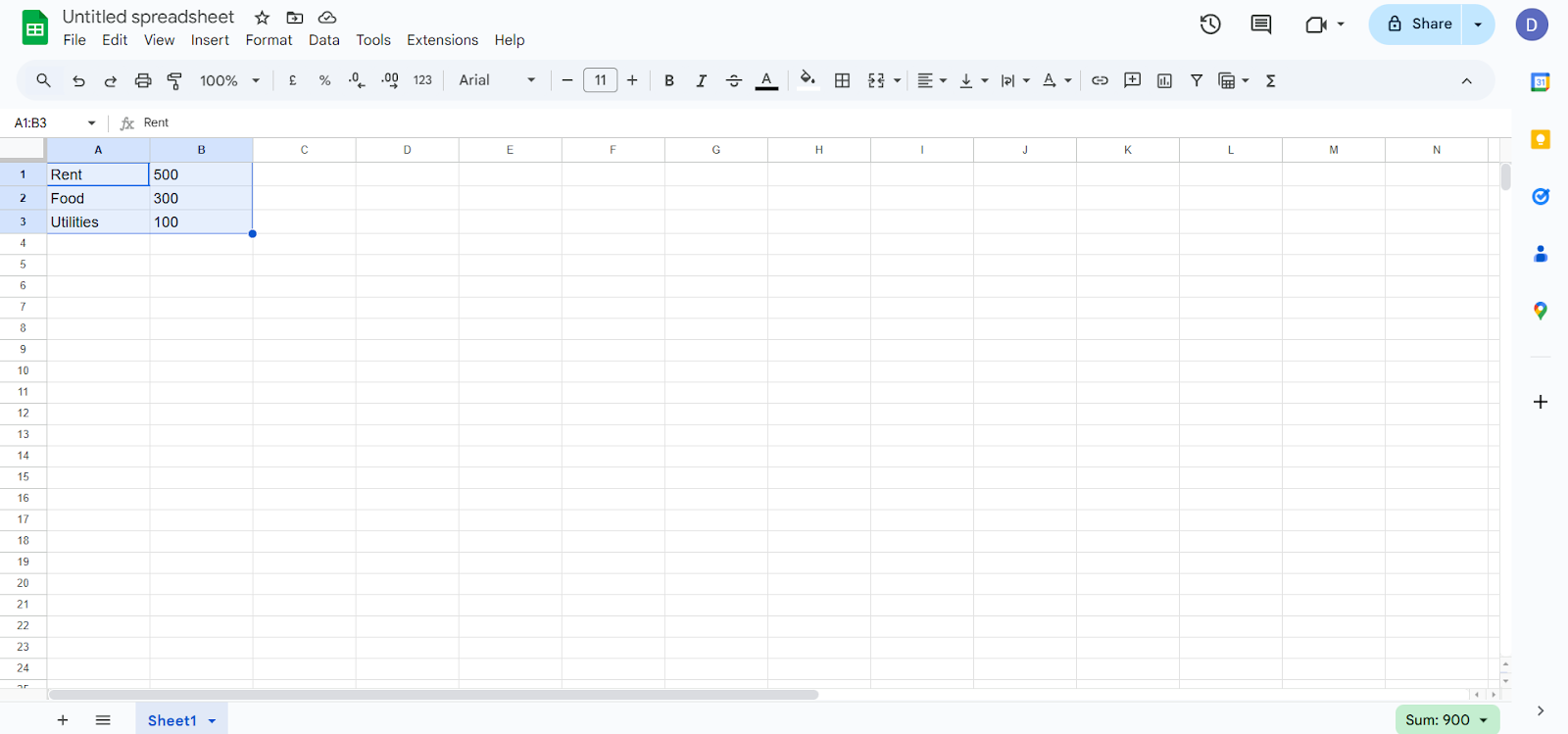
Step 3: Highlight the Data:
Select both the category and value columns.
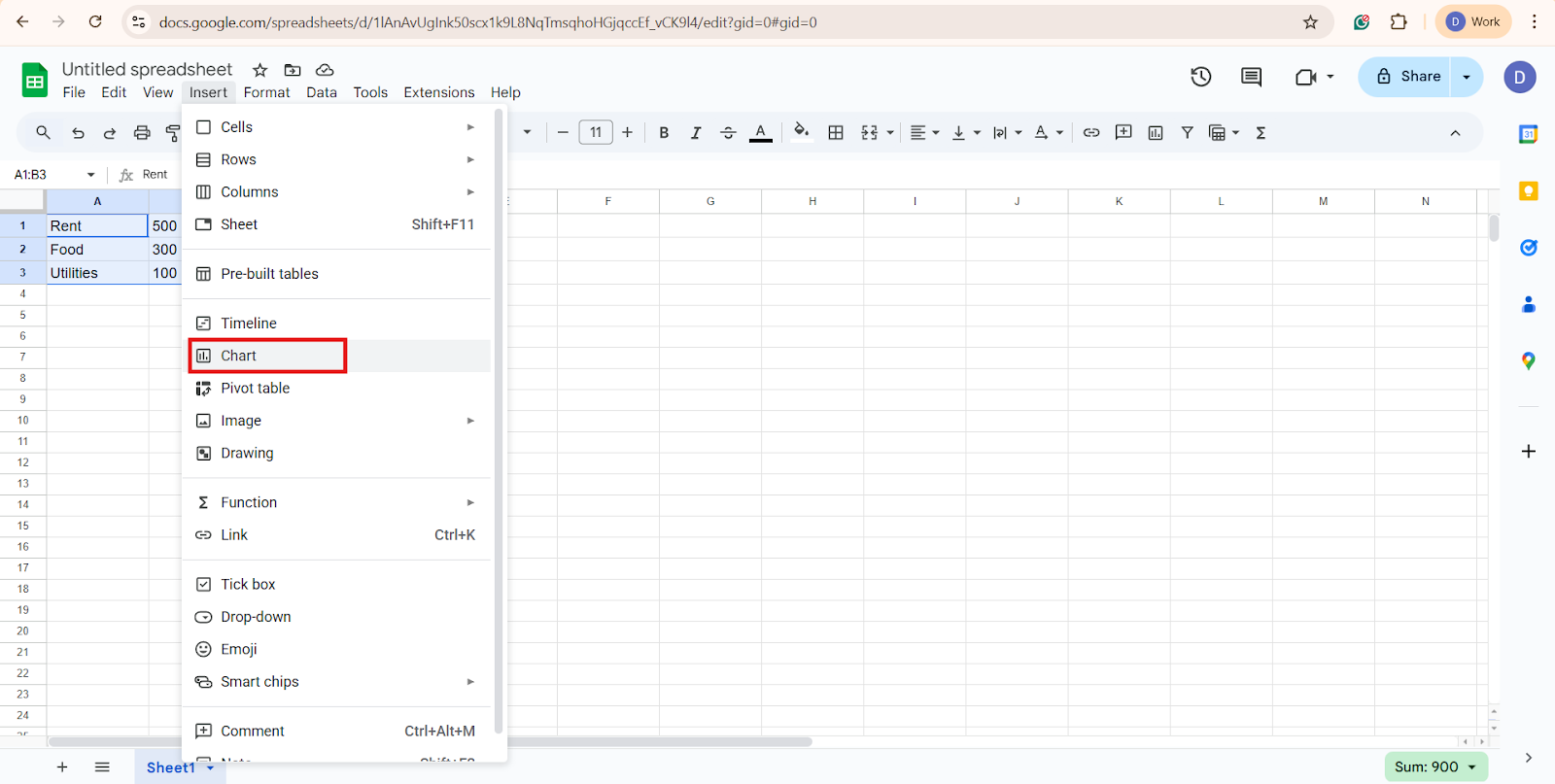
Step 4: Insert Chart:
Click Insert and choose Chart.
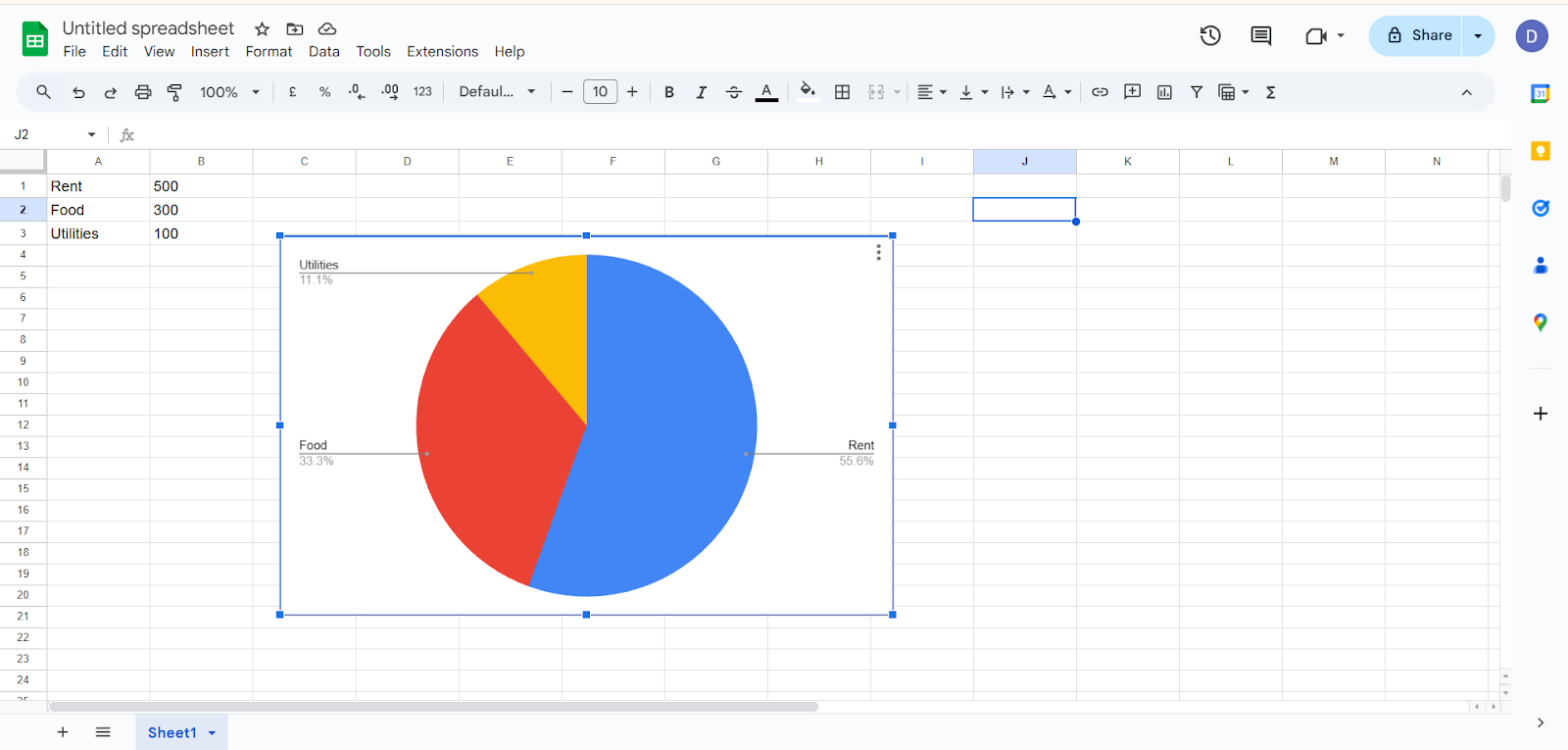
And your chart is created.
Step 5: Customize Chart:
Use the Chart Editor to:
Step 6: Export or Link to Slides:
Click on the three dots, “copy” the pie chart.
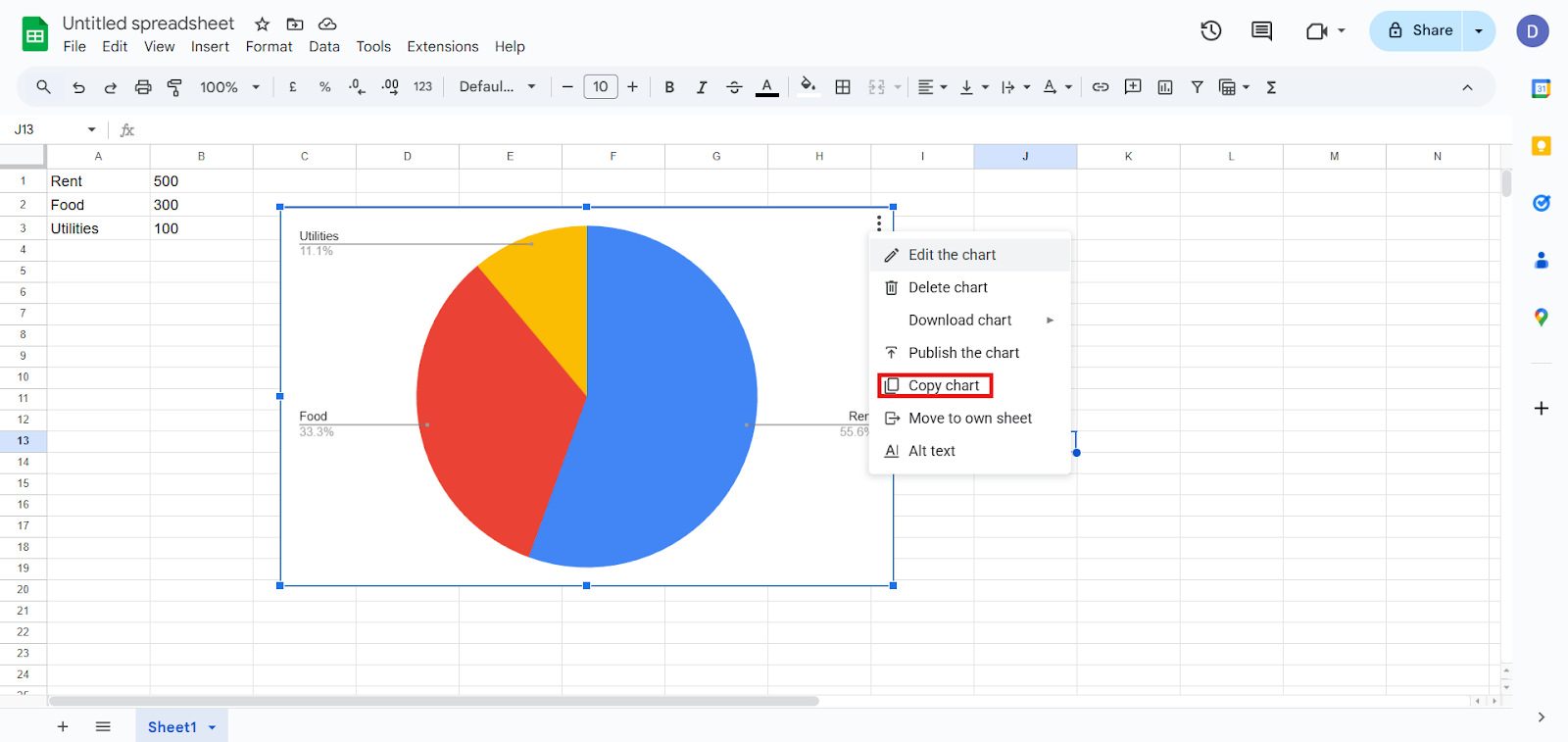
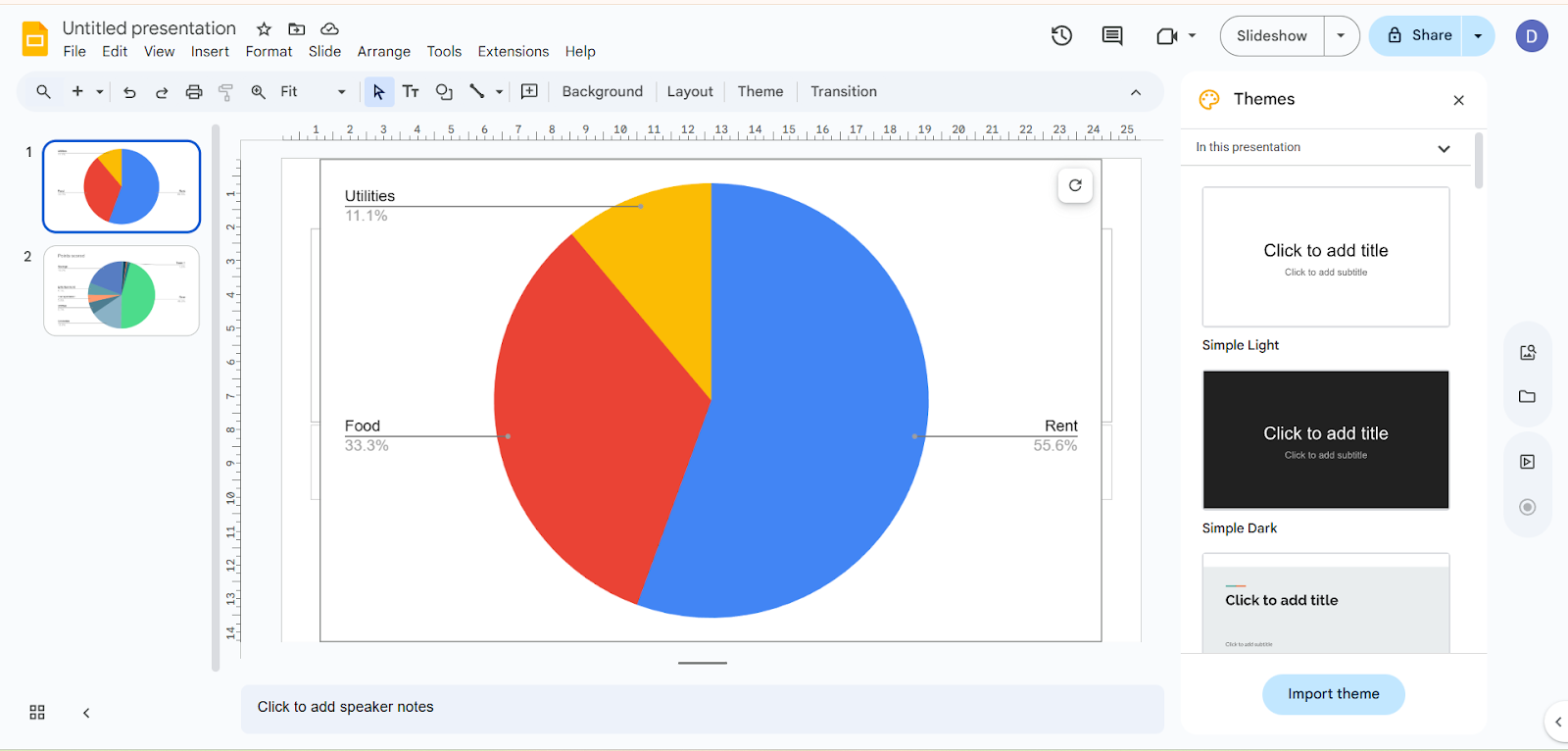
Paste it into the Google Slides.
Common Mistakes to Avoid While Creating Pie Charts:
To ensure your pie chart is effective:
Clear labeling and contrast help audiences read your chart in seconds.
Transform Simple Charts into Professional Presentations with AI.
How to Make It Into a Presentation?
Once your pie chart is created, turn it into a presentation within minutes.
One major time-saving tool for this is MagicSlides, an AI Powered Presentation maker, which can transform text, URL, link, document, image, and video into slides quickly. Add your pie chart image to a MagicSlides image to a slide generator, and it will create a complete deck including layouts, visuals, and content structure in seconds.

Whether you are preparing for a meeting, pitch, or report, MagicSlides helps you move from data to presentation faster, while keeping your slides professional, engaging, and ready to present.
Final Thoughts:
Pie charts are a powerful tool for turning complex data into a simple, visual story. By showing the relative proportions of different categories in a circular format, they make it easy for your audience to quickly grasp key insights without getting lost in numbers. Whether you choose to create your pie chart directly in Google Slides or prepare your data in Google Sheets first, the process is straightforward, especially when your data is well-labeled and thoughtfully organized.
To make your charts even more effective, consider combining them with a MagicSlides presentation. This approach gives you strong visuals, clean layouts, and a professional look that helps your insights stand out.
Also Read: How to Bring Image Forward in Google Slides-Complete Guide.
Quick FAQ’s:
Q 1: Can I edit a pie chart after inserting it?
Yes, click the chart and update data or design anytime.
Q 2: How many categories should a pie chart have?
Keep it under six for readability.
Q 3: Can I change pie chart colors?
Absolutely, select the chart and change colors in Slides or Sheets.
Q 4: Is it better to make charts in sheets first?
For complex data, yes, sheets give more flexibility.
Q 5: Can I copy a pie chart from Sheets directly to Slides?
Yes, copy from Sheets and paste into Slides; it remains linked for updates.
Q 6: Can I make my pie chart 3D in Google Slides?
No, Slides supports only 2D pie charts via the linked Sheets.
Q 7: Can I resize a pie chart without distorting it?
Yes, drag a corner handle while holding Shift to keep proportions.
Q 8: Can I animate my pie chart in Slides?
Yes, use Insert and select Animation to add entrance or emphasis effects.
Q 9: Can I export my pie chart as an image?
Yes, right-click the chart and select Save as image or Download as PNG or SVG.
Q 10: Can I highlight a single slice of the pie chart?
Yes, click the slice in Sheets and pull it out slightly to emphasize it.