Google Sheets is a powerful tool for data organization and analysis, widely used in various industries for its versatility and integration capabilities. Creating tables in Google Sheets can help streamline your data visualization and management efforts.
In this blog post, we’ll explore a step-by-step guide on how to create a table in Google Sheets and briefly mention how tools like SheetAI.app can enhance your spreadsheet tasks.
What Are Tables in Google Sheets?
Before diving into the creation process, it's important to understand what a table in Google Sheets entails. A table in Google Sheets is not just a set of rows and columns filled with data, but a structured range that makes data management easier.
This includes functionalities such as sorting, filtering, and applying formulas efficiently across a set range.
Step-by-Step Guide to Creating a Table
Step 1: Open Your Google Sheets Document
To begin, open Google Sheets in your web browser. You can either create a new document or open an existing one where you wish to add a table.

Step 2: Input Your Data
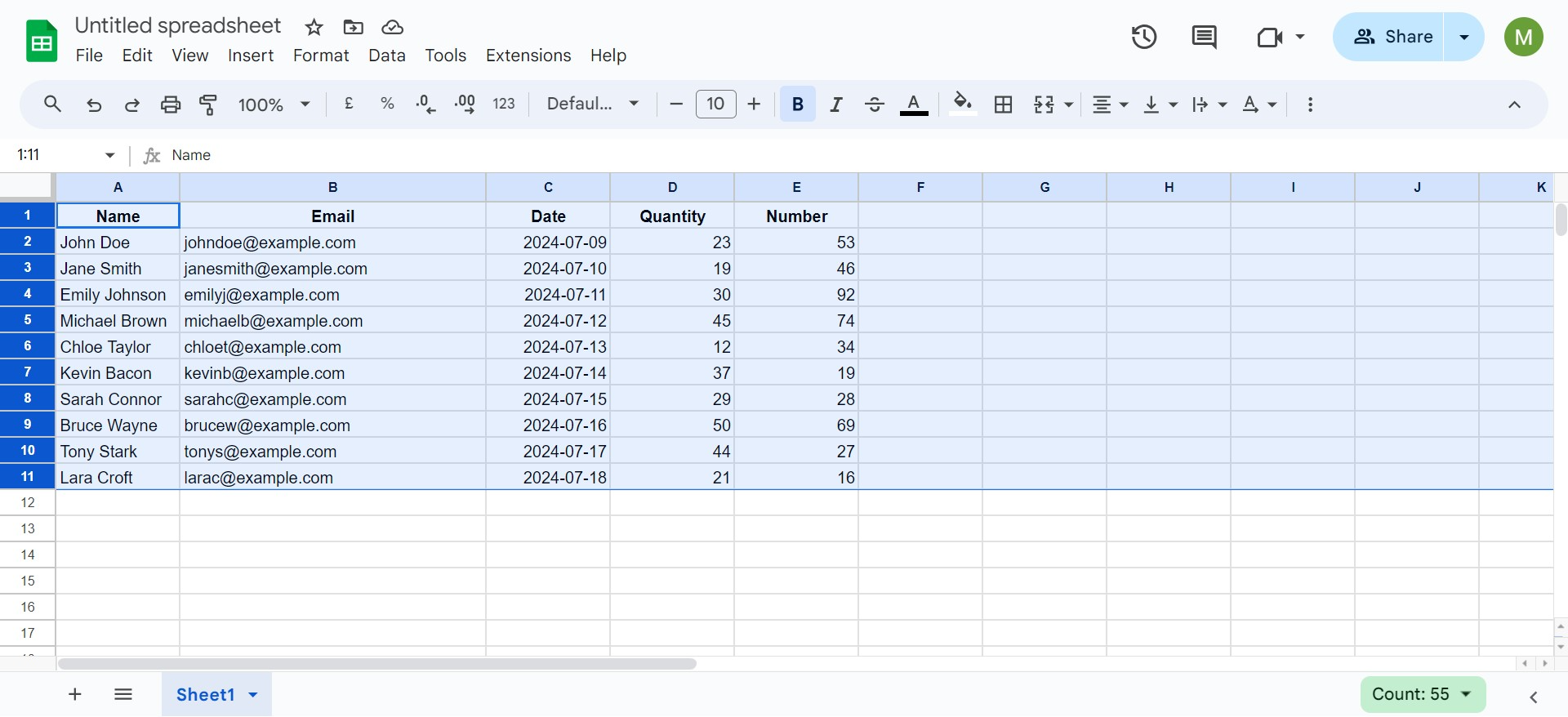
Click on a cell where you want to start your table and begin entering your data. You can type directly into the cells, or copy and paste data from another source.
Step 3: Format as a Table
Although Google Sheets does not have a specific 'Format as Table' feature like Microsoft Excel, you can use formatting options to make your data range look like a table:


Step 4: Apply Conditional Formatting (Optional)
To enhance your table, use conditional formatting:
Step 5: Utilize Table Named Ranges
For easier management, define a named range for your table:
Simplifying Table Creation with SheetAI.app
After installing SheetAI.app, you can utilize the =SHEETAI_TABLE formula to automatically organize your data into a structured table. This feature simplifies the process of setting up and managing tables by automatically analyzing and formatting your data into a well-organized layout. Here’s how you can use it:
Advantages of Using SheetAI.app
Essential Tips for Effective Table Management
By following these steps, you can efficiently create and manage tables in Google Sheets, making your data analysis tasks easier and more productive. With the addition of SheetAI.app, the process becomes even more streamlined, offering you a powerful toolset to enhance your data handling capabilities in Google Sheets.