
Why a Sheet Makes a Better Bulk AI Image Generator
If you need images for 40 products, 30 blog posts or a month of ad variations, typing prompts into an image tool one at a time gets old quickly. You paste a prompt, wait, download the file, rename it, and then try to remember which image belonged to which product. By the tenth one the prompts have drifted and the set no longer looks like a set.
A spreadsheet fixes the bookkeeping. The product name, the prompt, the image link and the picture itself sit on the same row. You can change one wording in one cell and regenerate, filter the rows you are unhappy with, and hand the sheet to a teammate without a folder of files named final-v3. That is the idea behind a bulk AI image generator built in Google Sheets: a column of prompts goes in, a column of images comes out.
This guide is for people who already keep a product list, a content calendar or an ad plan in a sheet and want one generated image per row. I will cover the setup, the exact formulas, a few variations, how to keep the style consistent, and the limits you should know about before you fill a long column.
What You Need
You need three things.
- SheetAI installed. It is a Google Sheets add-on from the Google Workspace Marketplace. Install it from the Marketplace listing, then open a sheet and go to
Extensions,SheetAI App,Launchto open the sidebar. SheetAI does not run inside Microsoft Excel. - An image key or a hosted plan. SheetAI is free to use with your own API key, and you pay the provider directly. For the image function
=SHEETAI_IMAGEyou paste an OpenAI key into the sidebar settings. If you would rather pick the image model yourself, paste a Replicate key and use=SHEETAI_Replicateinstead. Hosted plans that need no key start at $12/month, see pricing. - A list of things to illustrate. Product names, article titles, scene ideas, anything that fits in one cell.
The image function is documented on the SHEETAI_IMAGE docs page. If you have never used the add-on, the getting started guide covers the sidebar and keys in a few minutes.
Step 1: Put the Inputs in Column A
Start with one input per row. I will use a small product catalogue for a home goods shop, with a header in row 1 and the products from row 2:
| A | B | C | D |
|---|---|---|---|
| Product | Prompt | Image link | Preview |
| Ceramic pour-over coffee set | |||
| Linen throw blanket | |||
| Soy wax candle | |||
| Stainless steel water bottle | |||
| Oak serving board |
Keep column A to plain names. The more words you put in the input, the harder it is to keep the set consistent later.
Step 2: Build the Prompt in Column B with a Normal Formula
Do not generate anything yet. First turn each product name into a full prompt using an ordinary formula, no AI involved. In B2:
="Studio photo of "&A2&", plain white background, soft light"
Drag it down. Every row now has a prompt with identical lighting and background wording, and only the product changes. This is the single most useful habit for a batch: the fixed part of the prompt lives in the formula, so it cannot drift from row to row.
Step 3: Generate the Image Link in Column C
In C2:
=SHEETAI_IMAGE(B2, "1024x1024")
The function sends the prompt to the image model and returns an image URL in the cell. It does not draw a picture by itself, it returns the link. Start with one row, check that the link works, and only then drag the formula down a few rows at a time.
Step 4: Show the Picture in Column D
In D2:
=IMAGE(C2)
IMAGE is a built-in Google Sheets function, so it shows the picture in the cell. Make the rows taller and column D wider so the image is readable. Now the whole row reads left to right: product, prompt, link, picture.
| A | B | C | |
|---|---|---|---|
| 1 | Product | Prompt | Image |
| 2 | Ceramic pour-over coffee set | Studio photo of Ceramic pour-over coffee set, plain white background, soft light | 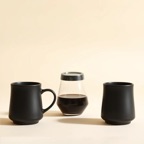 |
| 3 | Linen throw blanket | Studio photo of Linen throw blanket, plain white background, soft light | 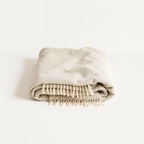 |
| 4 | Soy wax candle | Studio photo of Soy wax candle, plain white background, soft light | 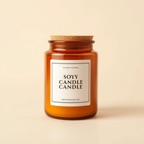 |
| 5 | Stainless steel water bottle | Studio photo of Stainless steel water bottle, plain white background, soft light | 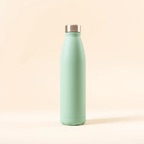 |
| 6 | Oak serving board | Studio photo of Oak serving board, plain white background, soft light |  |
Using Replicate Instead of the Default Image Function
=SHEETAI_IMAGE is the quick route. If you want to choose the model, for example because you prefer a certain look, use the Replicate function with your own Replicate key:
=SHEETAI_Replicate("owner/model:version", B2)
Replace owner/model:version with the identifier shown on the model page at replicate.com. The prompt goes in as the model input and the output file link comes back in the cell. Different models accept different settings, so read the model page before you rely on it. I am deliberately not naming a model here, because the good ones change often and the model page is the place to check what is current.
Wrap the result in =IMAGE(C2) the same way if the output is an image file link.
Variation 1: Ad Creative Backgrounds
For ads you often do not need the product itself, you need a clean background to place a product shot or text on. Keep the scene list in column A and the fixed style in one cell, which I will call B1 on a settings row or a separate tab:
=SHEETAI_IMAGE("Empty background for a product ad, "&A2&", soft light, no people, no text, lots of empty space on the left", "1024x1024")
Scenes such as "kitchen counter in morning light", "wooden desk with a plant" or "pastel studio sweep" work well. Because the formula tells the model to leave empty space, you can add the product and headline later in your design tool. Generate three or four scenes per product and pick the best, rather than expecting the first one to be final.
Variation 2: Blog Thumbnails
Put post titles in column A. A prompt that works for a consistent thumbnail set:
="Simple flat illustration for a blog post titled "&A2&", one clear object, muted colours, no text"
Notice the "no text" instruction. Models are poor at spelling words inside images (more on that below), so I add the title as a text layer later in Canva or Slides, not inside the generated image.
| A | B | C | |
|---|---|---|---|
| 1 | Product | Prompt | Image |
| 2 | Style line | plain white background, soft light, centred, no text | |
| 3 | Linen throw blanket | Studio photo of Linen throw blanket, plain white background, soft light, centred, no text | |
| 4 | Soy wax candle | Studio photo of Soy wax candle, plain white background, soft light, centred, no text | |
| 5 | Oak serving board | Studio photo of Oak serving board, plain white background, soft light, centred, no text | |
| 6 | Stainless steel water bottle | Studio photo of Stainless steel water bottle, plain white background, soft light, centred, no text | |
Variation 3: Let SheetAI Write the Image Prompts First
If your inputs are rough notes rather than good prompts, add a text step before the image step. Put the idea in A and let a text model write the prompt in B:
=SHEETAI("Write one image prompt, under 40 words, for a product photo of: "&A2&". Describe the object, the surface, the light and the camera angle. Do not mention text or logos.", 120, 0.4)
Then feed B2 to =SHEETAI_IMAGE(B2, "1024x1024"). The advantage is that you can read and edit the prompts in column B before spending anything on images. The cost is that the prompts are less uniform than a formula you wrote yourself, so use this when the rows are genuinely different, not for a catalogue of similar products. The workflow is the same one I describe for text in the guide to an AI product description generator in Google Sheets.
| A | B | C | |
|---|---|---|---|
| 1 | Idea | Image prompt | Image |
| 2 | Soy wax candle | A soy wax candle in a glass jar on a pale oak shelf, soft window light from the left, shot from slightly above. | |
| 3 | Linen throw blanket | A folded oat linen throw over the arm of a cream sofa, gentle morning light, shallow depth of field. | |
| 4 | Oak serving board | An oak serving board with bread and olives on a stone counter, warm side light, shot at a low angle. | |
| 5 | Stainless steel water bottle | A brushed steel water bottle on a trail rock, cool daylight, plain blurred hills behind. | |
| 6 | Ceramic pour-over coffee set | A ceramic pour-over set on a wooden tray, steam rising, soft grey background, light from the right. | |
Prompt Tips for a Consistent Set
A set of images looks like a set when the unchanging words are identical in every row. A few habits that help:
-
Put the fixed style in one cell. Type your style line in B1, for example
plain white background, soft light, centred, no text, and reference it with an absolute reference:="Studio photo of "&A2&", "&$B$1Change B1 once and every row follows. The dollar signs stop the reference from moving when you drag the formula down.
-
Describe, do not hint. "Soft light from the left, shot from slightly above" gives the model something to follow. "Beautiful and premium" gives it nothing.
-
One subject per prompt. Two products in one prompt often merge into one odd object.
-
Say what to leave out. "No people, no text, no logos" in the fixed part saves many reruns.
-
Change one thing at a time. If you edit the product and the style together, you cannot tell which change caused the difference.
-
Test the style on one row first. Fix the wording on a single product, then drag the formula down.
Keep What You Want: Freeze and Download
Formulas recalculate, and links returned by image services are not guaranteed to last forever. Once a row looks right, do two things. First, copy the column and use Paste special, Values only so the link stops being a live formula (the freezing guide explains why this matters). Second, download or copy the image files you plan to keep, since the link may stop working later. Results are cached, so the same prompt does not get billed twice, but a changed prompt is a new request.
Limits and When Another Tool Is Better
This works well for a few dozen rows. It is not the right tool for everything.
- Image generation is slow. Google Sheets custom functions time out after about 30 seconds per cell, and images can take a while. Fill a few rows at a time, not the whole column, and re-run any cell that shows an error.
- Text inside images is unreliable. Expect misspelt or garbled words. Generate the image without text and add the words in a design tool.
- Consistency is approximate. The same wording gives similar, not identical, results. If you need the exact same product shown from different angles, a generator driven by a text prompt is the wrong tool. Use real photography or a tool built for product shots from your own pictures.
- Output needs a human look. Check hands, labels, proportions and anything that should look like your real product. A generated candle is not your candle.
- Check the rights before using images in ads. The terms differ between providers and models, and some platforms ask you to label AI images. Read the terms of the service that made the image before you publish it commercially.
- The AI only sees the cells you reference. If the product has a specific colour, put the colour in the prompt cell.
If you need hundreds of images with strict brand control, a design team or a dedicated product photography workflow will beat a sheet. The sheet is best for drafts, variations and mid-sized catalogues.
Frequently Asked Questions
How do I generate images in Google Sheets?
Install an add-on such as SheetAI, add your OpenAI or Replicate key in the sidebar, and use =SHEETAI_IMAGE(B2, "1024x1024") with a prompt in B2. The cell returns an image URL, and =IMAGE(C2) shows the picture in another cell. Start with one row.
Can I make a bulk image generator for hundreds of rows?
Yes in principle, but in batches. Because each cell can time out after about 30 seconds, fill a handful of rows, check them, then continue. Dragging one formula down 500 rows at once is likely to leave you with errors and wasted requests.
How do I keep every image in the same style?
Keep the style words in one cell, reference them with $B$1 in every prompt, and only vary the subject. Use the same size argument in every row.
Do the image links last forever?
Do not assume so. Download or copy the files you want to keep and store them in Drive or your own storage, then replace the link in the sheet.
Is it free?
SheetAI works free with your own API key, and the provider bills you directly for each image. Hosted plans without a key start at $12/month, see pricing.
Try It on One Row First
Pick five products, write the one prompt formula, and generate a single image before you touch the rest. If the result matches what you had in mind, drag the formula down in small batches. You can install the add-on from the Google Workspace Marketplace, or read the getting started guide first.