
A Guide to Using Nano Banana Pro in PowerPoint & Google Slides
A Complete Guide to Using Nano Banana Pro and Gemini 3 Pro Image in PowerPoint & Google Slides
Nano Banana Pro, also known as Gemini 3 Pro Image, is Google’s newest image-generation model, officially launched on November 20, 2025.
This model represents a significant advancement in AI-driven image creation. For users of Google Slides and PowerPoint, its biggest advantage is the ability to produce highly detailed, professional-quality infographics and diagrams that are ideal for use in presentations.
How to access Nano Banana Pro

The simplest ways to use Nano Banana Pro are by accessing it through the Gemini chatbox interface or by using the NotebookLM application.
In Gemini, select the banana icon to activate Nano Banana. (Note: At times, it can be difficult to know whether you are using Nano Banana Pro or the standard Nano Banana, which is a strong image model but not as advanced as Nana Banana Pro.)
In NotebookLM, you can select “Slide Deck” or “Infographic” to convert your content into a complete slide deck or a single slide (an “infographic”). It may take some time, but the outcome is usually excellent.
How to Use Nano Banana Pro in PowerPoint
The easiest way to use Nano Banana Pro in PowerPoint is either by using a third-party AI tool like MagicSlides Nano Banana AI Pro or simply copying and pasting images from Gemini directly into your presentation.
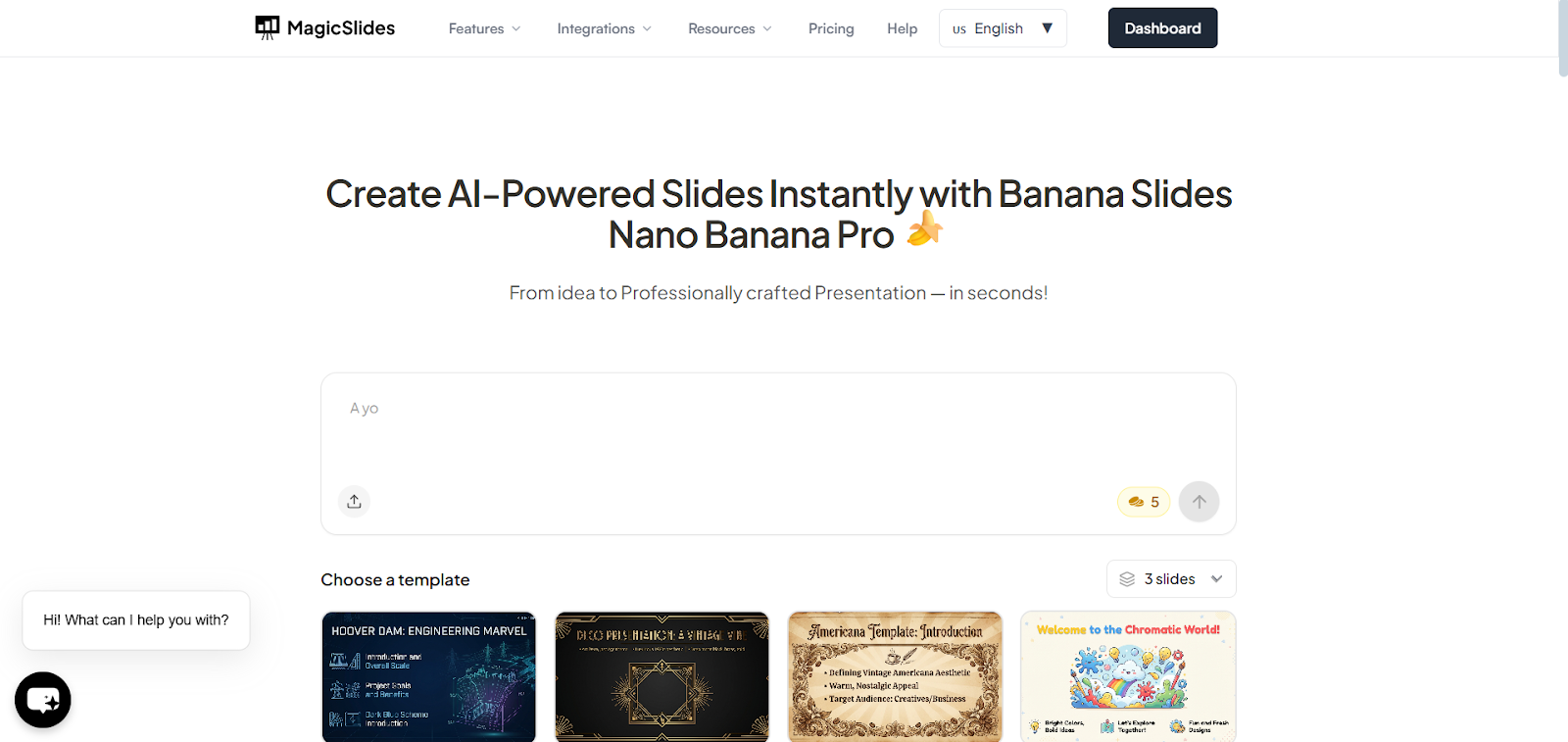
If you want to use Nano Banana Pro, you can install MagicSlides Nano Banana. With this, you don’t need to manually insert images into PowerPoint.
Instead, you simply provide a link, topic, or input, and MagicSlides uses Nano Banana to generate an entire slide deck, including structured content and visuals. Once the slides are created, you can fine-tune and customize them, just like other presentations
Alternatively, if you don’t mind switching between tabs, you can create images with nano Banana Pro in Gemini and then copy and paste them into your PowerPoint slides afterward.
How to Use Nano Banana Pro in Google Slides
Currently, there is no direct integration between Google Slides and Nano Banana Pro, but Google has confirmed it will be available soon.
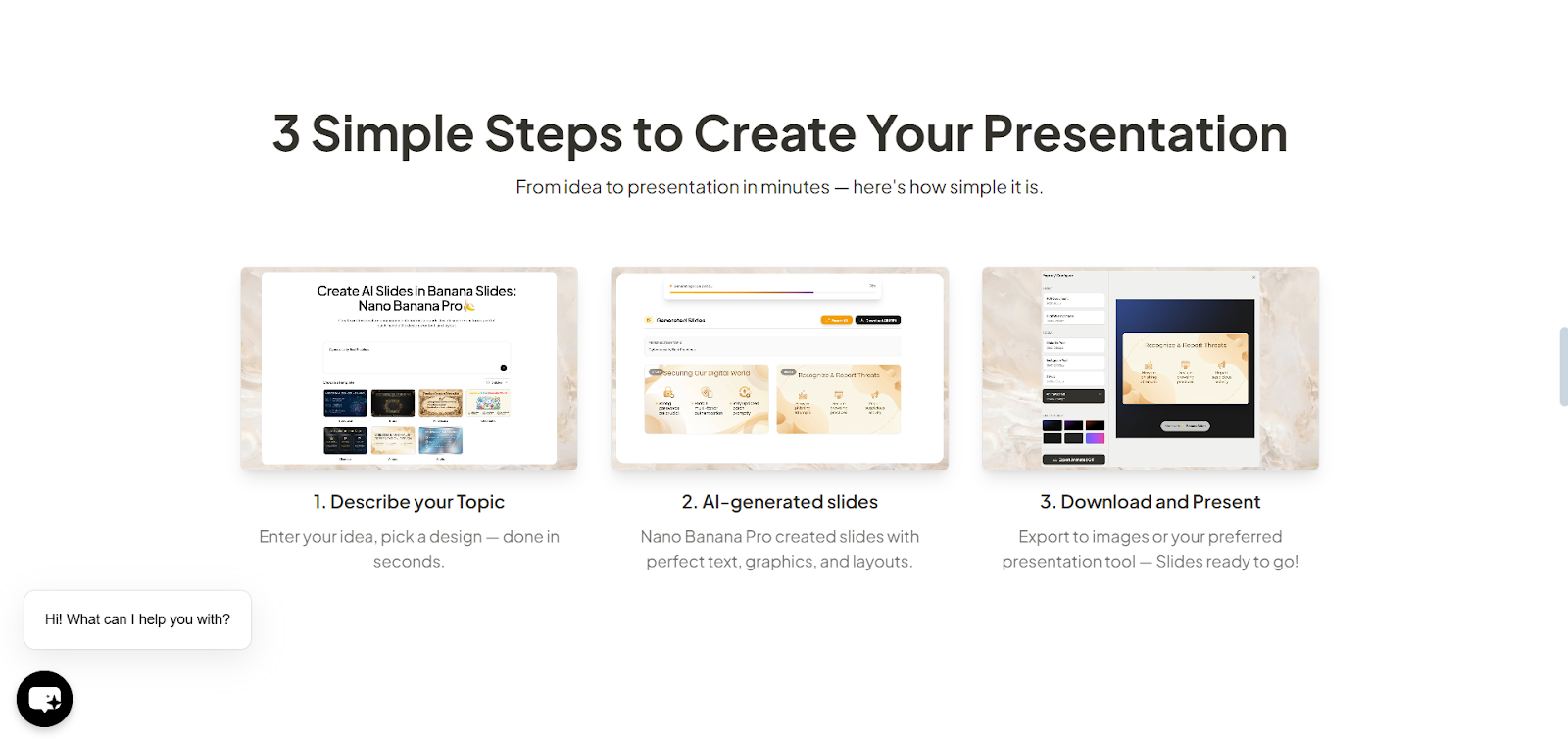
Meanwhile, the best way to use Nano Banana Pro within Google Slides is by using a tool like MagicSlides.app Nano Banana or by copying and pasting images directly into your slides.
With MagicSlides Nano Banana, you simply provide a link, topic, or input, and the tool automatically generates a full slide deck using Nano Banana. The slides are created directly in a structured presentation format, including content and visuals. After the slides are generated, you can customize them, like any standard Google Slides presentation.
Otherwise, the simplest method is to switch between tabs to copy and paste images from Gemini into Google Slides, where they will appear as standard images
Step-by-Step Guide to Using MagicSlides Nano Banana
Create Professional presentations in minutes using MagicSlides Nano Banana.
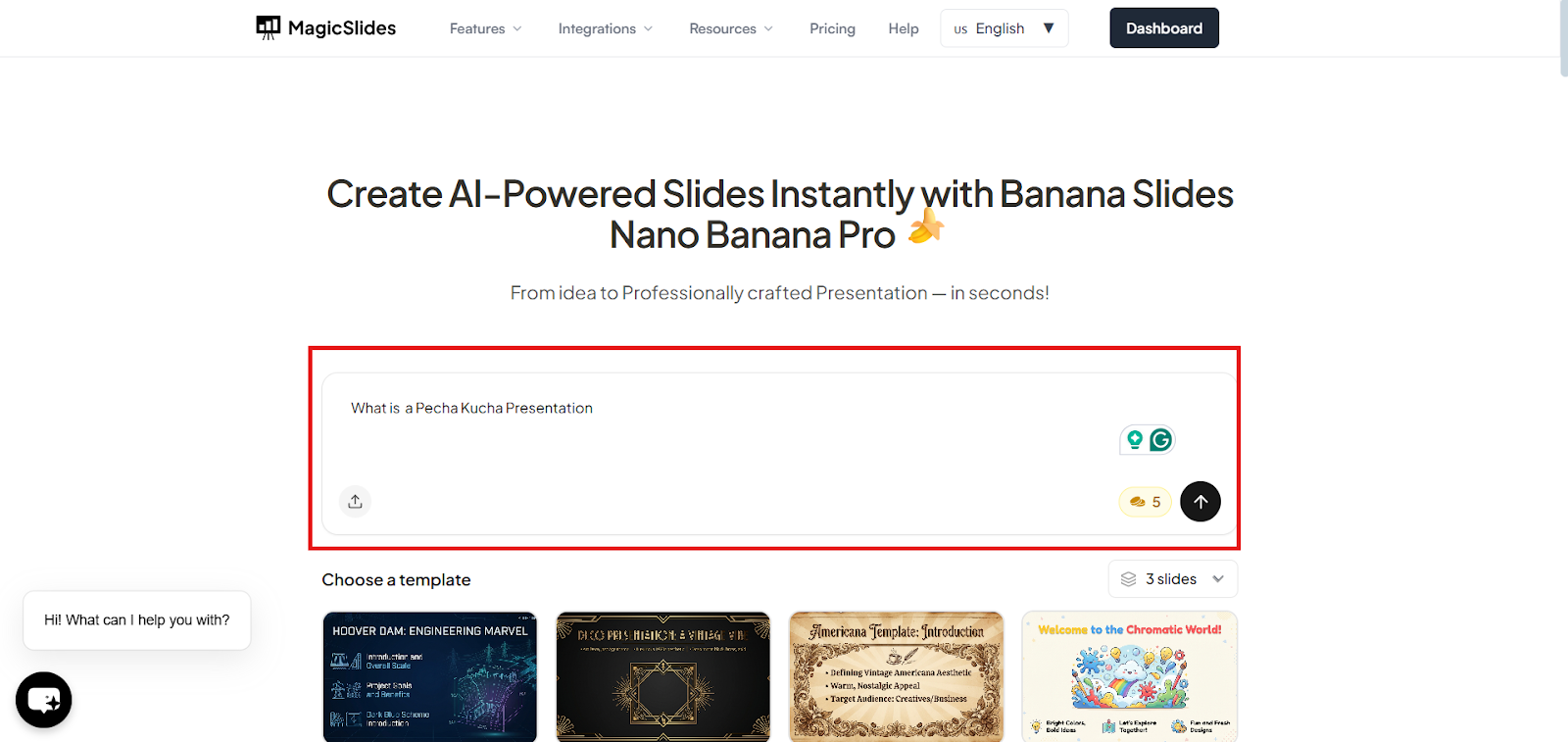
Step 1: Describe Your Topic or Add a Link
Enter your topic, idea, or webpage link into MagicSlides Nano Banana.
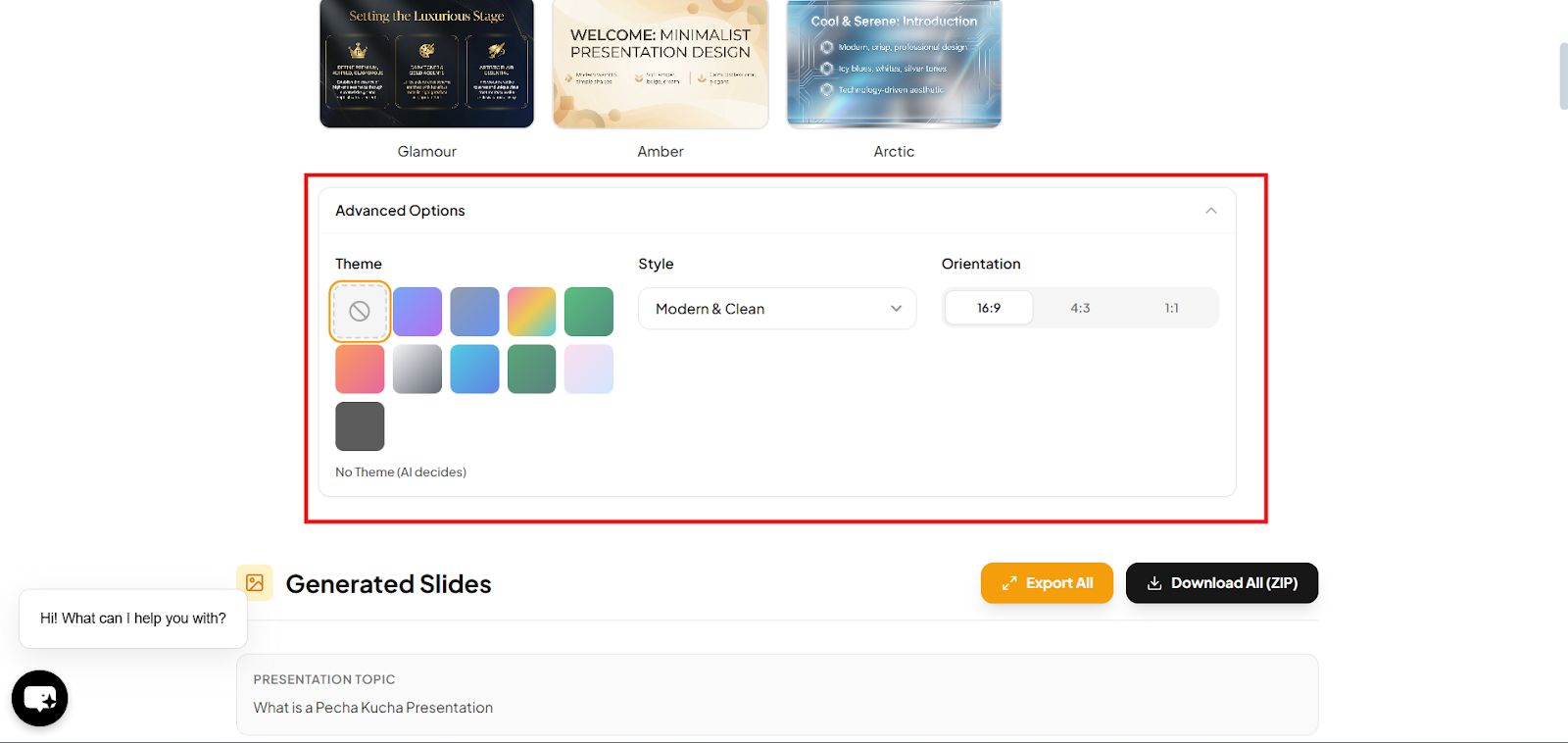
Step 2: Choose the template for your Presentation.
Select a template that suits your topic
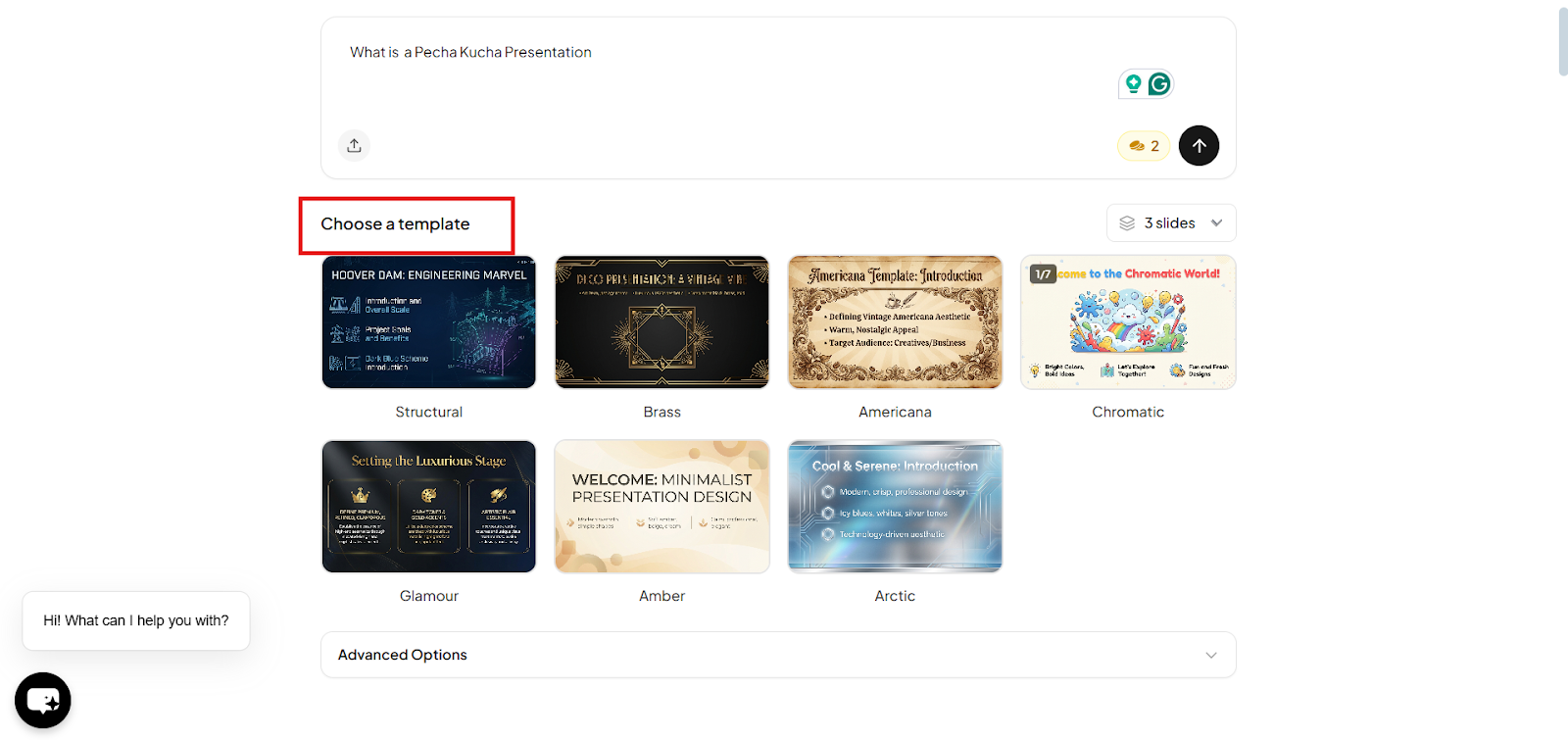
Or you can create your own template
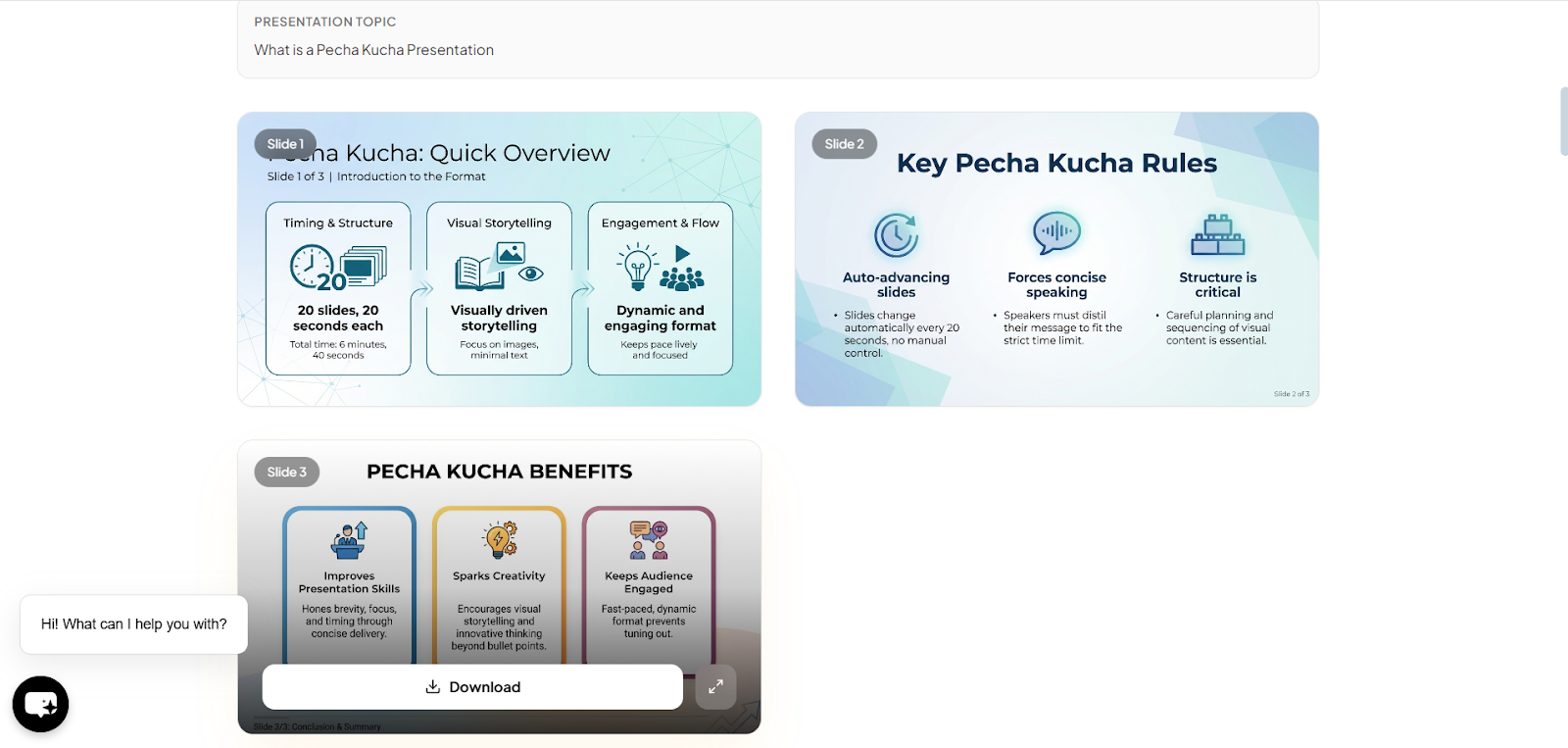
Step 3: AI generates Slides
MagicSlides Nano Banana creates slides with Polished content, Relevant visuals and graphics, professionally designed layout.
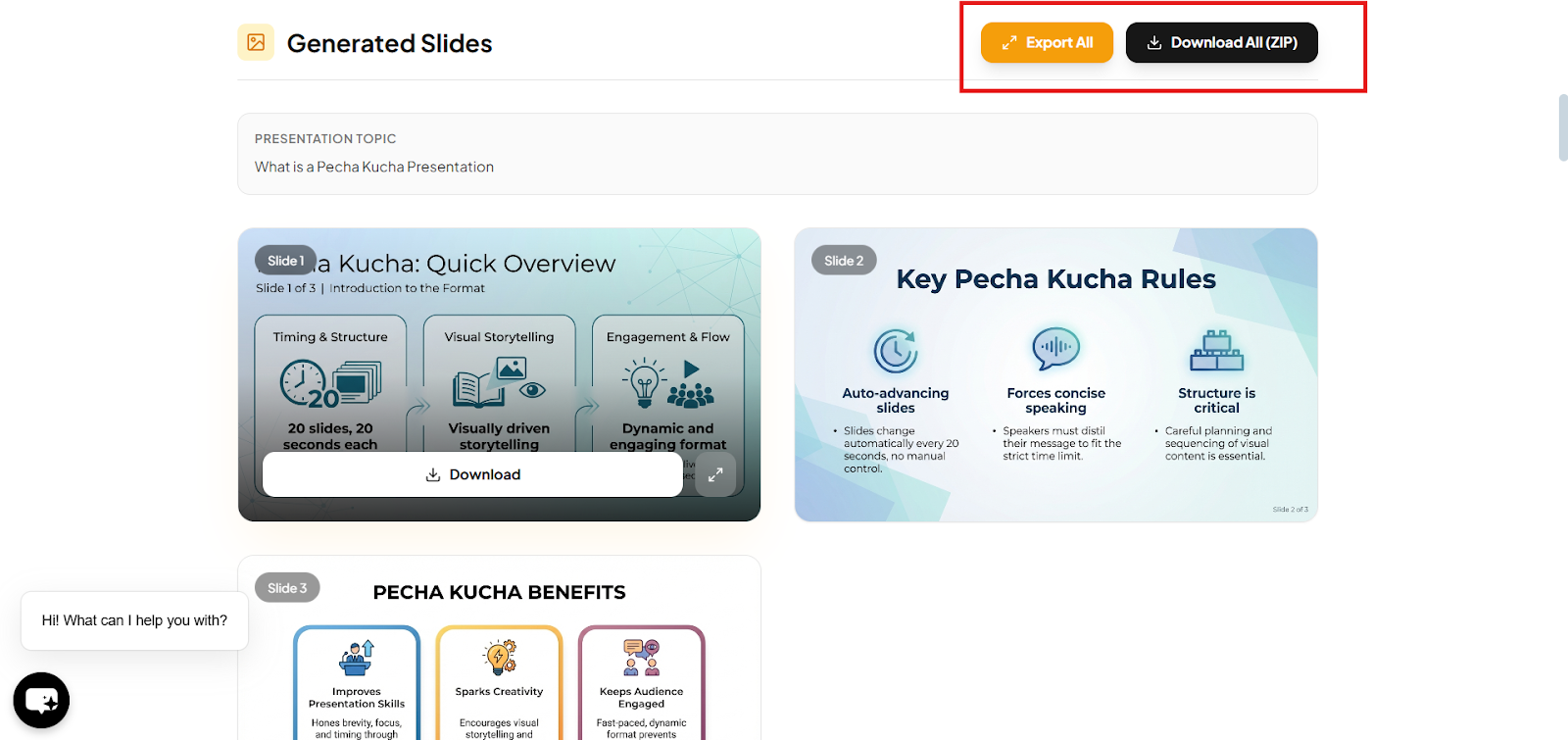
Step 4: Export and Present.
“Export” or “Download” the ready-to-present presentation.
Final Thoughts
Nano Banana Pro is a great tool for making visuals that help tell a story, explain something tricky, or show an important idea.
But like any tool, it can sometimes make mistakes and doesn’t always work the way a person would. For example, it can create beautiful slides, but they can’t be edited, which can be a problem for people using them at work or school.
Since this is still an early version, we are excited to see how MagicSlides Nano Banana and other companies use this technology to make better experiences for people who create slides professionally.
Frequently Asked Questions (FAQ’s)
Q1. What is the simplest way to use Nano Banana Pro?
The easiest way to use Nano Banana Pro, which is also called Gemini 3 Pro Image, is through the Gemini chat app. Just click the banana button that says “Make Image.”
Q2. Is it possible to edit Nano Banana Pro images?
No. Right now, you can’t edit Nano Banana Pro images like a normal slide or design file. You can ask Gemini to adjust the image, but you can’t click on text to change it or move shapes around.
Q3. How do I create slides with Nano Banana Pro?
To create a slide using Nano Banana Pro, ask it to generate an image in a slide format. Usually, if you request a “slide” or “infographic,” it will produce a horizontal image that looks like a slide. If you want your slide to appear directly in PowerPoint or Google Slides, use an app like MagicSlides.app, which integrates directly with presentation tools.