
How to Use AI to Generate Images (A Simple Beginner’s Guide)
Artificial Intelligence (AI) is changing the way we create images. Earlier, you needed design skills or expensive software to make good visuals. Today, AI image generators can create stunning images just by using text instructions.
Whether you are a blogger, marketer, student, designer, or business owner, AI image tools can save time and help you create professional images easily. In this blog, you will learn what AI image generators are, the best tools available, how they work, and how to create images Step-by-Step.

The Best AI Generators:
There are many AI image generators available today. Each tool has its own strengths. Below are some of the best and most popular ones, they are:
MagicSlides:
MagicSlides is an AI-Powered tool that automatically generates images from text, topics, PDFs, Word docs, or YouTube links, turning hours of work into minutes by creating structured and editable designs and content.
Canva (Magic Media):
Canva’s Magic Media is an AI-Powered tool within Canva’s Magic Studio that generates unique images, graphics, and short videos from simple text descriptions.
Nano Banana:
Nano Banana is Google’s advanced AI image generation and editing models within the Gemini family, offering fast, high-quality visuals with features like consistent character generation, text rendering, and integration with real-world info for creating graphics, infographics, and edited images from text prompts.
MidJourney:
Midjourney is a popular generative artificial intelligence program that creates images from natural language descriptions.
Adobe Firefly:
Adobe AI is a generative AI model, integrated into Adobe apps, that turns text prompts into images, video, vector graphics, and text effects, etc. It focuses on enhancing creative workflows and empowering users to generate unique visuals quickly.
Ideogram:
Ideogram AI is a popular, free-to-use AI text-to-image generator known for its ability to create stunning visuals, especially those featuring accurate and stylized text, making it great for logos, posters, and social media graphics.
Leonardo AI:
Leonardo AI is a comprehensive Ai-Powered creative platform for generating and editing visual content like images, art, and videos, offering tools with features like image generation, upscaling, AI canvas, and custom model training for a seamless workflow.
Recraft:
Recraft is an AI-Powered design platform for professionals, letting users generate and edit images, icons, 3D graphics, and mockups from text prompts.
Flux AI:
Flux AI is an open-sourced text-to-image generation model, known for its speed, high quality, and ability to render hands and text accurately. It is used to create detailed images from prompts.
Reve AI:
Reve AI is a powerful AI-driven digital art platform for creating, editing, and enhancing images from text prompts or existing photos, known for its realism and accurate typography, with access to multiple AI models for high-quality visuals.
How Do AI Image Generators Work?
AI image generators work using machine learning models trained on millions of images and text descriptions.
Here is a simple explanation:
The better and clearer your prompt, the better the image result.
Which AI Image Generators are best to start with?
With so many image generators available, choosing the right one can feel hard. Among all these tools listed above, MagicSlides and Canva(Magic Media) are the best and easiest options for beginners.
I will explain how to create images step-by-step using MagicSlides and Canva, so you can start creating high-quality visuals.
Why MagicSlides?
MagicSlides is more than just an image generator. It is a powerful presentation tool that also offers AI image generation and other design tools in one easy platform.
1. All-in-one Tool:
Generate images and create a presentation in one place, with no need for multiple tools.
2. Beginner-Friendly:
Simple and easy to use, even if you are new to AI tools.
3. Perfect for Presentations:
Images are designed to fit slides, reports, and professional content.
4. Saves Time:
Generate images instantly instead of searching for stock photos.
5. From Students to Professionals:
Ideal for students, teachers, marketers, and business users.
Step-by-Step Guide for Generating Images Using MagicSlide
Step 1: Open MagicSlides.app
Go to the MagicSlides website or open the MagicSlides extension.
Step 2: Choose Image Generation
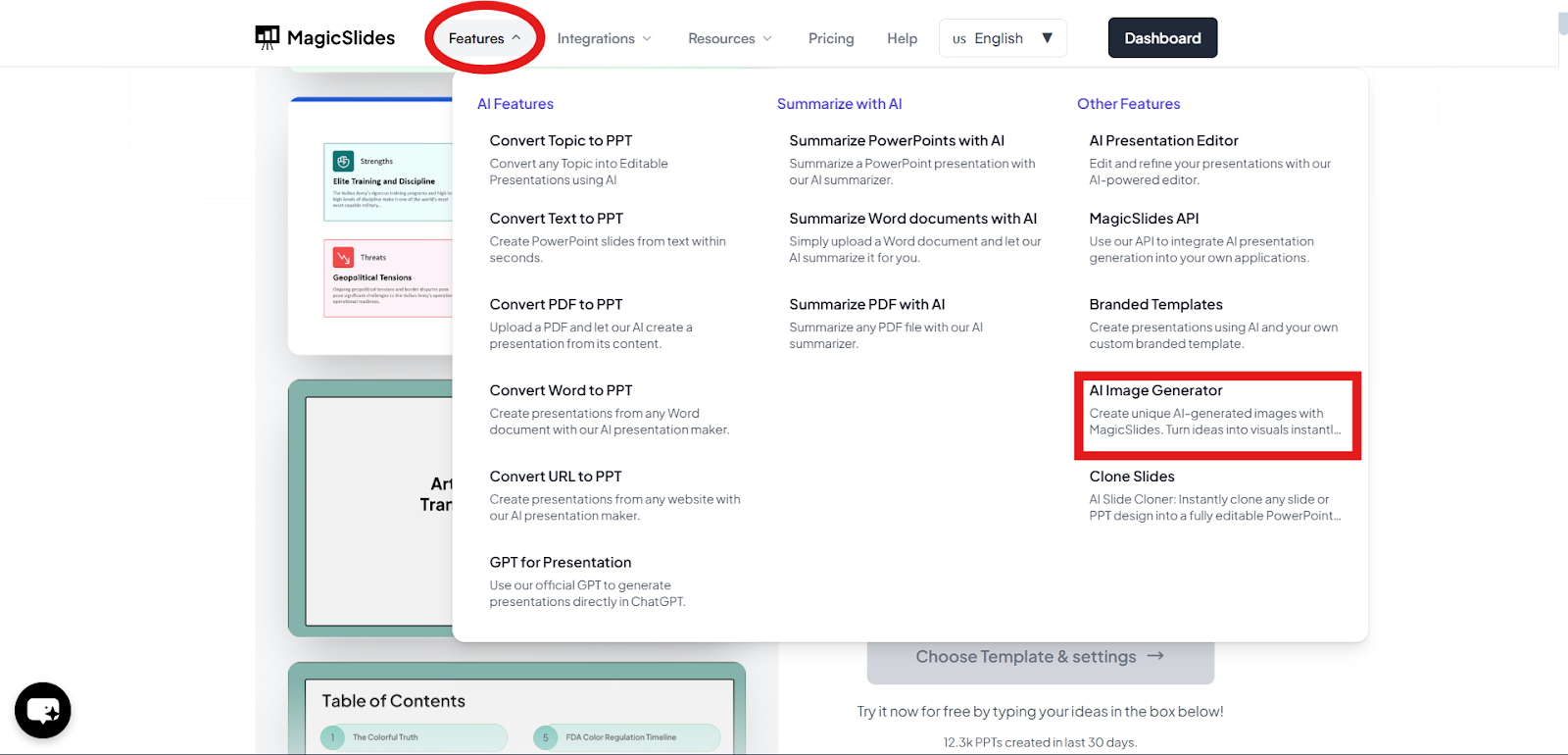
Top of the Dashboard, click the “features.”
Under “features,” Select “AI Image Generator.”
Step 3: Enter Your Prompt
Type a clear description of the image you want.
Example: “A modern office workspace with a laptop and coffee cup”
Choose Style

Step 4: Choose an AI Model (Optional)
MagicSlides allows you to choose from different AI image models or you can use the default options too.

Step 5: Generate Image
Click on the generate button and wait few seconds

Step 6: Download or Use the Image
Once the image is ready, you can download it or use it directly in your presentation.

Canva Magic Media
Why Canva Magic Media?
Canva Magic Media is a built-in AI tool that helps you create images, graphics, and short videos directly from text prompts.
Built into Canva:
Create AI-Generated images without leaving Canva, as it is a built-in tool.
1. Beginner-Friendly:
No design or AI experience needed, type what you want, and Magic Media generates visuals instantly.
2. Perfect for Visual Content:
Best for social media posts, presentations, posters, and branding materials.
3. Customizable Designs:
Edit colors, text, layouts, and styles easily using Canva’s drag-and-drop tools.
4. For Individuals and Teams:
Great for students, creators, marketers, and self-owned businesses.
Step-by-Step Guide for Generating Images Using Canva Magic Media:
Step 1: Open Canva
Go to the Canva website or App.

Step 2: Choose Image Generation
Top of the Dashboard, click the “Canva AI.”
Under “Canva AI,” Select “Search bar.”

Step 3: Enter Your Prompt
Type a clear description of the image you want.
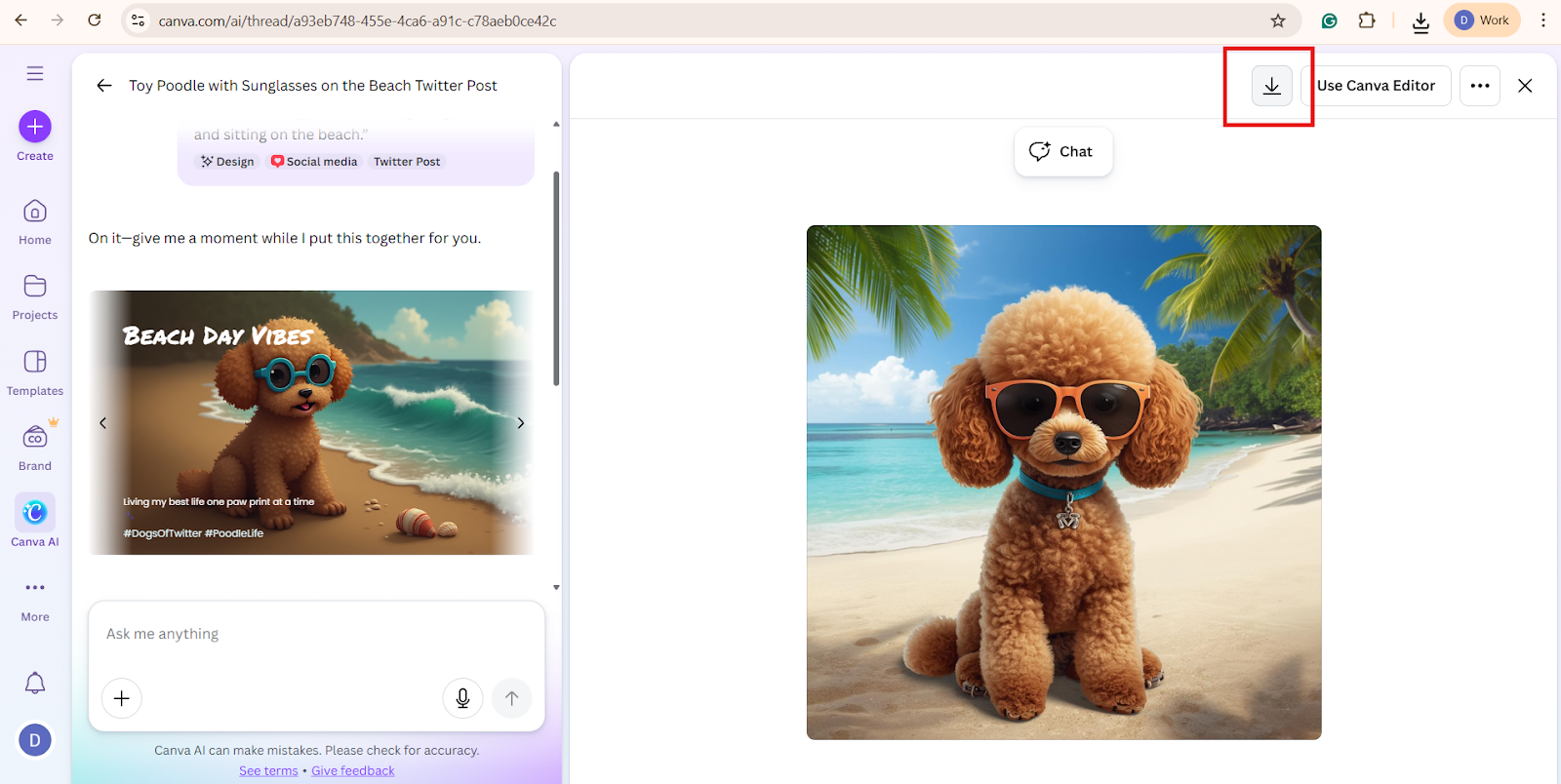
Example: “A miniature toy poodle wearing sunglasses and sitting on the beach”
Click “Design” and select which type of image you want to create, For Example: “Social Media.”

Step 4: Generate Image
Click on the generate button and wait for a few seconds

Step 5: Download or Use the Image
Once the image is ready, you can download it or use it directly in your presentation.
Conclusion
AI image generators have made image creation faster, easier, and more accessible than ever. You do not need design skills or expensive tools anymore. With just a simple text prompt, you can create stunning visuals in seconds.
Tools like MagicSlides and Canva Magic Media offer different features for different needs. If you are a beginner or a Professional, start with simple image generation tools like MagicSlides and Canva. As you gain confidence.
Also Read: How to Use Nano Banana Pro in PowerPoint and Google Slides
Quick FAQ’s
1. Are AI image generators free?
Most AI image tools offer free plans with limited usage. Paid plans provide better quality and more features.
2. Which AI image generator is best for beginners?
MagicSlides and Canva (Magic Media) are best for beginners due to their simple interface.
3. How can I get better results from AI image tools?
Use clear, detailed prompts and experiment with styles and keywords.