
Master Background Removal in PowerPoint for Clean, Professional Slides
Creating engaging and professional PowerPoint presentations isn’t just about adding the right content; it is also about design. One key design element is the background of your slides. Sometimes, the default or original background of an image or slide can be distracting or clash with your overall theme. This is where removing the background becomes crucial.
Whether you are preparing a corporate pitch, an educational presentation, or a creative project, knowing how to remove background efficiently can save you time and elevate the quality of your slides. In this blog, we will walk you through the benefits of background removal, a step-by-step guide on how to do it, and introduce a handy tool to streamline your workflow.
Benefits of Removing the Background in PowerPoint
Removing background from slides in PowerPoint isn’t just a visual adjustment - It has tangible benefits:
1. Professional Appearance: Clean, distraction-free slides make your content more readable and visually appealing.
2. Improved Focus: Removing clutter helps your audience focus on the main subject, whether it’s a product, person, or data chart.
3. Consistent Branding: When you remove backgrounds, you can place images over brand colors, gradients, or patterns for cohesive design.
4. Creative Flexibility: You can layer images, add custom shapes, or create unique visual effects without being restricted by a busy background.
In short, a transparent or simplified background lets your ideas shine and makes your presentation look polished.
How to Remove the Background in PowerPoint (Step-by-Step Guide)
PowerPoint has built-in tools to remove backgrounds quickly. Here’s how to do it:
Step 1: Insert Your Image
1. Open your PowerPoint presentation.
2. Navigate to the slide where you want to insert the image.
3. Go to “Insert” and select “Image.”
Step 2: Select the Image
Click on the image to select it. Once selected, the Picture Format tab will appear in the ribbon.
Step 3: Remove the Background
1. Click on Remove Background in the Picture Format tab.
2. PowerPoint will automatically attempt to detect the background and highlight it. This is the area that will be removed.
Step 4: Refine the Selection
Adjust until the preview matches your desired outcome.
Step 5: Apply the Changes
Once satisfied, click Keep Changes. Your image will now have a transparent background, ready to integrate seamlessly into your slides.
Enhancing Your PowerPoint Workflow with AI Assistance
While PowerPoint’s built-in background removal features are effective, they can become time-consuming when you are working on multiple slides or designing a full presentation from scratch. This is where using smart presentation tools can make a noticeable difference.
Tools like MagicSlides.app, an AI presentation maker, complement PowerPoint by helping you generate well-structured slides quickly while maintaining clean, visually consistent designs. Once your content is in place, integrating images with transparent or refined backgrounds becomes much easier, as the layouts are already optimized for clarity and focus.
Instead of spending extra time adjusting every visual element manually, you can focus more on storytelling and messaging, while tools like MagicSlides streamline the design process in the background. Let’s learn how to use MagicSlides.
1. Log in or sign up for MagicSlides

2. Enter your content


4. Let the AI analyze the content and generate slides

5. Refine it.
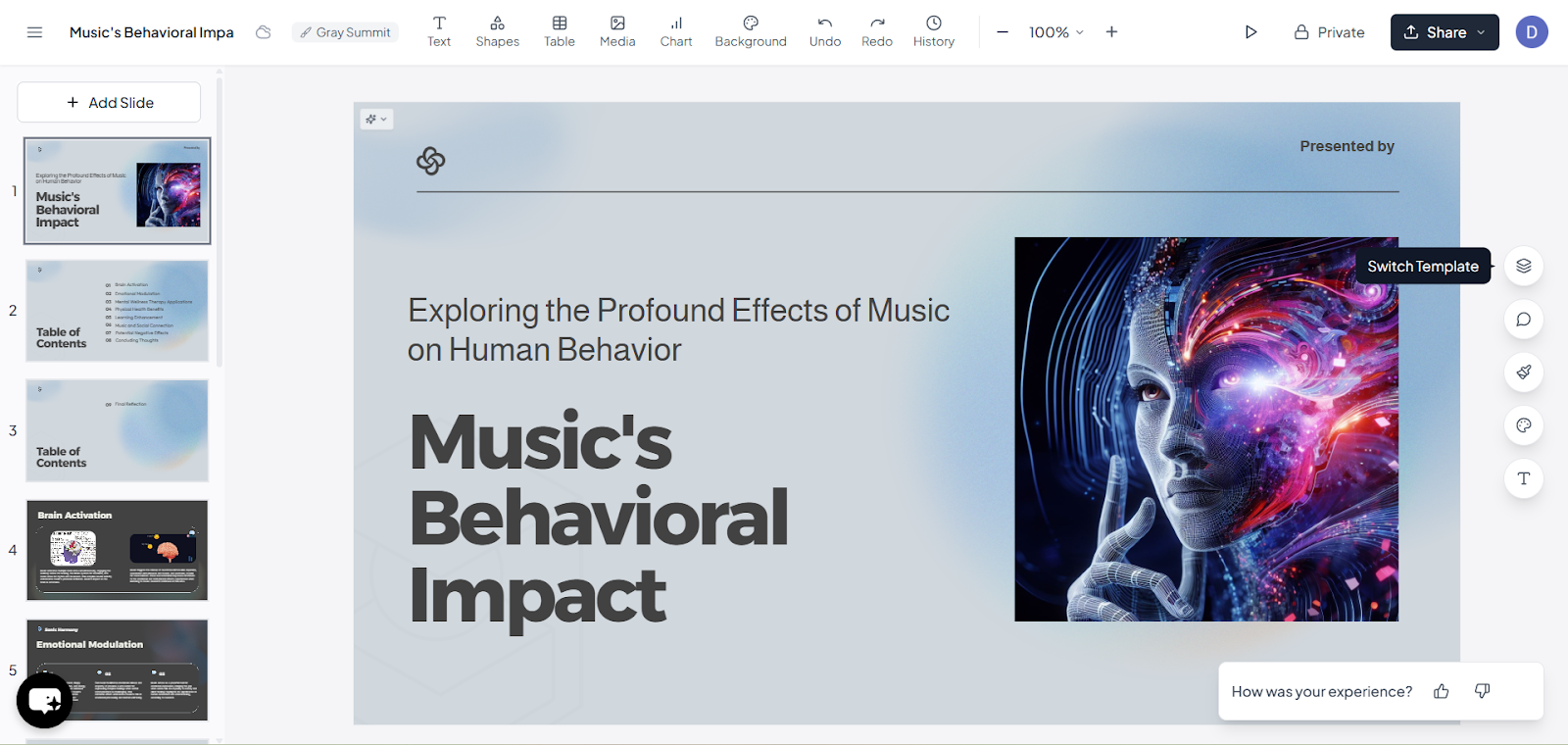
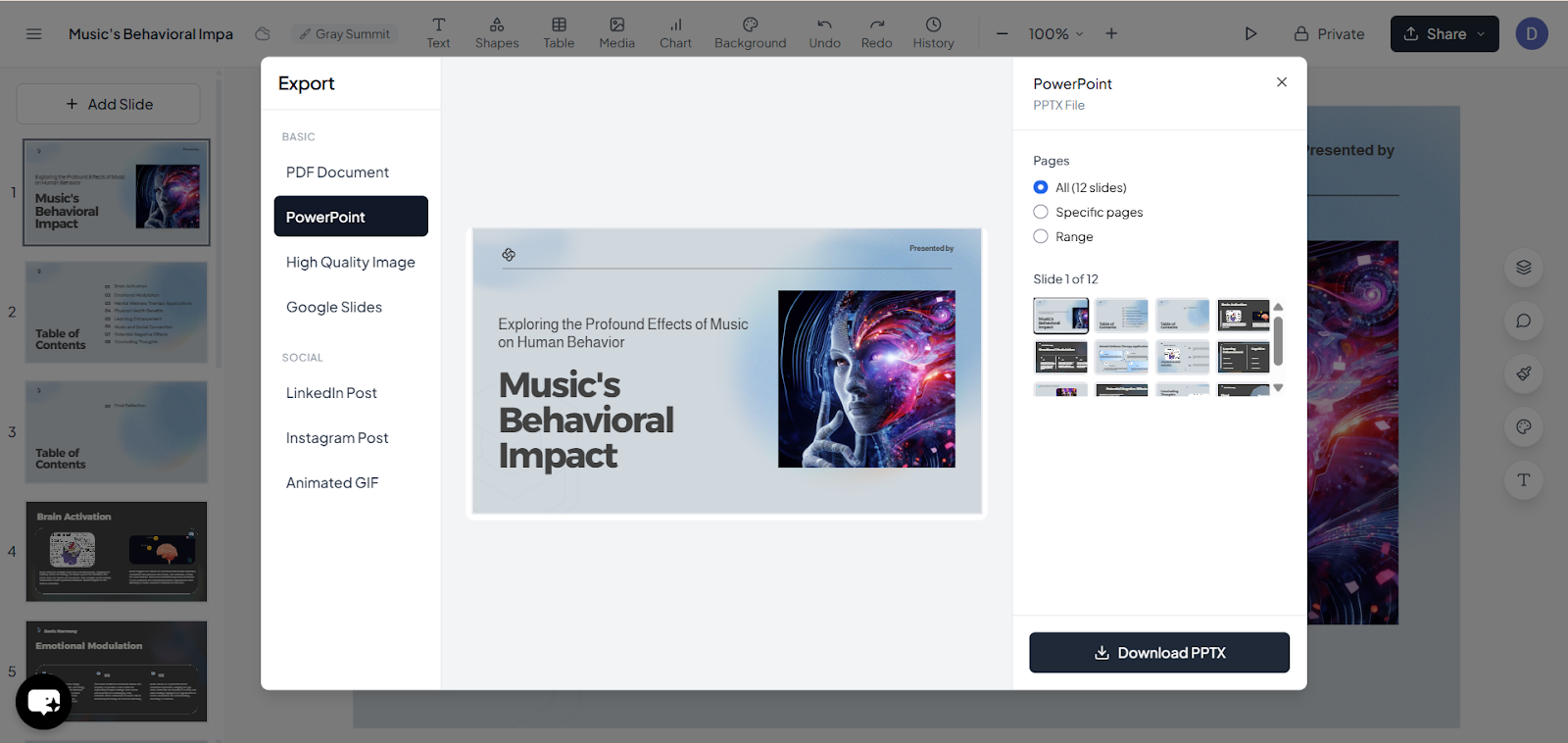
6. Download and use.
Final Thoughts
Removing the background in PowerPoint is a simple yet powerful way to improve the clarity, professionalism, and creativity of your presentations. Whether you are presenting to clients, colleagues, or students, mastering this skill ensures your slides leave a lasting impression.
With tools like PowerPoint’s built-in background remover and smart helpers like MagicSlides.app, you can streamline your workflow and focus more on your content rather than tedious editing.
Also Read: Struggling to flip images in PowerPoint? Here’s the Solution. Learn how to flip an image in PowerPoint complete guide.
Quick FAQ’s
Q 1: Can I remove the background from any image in PowerPoint?
Most images work well, but complex or low-contrast backgrounds may require more manual refinement.
Q 2: Can I remove the background from any image in PowerPoint?
Most images work well, but complex or low-contrast backgrounds may require more manual refinement.
Q 3: Does removing the background affect image quality?
No, PowerPoint preserves the quality, but very detailed images might appear slightly affected after removal. Minor adjustments can fix this.
Q 4: Can I restore the original background if needed?
Yes, simply select Reset Picture under the Picture Format tab to revert any changes.
Q 5: Will PowerPoint remove detailed or gradient backgrounds automatically?
PowerPoint may struggle with complex or gradient backgrounds, requiring manual refinement.
Q 6: Can I export my cutout image for reuse?
Yes, after removing the background, you can right-click the image and Save as Picture in PNG format to preserve transparency.