
How to Record a Presentation in Zoom? Step-by-Step Guide for Hosts and Participants.
In today’s generation, Zoom has become one of the most popular platforms for meetings, webinars, and online presentations. Whether you are a business professional, educator, or student, recording your Zoom presentations can be very useful. From sharing with colleagues who missed the live session to revisiting your content for improvement, having a recorded version ensures your message doesn’t get lost.
In this guide, we will learn about why recording your Zoom presentations matters and how to record them effectively for maximizing impact.
Why Record the Presentation in Zoom?
Recording a Zoom presentation helps you extend the value of your session beyond the live meeting. It becomes a reusable and shareable resource.
1. For Future Reference
A recording allows both you and your audience to revisit important points, rewatch explanations, and better understand complex topics.
2. To Share With Participants
Not everyone can attend live. A recorded session ensures those who missed the meeting can still access the full presentation.
3. For Training and Onboarding
Recorded presentation can be reused for employeetraining, onboarding, or educational purposes, saving time and maintaining consistency.
4. To Repurpose Content
Your Zoom recording can be turned into tutorials, short video clips, blog content, or course material, giving your presentation a longer lifespan.
5. For Review and Improvement
Watching your own presentation helps you identify areas to improve, from delivery style to slide clarity.
Method 1: How to Record the Presentation as the Host
If you are hosting the Zoom session, recording is straightforward. Here is a step-by-step guide:
Step 1: Start Your Meeting
Launch Zoom and start your scheduled meetings as the host.

Step 2: Enable Recording
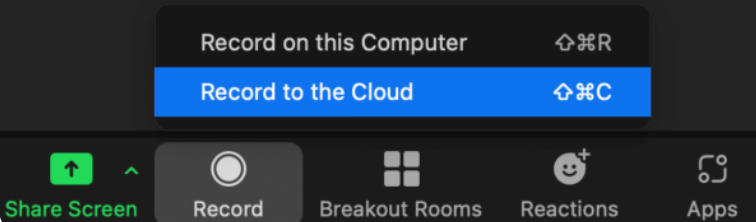
Step 3: Control the Recording
You can pause or stop the recording at any point during the presentation.

Step 4: Access Your Recording
After the meeting ends, Zoom will process the recording and save it to your chosen location or cloud account.
Method 2: How to Record the Zoom Presentation as a Participant
Sometimes, you might not be the host but still want to record the session. Here is what you need to know:
Step 1: Join Meeting
By clicking the Zoom meeting link, join the Zoom call
Step 2: Ask Permission
Zoom only allows participants to record if the host grants permission. To enable this, ask the host to open “Manage Participants,” locate your name in the participant list, click the “More” option next to it, and choose “Allow Record” from the dropdown menu. Once approved, you will be able to start recording the session.
Step 3: Pause and Stop
Just like the host, you can pause or stop the recording anytime.
Step 4: Save the Recording
After the meeting, the recording will be saved locally
Enhance Your Zoom Presentation for Maximum Impact
Recording your Zoom presentation is just the first step. The real impact depends on how clearly your content is structured and delivered. When someone watches the recording later, well-organized slides and clean visuals make the session much easier to follow.
Using a tool like MagicSlides can help you quickly create structured, professional presentations without spending hours on design. Clean layouts, strong visuals, and smooth flow ensure that your recorded Zoom session looks polished and remains engaging even on replay.

Let’s see how to create a presentation with MagicSlides
1. Log in or sign up to MagicSlides.app, an AI presentation maker
2. Enter your Content. MagicSlides supports different file formats like
3. Select the template that suits your topic
4. Click Generate, let the AI analyze the content, and create the files
5. Refine it if needed
6. Download and use it
When your slides are thoughtfully prepared, your Zoom recording becomes more than just a saved meeting; it becomes a valuable resource you can confidently share with clients, students, or team members.
Final Thoughts
Recording your Zoom presentation is a simple step that delivers long-term value. Instead of limiting your content to a live audience, you create a resource that can be shared, reused, and revisited anytime. Whether it is for training, collaboration, or personal improvement, recorded sessions help extend the impact of your message.
To make those recordings even more effective, it is important to focus on how your presentation is structured. Using tools like MagicSlides can help you create clear, professional, and well-organized slides that enhance both your live delivery and the recorded version. When your visuals are polished, and your content flows smoothly, your Zoom recording becomes more than just a saved meeting; it becomes a lasting communication asset.
Also Read: How to add a YouTube video to PowerPoint: step-by-step guide for professional presentation from videos.
Quick FAQ’s
Q 1: Can I record a Zoom presentation without benign the host?
No, not by default. Participants can only record a Zoom meeting if the host grants them permission through the “Manage Participants” settings.
Q 2: Where are Zoom recordings saved?
If you choose “Record on this Computer,” the file is saved locally on your device.
If you select “Record to the Cloud,” it will be available in your Zoom web account under the Recordings section.
Q 3: Can I record a Zoom meeting on a free account?
Yes, free Zoom accounts allow local recording. However, cloud recording is typically available only for paid plans.
Q 4: Can I record a Zoom presentation on my mobile device?
Yes, but only if you are the host and have cloud recording enabled. Mobile devices do not support local recording.
Q 5: Can I edit my Zoom recording after downloading it?
Yes, once the recording is saved, you can use video editing software to trim sections, add captions, or enhance audio and visuals.
Q 6: Can I record only audio or just the screen in Zoom?
Zoom records both video and audio by default.
If you want audio, you can extract it later from the recorded video using editing software.