
Stop Screen Recording: The Easiest Way to Put a YouTube Video Inside PowerPoint Slides.
In today’s digital era, presentations are more than just text and images; they are dynamic experiences. Adding videos to your PowerPoint slides can make your presentation more engaging, informative, and memorable.
Among the various sources for videos, YouTube stands out due to its vast library of content. Whether you are showcasing a tutorial, sharing industry insights, or including a motivational clip, embedding a YouTube video directly into your PowerPoint can elevate your presentation.
In this guide, we will learn why adding YouTube videos is beneficial, the different ways to insert them, and how to choose the best method for your needs.
Why Add a Video from YouTube to PowerPoint?
Adding a YouTube video to your PowerPoint presentation offers several advantages:
With these benefits, it is clear why embedding YouTube videos is a smart move for any presenter.
How to Insert a YouTube Video in PowerPoint?
PowerPoint allows multiple ways to add videos. Depending on your version of PowerPoint, you can either embed a video directly, link to an online video, or insert a video file saved on your computer.
Method 1: Inserting an Online Video Using URL
This is the most straightforward method and works well if you have a stable internet connection.
Steps Involved:
Step 1: Open your PowerPoint presentation and navigate to the slide where you want the video.
Step 2: Click on the Insert tab in the ribbon.
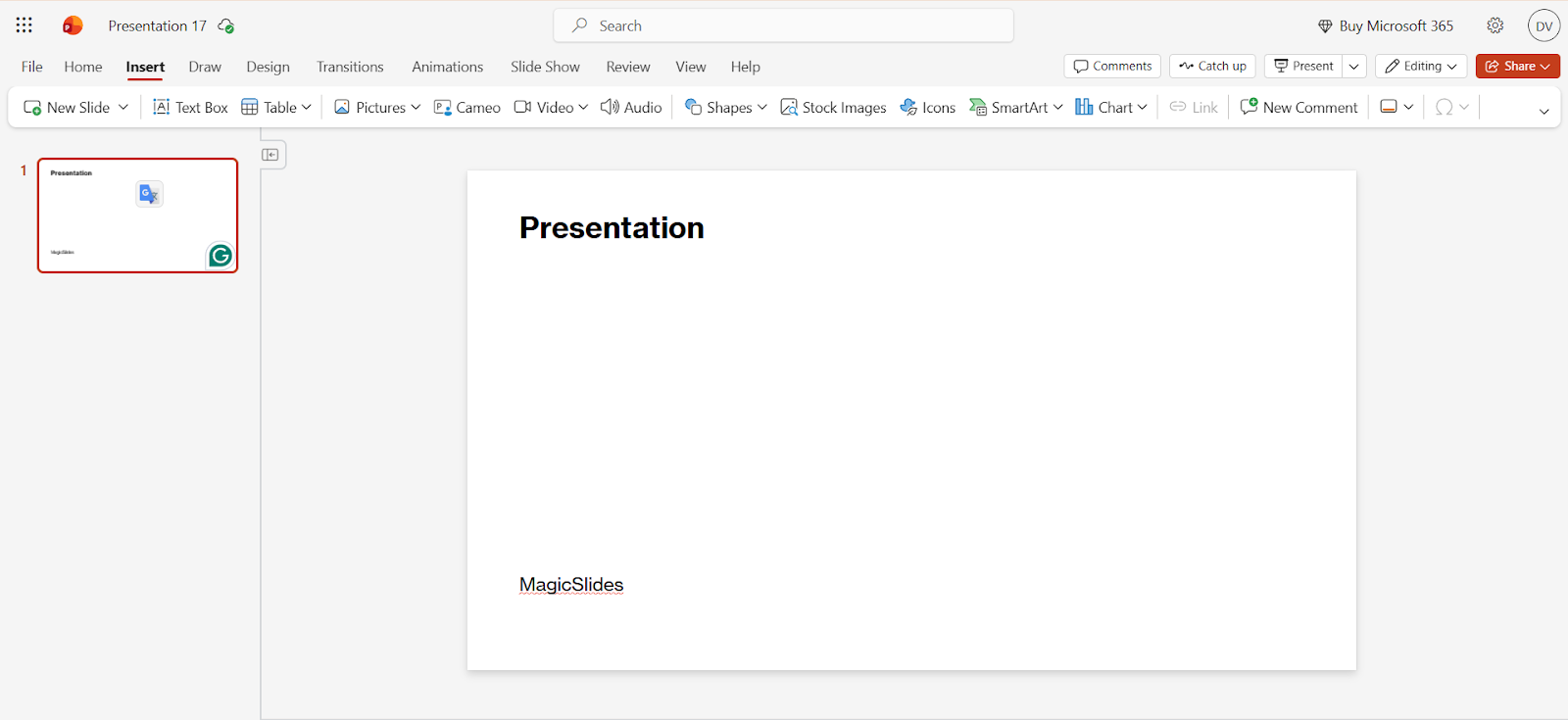
Step 3: Select “Video” and Choose Online Video.
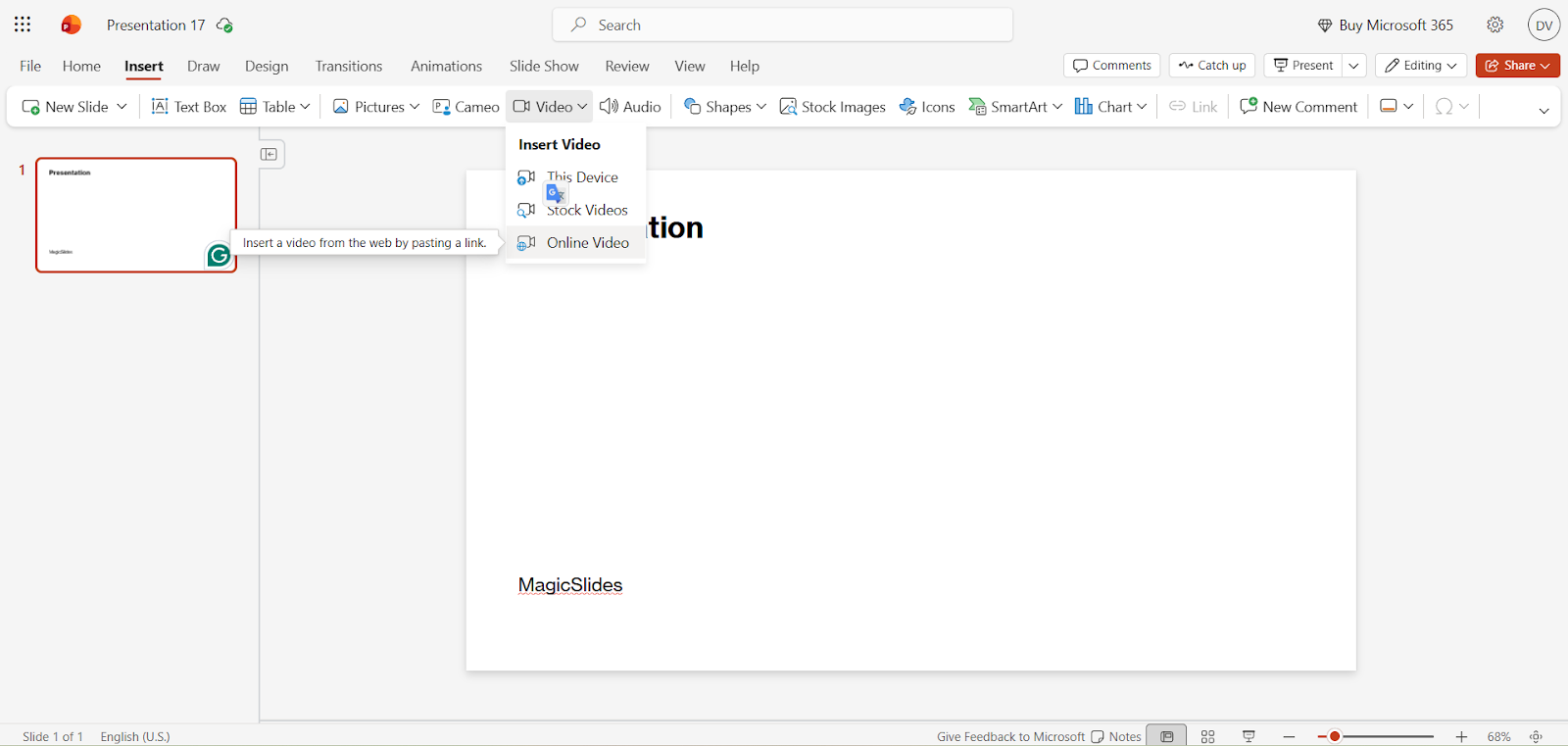
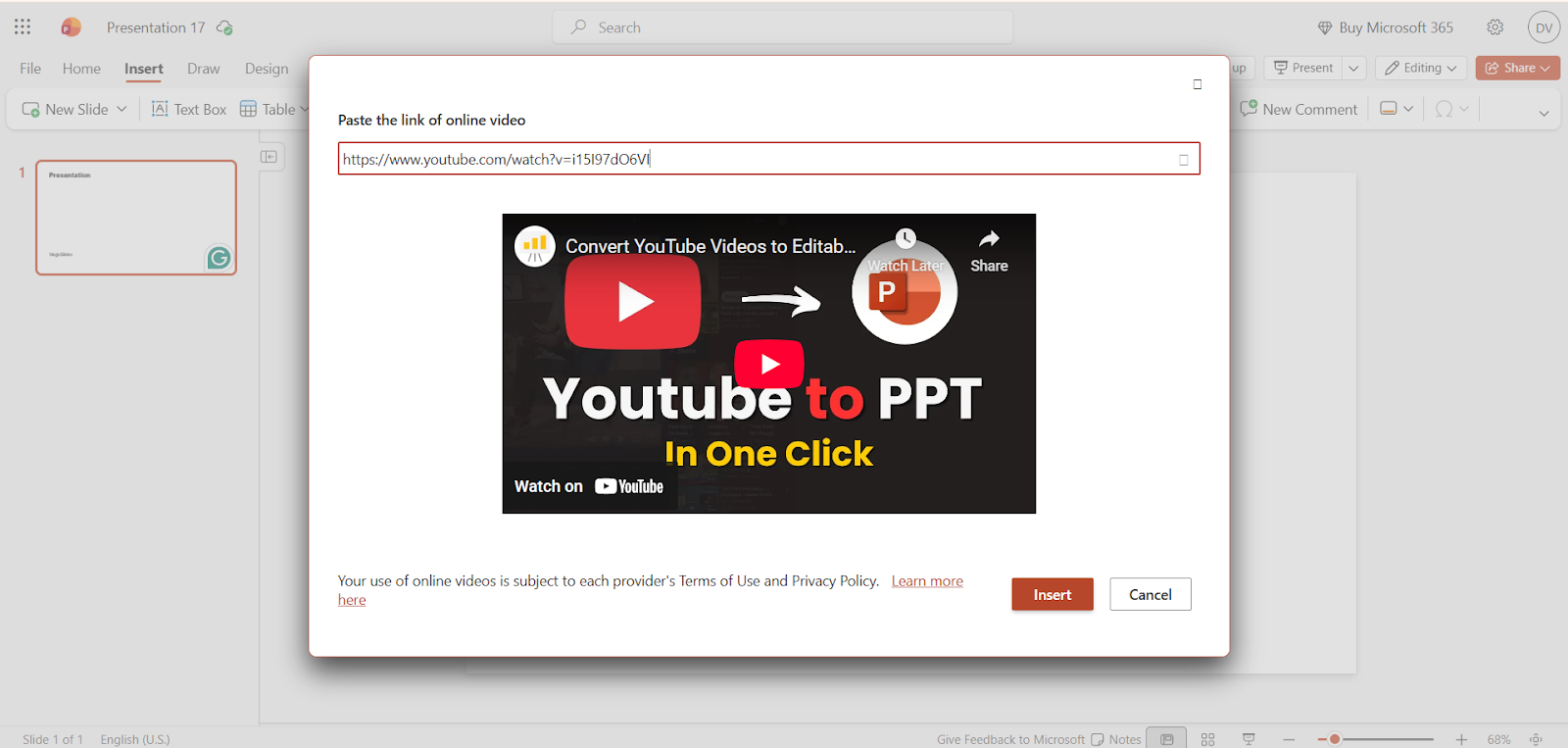
Step 4: Paste the YouTube video URL into the box provided.
Step 5: Click “Insert”
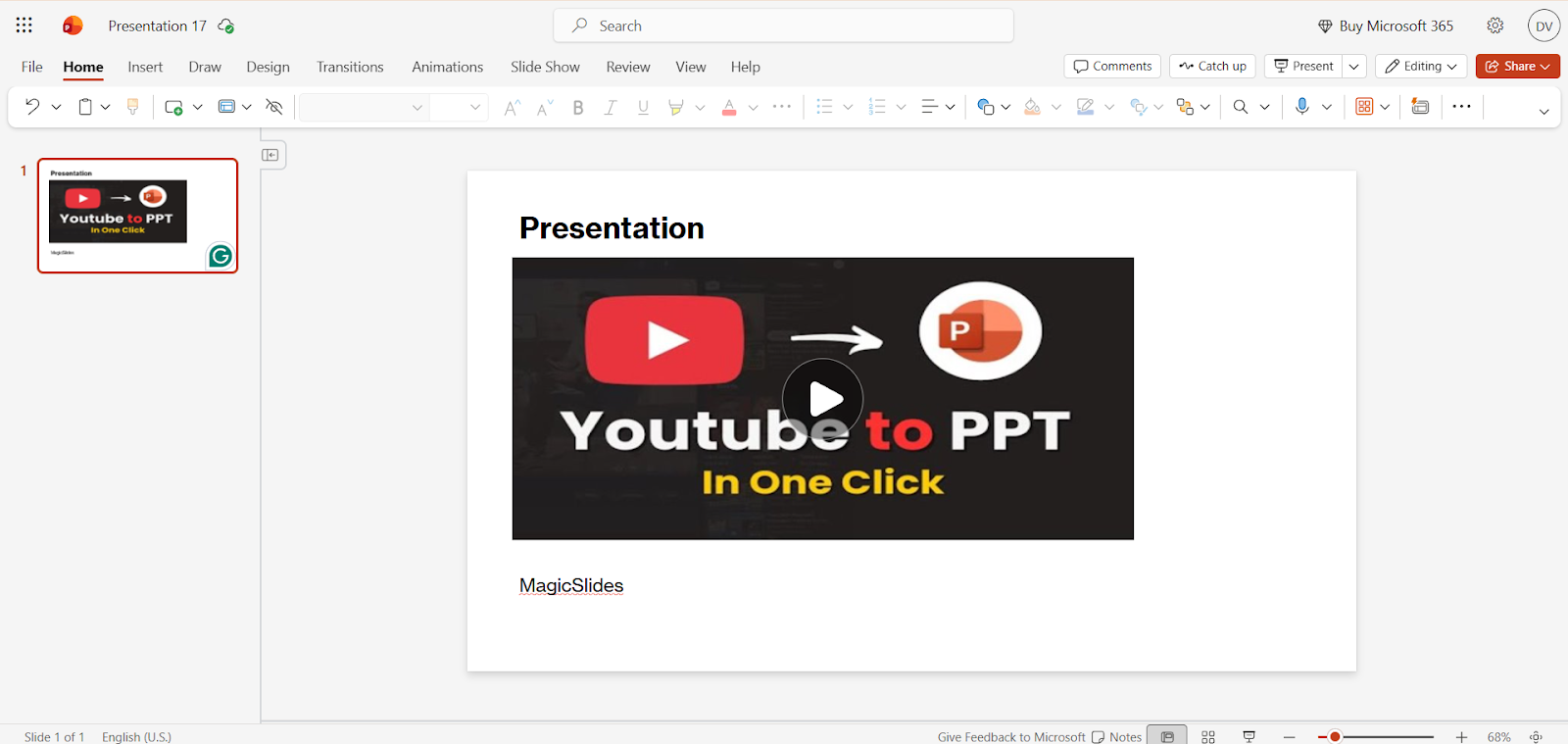
Step 6: Resize and position the video on your slide as needed.
Pros:
Cons:
Method 2: Insert Using YouTube Embed Code
For a more seamless embedding, you can use the YouTube embed code. This is especially useful if you want more control over playback settings like autoplay, hiding suggested videos, or starting at a specific time.
Steps Involved:
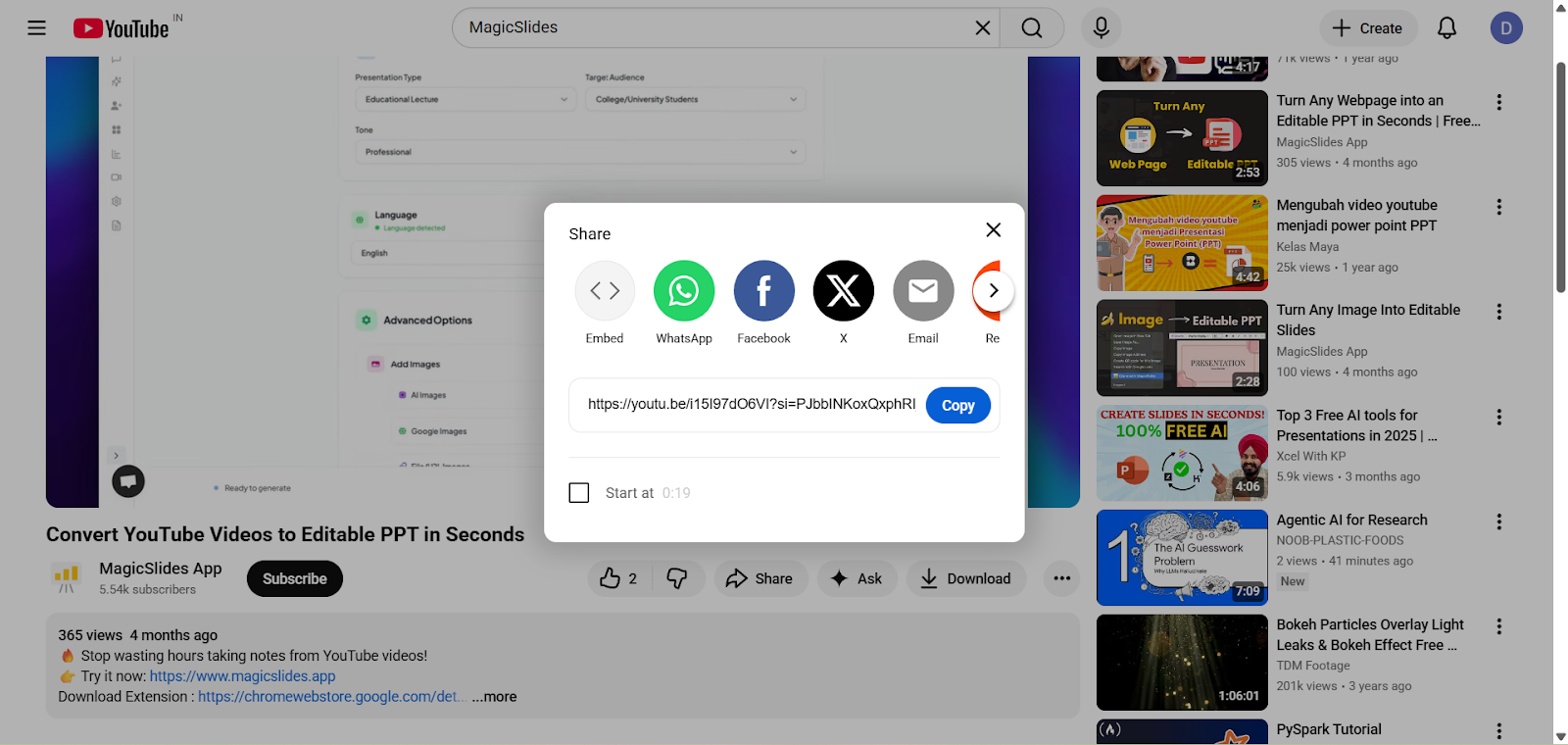
Step 1: Go to the YouTube video you want to embed.
Step 2: Click “Share” and select “Embed,” then copy the HTML embed code.
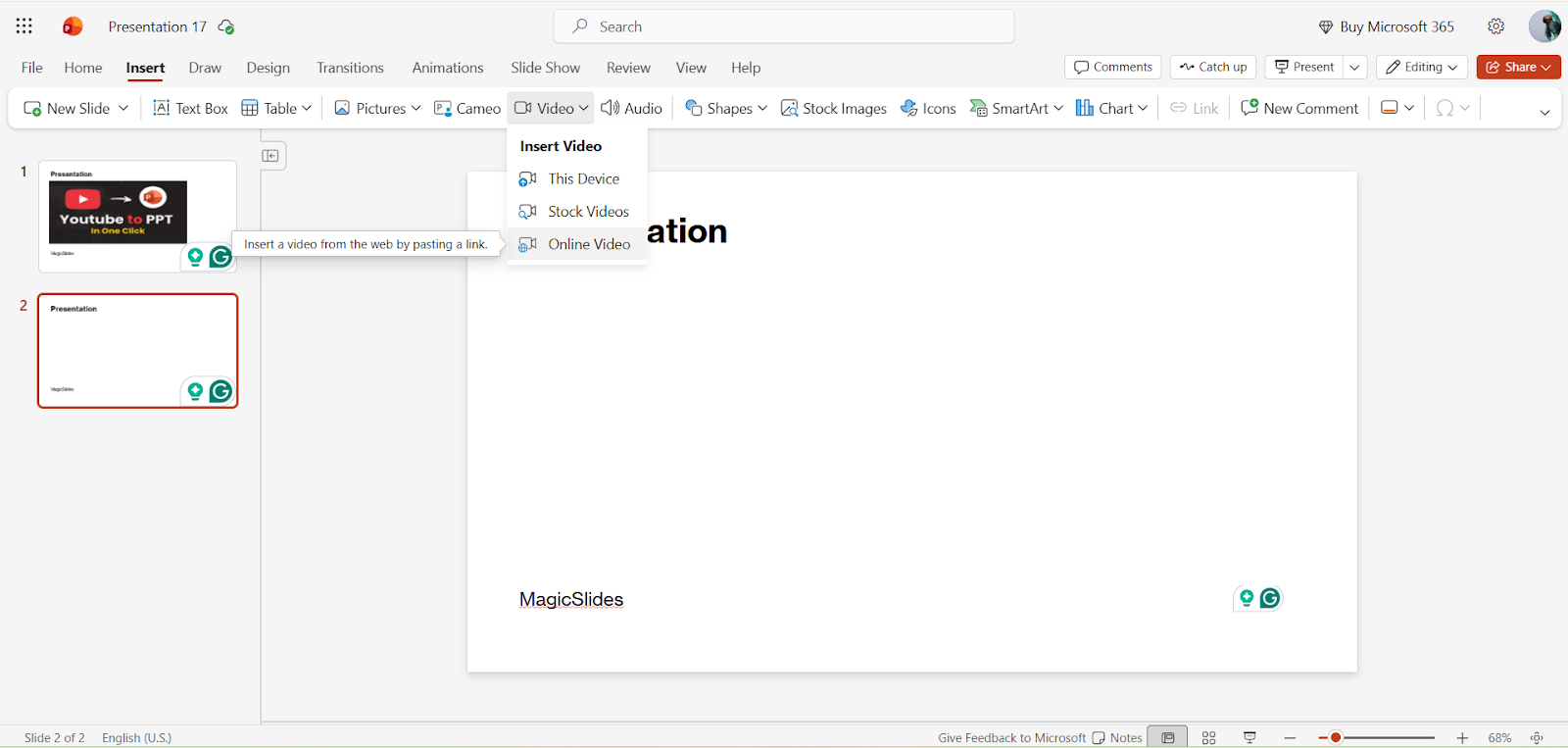
Step 3: In PowerPoint, go to “Insert,” click “Video,” and Select “Online Video.”
Step 4: Paste the embed code into the box.
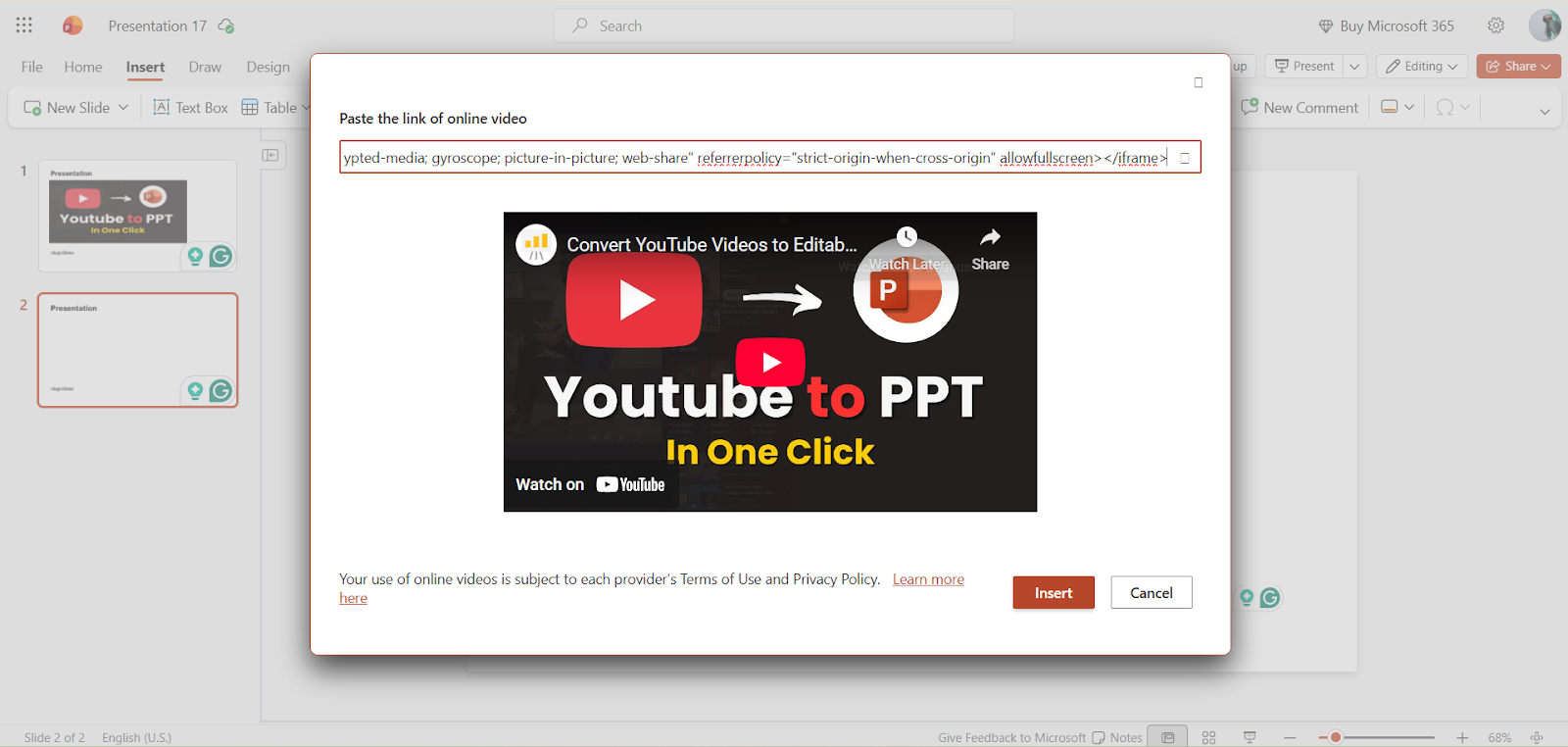
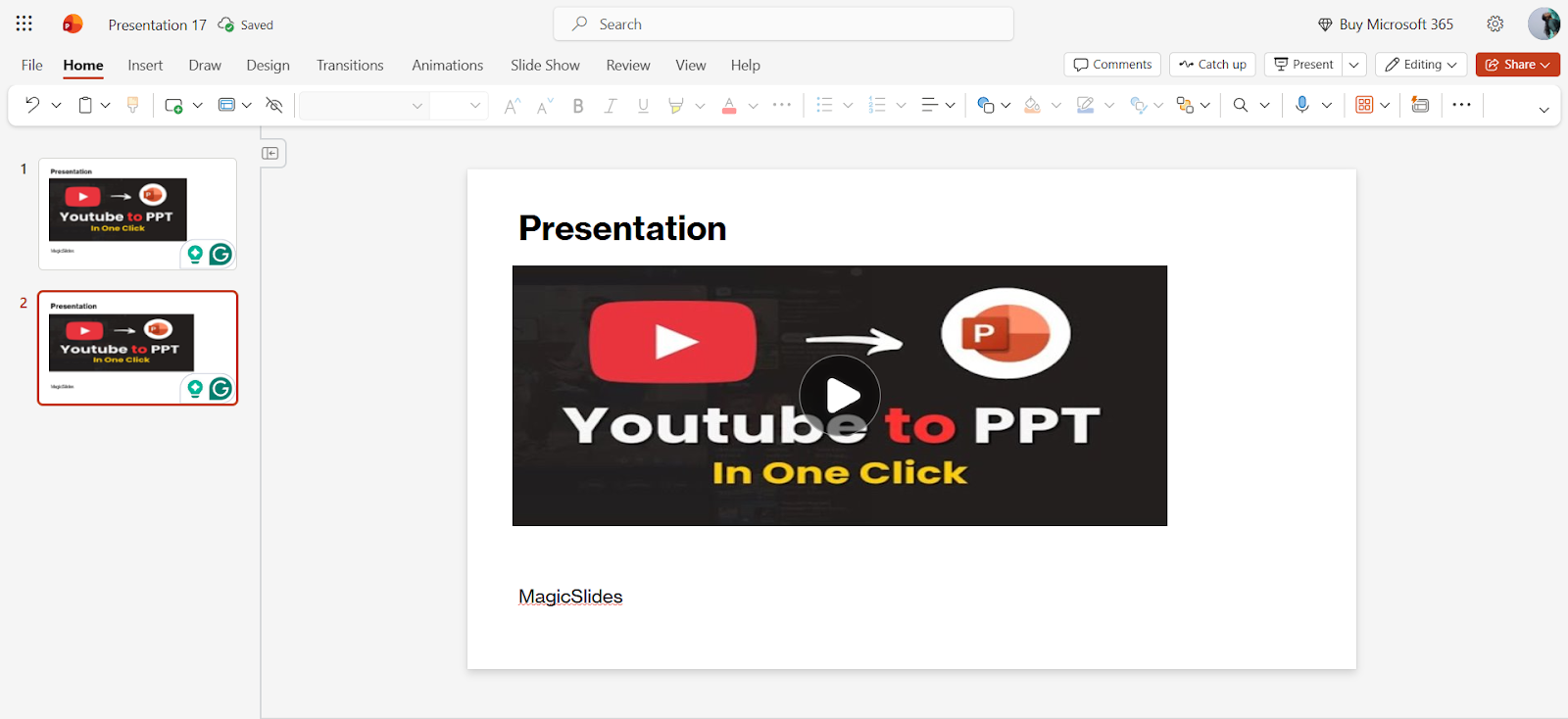
Step 5: Click “Insert.”
Pros:
Cons:
Method 3: Upload a Video from a Computer
If you want to avoid relying on an internet connection, you can download the YouTube video (ensuring you respect copyright rules) and insert it directly into PowerPoint.
Steps Involved:
Step 1: Download the video from YouTube using a safe, legal method.
Step 2: Open PowerPoint and navigate to your slide.
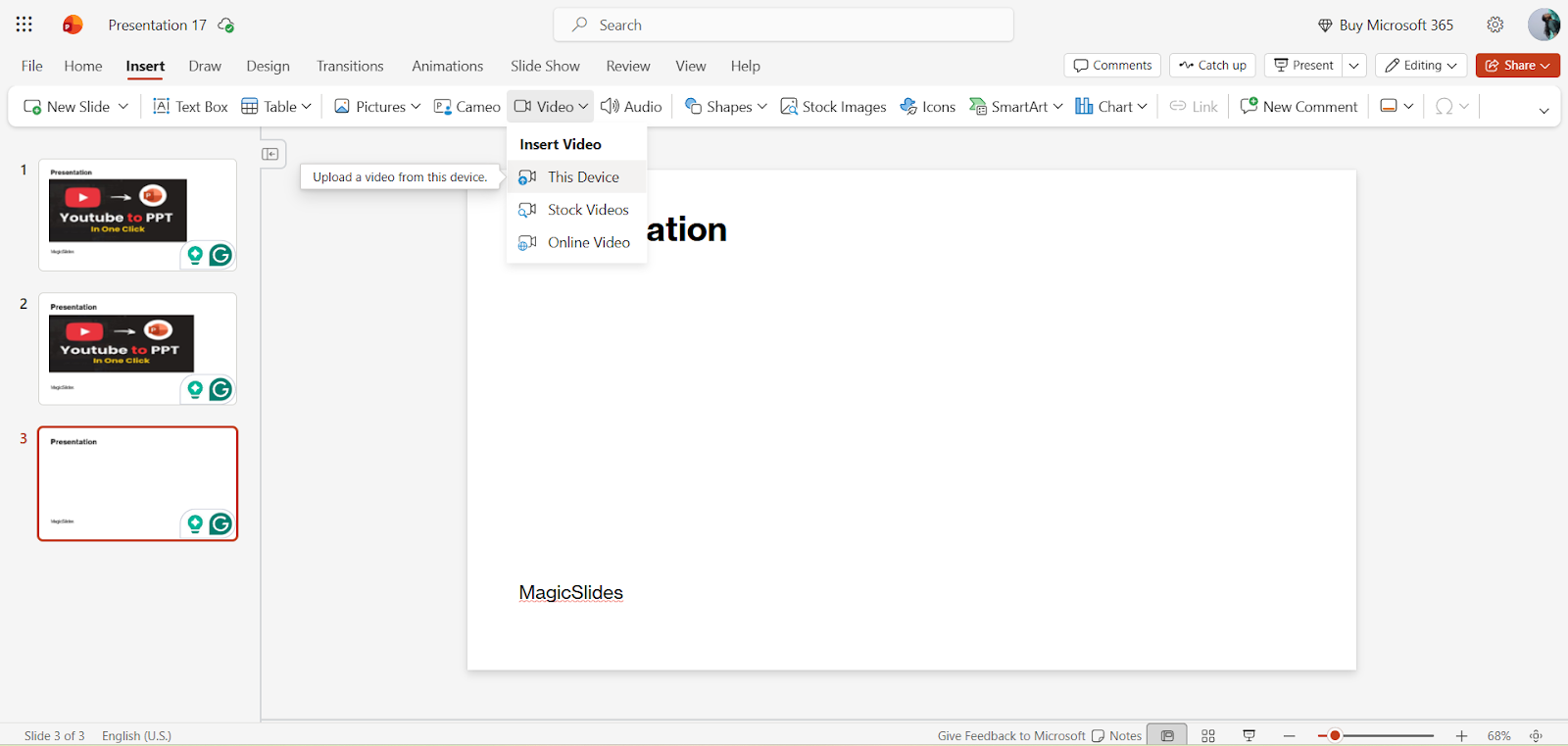
Step 3: Click “Insert,” select “Video,” and choose “ Video on my pc.”
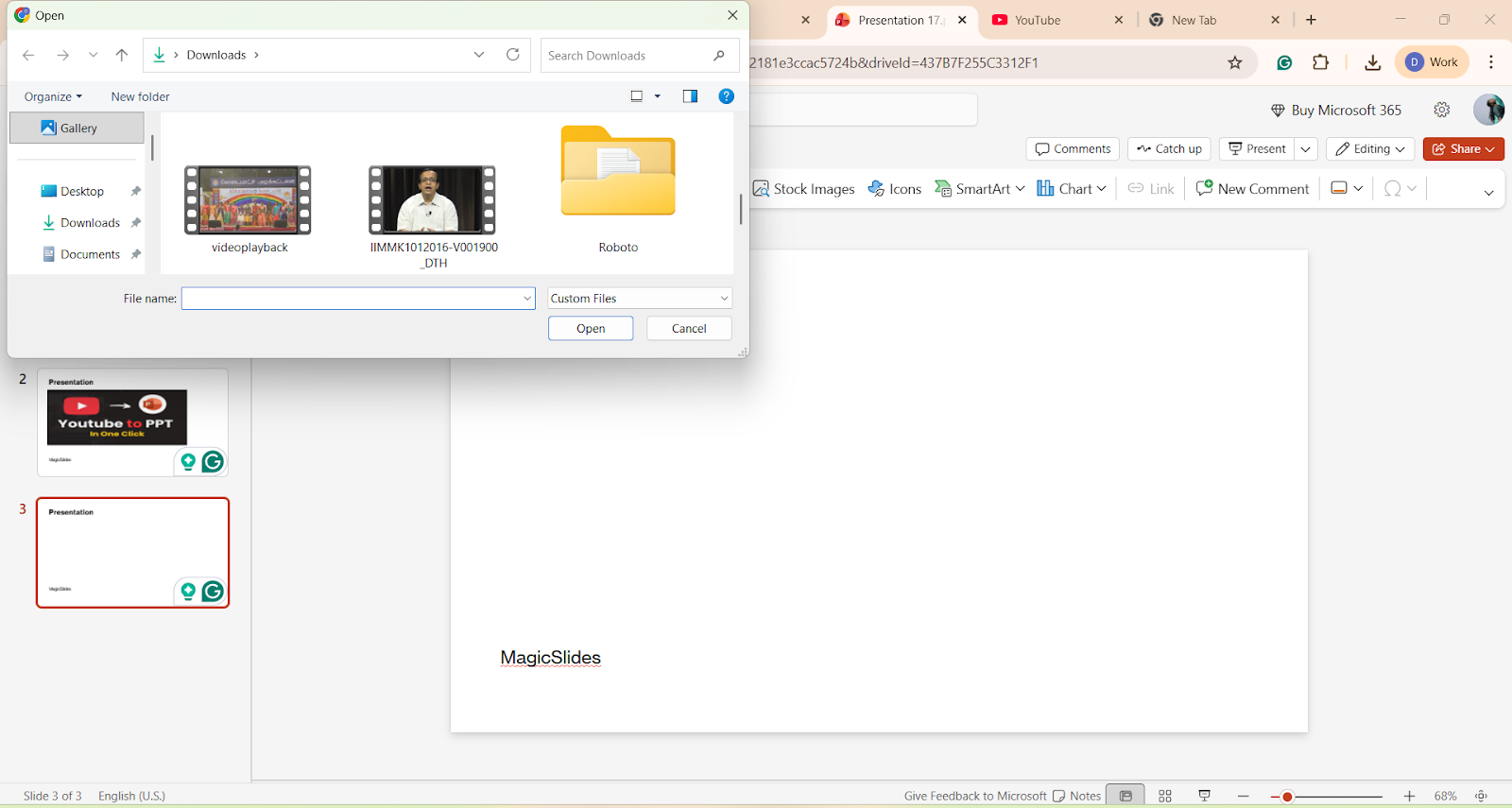
Step 4: Select the downloaded video files and click Insert.
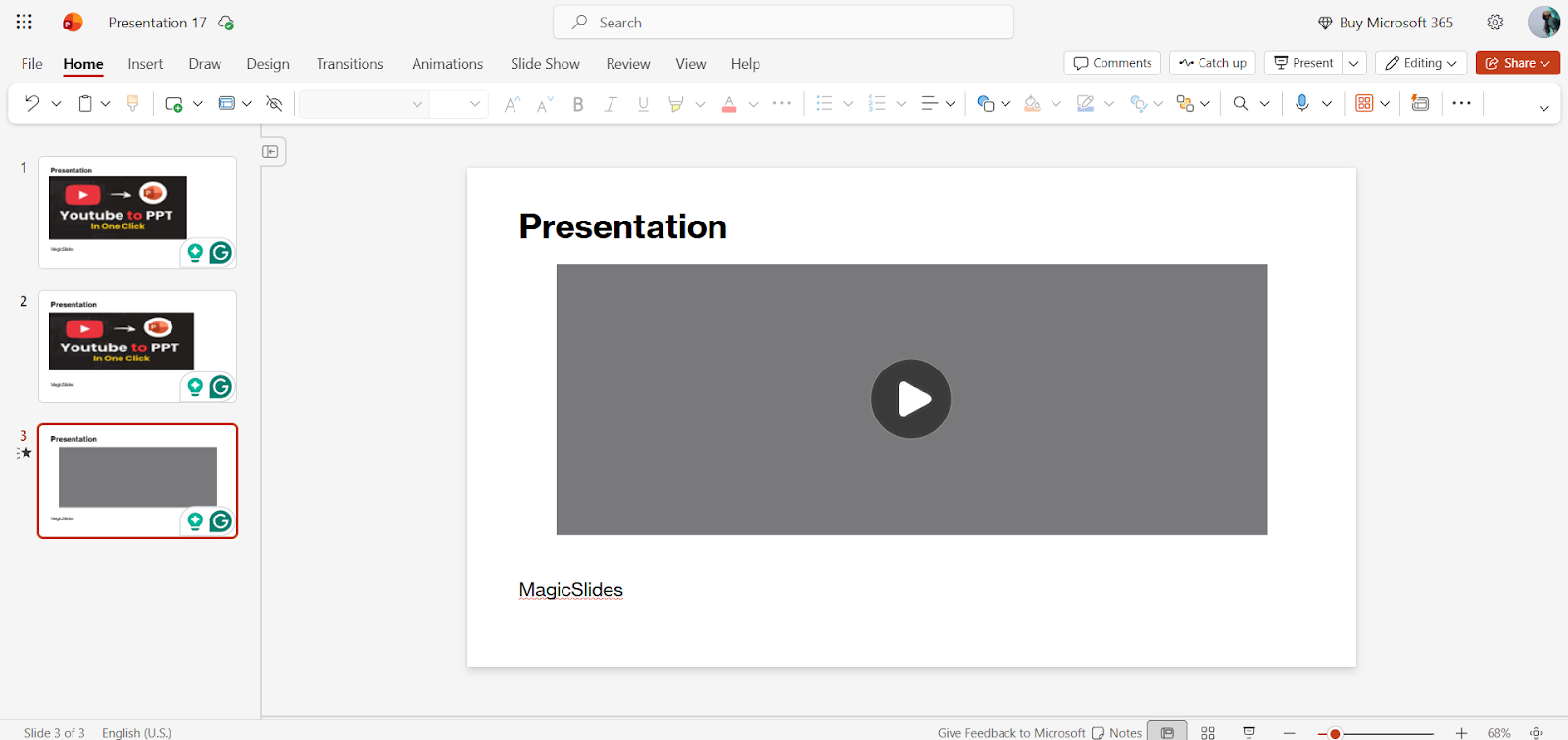
Step 5: Resize and position the video on your slide.
Pros:
Cons:
Which Method is Best for What
Make Your Presentation Effortless with MagicSlides
Imagine you have found the perfect YouTube video for your presentation. You have spent hours trying to embed it, adjusting the timing, and making your slides look professional. What if there was a way to turn that YouTube URL into a ready-to-go presentation in just minutes?
That’s exactly what MagicSlides, an AI presentation maker, does. Instead of manually embedding videos, resizing, or typing out key points, you can:
Log in or sign up to MagicSlides.app

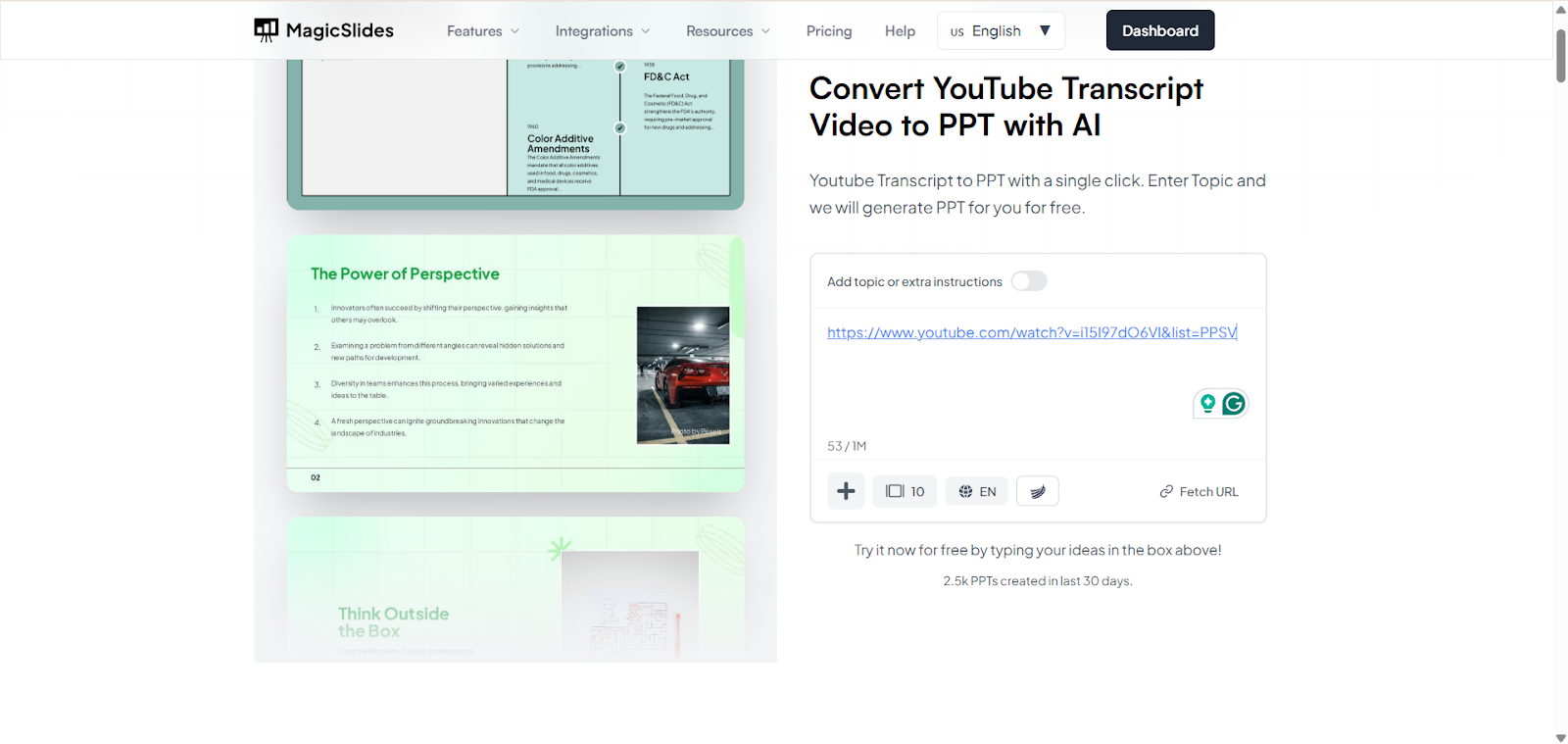
Paste a YouTube URL into the YouTube to PPT converter
Select the theme that suits your presentation.

Click “Generate,” let the AI analyze the video, and create the content
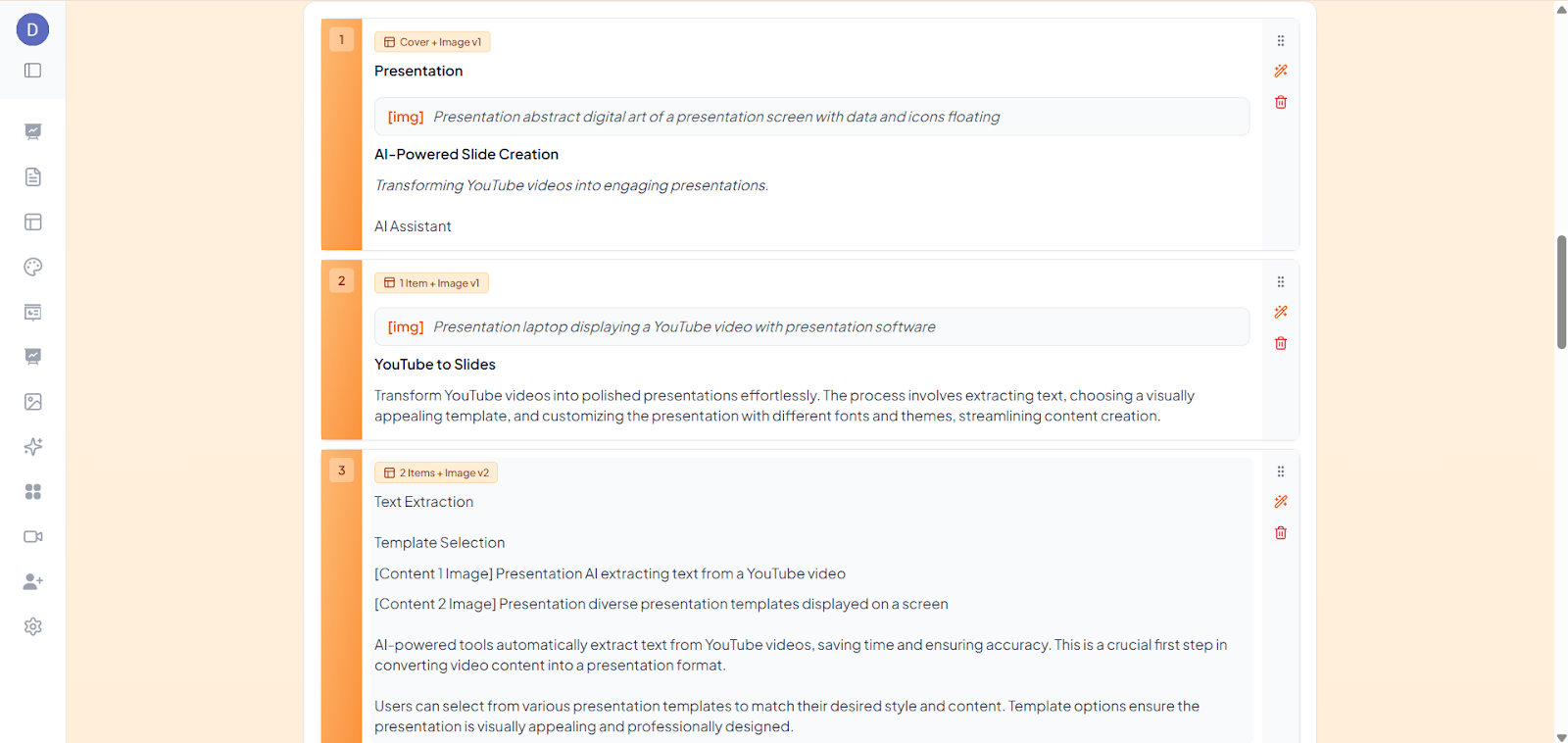
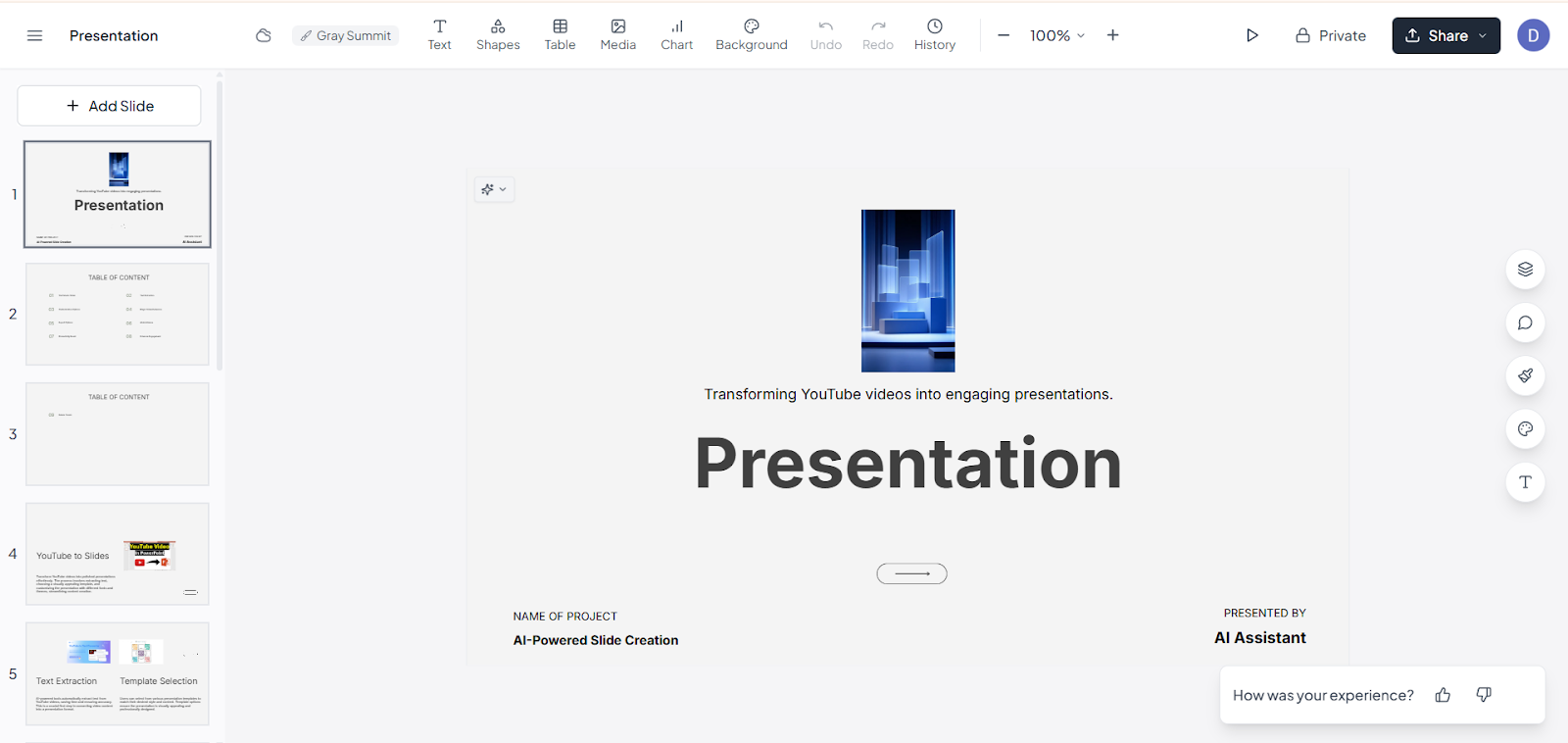
Refine if needed.
Download and use.
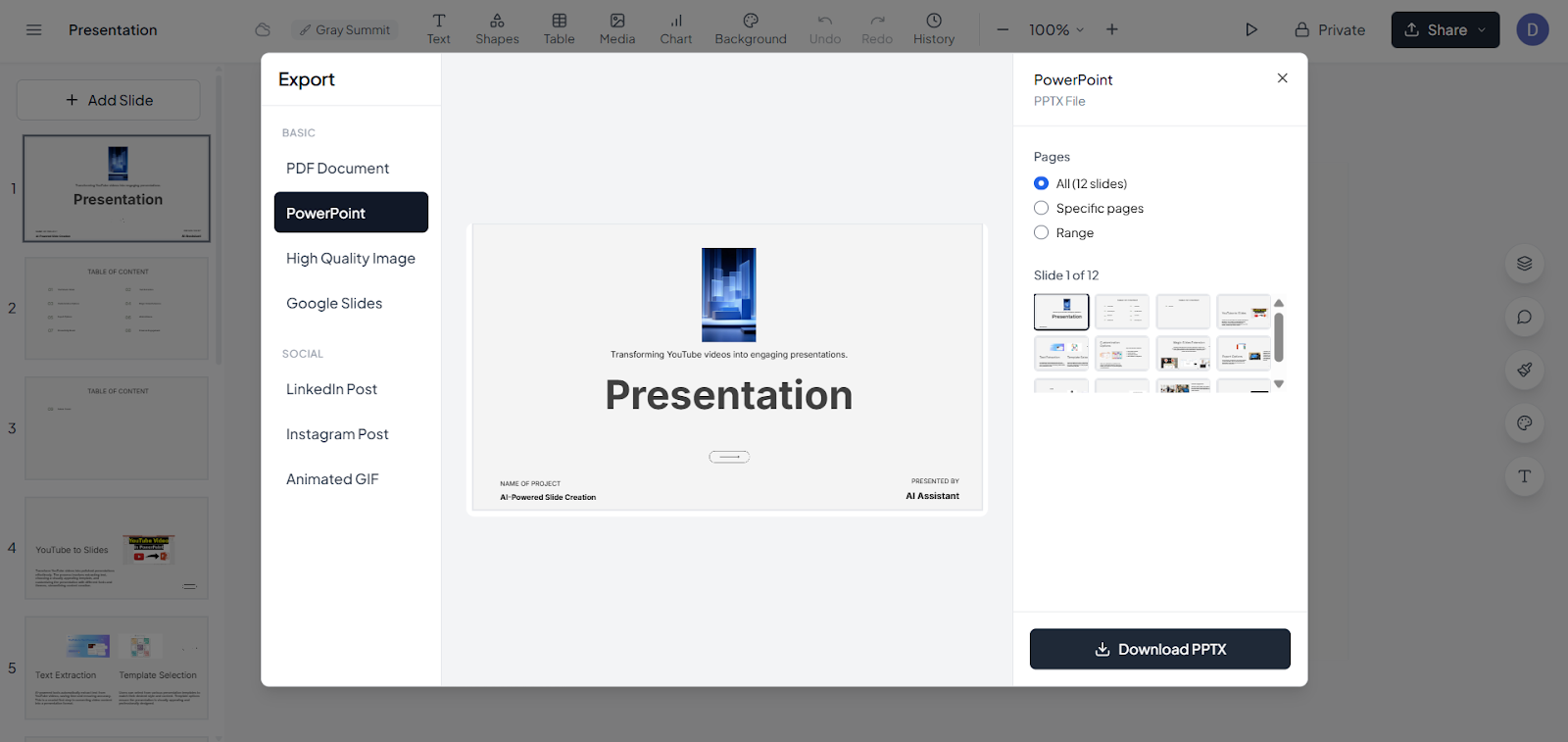
No more downloading files or worrying about formatting. MagicSlides transforms your video into a visually appealing PowerPoint, letting you focus on what matters most, delivering an engaging presentation.
Final Thoughts
Adding YouTube videos to your PowerPoint presentation can dramatically increase engagement, clarity, and professionalism. Whether you use a direct URL, an embed code, or upload a video locally, each method has its own advantages depending on your internet access, audience, and presentation goals.
Key Takeaways:
By choosing the right method and leveraging smart tools, you can create presentations that are visually appealing, engaging, and memorable, without spending hours on manual formatting or embedding.
Also Read: How to add music to PowerPoint a complete guide for Stunning Presentations.
Quick FAQ’s:
1. Can I play YouTube videos offline in PowerPoint?
Yes, but you’ll need to download the video first and insert it as a local file.
2. Will embedding a video make my PowerPoint file large?
Only if you upload the video locally, embed via URL, or embed code does the file size become small.
3. Do I need the internet to play an embedded YouTube video?
Yes, videos embedded using URL or embed code require an active internet connection.
4. Can I control playback settings for embedded videos?
Yes, using the embed code method, you can customize autoplay, start time, and more.
5. Is it legal to use YouTube videos in PowerPoint?
Always ensure you respect copyright rules. Use videos that are licensed for sharing or get permission from the creator.
6. What if the YouTube video is removed or made private?
If the video is removed or set to private, the online URL and embed methods will no longer work. Local uploads remain unaffected.
7. Can I resize or reposition the video on my slide?
Yes, all methods allow you to resize and move the video to fit your slide layout perfectly.
8. Which method is easiest for beginners?
Using the Online URL is the simplest for beginners, as it doesn’t require downloading or dealing with embed codes.
9. Can I add multiple YouTube videos to a single presentation?
Absolutely! You can add as many videos as needed, but keep in mind that local uploads will increase file size.
10. Is there a faster way to make a presentation from a YouTube video?
Yes! Tools like MagicSlides can take a YouTube URL and automatically generate presentation-ready slides in minutes, saving you hours of work.