
Transform Your Slides: Step-by-Step Guide to Create an Attractive PowerPoint Presentation.
Have you ever seen a presentation that instantly grabs attention? Clean design, Clear text, beautiful visuals, and smooth flow.
Now think about the other side, a slide full of text, tiny fonts, random colors, and boring layouts.
Which one would you prefer to watch?
A presentation is not just slides. It is a visual story. Whether you are a student, teacher, business professional, or entrepreneur, knowing how to make an attractive slide can completely change how people understand and remember your message.
Even if you have never created a presentation before, this guide will help you to build one confidently.
Why It Is Important to Make a PPT Attractive?
Many people think presentations are only about information. But the truth is, people remember visuals more than words, design affects attention, and a slide builds credibility.
1. First Impression Matters
Within 5-10 seconds, your audience decides whether they’re interested. A clean and professional slide design instantly builds trust.
2. Improves Understanding
Visual elements like images, charts, and icons make complex information easier to understand.
3. Keeps Audience Engaged
If slides look boring, people lose focus. Attractive slides keep attention alive.
4. Shows Professionalism
Well-designed slides show effort, preparation, and seriousness.
5. Boosts Your Confidence
When your slides look great, you feel more confident presenting them.
Key Elements for an Attractive Presentation
Before you start creating your presentation, you must understand one thing:
Attractive presentations are not made by accident. They are built using design principles.
If you master the elements below, you can turn even a simple presentation into a professional one.
1. Clean Design
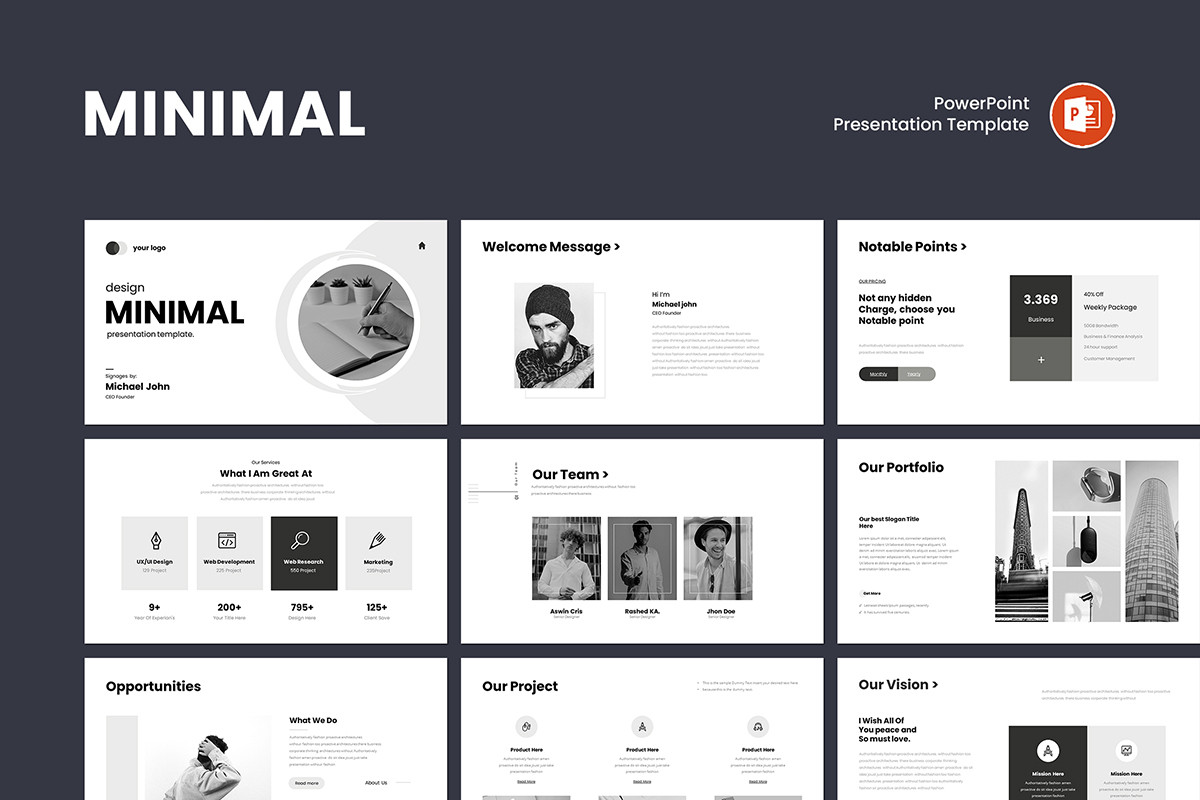
Clean design means your slide looks organized, balanced, and easy to read. It avoids clutter and focuses on clarity, making your message easier to understand and your presentation look professional.
2. Consistent Color Theme

Colors create emotion, but too many colors create confusion.
The Golden Rule: Stick to 2-3 Colors
3. Readable Fonts

Readable Fonts: Your audience should never struggle to read your slides, so always use simple, professional fonts and maintain a clear size.
Beginner Rule: Use only 1 or 2 fonts maximum in the entire presentation.
4. High-Quality Images
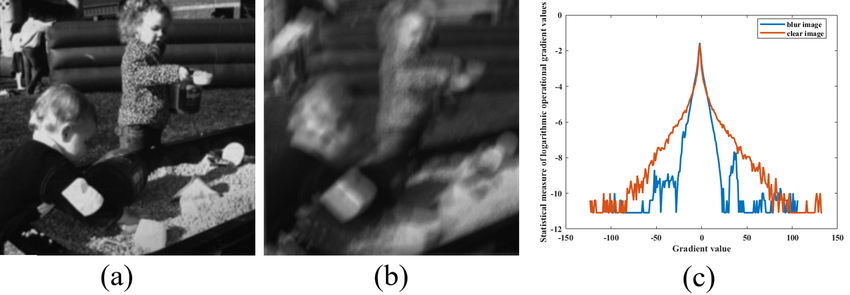
High-Quality Images: Good visuals increase understanding and help your audience remember key points, so always use clear, relevant images that enhance your message.
Why Images Matter:
5. Visual Hierachy
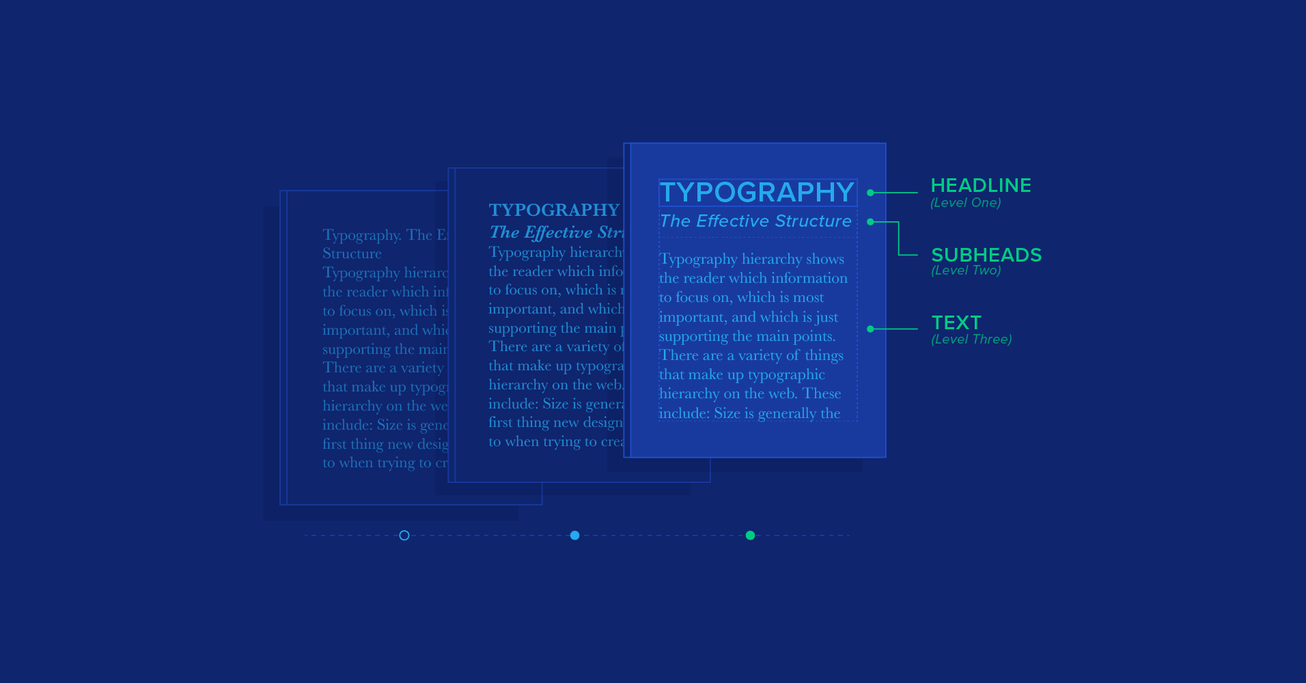
Visual Hierachy, Visual hierarchy controls what your audience notices first, helping them focus on the most important parts of your slide. Your slide should clearly guide the viewer’s eyes.
Basic Structure Example:
How to Create a Hierarchy:
6. Less Text, More Visuals
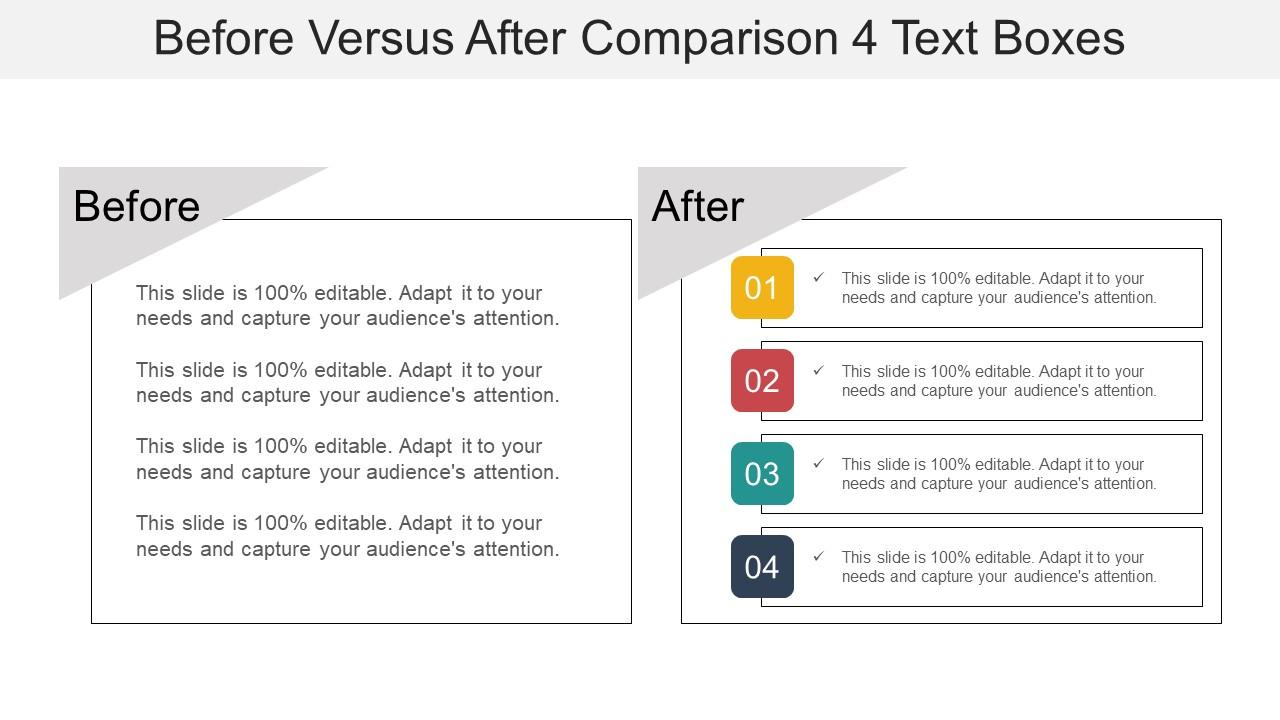
One of the biggest beginner mistakes is writing long paragraphs on slides. Remember, slides are visual support tools, not essays, and should highlight your ideas while you explain the details verbally.
The 6 into 6 Rule
Your slides should support your speech, not replace it
How to Make Presentations Attractive? Step-by-Step Guide Using PowerPoint
Step 1: Open PowerPoint

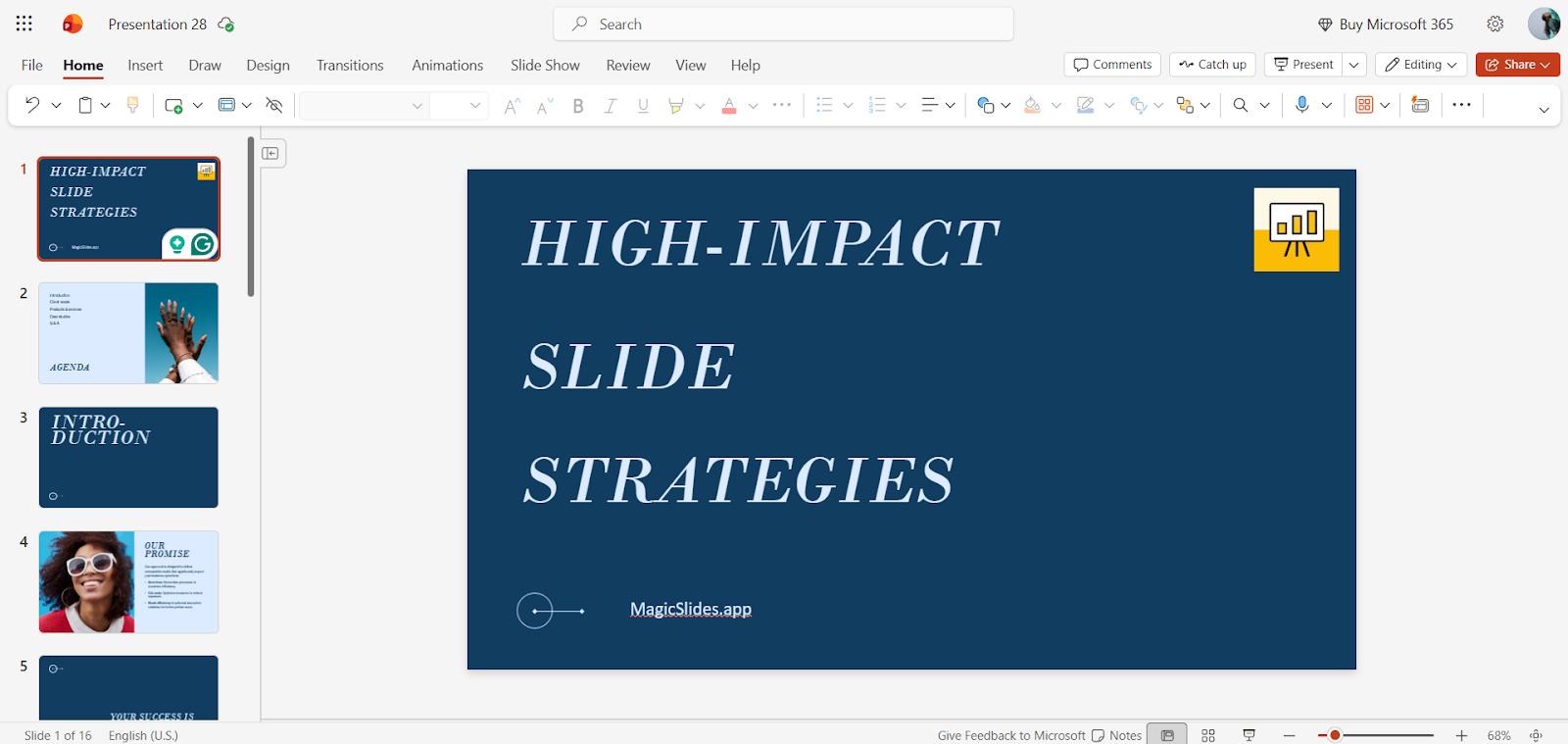
Step 2: Create the Title Slide
Step 3: Structure Your Slides
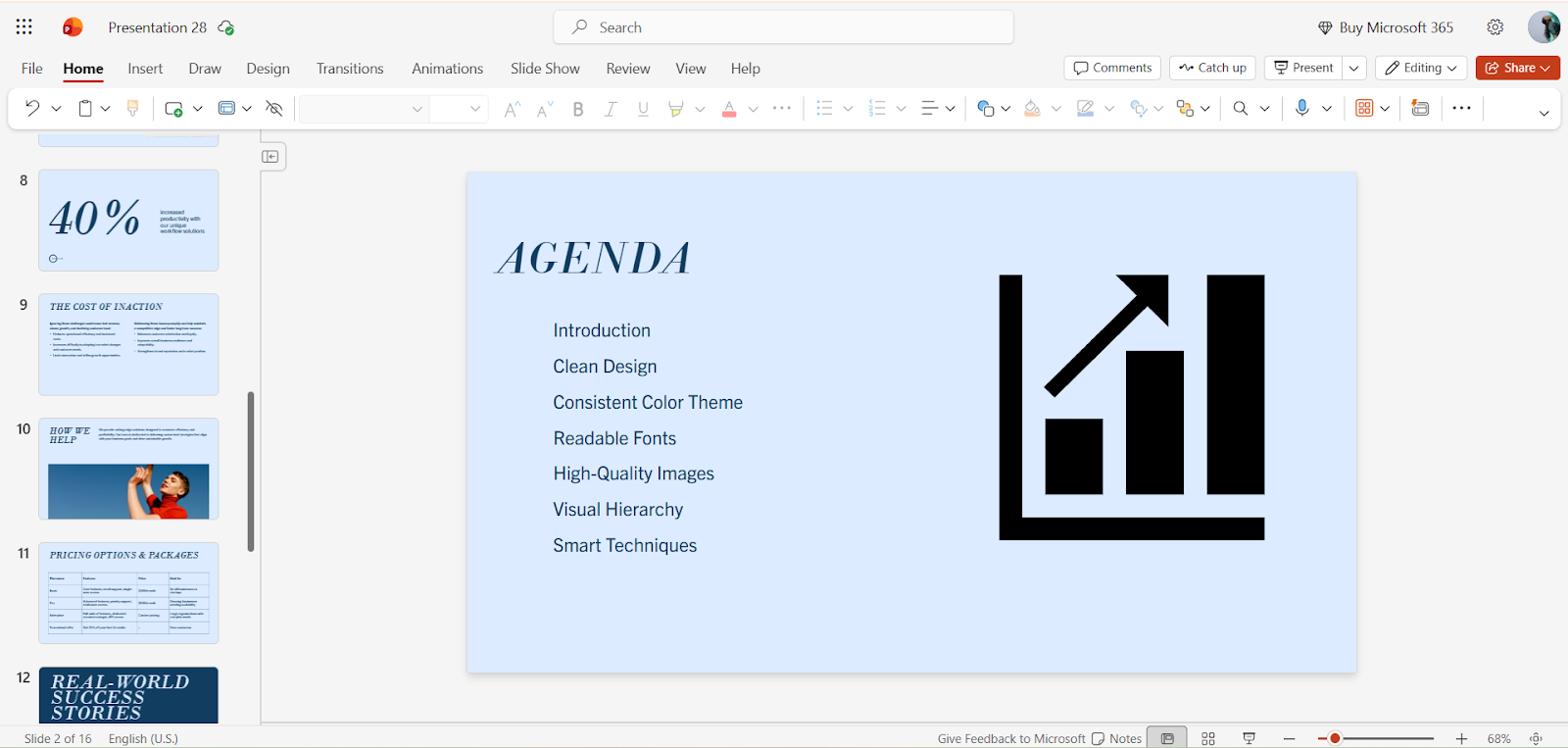
Plan your slides in this order:
Use short bullet points, not long paragraphs
Step 4: Add Visual Elements
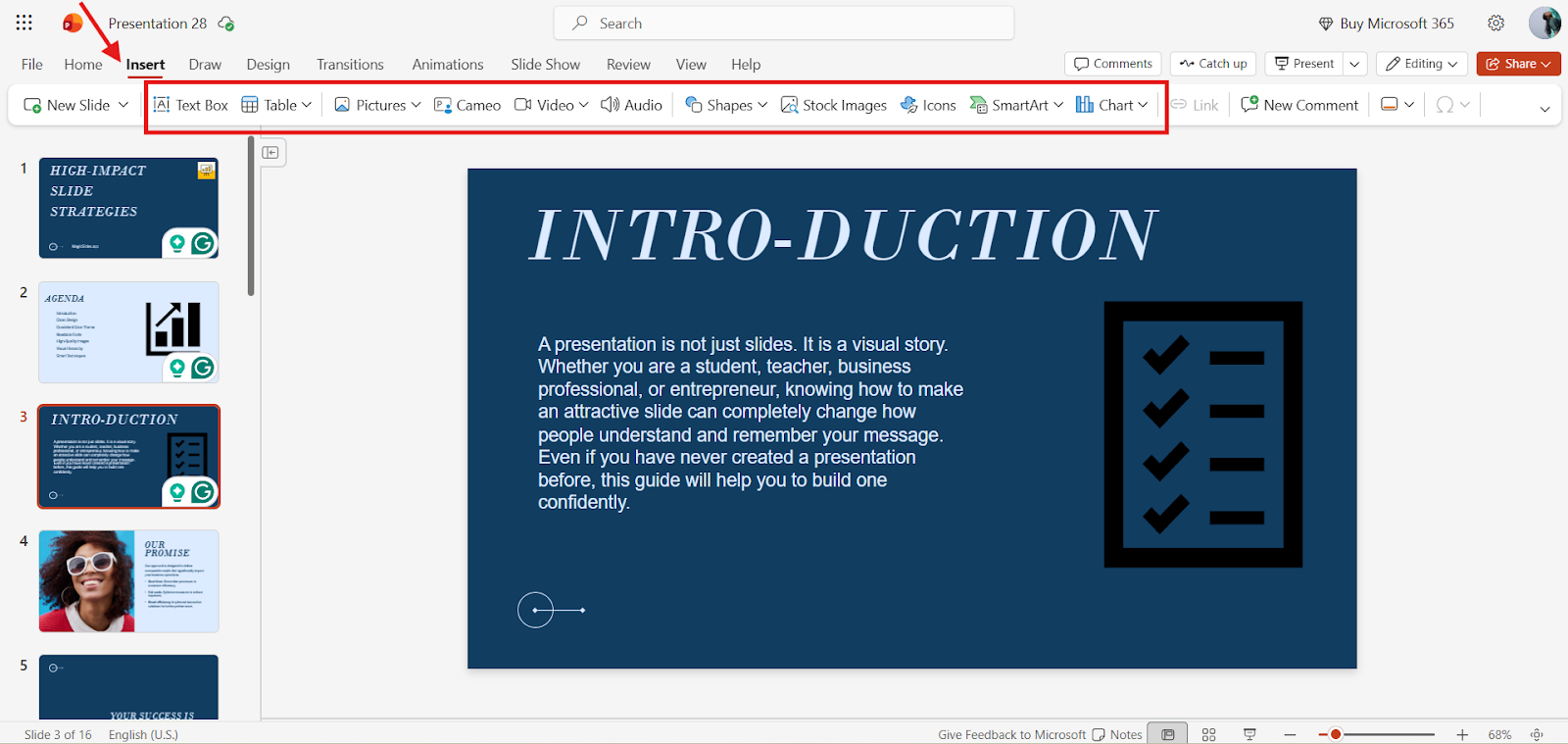
Go to the “Insert” tab in the top menu and add
Use visuals to support your message.
Step 5: Maintain Consistent Design

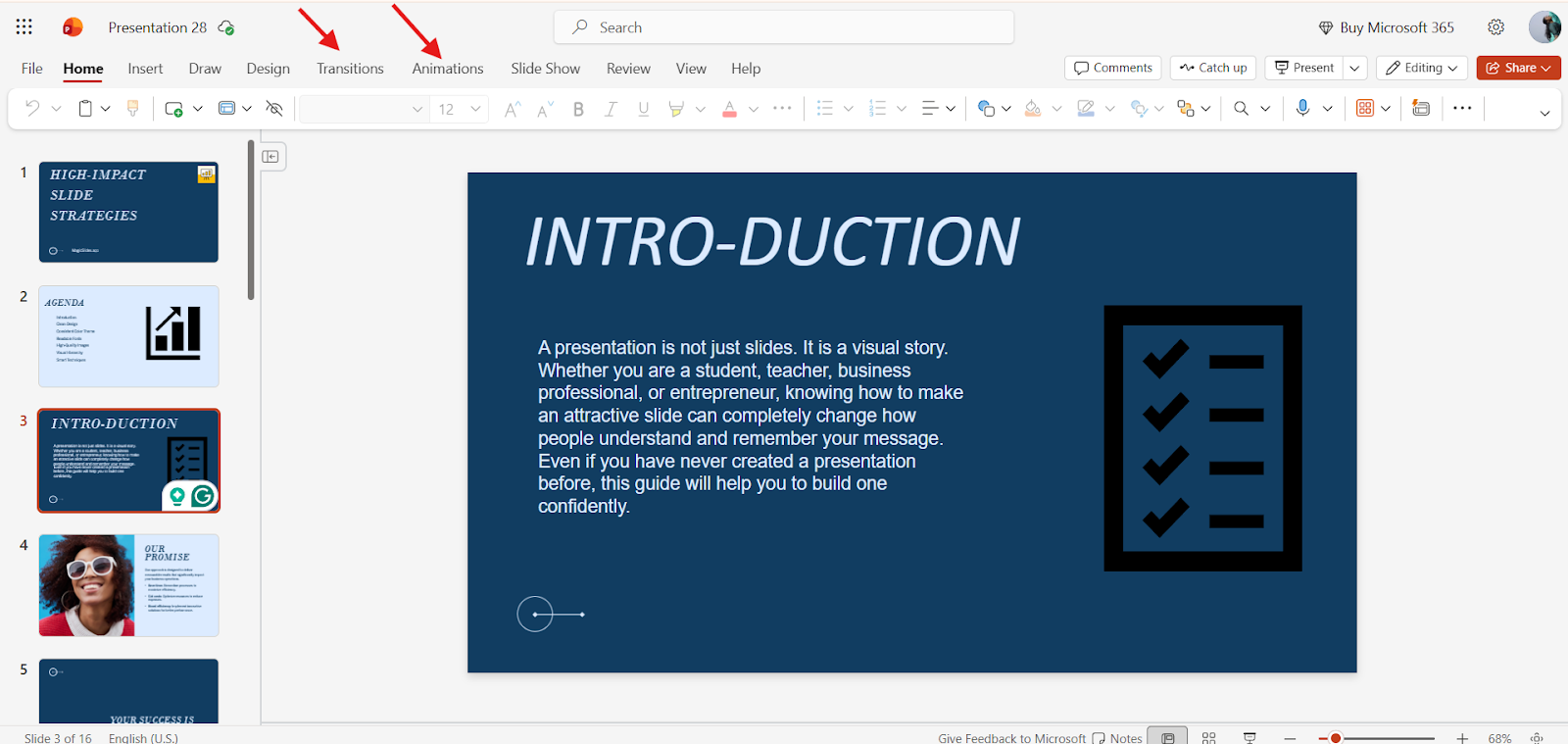
Step 6: Add Simple Transitions and Animations
Step 7: Review and Practice
The Smarter Way to Create a Professional Presentation
If you find it difficult to create presentations manually, spending hours adjusting fonts, choosing colors, aligning text, searching for the right images, and still not feeling satisfied. I faced the same struggle. Starting from a blank slide felt stressful and time-consuming.
That’s when I looked for a smarter solution and found MagicSlides.app, an AI presentation maker, which automatically handles design elements like layout, colors, and fonts, so even without design skills. MagicSlides save time, reduce stress, and let you focus on your message.
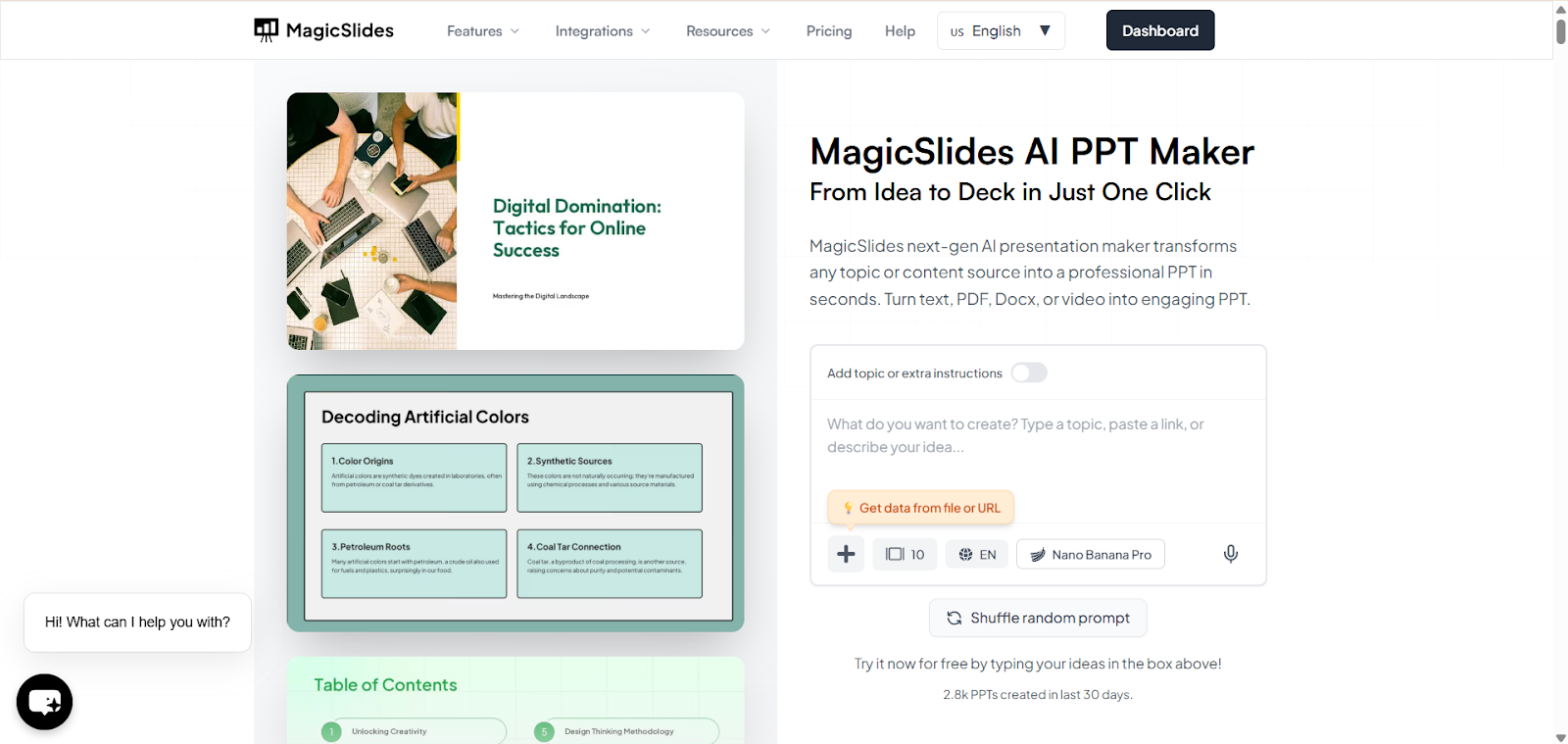
Let’s see how to create a presentation with MagicSlides
1. Log in or Sign up to MagicSlides
2. Enter your Content. MagicSlides supports different file formats like
3. Select the template that suits your topic
4. Click Generate, let the AI analyze the content, and create the files
5. Refine it if needed
6. Download and use it
If creating presentations manually feels challenging, try MagicSlides.App, an AI presentation maker, completely changes the way you work.
Final Thoughts
Making a PPT attractive is not about adding too many effects; it is about keeping things clear, simple, and visually balanced. When you focus on clean design, consistent colors, readable fonts, strong visuals, and minimal text, your presentation naturally becomes more engaging and professional. Whether you create it manually in PowerPoint or use AI tools like MagicSlides, the goal is always to communicate your message clearly.
Also Read: How to create a multimedia presentation that engages the audience.
Quick FAQ’s
Q 1: What is the most important element of an attractive PPT?
A clean design with clear visuals and minimal text is the foundation of any professional presentation.
Q 2: Can I use images from Google?
Only use high-resolution, copyright-free, or licensed images to maintain quality and avoid legal issues.
Q 3: How do I make my slides visually appealing?
Use consistent alignment, white space, and a clear focal point for each slide.
Q 4: Are templates better than starting from scratch?
Templates are great for beginners, but customizing them ensures your presentation looks unique and professional.
Q 5: How do I keep my audience engaged?
Combine visuals, minimal text, bullet points, and a clear hierarchy while explaining points verbally.
Q 6: Is it okay to include videos in slides?
Yes, but keep them short and relevant; they should enhance your message, not distract.
Q 7: How can I practice for a smooth presentation?
Use Slide Show mode to check flow, timing, readability, and rehearse your delivery.