
A Complete Guide to Building Effective Multimedia Presentations
Presentations have evolved beyond simple text slides. In today’s digital environment, audiences expect content that is visually engaging, interactive, and easy to understand. This is why multimedia presentations have become an essential form of communication across education, business, marketing, and training.
A well-designed multimedia presentation combines text, visuals, audio, video, and animation to tell a compelling story. In this blog, you will learn what a multimedia presentation is, its benefits, the types of media you can include, the right tools to use, and a guide to creating one, both manually and using AI.
What is a Multimedia Presentation?
A multimedia presentation is a presentation that uses multiple forms of media to deliver information. Instead of relying only on text, it integrates visuals, audio, videos, animations, and interactive elements.
Multimedia presentations are widely used in:
By combining different media types, presentations become more engaging, impactful, and memorable.
Types of Media to Add in a Multimedia Presentation
To create an effective multimedia presentation, you can include the following types of media. Each element plays a specific role in making your content more engaging and easier to understand.
1. Text
Text is used for headings, key points, and short explanations.
2. Images
Images such as photos, illustrations, icons, and charts help visualize ideas and reinforce your message.
3. Audio
Audio elements like background music, voice narration, or sound effects can enhance storytelling and maintain audience interest. Audio is especially useful for online or self-paced presentations.
4. Video
Videos are excellent for demonstrations, tutorials, testimonials, and real-life examples. They capture attention quickly and help explain concepts more effectively than text alone.
5. Animations
Animations can be used to highlight important points, explain processes, or smoothly transition between ideas. Use them sparingly to avoid distraction.
6. Infographics and Charts
Infographics and charts are useful for presenting data, statistics, and comparisons in a clear and visually appealing way. They help audiences grasp information quickly and remember it longer.
Benefits of Multimedia Presentation
Multimedia presentations offer several advantages over traditional presentations:
1. Increased Audience Engagement
Using visuals, videos, and sound keeps the audience interested and reduces boredom.
2. Better Understanding and Retention
People remember information better when it is presented visually along with audio or animations.
3. Effective Communication
Complex ideas, data, and processes can be explained more clearly using diagrams, videos, and graphics.
4. Professional Appearance
Well-designed multimedia presentations appear more polished and professional.
5. Versatility
They can be used for meetings, classrooms, webinars, conferences, and online platforms.
How to Create a Multimedia Presentation? Step-by-Step Guide
Step 1: Define Your Goal and Audience
Decide the purpose of your presentation and who it is for. This guides your content and design choices.
Step 2: Plan Your Content Structure
Create a clear outline and decide where multimedia elements will add value.
Step 3: Choose the Right Tools
Select tools based on your skill level, timeline, and presentation needs.
Method 1: Create a Multimedia Presentation Using Canva (Manual)
Canva is a popular tool for manually creating professional multimedia presentations.
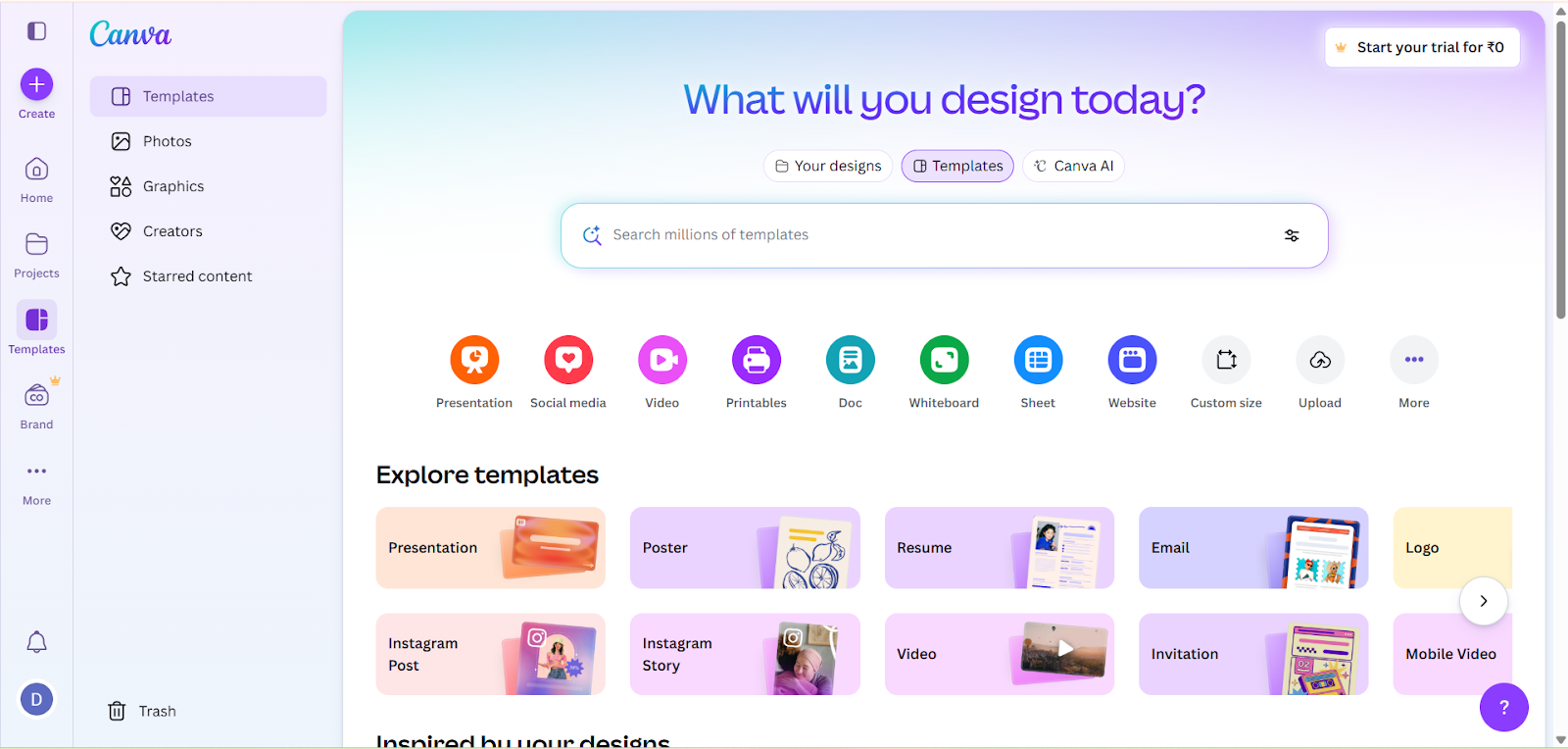
Step 1: Open Canva
Sign up or log in to Canva.
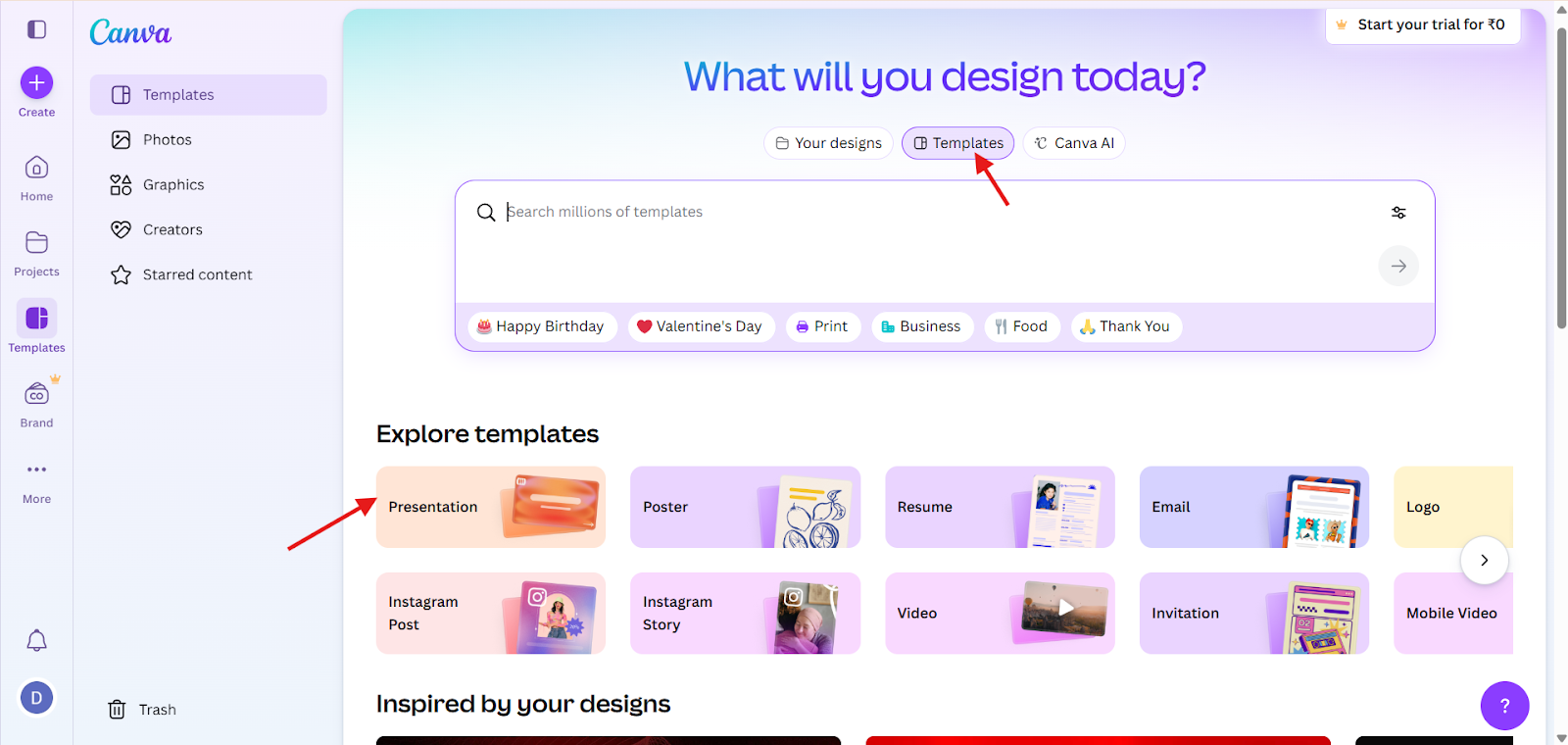
Step 2: Select a Presentation Template
Choose the template that matches your topic and audience from Canva templates.
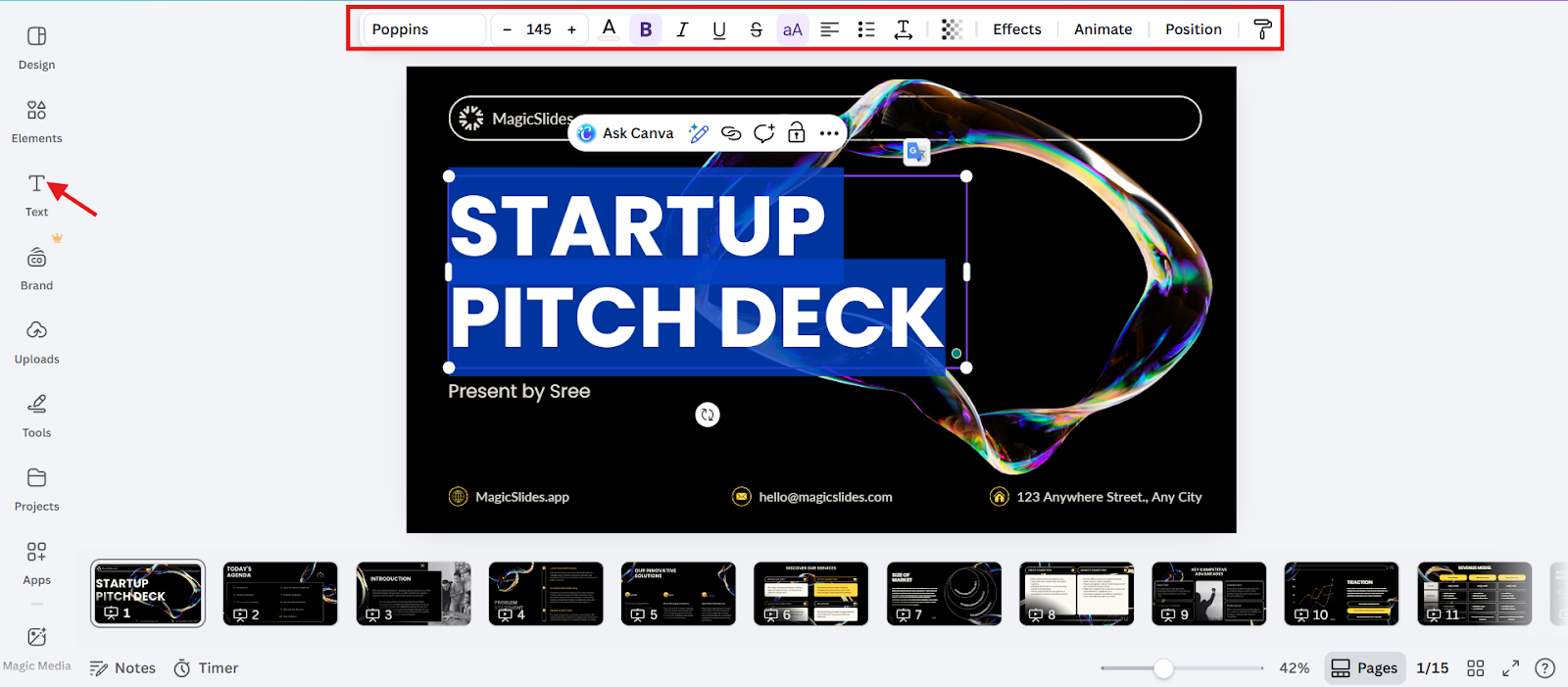
Step 3: Customize the Design
Once you choose a template, start customizing it to suit your content and brand.
1. Edit Text
Click on any text box to change headings, bullet points, or descriptions.
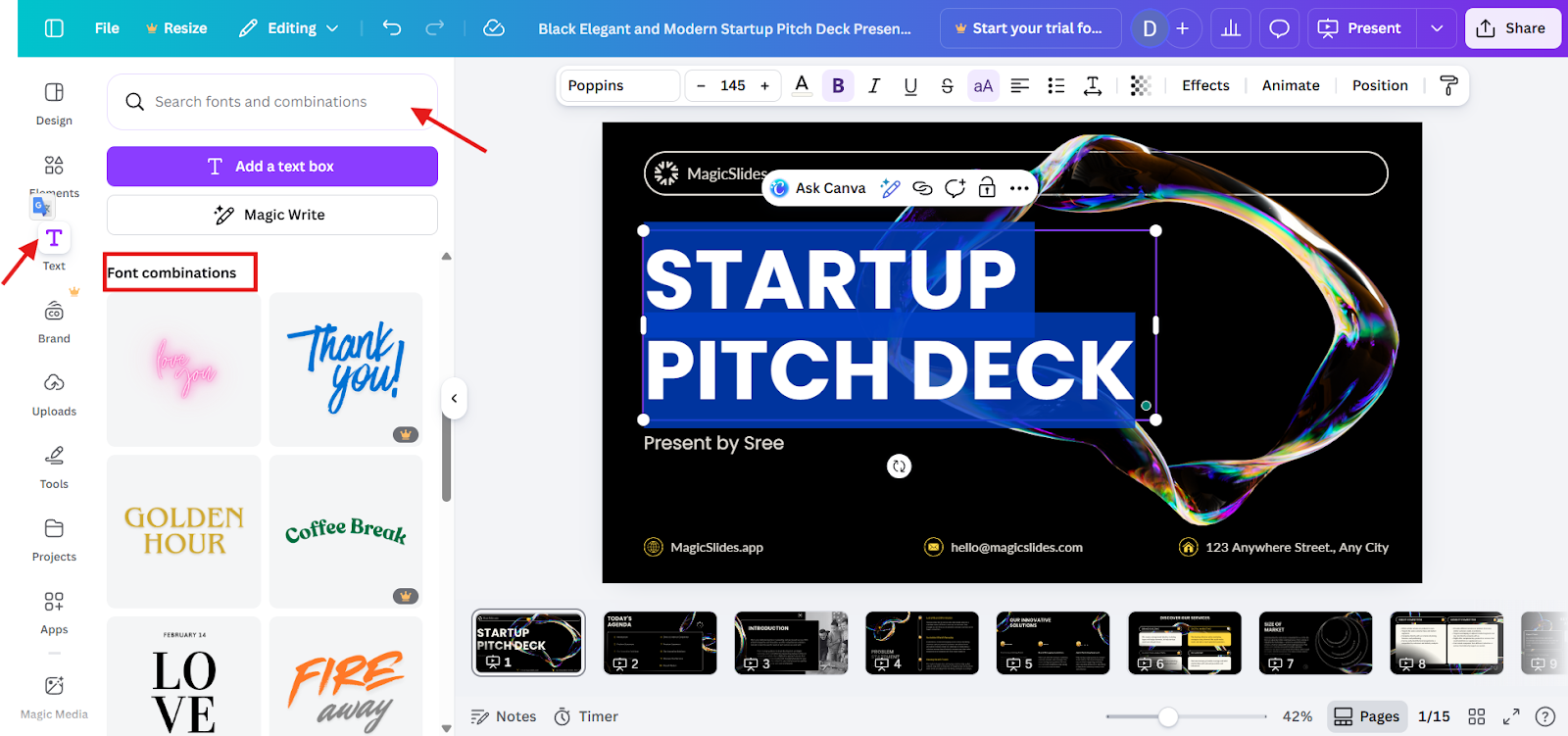
2. Change Fonts
3. Adjust Colors
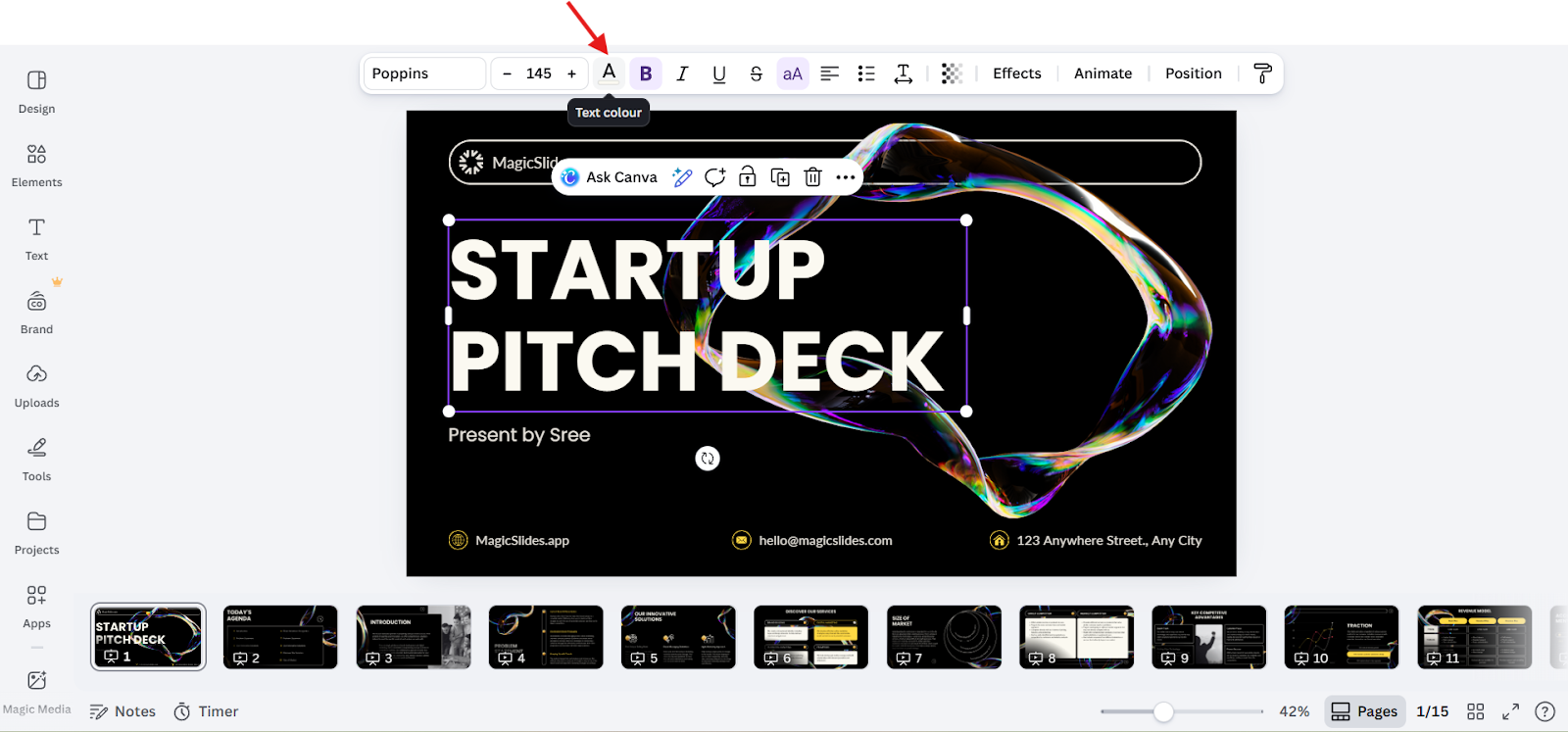
Step 4. Rearrange Layouts
Step 5: Add Multimedia Elements
This is where your presentation becomes truly multimedia
1. Insert Images and Icons
Click on “Elements” in the left menu bar and search for the image that suits your slides.
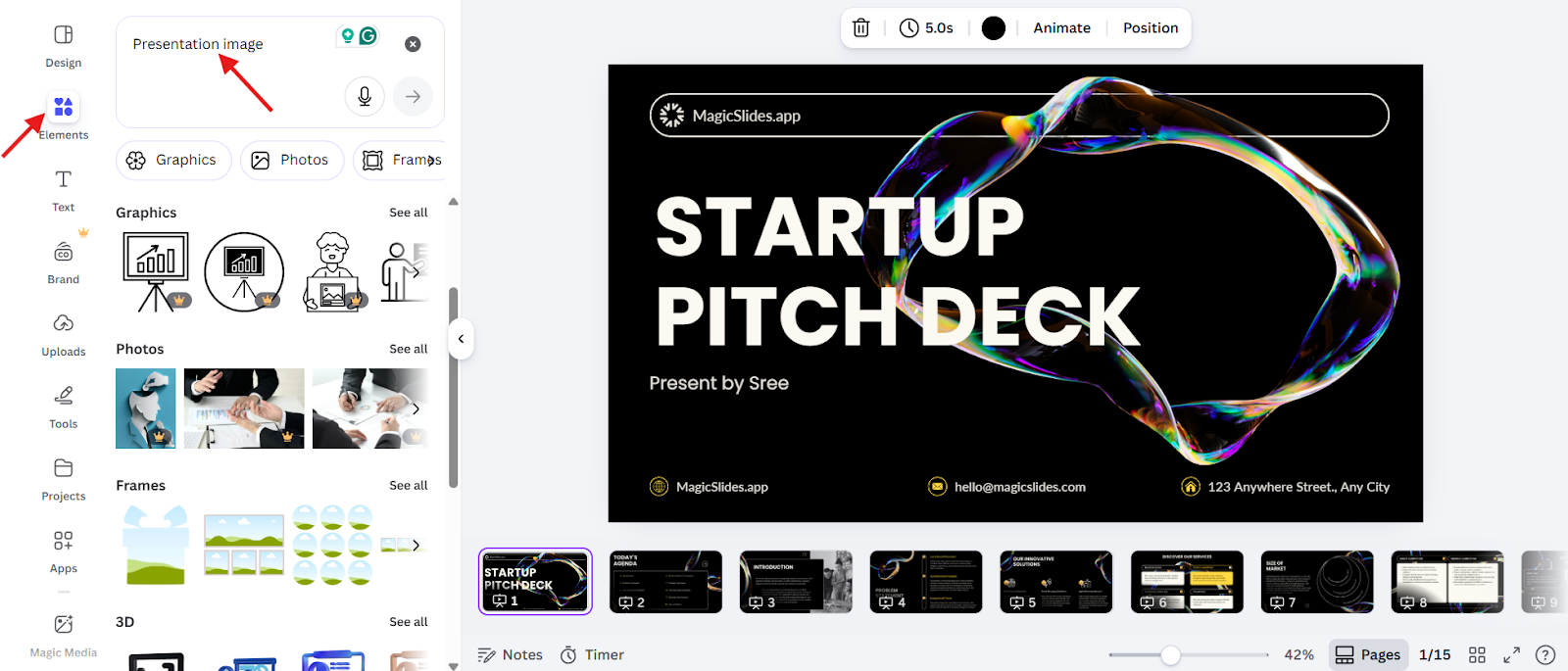
To add your own image, click on “upload” and upload your image, and use it in your presentation.
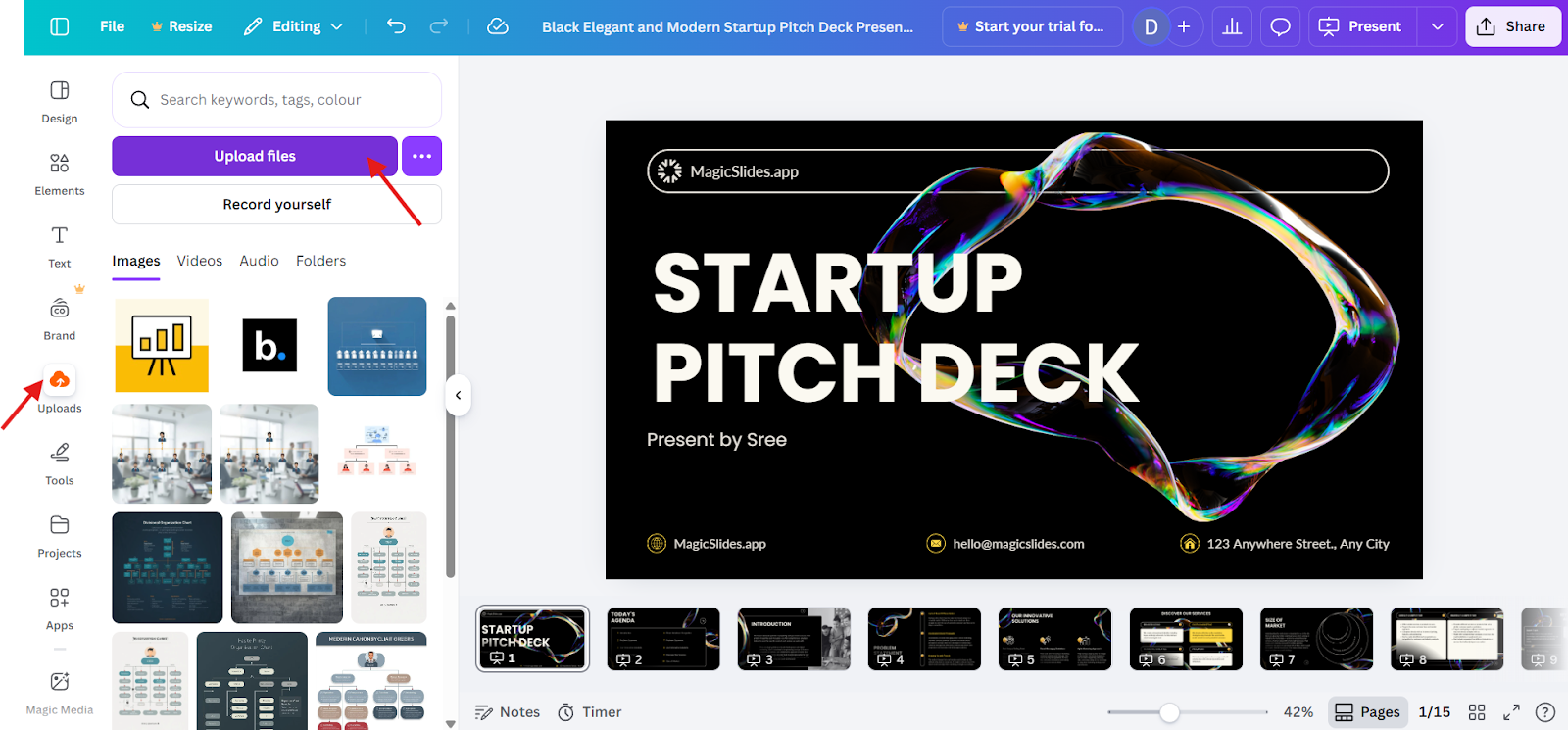
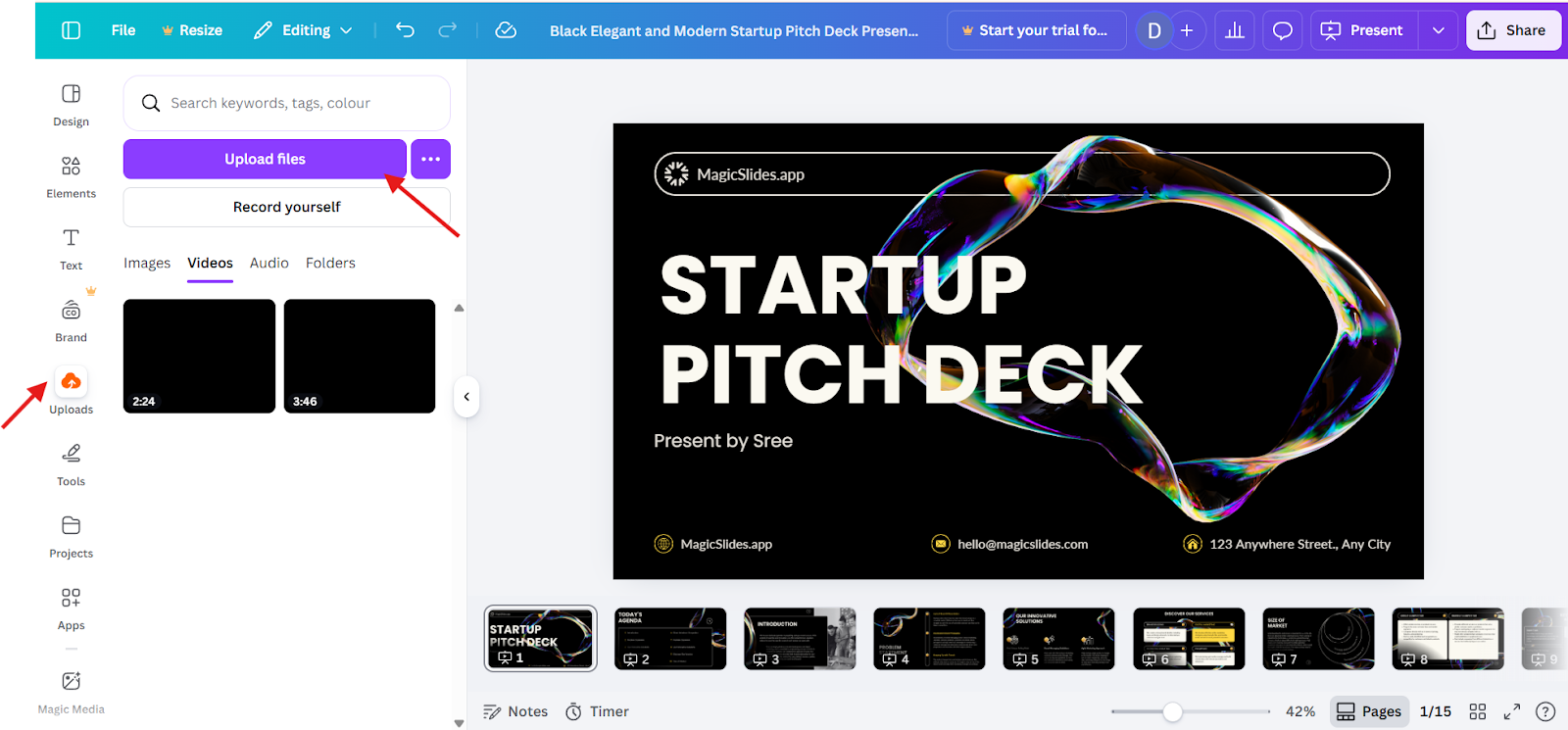
2. Add Videos
Same as the image, click “upload” and upload video files directly into slides. Videos are useful for demonstrations, tutorials, or storytelling.
3. Include Charts and Infographics
You can directly search in the elements and customize them based on your needs.
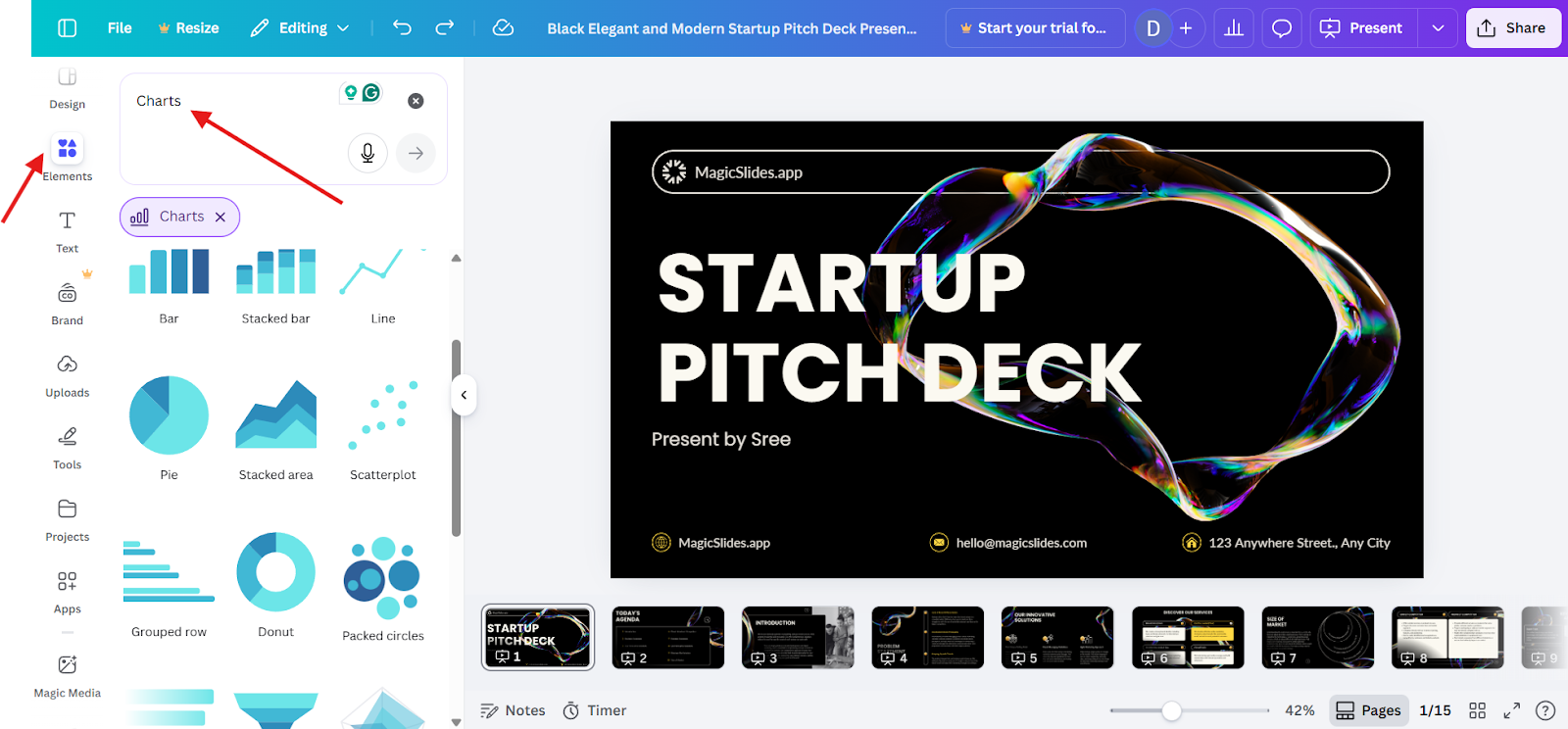
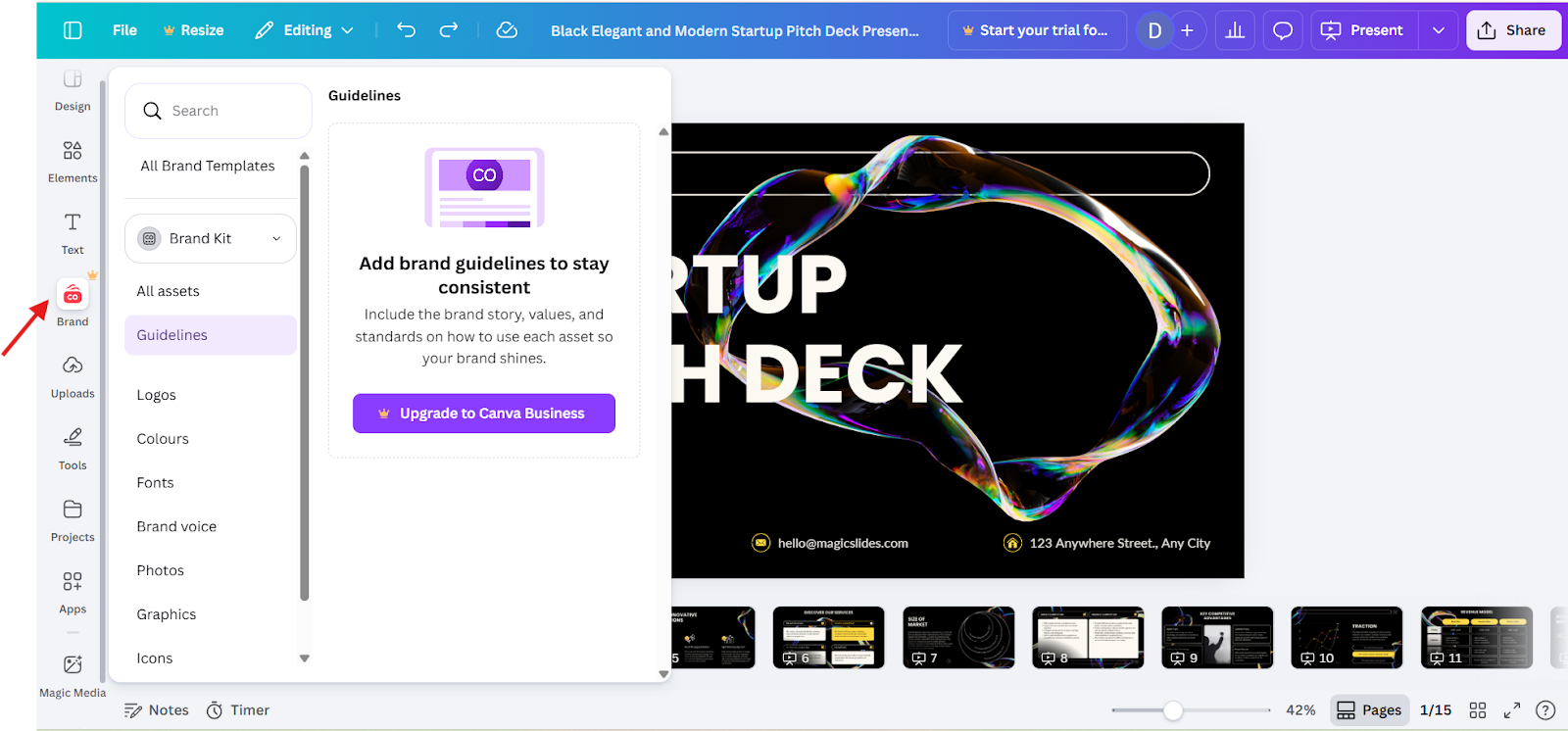
If you want your own brand charts, infographics, text, or colors, use the “brand kit” from the left menu to display your own brand data, statistics, or comparisons visually.
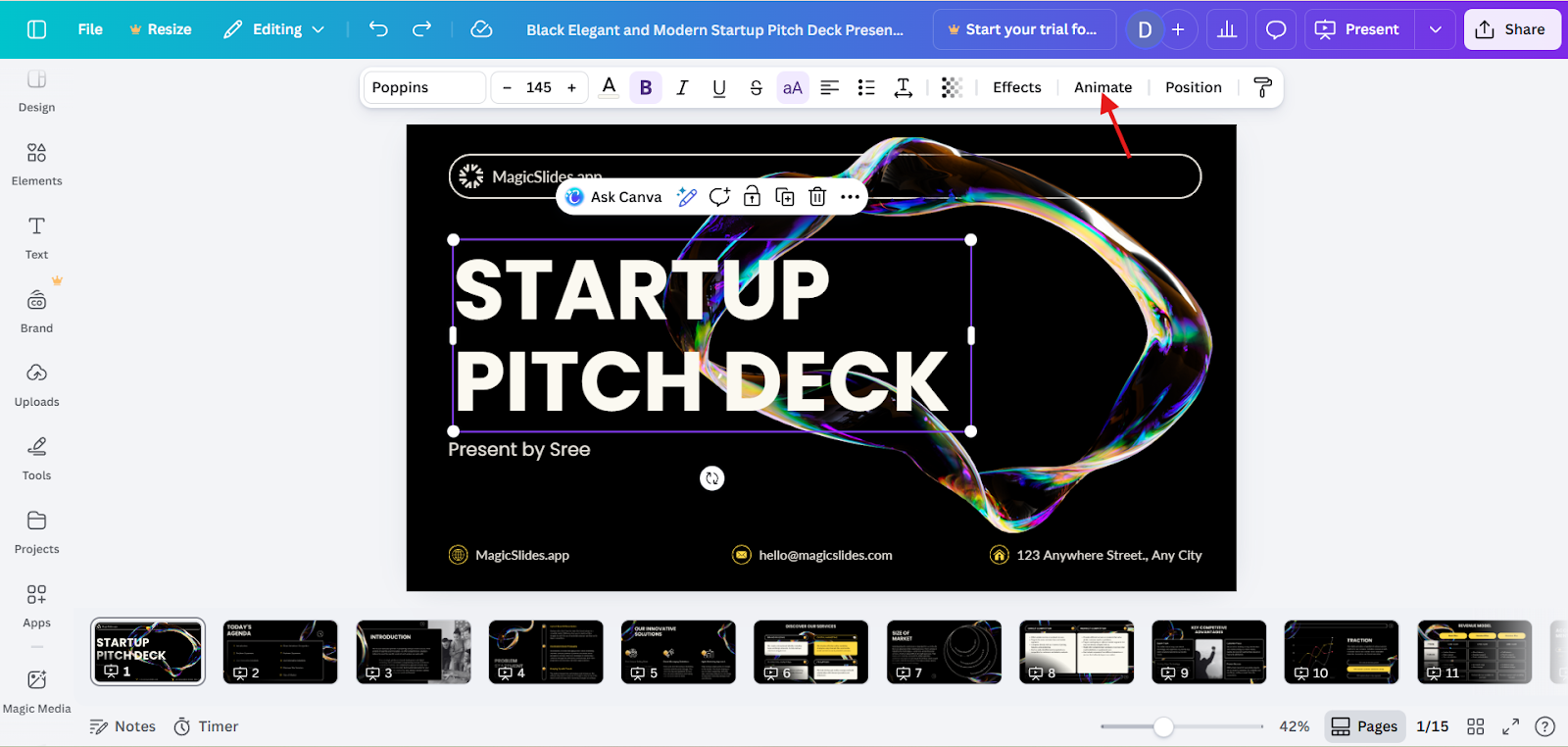
4. Apply Animations
Click on any elements pop-up menu will appear, select animations, and add simple animations to text or images to highlight key points or guide attention.
Use animations sparingly to avoid distraction.
Step 6: Review and Present
Before presenting, review your slides carefully.
Once finalized, you can present directly from Canva, share a link, or download the presentation in formats like PDF or PowerPoint.
Best for: Students, educators, marketers, and beginners who want complete creative control.
Method 2: Create a Multimedia Presentation Using MagicSlides (AI-Powered)
MagicSlides is an AI-powered tool that generates presentations automatically.
Step 1: Open MagicSlides
Access MagicSlides either through its platform or as a Google Slides add-on.
Log in or sign up to MagicSlides.
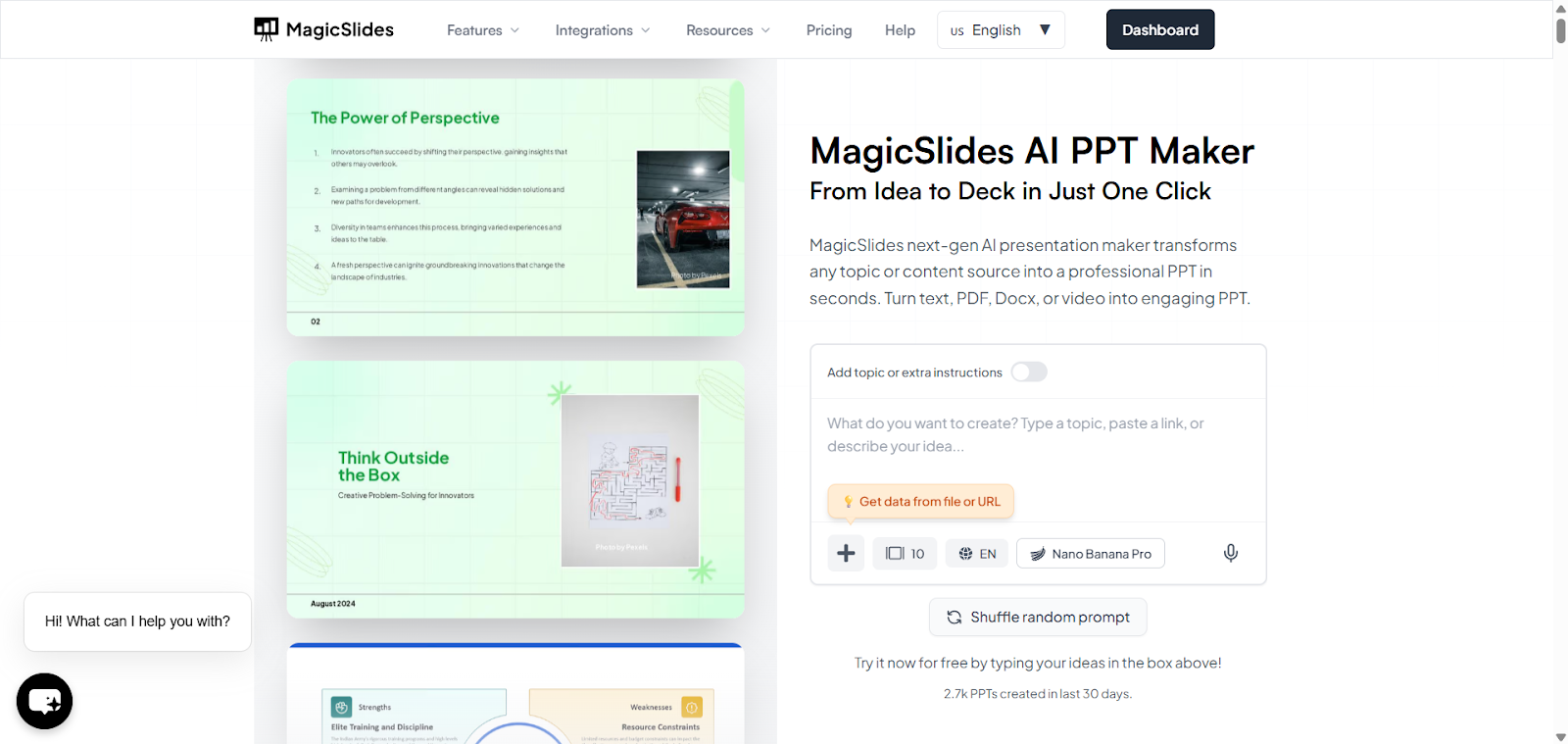
Step 2: Enter Your Content
MagicSlides accepts different formats like text, docs, links, and PDFs.
Just give your content, Magicslides AI will use this information to structure your entire presentation.
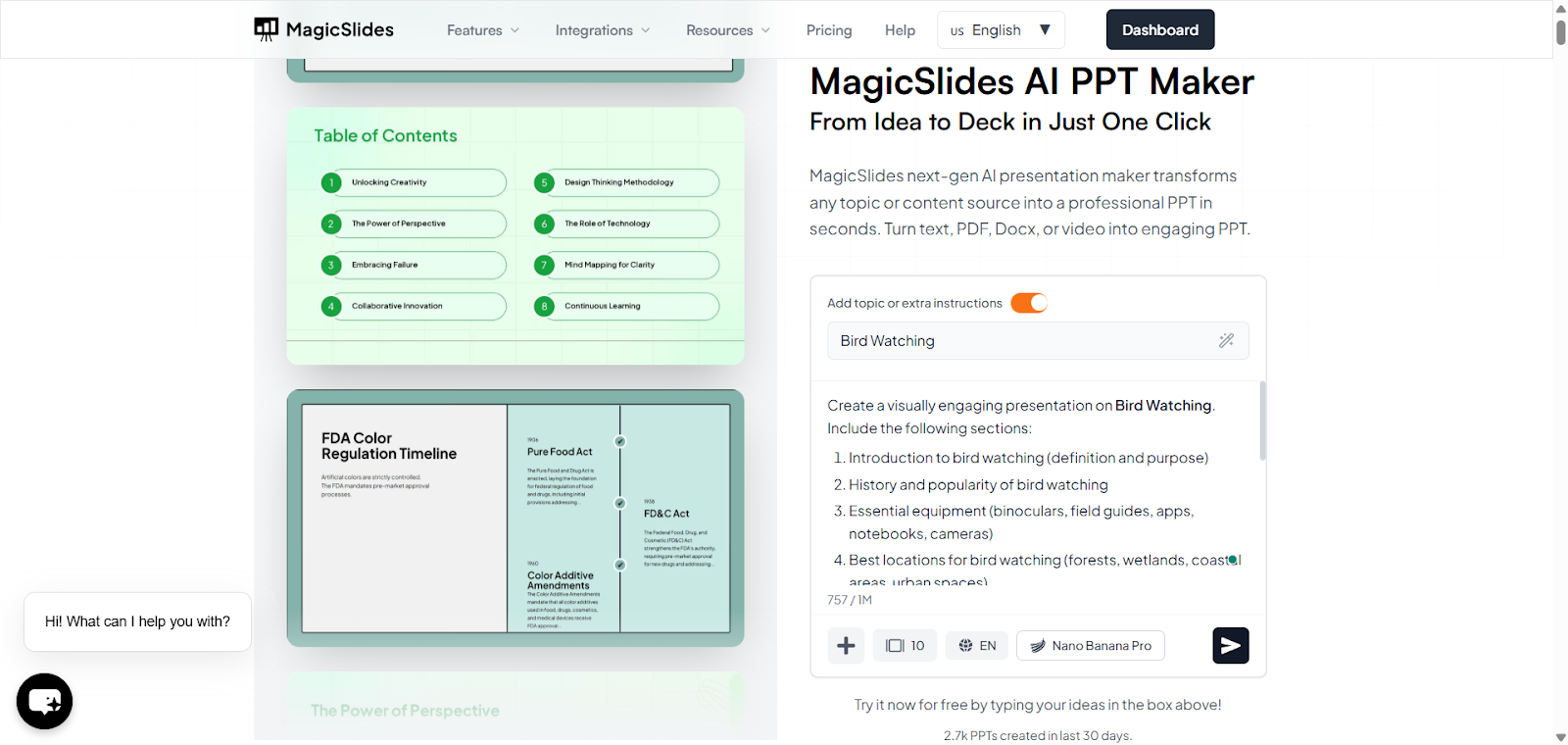
Step 3: Select Template
You can select the templates that suit your audience and your content.
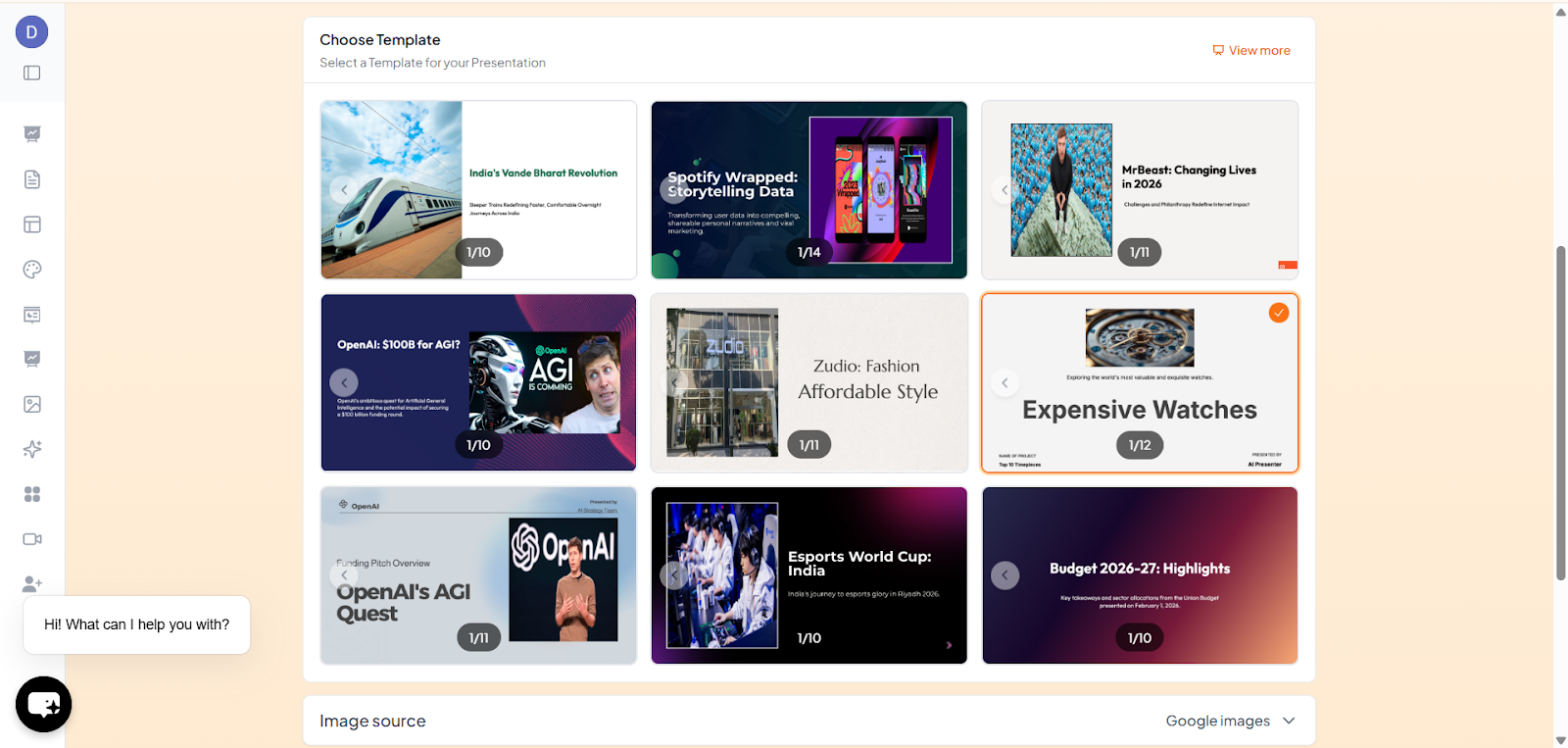
Step 4: Generate Slides with AI
Once you submit your content, MagicSlides automatically creates slides with:
Everything is taken care of by MagicSlides AI, so you get a ready-to-use presentation in seconds.
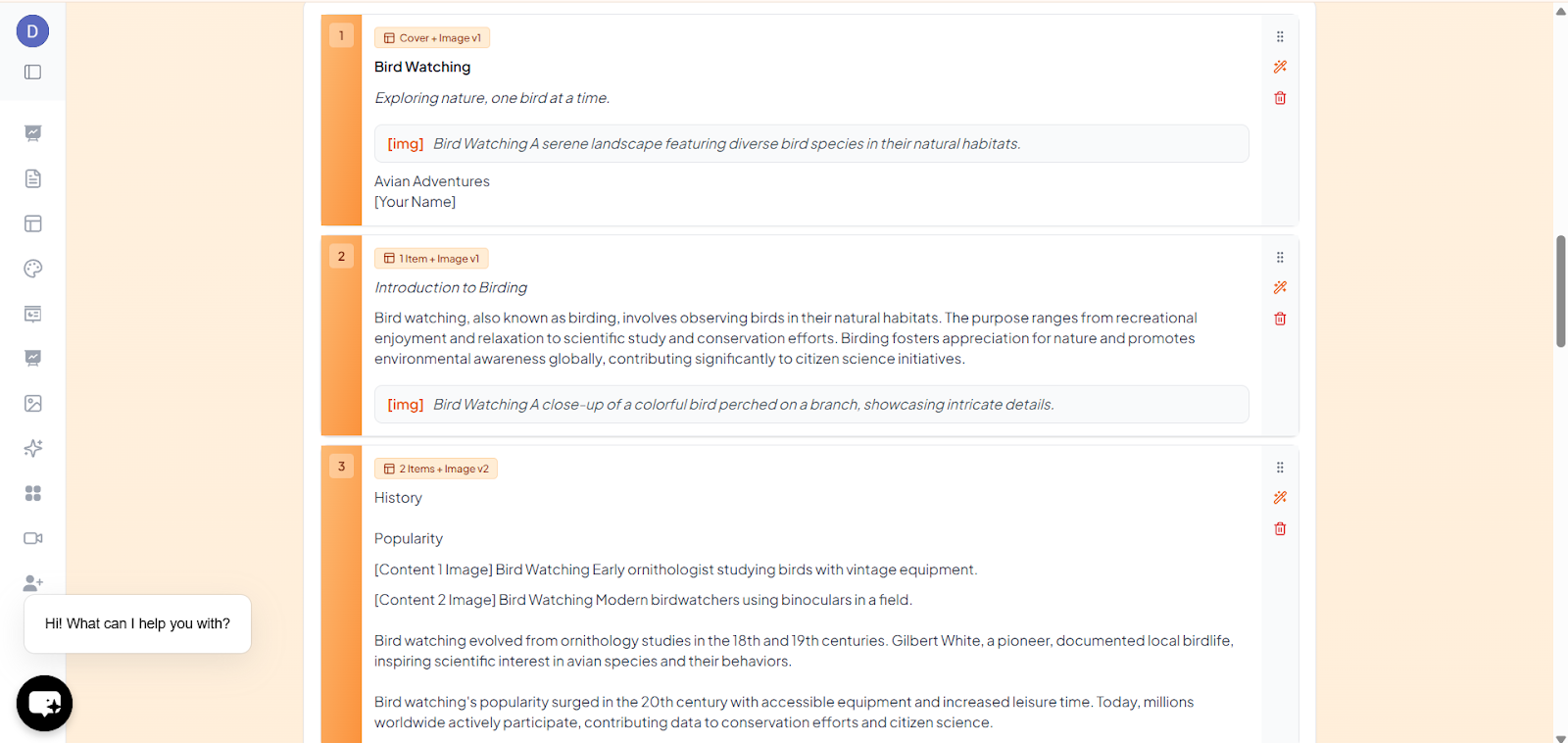
Step 5: Customize the Output
Even though MagicSlides handles most of the work, you can:
This flexibility allows you to personalize the AI-generated slides without starting from scratch.
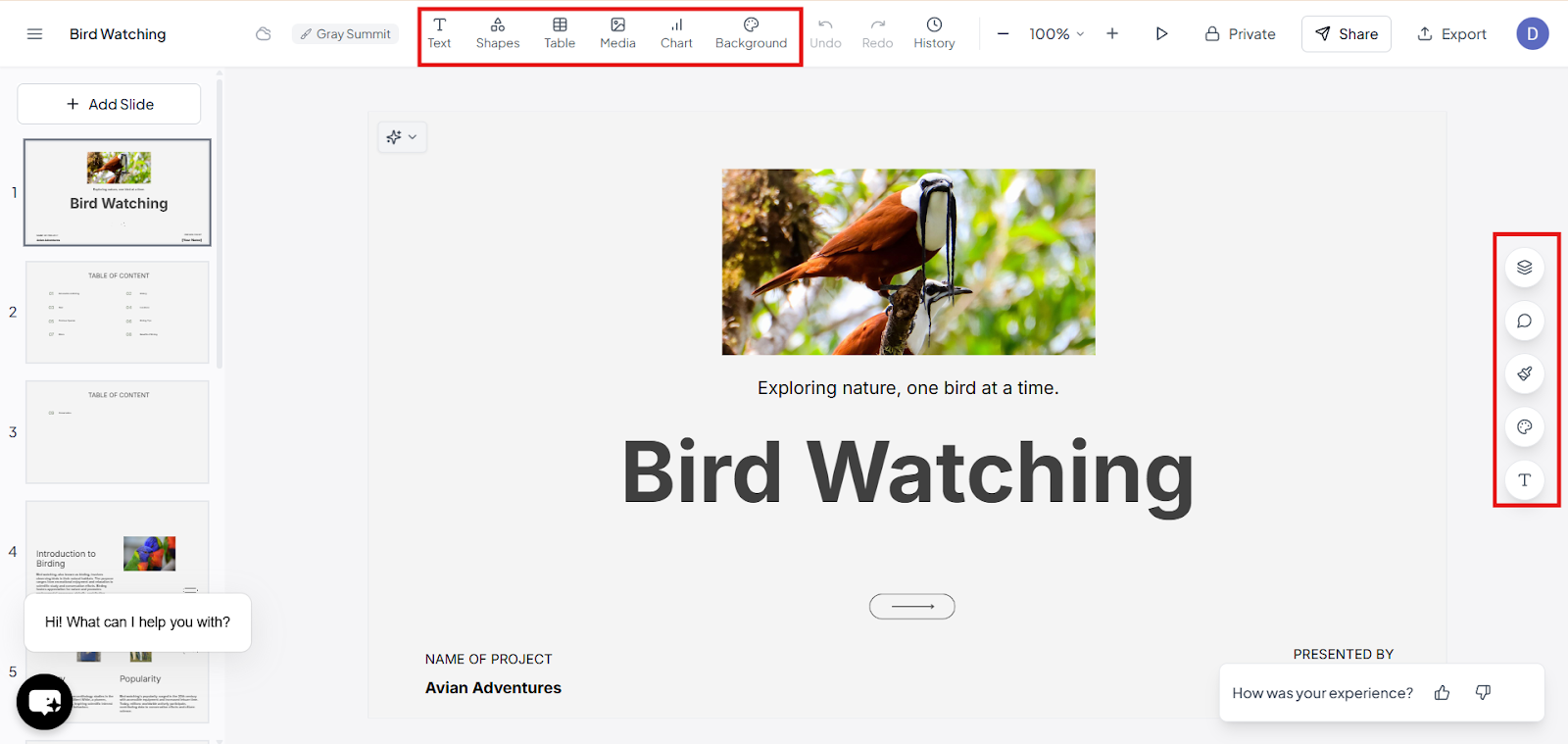
Step 6: Export or Present
Once satisfied, you can download the presentation and use it.
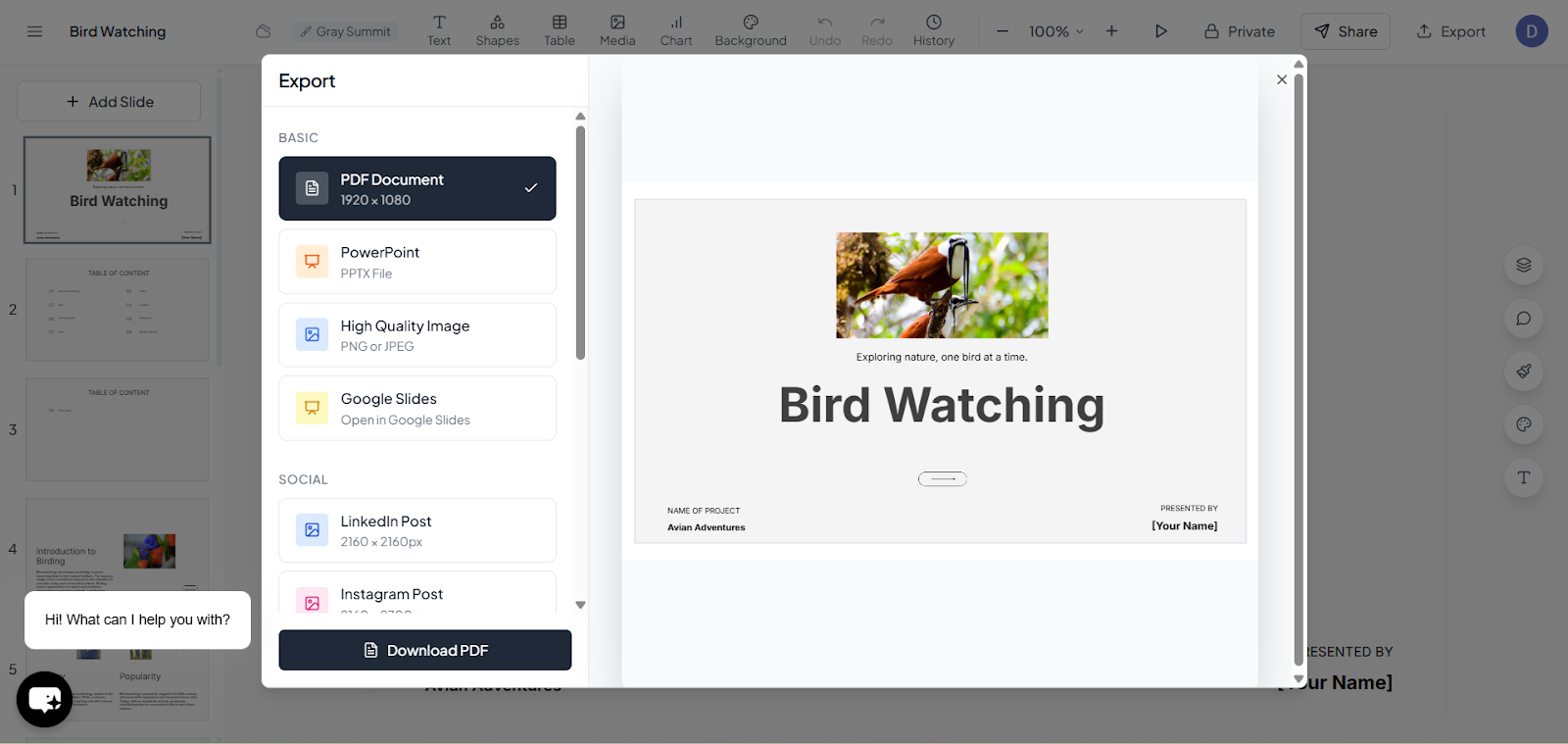
MagicSlide is ideal for anyone who wants high-quality presentations quickly, without worrying about design, layouts, or formatting.
Tips to Make a Multimedia Presentation
Common Mistakes to Avoid
Final Thoughts
Creating a multimedia presentation doesn’t have to be complicated. With proper planning and the right tools, whether manual tools like Canva or AI tools like MagicSlides, you can design presentations that are engaging, informative, and visually impressive. The key is to balance creativity with clarity and always keep your audience in mind.
Also Read: How to make a product launch presentation using simple steps and tips.
Quick FAQ’s
Q 1: How much multimedia should I include in a presentation?
Include only relevant media that support your message. Too many images, videos, or animations can distract your audience.
Q 2: Can I make a multimedia presentation without design skills?
Yes, Canva templates make manual design easy, while MagicSlides AI handles most design and content creation automatically.
Q 3: Are multimedia presentations suitable for online learning?
Absolutely, Videos, animations, and audio enhance engagement, clarify complex topics, and maintain learner focus in virtual classrooms.
Q 4: How do I choose the right type of media for my presentation?
Choose media based on content type and audience needs:
Q 5: Can multimedia presentations improve learning and retention?
Yes, using multiple forms of media activates different learning pathways, making it easier for audiences to understand and remember information.
Q 6: How long should a multimedia presentation be?
Keep it concise and focused. Aim for a clear message, with each slide presenting one main idea. Longer presentations can lose audience attention.