
How to Bring an Image Forward in Google Slides (Easy Step-by-Step Guide)
It is not only the content that comes up with an engaging presentation, but also the visual hierarchy and clarity. You will frequently have numerous images, shapes, and textual elements on the same slide, whether you are a student, teacher, or professional.
Among these is the art of pushing an image forward - that is, to bring an image closer to the other elements so that it can be seen, or to the point of the message you are conveying.
In this blog post, you will go through the guide on how to bring the image forward and why it is important, as well as present a very powerful AI tool to help simplify your work process.
Why Bring an Image Forward?
When you have other stuff behind a picture, your audience might not see it at all, even though it might be the most important part of what you are saying.
Here is why an image forward is needed
The reason why it is important to bring an image forward is as follows:
1. Emphasize key images:
Enhance the important images to come out and stand out.
2. Better layout and readability:
Do not use other objects and hide your images.
3. Layering of control:
Refine the details to create more polished and professional designs.
It is very easy to rearrange the elements in Google Slides in order to present your visuals in the best way possible.
How to Take an Image Forward Step-by-Step Guide.
The easiest way to move an image in Google Slides is:
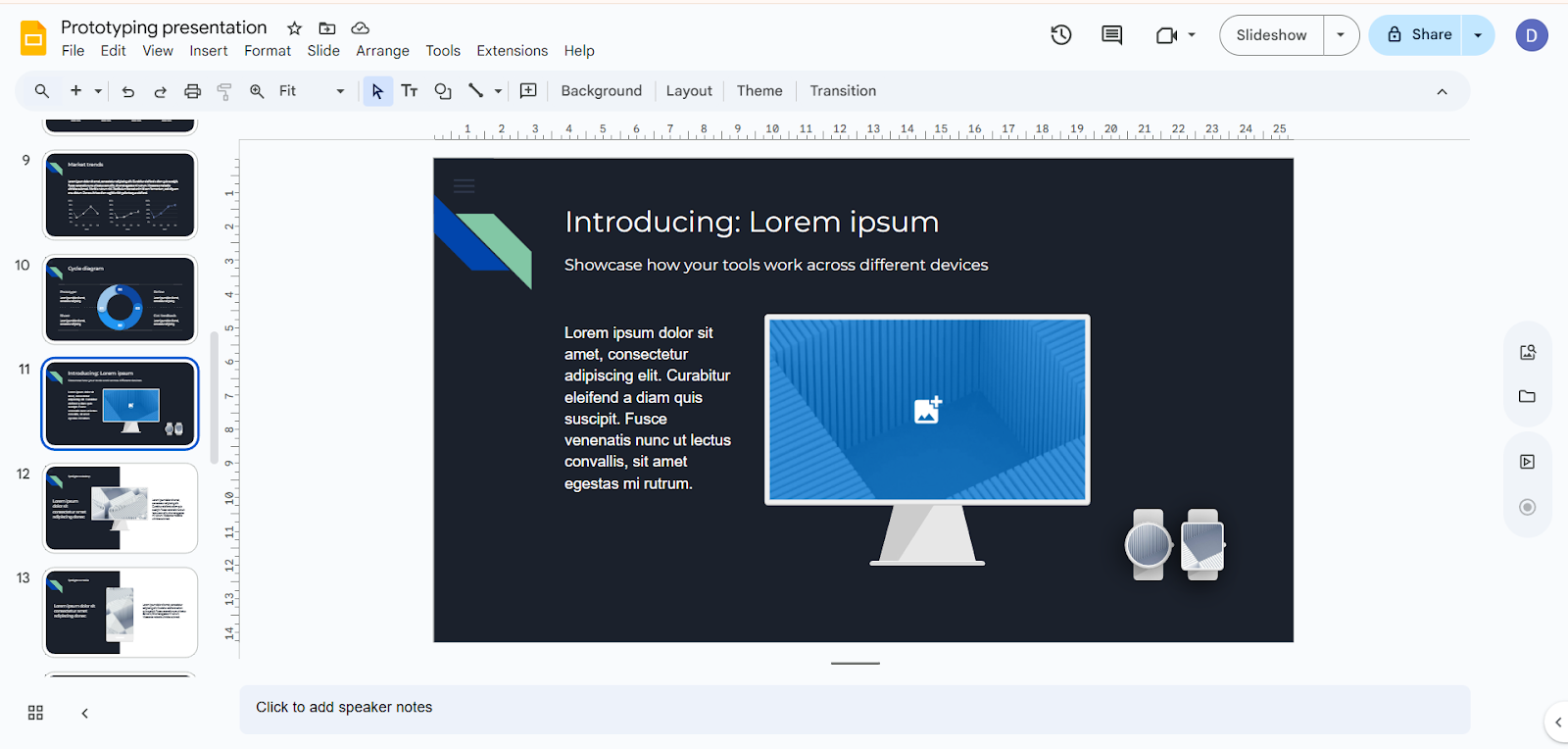
Step 1: Open Your Slide
Open your Google Slides and find a slide that has the image you need to edit.
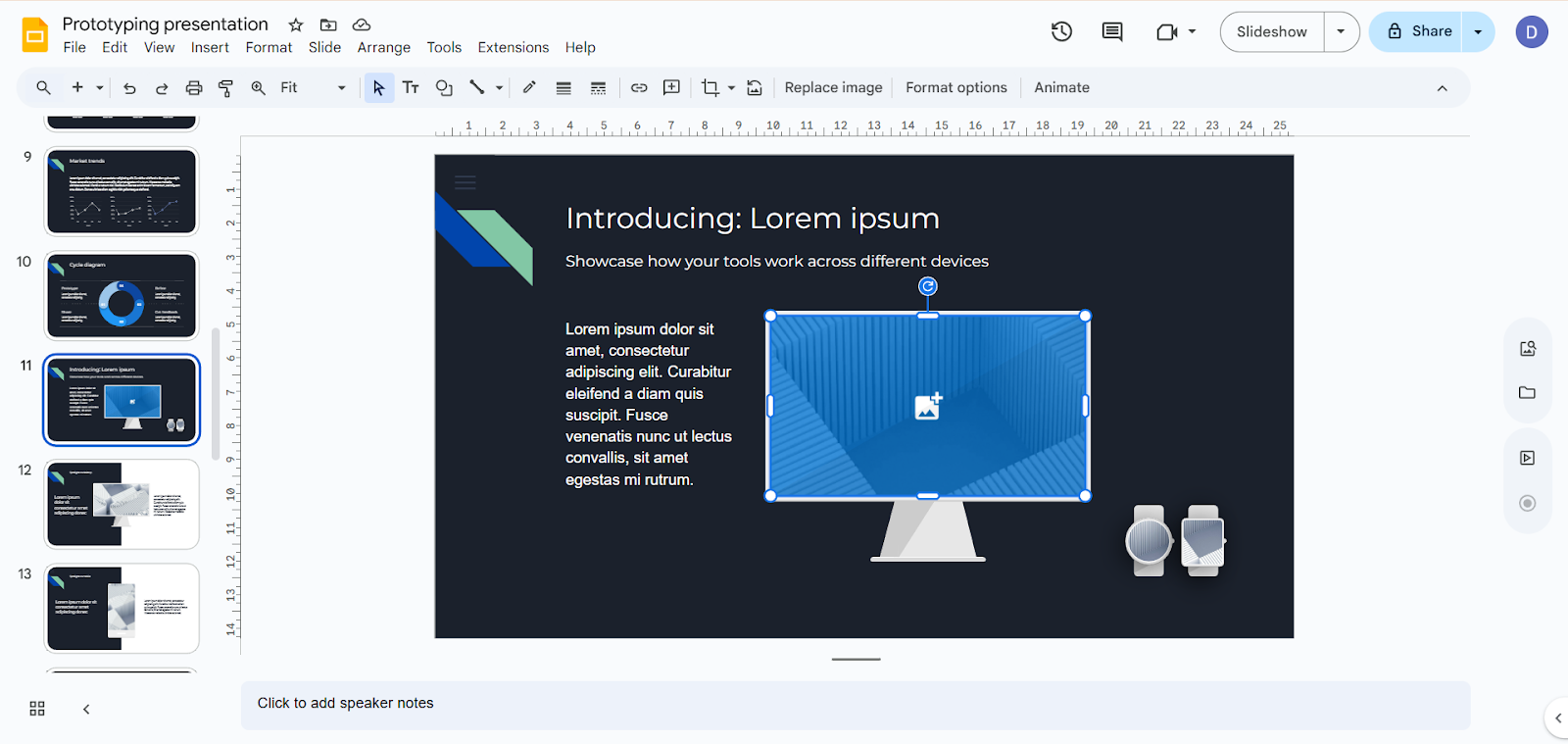
Step 2: Select the Image
Go and press the image that you want to bring forward. When selected, a blue border will be displayed around it.
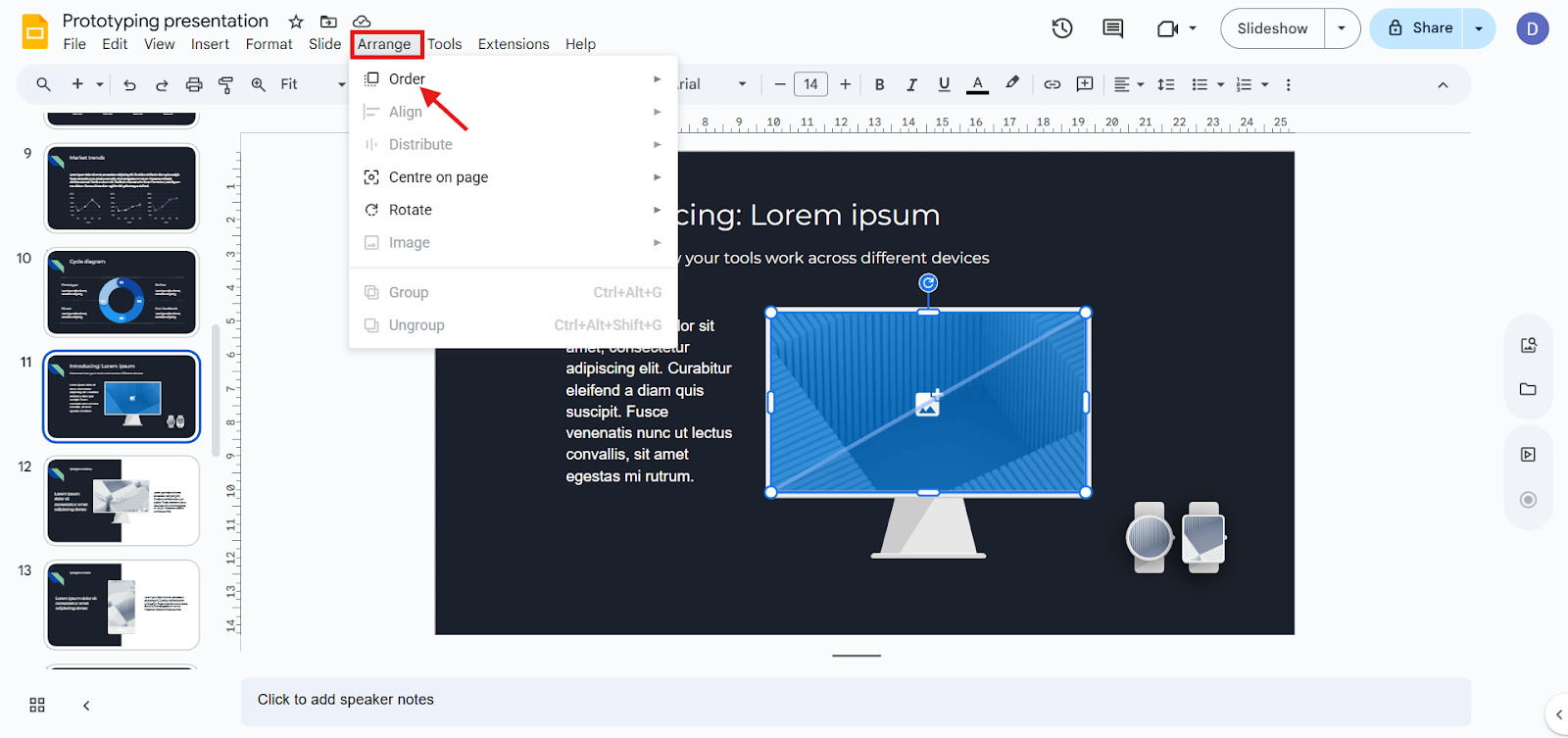
Step 3: Open the 'Arrange' Menu
On the menu bar, click on Arrange. Select order.
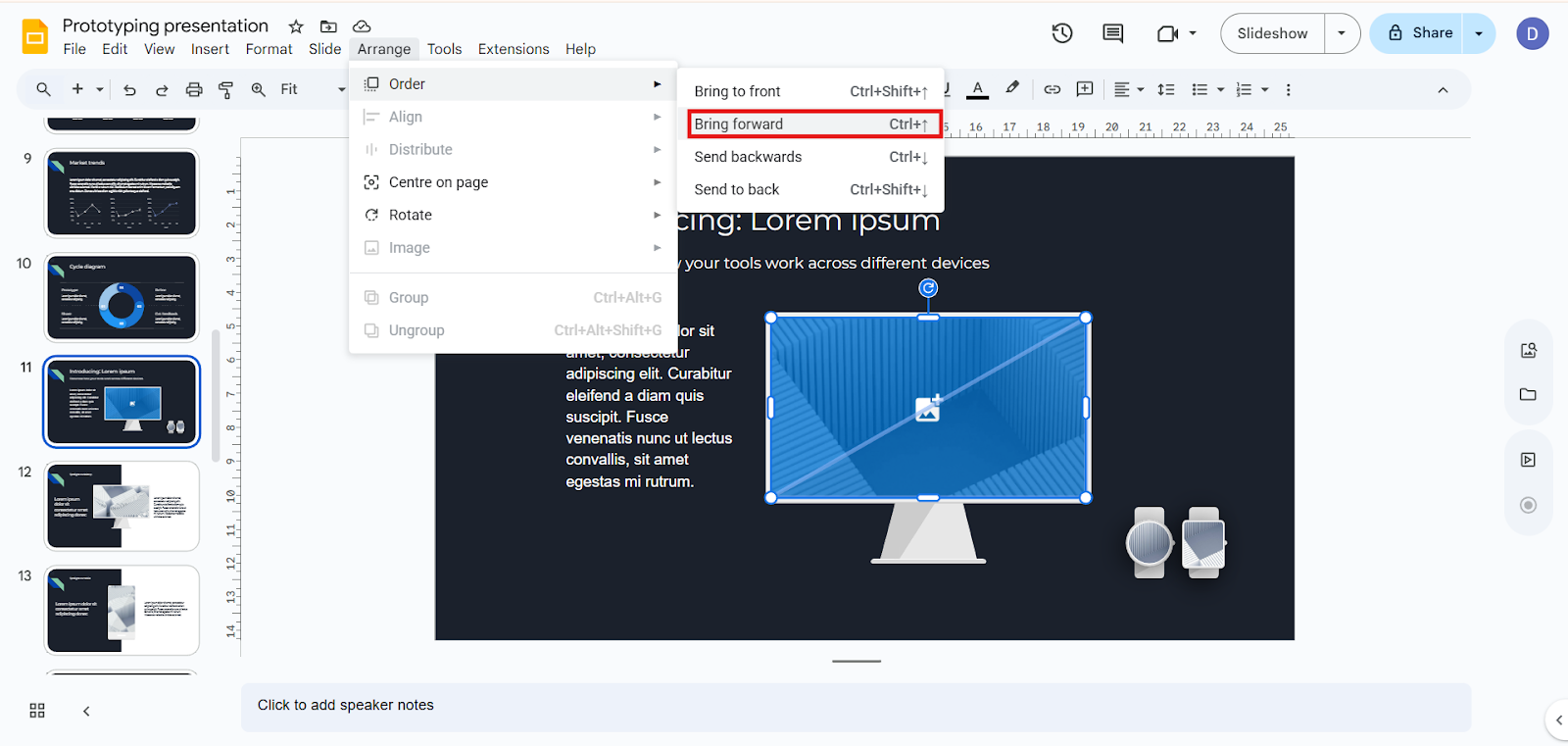
Step 4: Select Order> Bring Forward.
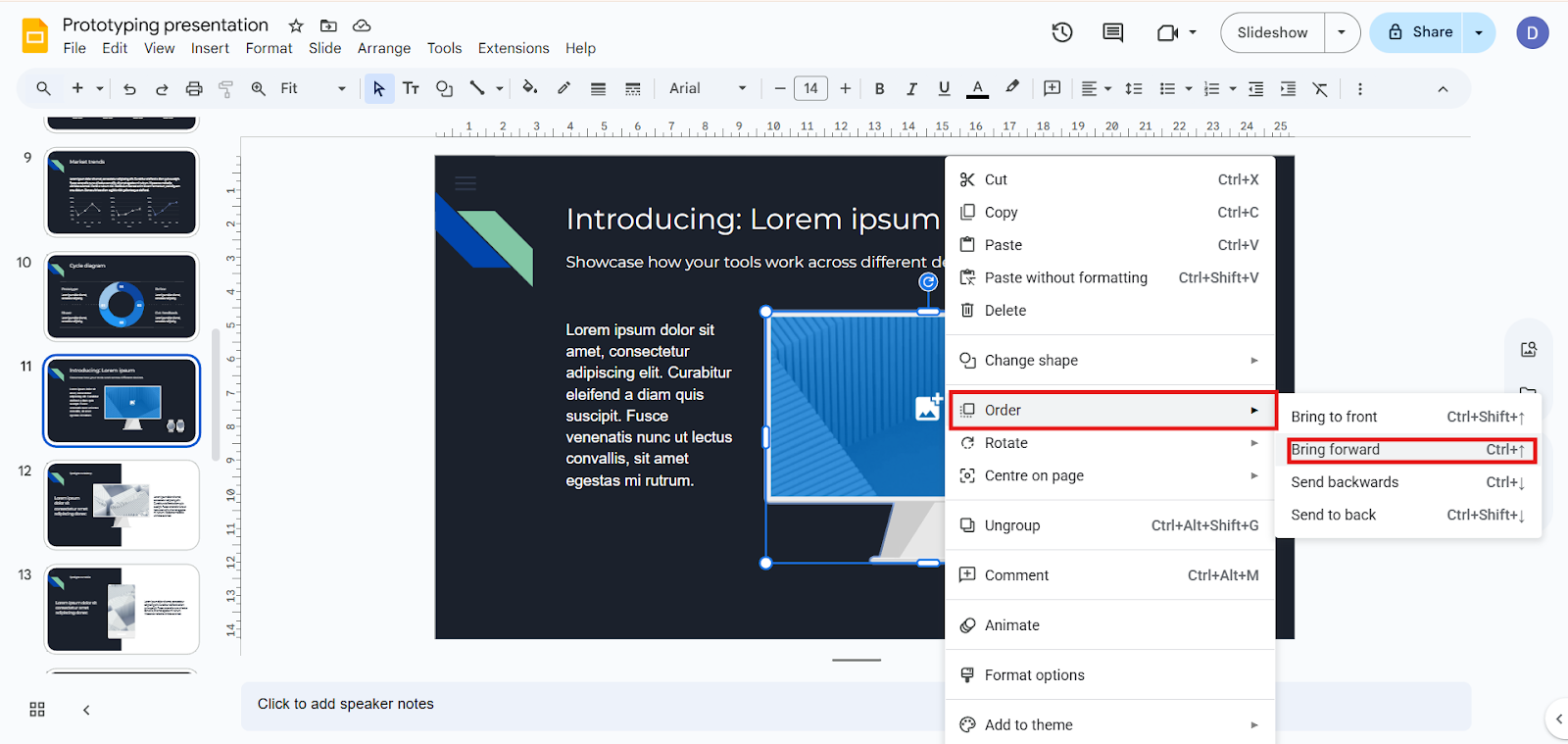
Or you can right-click on the image and select order.
Under the “Order” drop-down, select Bring forward.
Step 5: Check the Result
Ensure that your image is now placed above the desired elements. Repeat the bring forward step till it is in place as required.
The shortcuts of the keyboard are quicker to navigate.
The following shortcuts can be used to make things easy:
1. Windows:
alt + Up arrow - Move image up one layer.
Control +Shift+Up Arrow - Move image to the top to the very front.
2. Mac:
Command + Up Arrow - Take the image one step forward.
Command + Shift + Up Arrow - Keep image on the forefront.
Shortcuts can be used particularly where there are many overlapping objects.
Take your slide further. Add your drawing for more visual impact.
Once you know how to bring an image forward, you probably want to know what more you can do to make your slides stand out. This is where adding drawings can make a big difference.
Drawings let you:
If you’re curious about creating more interactive and professional slides, read our guide on how to insert a drawing in Google Slides is the perfect next step to explore.
Create presentations using MagicSlides
Although it is wonderful to know how to add layers to the image manually, it is also possible to accelerate the process of creating a Google Slides presentation through AI.
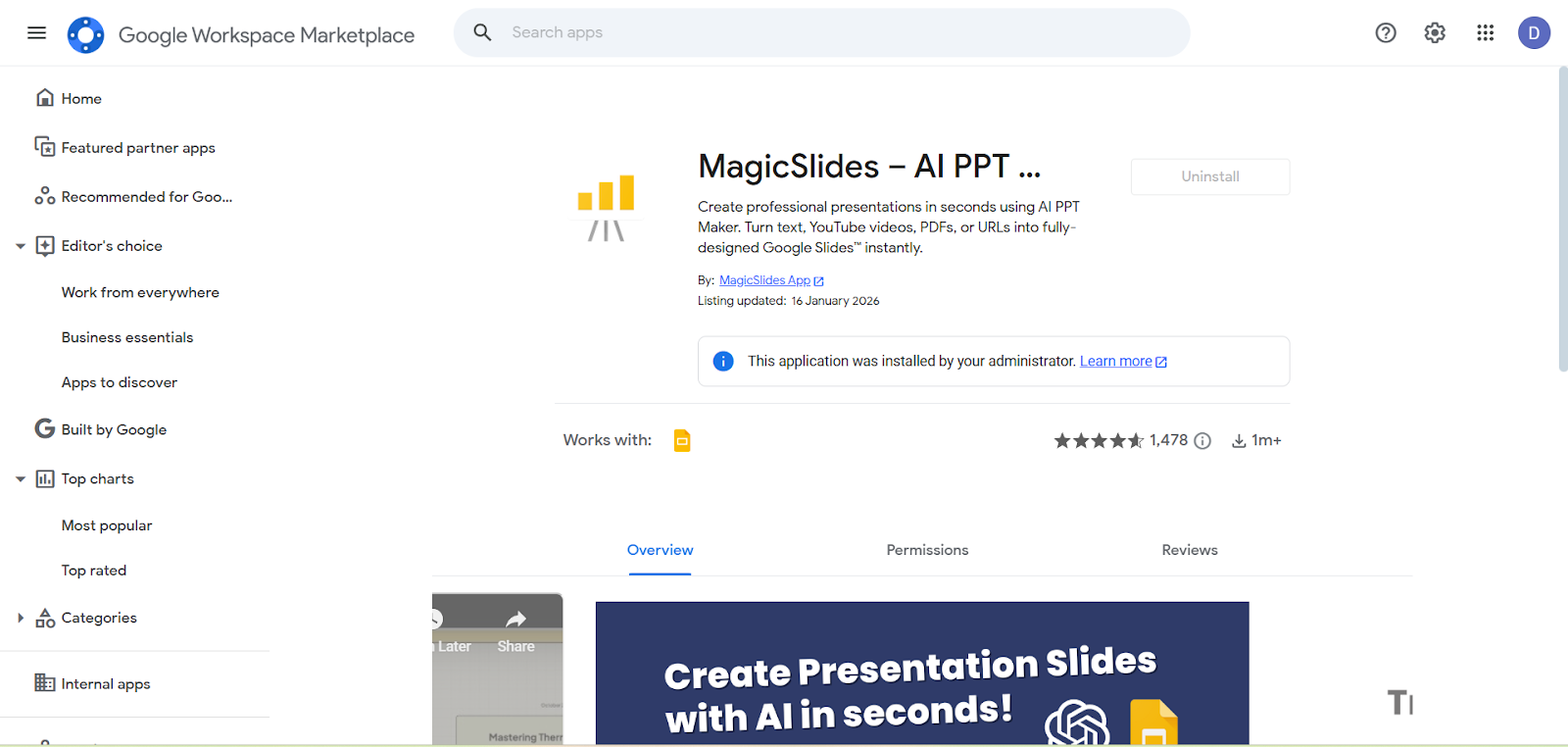
MagicSlides.app is an AI-based presentation tool that can:
Rather than spend a couple of minutes clicking each picture forward or back, MagicSlides can build a smooth slide deck in a few minutes. This comes in particularly handy when you have to pitch ideas, write up reports, or teach in the classroom at short notice.
Final Thoughts:
Small actions, like bringing an image forward in Google Slides, can make a big difference. They help control visual focus, improve readability, and make your slides look more polished and professional.
Using image layering, whether done manually or with tools like MagicSlides, can enhance the presentations. MagicSlides makes this process faster and easier by automating the design task.
Remember, a strong message matters, but great visuals support your content and make it more engaging.
Also Read: How to download stunning Google Slides themes for free.
Quick FAQ's:
Q 1: What if the image does not move forward?
Ensure that the image is not established as a background slide; background images are not layable.
Q 2: Does the repositioning of image layers of the animation affect quality?
No - rearranging the order of layers does not affect the quality of the image.
Q 3: Does the Google Slides mobile app allow me to bring forward an image?
The mobile version has fewer options when it comes to layer ordering and is better performed on the desktop version.
Q 4: Is MagicSlides able to handle image layering automatically?
Yes, MagicSlides automatically adds pictures to the presentation.
Q 5: Can I bring multiple images forward at once?
Yes, you can select multiple images and adjust their order together.
Q 6: Does bringing an image forward affect text readability?
Yes, it helps prevent text from being covered and improves clarity.
Q 7: Can I send an image backward if I make a mistake?
Yes, you can use “Send Backward” or Send to Back” to reposition it.
Q 8: Can shapes and text be layered the same way as images?
Yes, all objects in Google Slides follow the same layering rules.