
How to Download Canva as PPT - Export Canva Designs in Seconds
How to Download Canva as PPT is useful when you need to edit a Canva presentation in Microsoft PowerPoint or share it with someone who doesn’t use Canva.
If you’re here, that means you need to export Canva as PowerPoint (PPT or PPTX) for further editing in Microsoft PowerPoint. Correct? If yes, then don’t worry, I’m here to guide you to do so.
Why Save Canva as PPT?
Honestly, I rely on Canva for professional presentation making, but sometimes I need more advanced features of MS PowerPoint, especially offline editing. Not only this, but more reasons push me to search for how to download Canva as PPT:
These are my reasons, and probably yours also. Curious to know how to export Canva as PowerPoint? Don’t worry, in the next sections, I’ll explain all possible solutions for every scenario, with a simple set of instructions. So, let’s explore!
How to Download Canva as PPT Step-by-Step
Saving Canva to PowerPoint is the quickest task and takes just a few clicks. Here’s how to do it:
#Step 1. Log in to your Canva account and open the presentation design to convert.
#Step 2. In the top-right corner, click on the “Share” Button.
#Step 3. Now, inside the Share menu, choose Download, and see that multiple formats are opened, such as PNG, PDF, JPG, MP4, etc.
#Step 4. From that menu, choose Microsoft PowerPoint (.pptx) format.
#Step 5. Click “Download” in 5 to 20 seconds, depending on your network connection and PPT size.
Once the download is complete, preview it in Microsoft PowerPoint and Google Slides.
How to Edit the Downloaded PPT in PowerPoint?
After downloading, if you need to modify the resultant file, then:
This way, you can easily edit your Canva presentation in PowerPoint without any confusion.
How to Export a Specific Page or Set of Slides?
Sometimes you don’t need the entire presentation; instead, you want specific slides. Here’s how you can do so:
This helps you save only the specific slides you want.
Also read: How to make a GIF in Canva?
Why Many Users Skip Canva Export?
I’ve noticed something interesting while working with Canva presentations. Most users don’t struggle with downloading Canva as a PPT; they struggle with what comes after the download.
Once the PPT opens in PowerPoint, most of the time I see:
If you’re also struggling with the same, then I recommend considering an automated option, i.e., MagicSlides AI PPT Creator. You can try this for free.
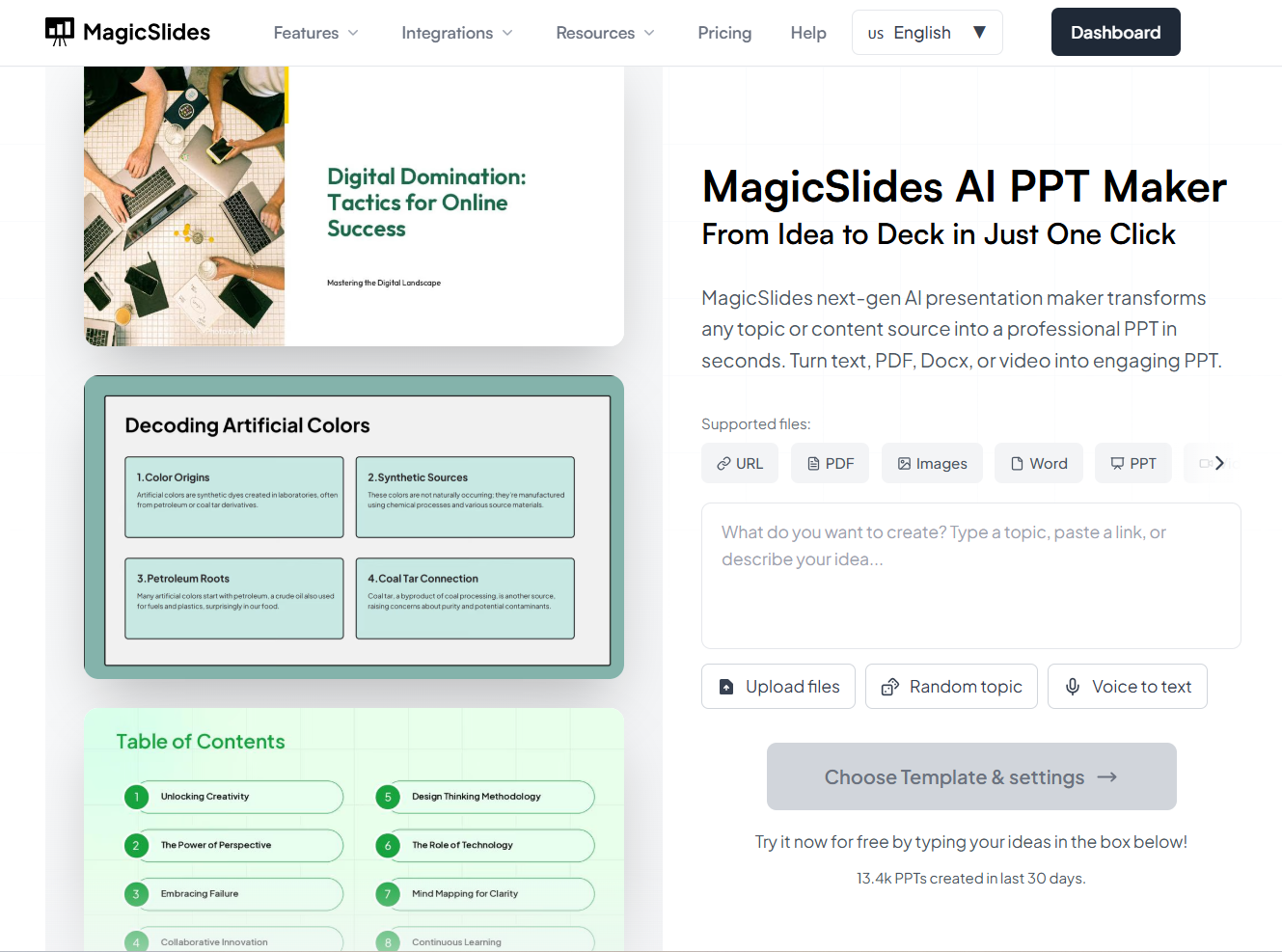
As I’m working in a technical company, I’ve learned that time is the real cost. When I need a presentation fast, that looks professional, I don’t want to manually fix 20–30 slides after exporting from Canva:
In that case, MagicSlides AI lets me:
Still, if you are confused about what to choose, then here is a quick comparison:
Best Practices to Follow Before Exporting Canva to PowerPoint
Although we know the solution for multiple Canva presentations or specific slide downloads. But still, here are some checklists which will help to make your task efficient and hassle-free:
Additional resource: How to insert Excel in PPT
Author’s Verdict
Recently, I wondered how to download Canva as PPT, and I found these solutions to be the most reliable among those available online. You can opt for any of them and simply export Canva as PowerPoint.
People Also Ask
Q1. Can I download Canva for free as a PPT?
Yes, Canva Free users can download designs as .pptx.
Q2. Why is my Canva PPT not opening in PowerPoint?
This usually happens due to:
Q3. Does Canva keep the animations after downloading as PPT?
No, animations don’t transfer. You have to add them manually in PowerPoint.
Q4. Can I convert Canva to Google Slides?
Yes, download as .pptx and upload the file to Google Slides.
Q5. Can I download only selected slides?
Yes, Canva lets you choose specific pages before exporting.