
Step-by-Step Guide to Creating a Video Presentation for Professional Results
In this generation, grabbing and keeping attention is more challenging than ever. Traditional slides and static reports are often overlooked, but video presentations have a way of pulling viewers in. By combining visuals, sound, and storytelling, they make ideas easier to understand and more engaging.
Whether it’s for work, school, or creative projects, video presentations are changing the way we share information. In this blog, we will explore what they are, the popular types, how to create them, and why they are becoming such an important tool.
What is a Video Presentation?
A video presentation is a form of digital communication where content is delivered through moving visuals, audio narration, animations, and text, all combined to convey a message. Unlike traditional presentations, which rely solely on slides, video presentations engage multiple senses, making the information easier to understand and remember.
Video presentations can be used for:
In essence, video presentations turn static ideas into dynamic experiences, enhancing clarity and engagement.
Popular Video Presentation Formats
Video presentations come in several formats, each suited for different purposes:
1. Animated Video Presentations
Uses animated graphics, characters, and motion graphics.
Ideal for explaining abstract or complex ideas in a simplified manner.
2. Screen Recording Presentations
Capture on-screen activities like software tutorials, demonstrations, or walkthroughs.
Perfect for educational and technical content.
3. Live-Action Video Presentations
Involves real people delivering the content, often combined with graphics and text overlays.
Effective for building personal connection and credibility.
4. Whiteboard Presentations
Stimulates hand-drawn visuals on the whiteboard.
Great for storytelling, tutorials, or breaking down complicated topics.
5. Hybrid Presentations
Combines multiple formats like animation plus live-action clips, for maximum engagement.
Benefits of Video Presentations
Video presentations offer several advantages over traditional methods:
How to Create a Video Presentation Using Canva
Canva makes it easy to create visually appealing video presentations with animations, transitions, and audio. Here’s a step-by-step guide.
Step 1: Open Canva
Go to Canva
Sign up or log in to your account
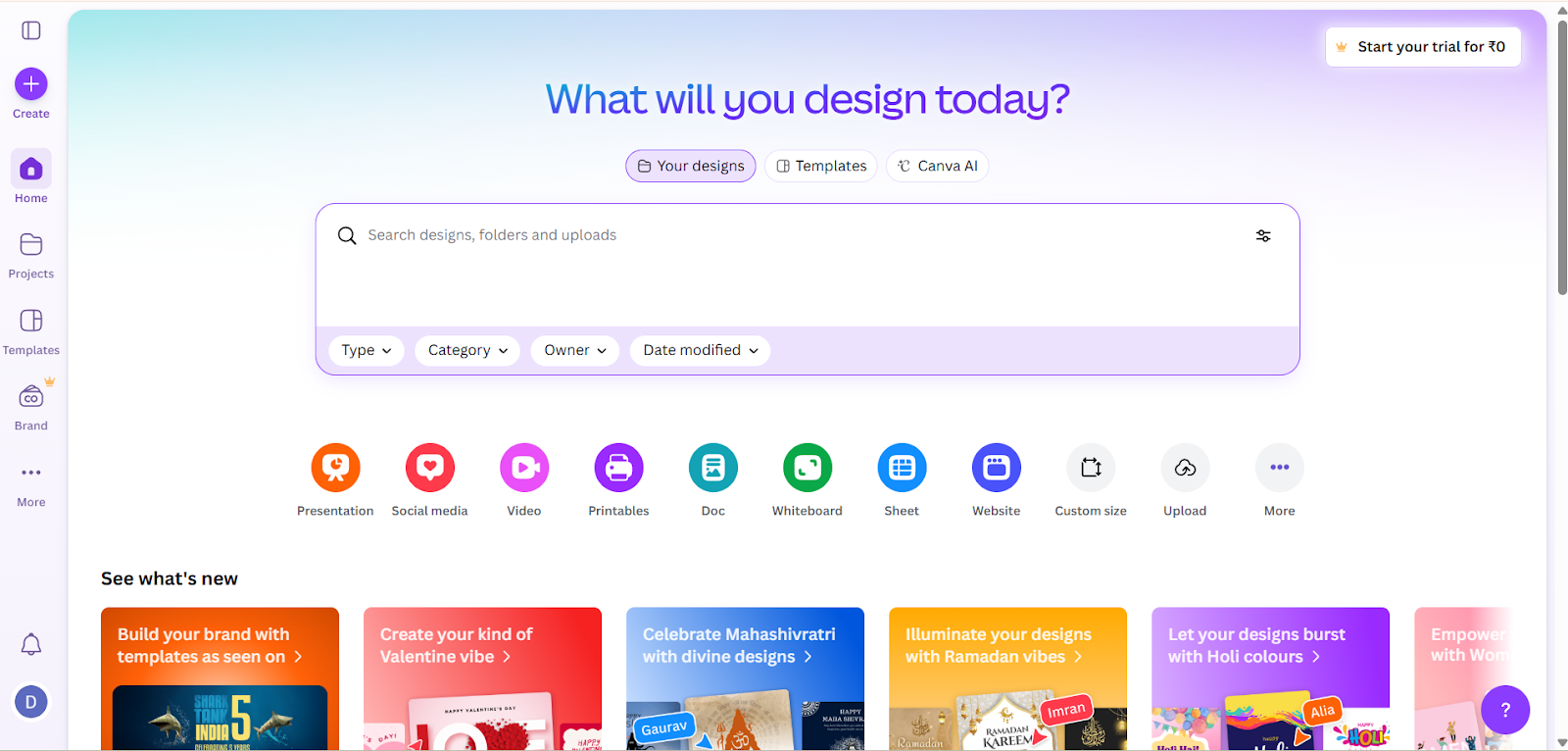
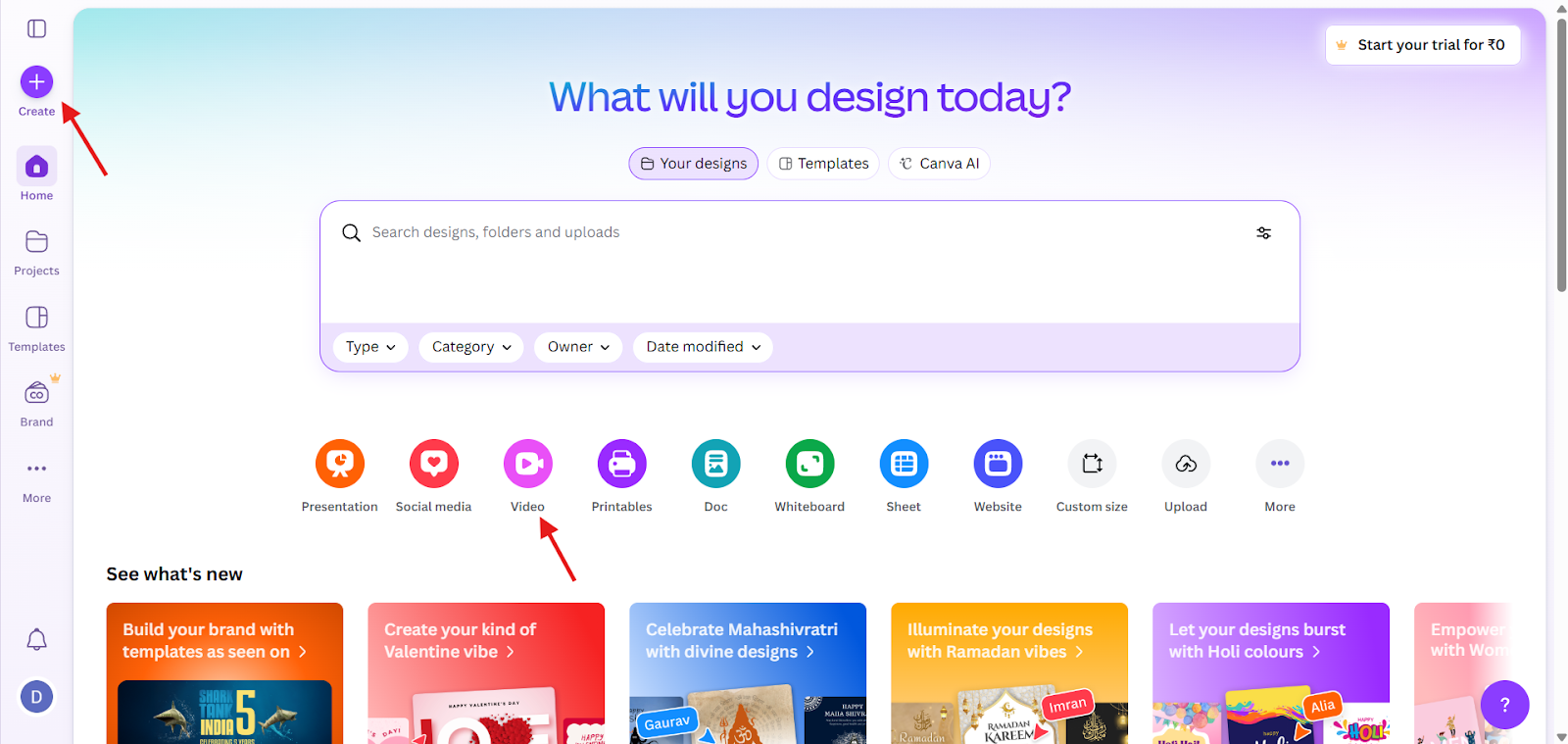
Step 2: Choose a Template
Search for “Video Presentation.”
Select a template that fits your style and purpose (or)
Create your own from scratch.
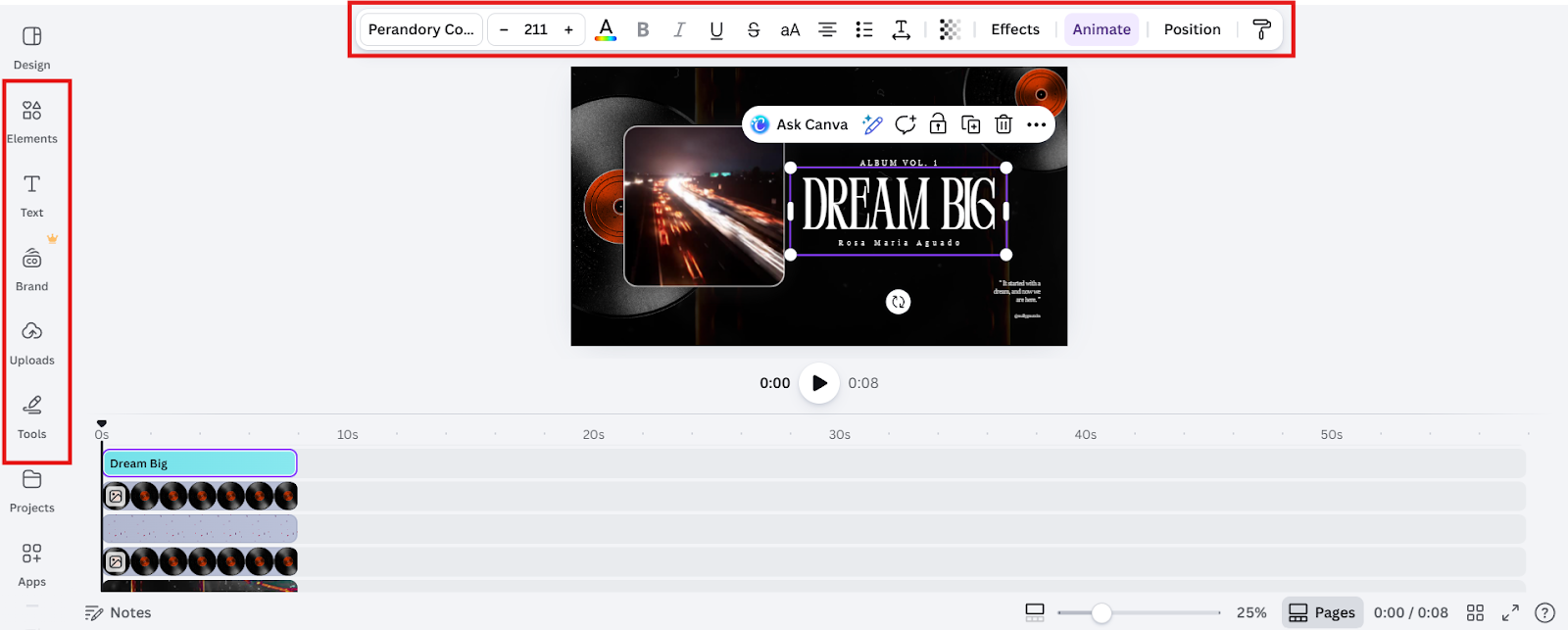
Step 3: Customize Slides
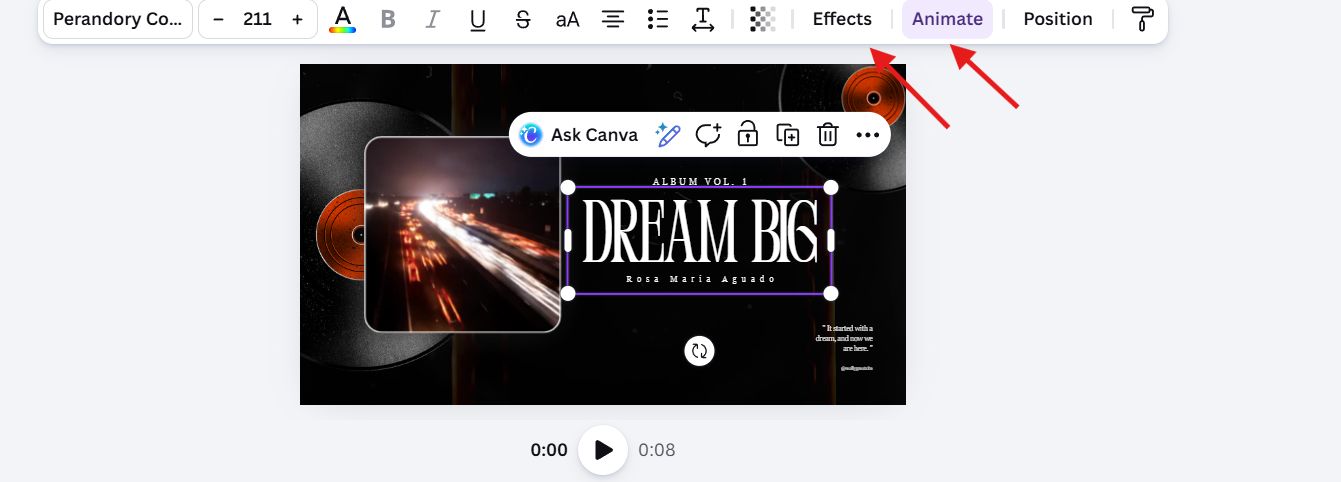
Step 4: Add Animations & Transitions
Step 5: Record Voiceover (Optional)
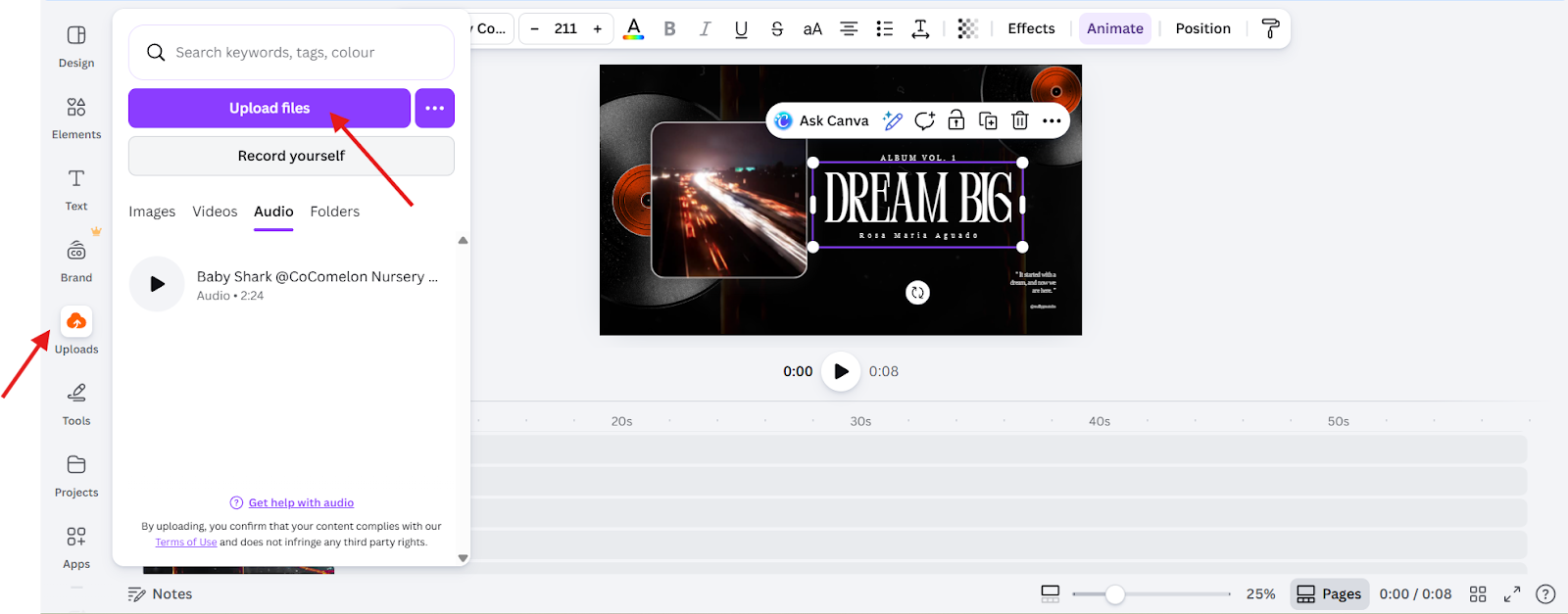
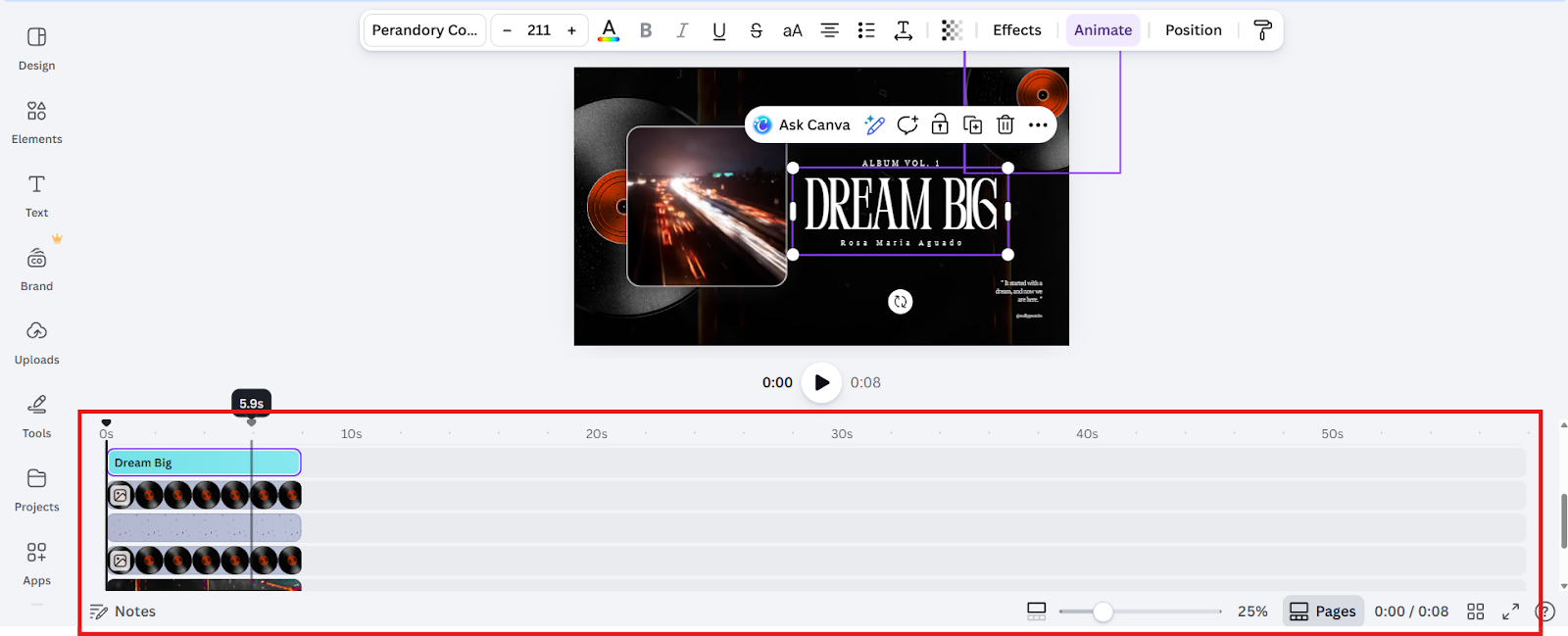
Step 6: Adjust Timing
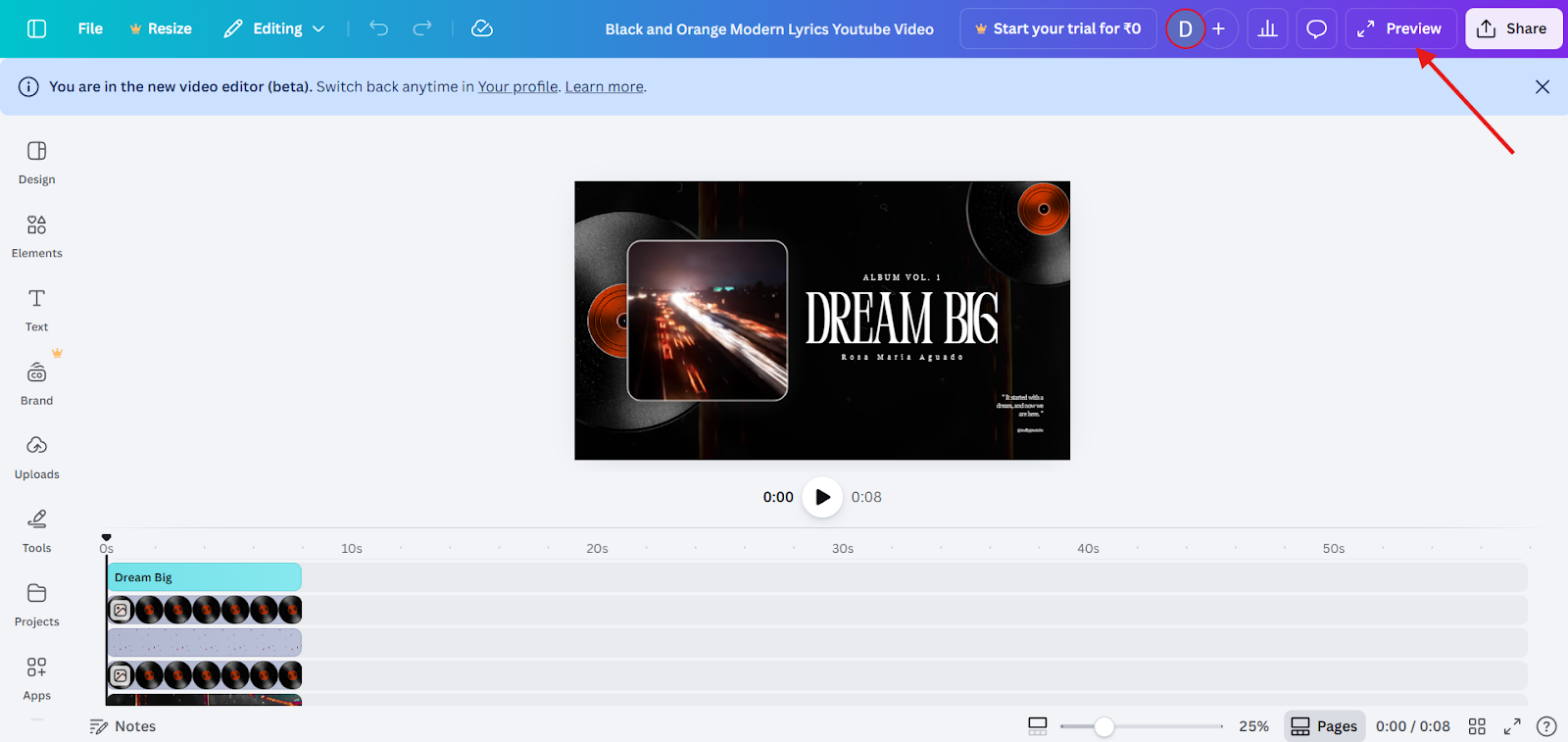
Step 7: Preview and Refine
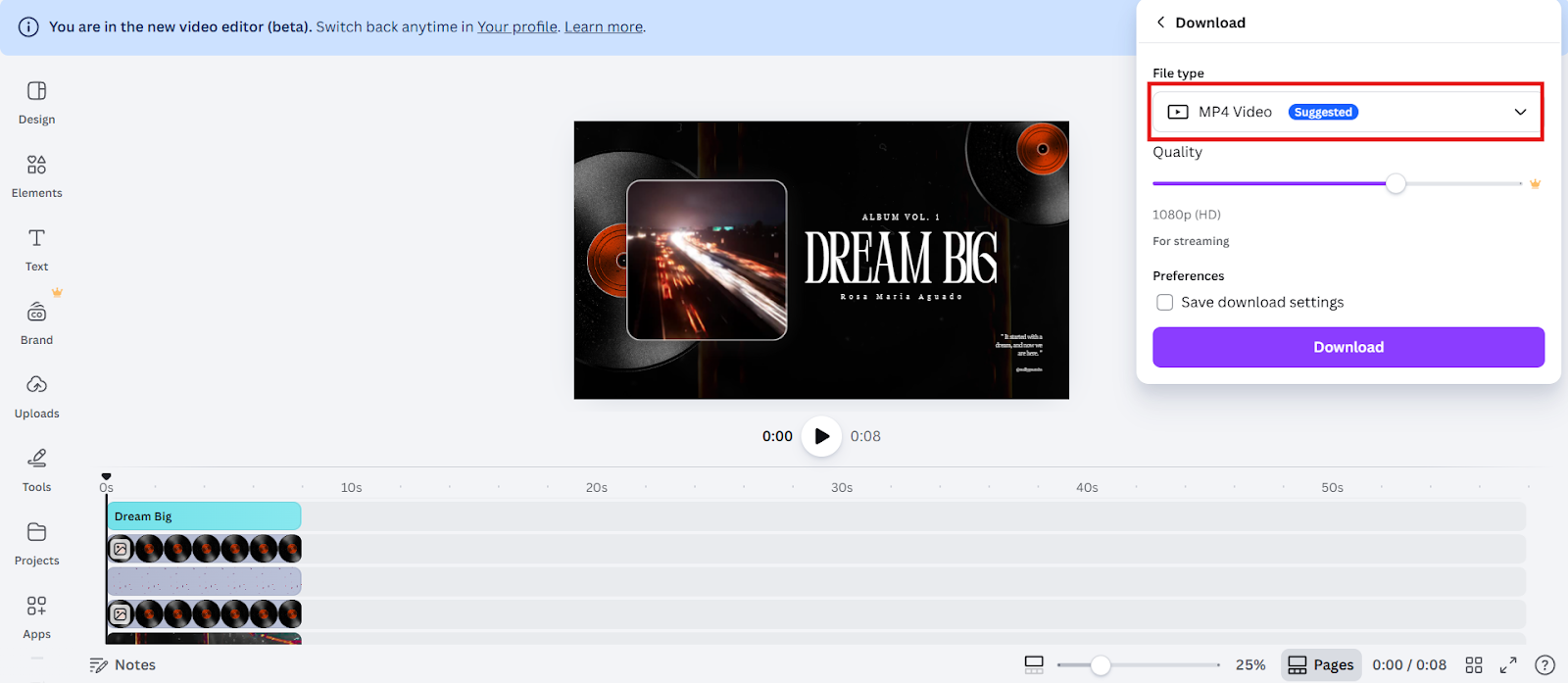
Step 8: Export Video
Boost Your Video Presentation Workflow with MagicSlides
While Canva offers flexibility for designing video presentations, sometimes the biggest challenge is starting from scratch, figuring out slide layouts, structuring content, or generating visuals that match your narrative. This is where MagicSlides can make a real difference.

MagicSlides is an AI-powered tool that transforms your ideas into professional slide decks in seconds. You simply provide your key points, text prompts, or even a rough outline, and MagicSlides generates ready-to-use slides with consistent design, typography, and layout.
Once you have your MagicSlides deck, you can import it into Canva to:
By combining MagicSlides AI-generated slide decks with Canva’s multimedia editing, you can go from idea to fully-produced video presentation much faster, without compromising creativity and quality.
Final Thoughts
Video presentations are reshaping the way we communicate, turning static information into engaging, memorable experiences. They help simplify complex ideas, capture attention, and make your message stick.
Key Takeaways:
By leveraging these modern tools, you can create polished, effective video presentations quickly and effectively, ensuring your ideas reach your audience and leave a lasting impression.
Also Read: How to Summarize a YouTube Video Quickly and Accurately.
Quick FAQ’s
Q 1: Can I create a video presentation on my phone or tablet?
Yes, Tools like Canva are mobile-friendly, so you can design, animate, and export video presentations directly from your phone or tablet.
Q 2: How do I make my video presentation visually appealing?
Q 3: What’s the best format to export my video presentation?
MP4 is the most common format because it is compatible with most devices, social media platforms, and video players. Aim for 1080p for clear, professional-quality visuals.
Q 4: Can AI tools like MagicSlides really save time?
Absolutely, you can provide key points or an outline, and MagicSlides generates fully designed slides in seconds. This cuts down time spent on layout, design, and structure, letting you focus on content and storytelling.
Q 5: Are video presentations effective for online learning?
Yes, they are particularly effective because they engage both visual and auditory learners, making complex topics easier to understand and remember.
Q 6: How long does it take to create a video presentation?
It varies, a simple 5-minute video can take 1-2 hours, while a moredetailed presentation with animations and voiceovers may take a few hours. Using templates or AI tools can reduce this time significantly.
Q 7: Can I reuse a video presentation for different platforms?
Yes, video presentations are versatile; you can post them on social media, embed them in websites, use them for webinars, or send them via email.
Q 8: Do I need a professional microphone or camera?
No, many smartphones or laptops have sufficient quality for voiceovers. For higher-quality audio, a basic USB microphone works well. Cameras are optional if you are not doing live-action segments.