
Easy Guide To Convert a Webpage into a Professional Presentation - 2026.
Webpages are packed with valuable information, research insights, tutorials, case studies, product explanations, and data-driven reports. But presenting that same information directly from a browser tab rarely creates impact.
Meetings, classrooms, and client presentations demand structure, clarity, and visual storytelling. That’s why converting a webpage into a PowerPoint presentation (PPT) is such a powerful skill.
Instead of scrolling through long paragraphs, you can transform web content into clean, structured, visually engaging slides that communicate ideas effectively.
Why Convert a Webpage into PPT?
Why do people convert webpages into presentations? Here are the reasons:
1. Better Visual Communication
Slides help to break long-form content into key points. Instead of scrolling through a webpage, your audience sees concise, focused information.
2. Professional Presentations
Business meetings, academic seminars, and sales pitches require structured slides, not browser tabs.
3. Customization & Branding
4. Offline Accessibility
Once converted into PPT, you don’t need internet access to present the content.
5. Improved Audience Engagement
Slides allow you to:
Now let’s look at how to actually do it.
Method 1: Manual - Using PowerPoint
How to Convert a Website Manually (Step-by-Step Guide)
Manual conversion gives you full control over content and design.
Step 1: Copy the Webpage Content
Copy headings, subheadings, and important key points. And highlight the important sections in the webpage.
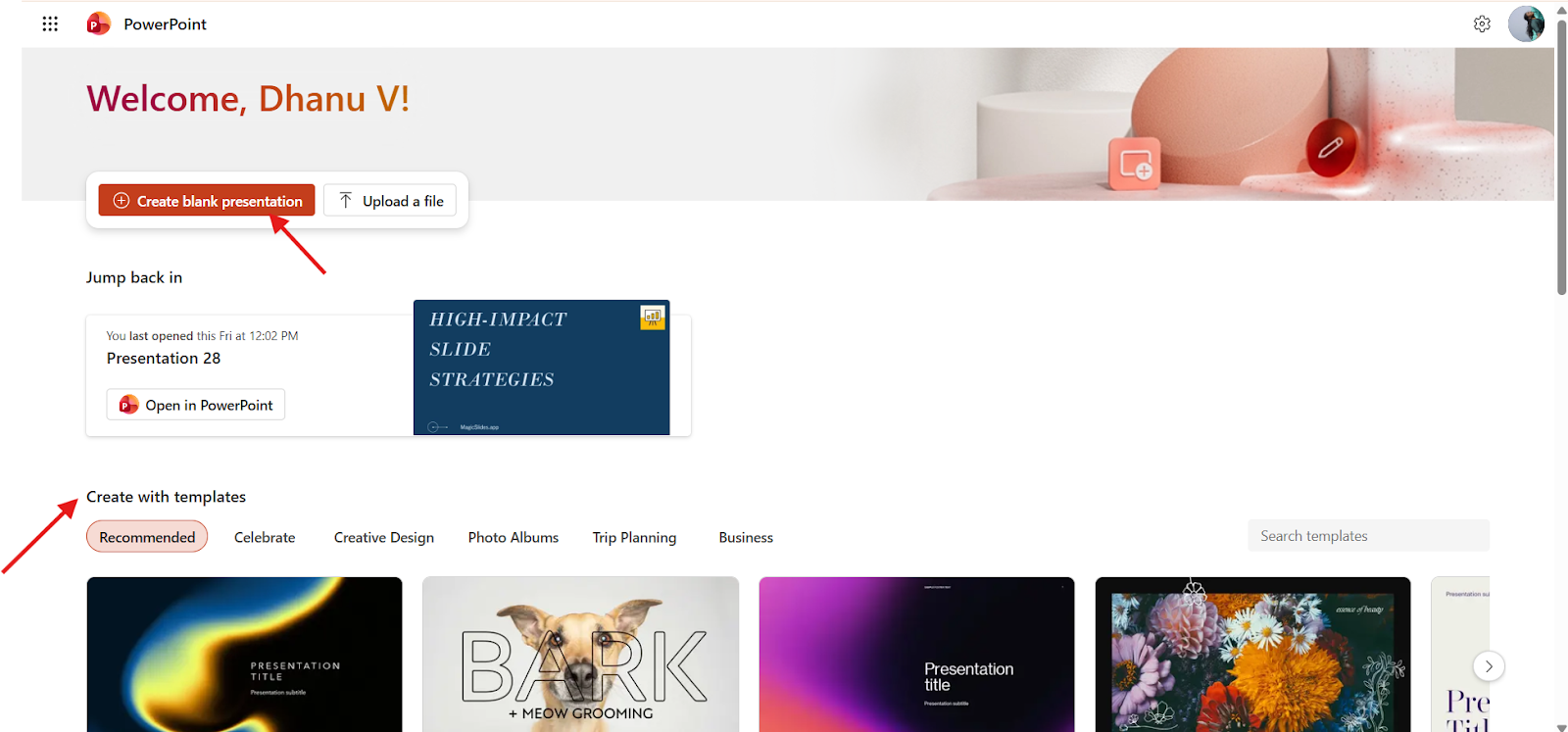
Step 2: Open Microsoft PowerPoint
Create a new presentation in Microsoft PowerPoint.
Choose a blank presentation to create from scratch or select a pre-designed template.
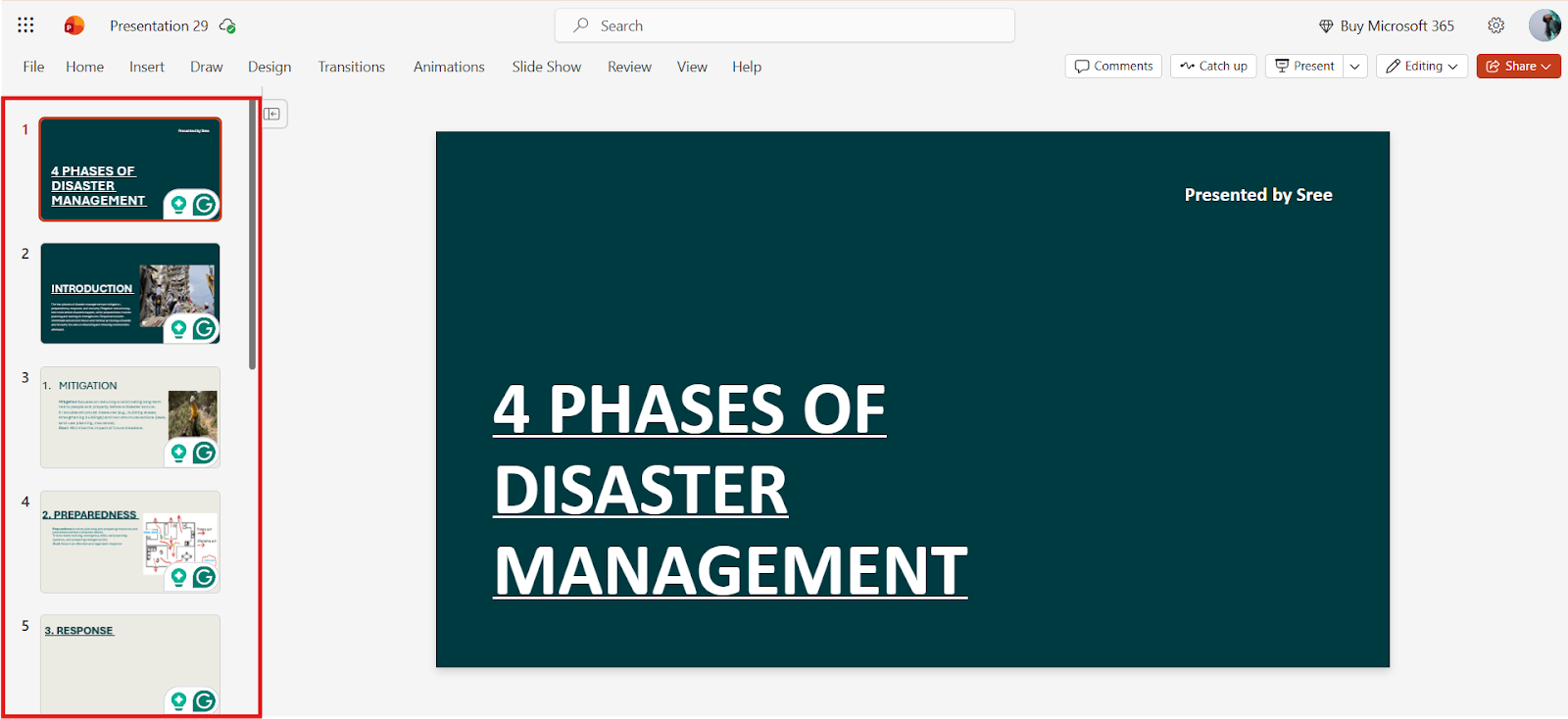
Step 3: Break Content into Slides
Follow these instructions to create a professional-looking slide
Example:
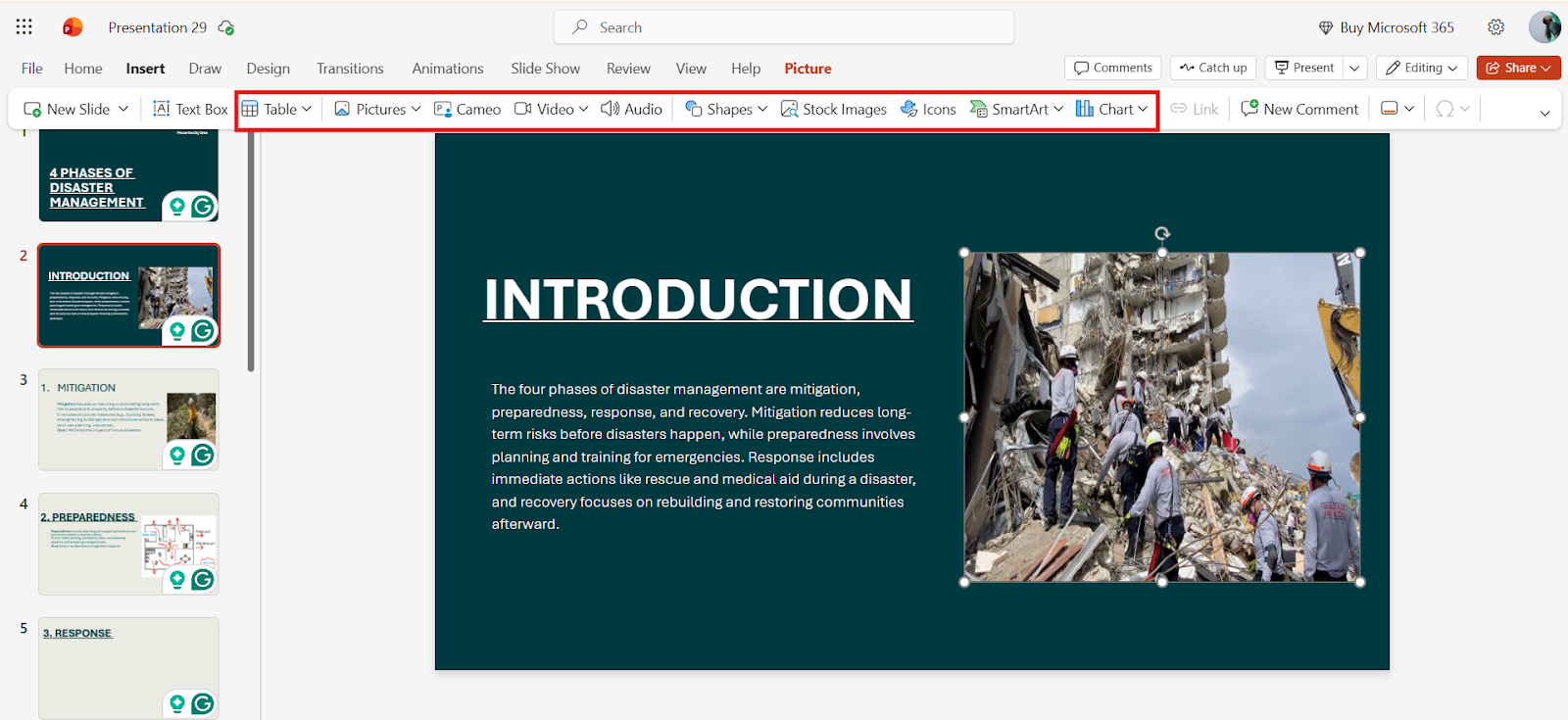
Step 4: Add Visual Elements
Enhance your slides with:
You can also:
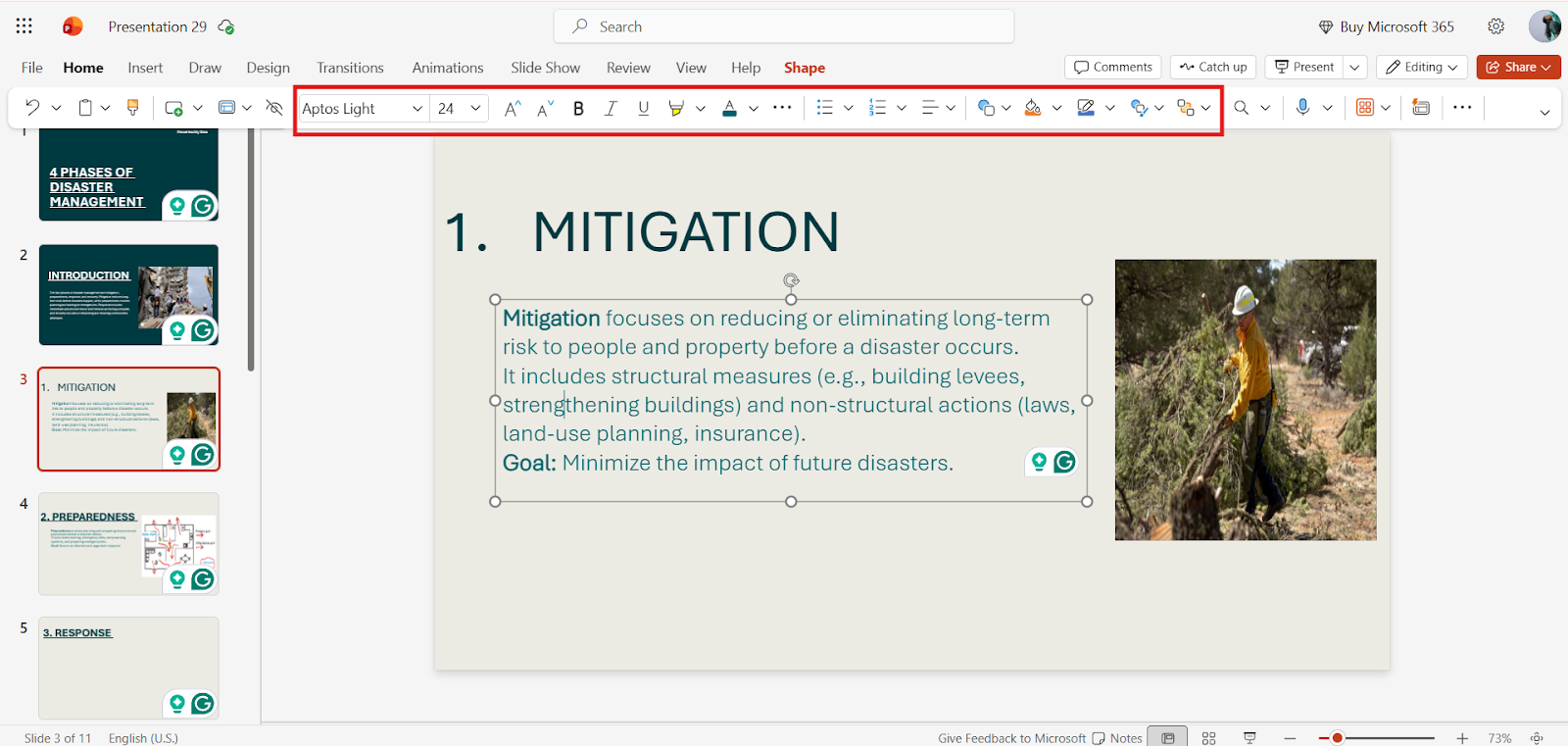
Step 5: Design & Format
Method 2: Using an AI-Powered Tool
How to Convert a Website Using MagicSlides Step-by-Step Guide
MagicSlides, an AI ppt maker, is not just for videos; it also turns web pages into summaries.
Step 1: Copy the Website URL
Open the webpage you want to summarize and copy its link.
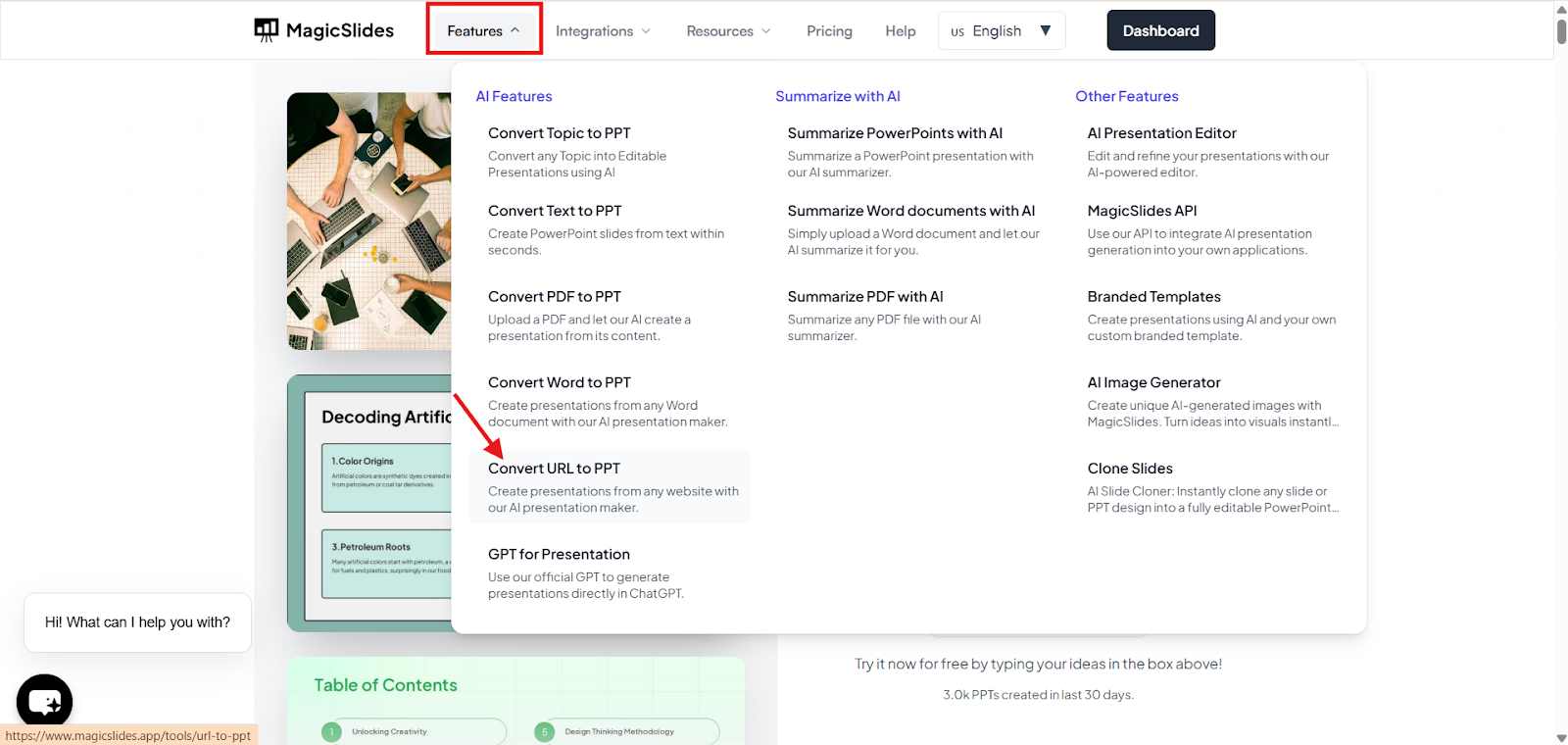
Step 2: Open MagicSlides and Choose URL Input
In MagicSlides:
Choose the option to link to the PPT
This feature extracts the main textual content from that page.
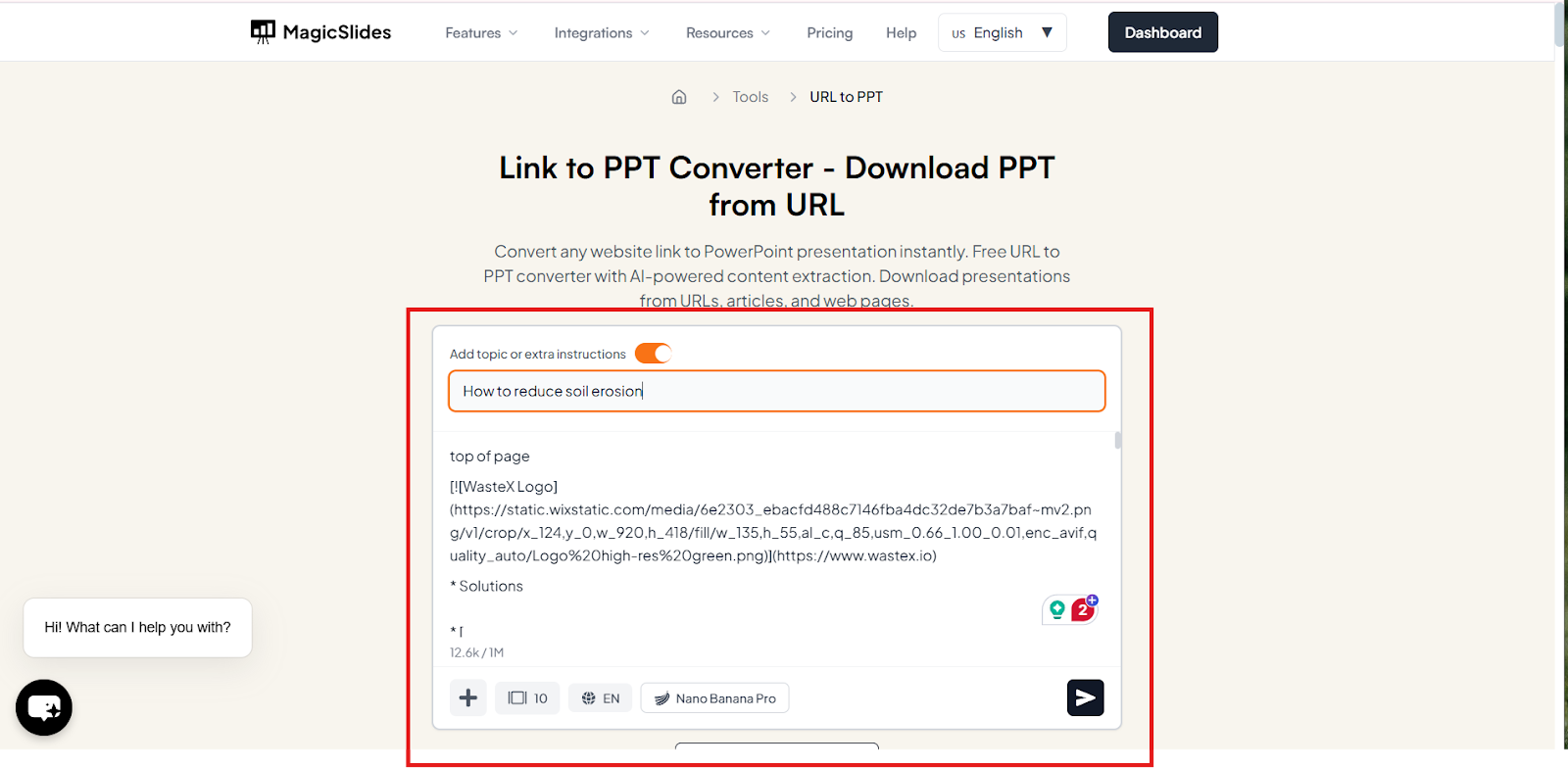
Step 3: Paste the link
Paste the link, Magicslides will automatically generate content from the link you pasted.
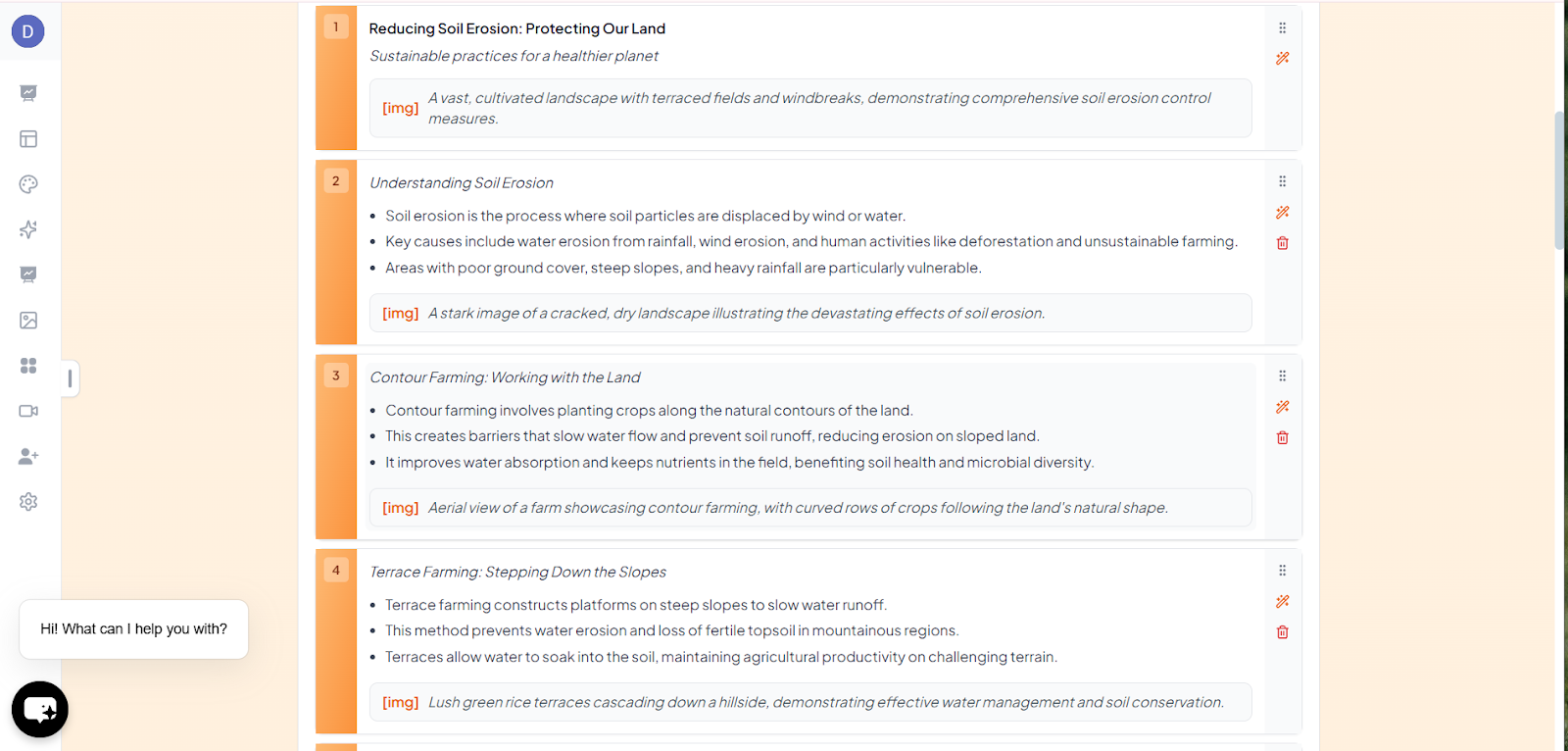
Step 4: Go through it
Go through the generated content.
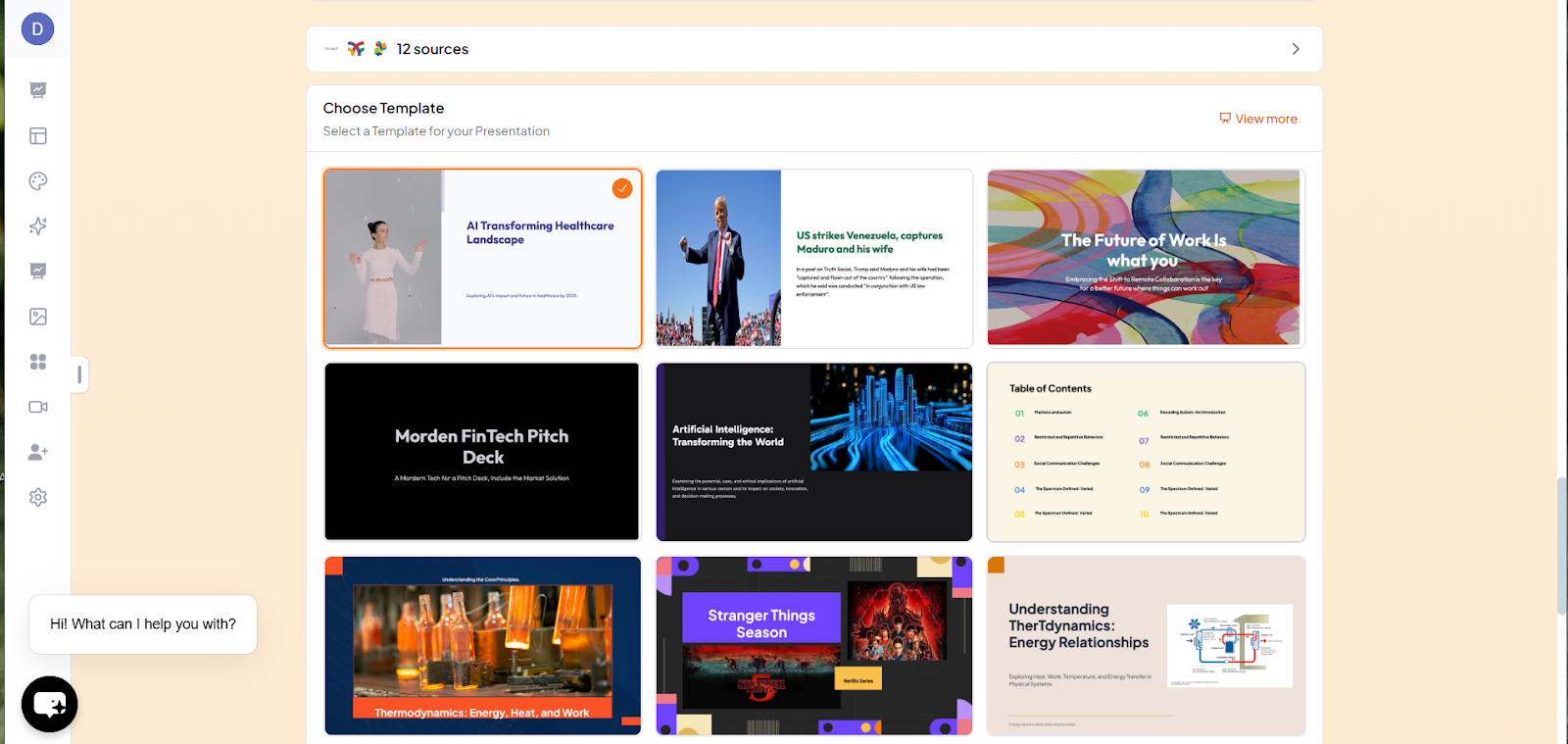
Step 5: Select a theme and create a presentation
Select a template theme and create your presentation.
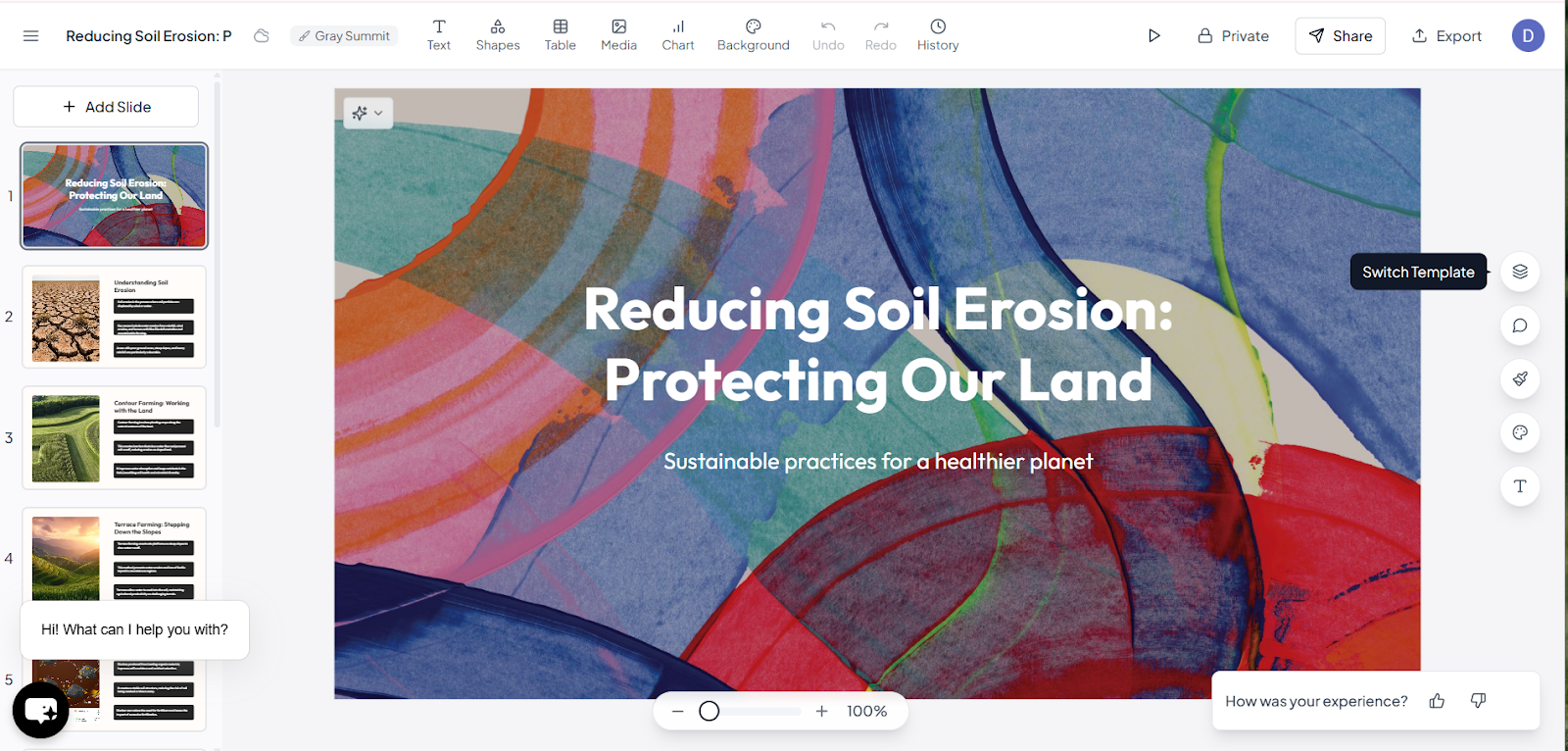
Step 6: Click Generate
MagicSlides will automatically generate the ready-to-present presentation.
Mistakes to Avoid While Converting a Webpage into PPT
Here are common mistakes people make:
1. Copy-Pasting Large Paragraphs
Slides are not documents. Keep minimal text.
2. Ignoring Slide Structure
A good flow matters: Problem-Solution-Results-Conclusion
3. Too Many Slides
Don’t overwhelm your audience by adding more slides.
4. Poor Visual Hierarchy
Avoid tiny fonts, too many colors, and inconsistent alignment
5. Skipping Credit
If the webpage isn’t yours, always:
Final Thoughts
Converting a webpage into PPT is no longer complicated.
If you want:
Both methods work; it depends on your time, design skills, and purpose.
In this environment, AI tools are making content repurposing easier than ever. But remember, clarity and simplicity always matter more than flashy slides.
Also Read: How to Summarize a YouTube Video Quickly and Accurately.
Quick FAQ’s
Q 1: Can I convert a password-protected webpage into PPT?
If the webpage requires login access, you must first log in and manually extract the content. AI tools may not be able to access restricted pages unless the content is publicly available.
Q 2: Is it legal to convert a webpage into a presentation?
Yes, but it depends on usage.
If the content is:
Always review the website’s terms of use before repurposing content.
Q 3: Can I convert a webpage into PPT on mobile?
Yes, but it is less efficient. You can:
However, desktop conversion provides better formatting control.
Q 4: How do I maintain the original design of the webpage in PPT?
You can:
Keep in mind that webpage layouts and slide layouts are fundamentally different, so full design replication is not always practical.
Q 5: What file format should I use when exporting?
Common formats include:
Choose based on how you plan to present or share the file.