
How to Add Music to Google Slides: Step-by-Step Guide using simple steps and tips.
Let’s be honest, sometimes Google Slides presentations feel a little boring. Keeping your audience engaged is important, but how to do that is the question. Adding music to your slides is not very tough; it is one of the easiest ways to engage your listeners. In this guide, you will learn step-by-step methods to add music from your computer, online sources, and YouTube, making your presentation more lively and memorable.
Why Add Music to Google Slides
Adding music is always better than simple, empty slides. It enhances your message, keeps your audience on track, and makes your slides more professional. Here’s why it matters:
1. Sets the Mood
Music always creates the right atmosphere when it matches the slide flow.
Calm tunes make your slides feel professional, and heavy soundtracks energize your audience.
2. Keeps the Audience Engaged
Adding music grabs attention and saves your presentation from feeling laggy. It helps viewers stay focused through the entire presentation.
3. Makes Your Presentation Memorable
People usually remember experiences with sound is a scientific truth. When you apply this correctly to your presentation, it will make your presentation memorable for the audience.
1. How to Add Music from the Insert Tab
Adding music from your own files is the easiest method.
Step-by-Step Guide:
1. Upload your music file to Google Drive.
File Supported by Google Slides
2. Open Your Google Slides Presentation.
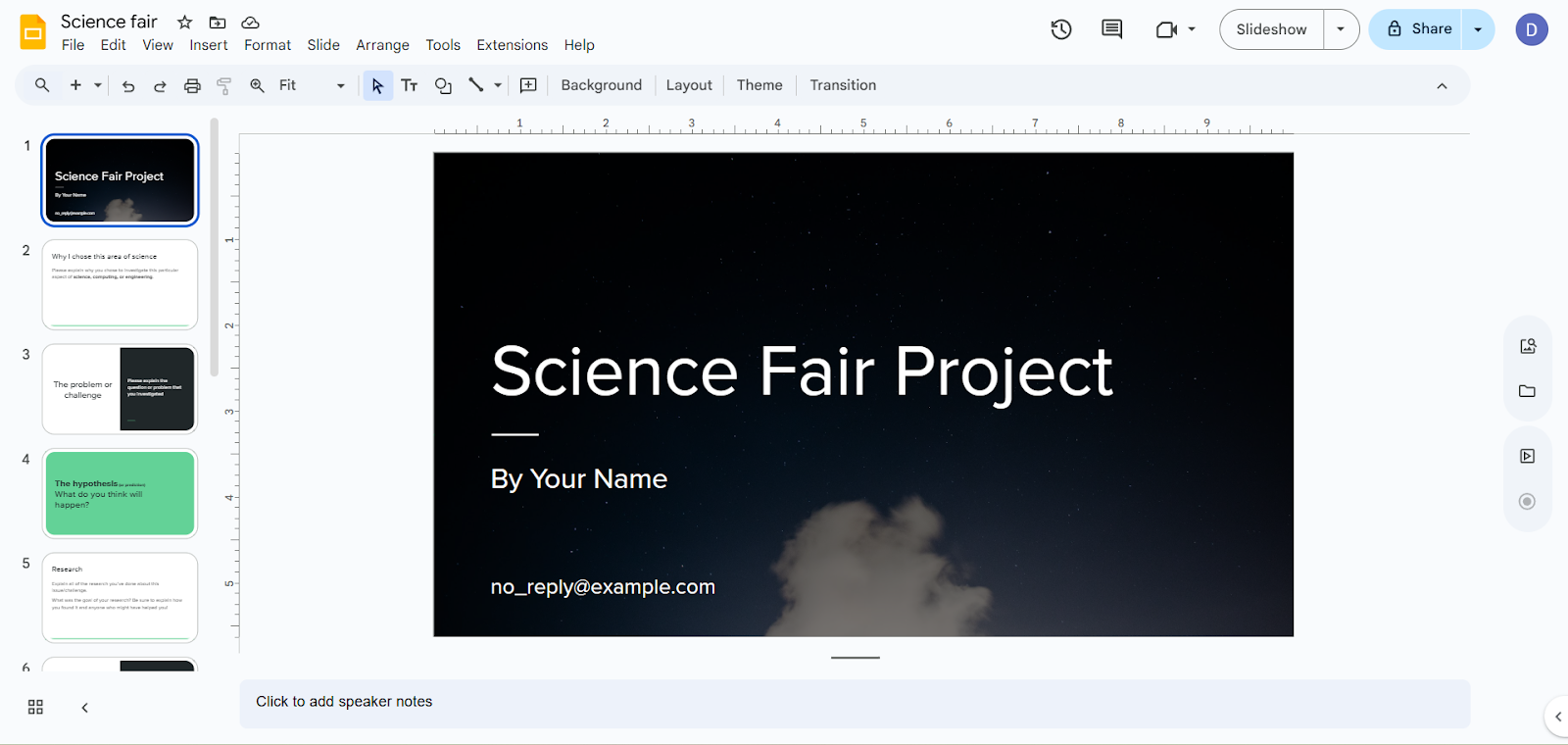
3. Select the slide where you want to add the music
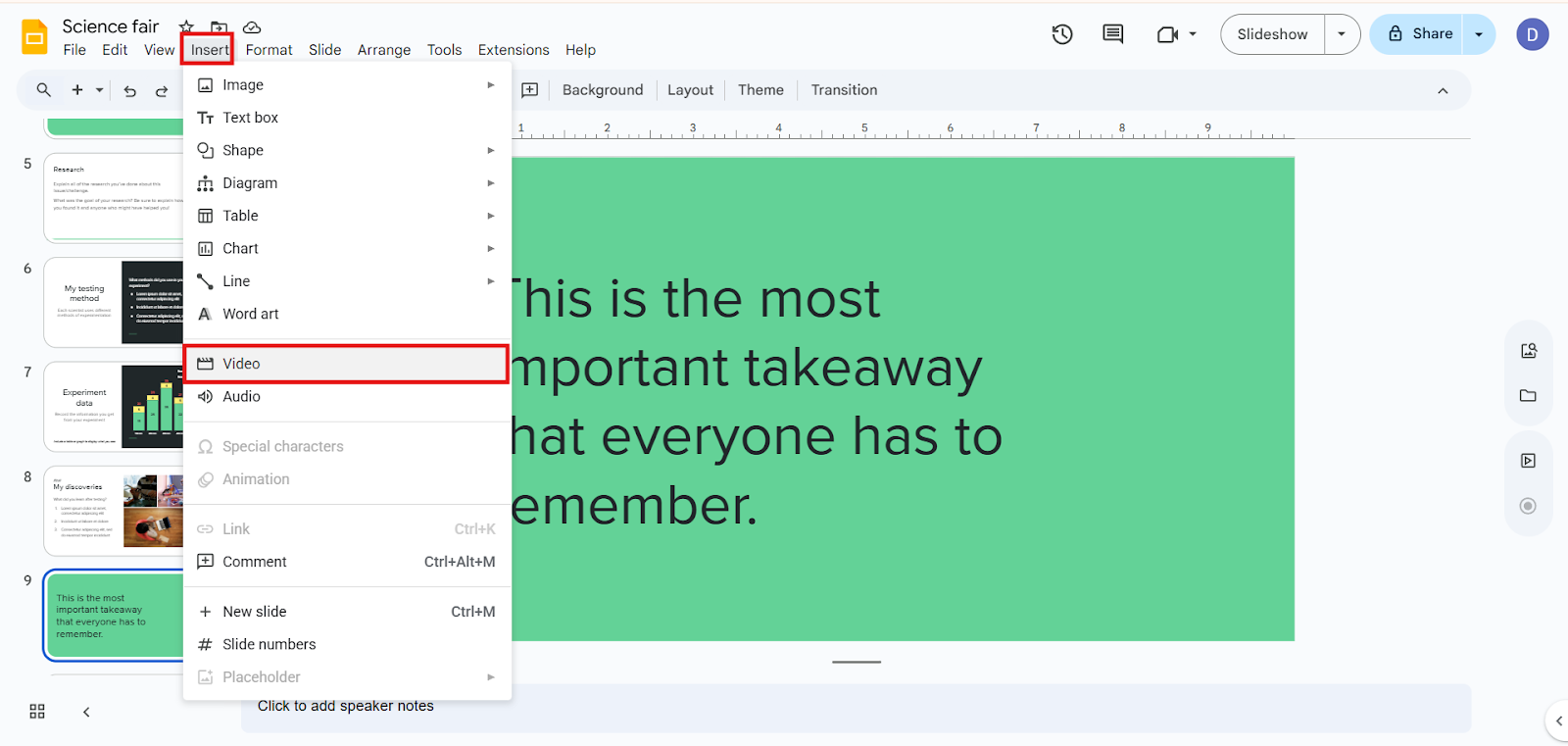
4. Click “Insert” in the top menu
Select “Audio” from drop down menu of the “Insert tab.”
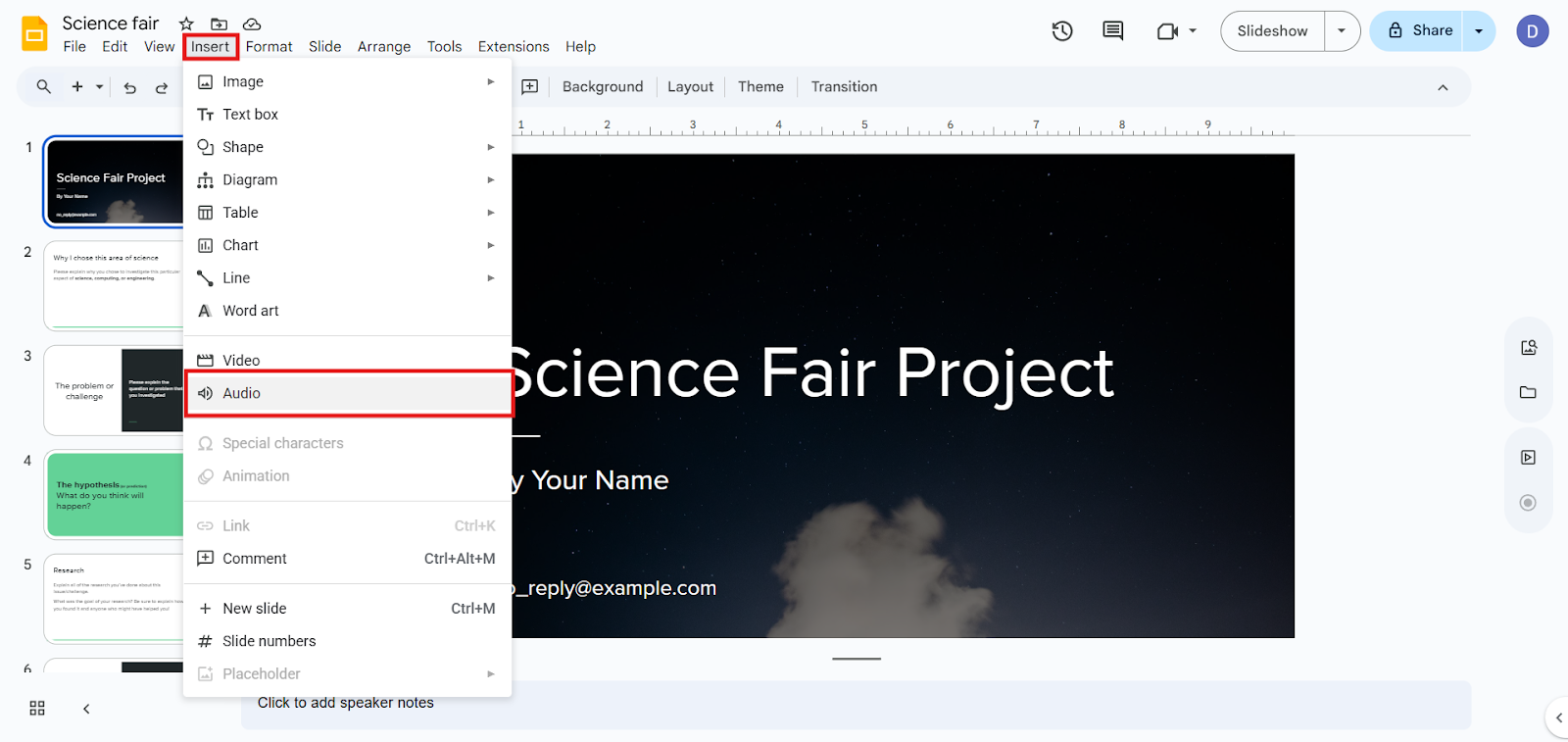
5. Select and upload your audio file.
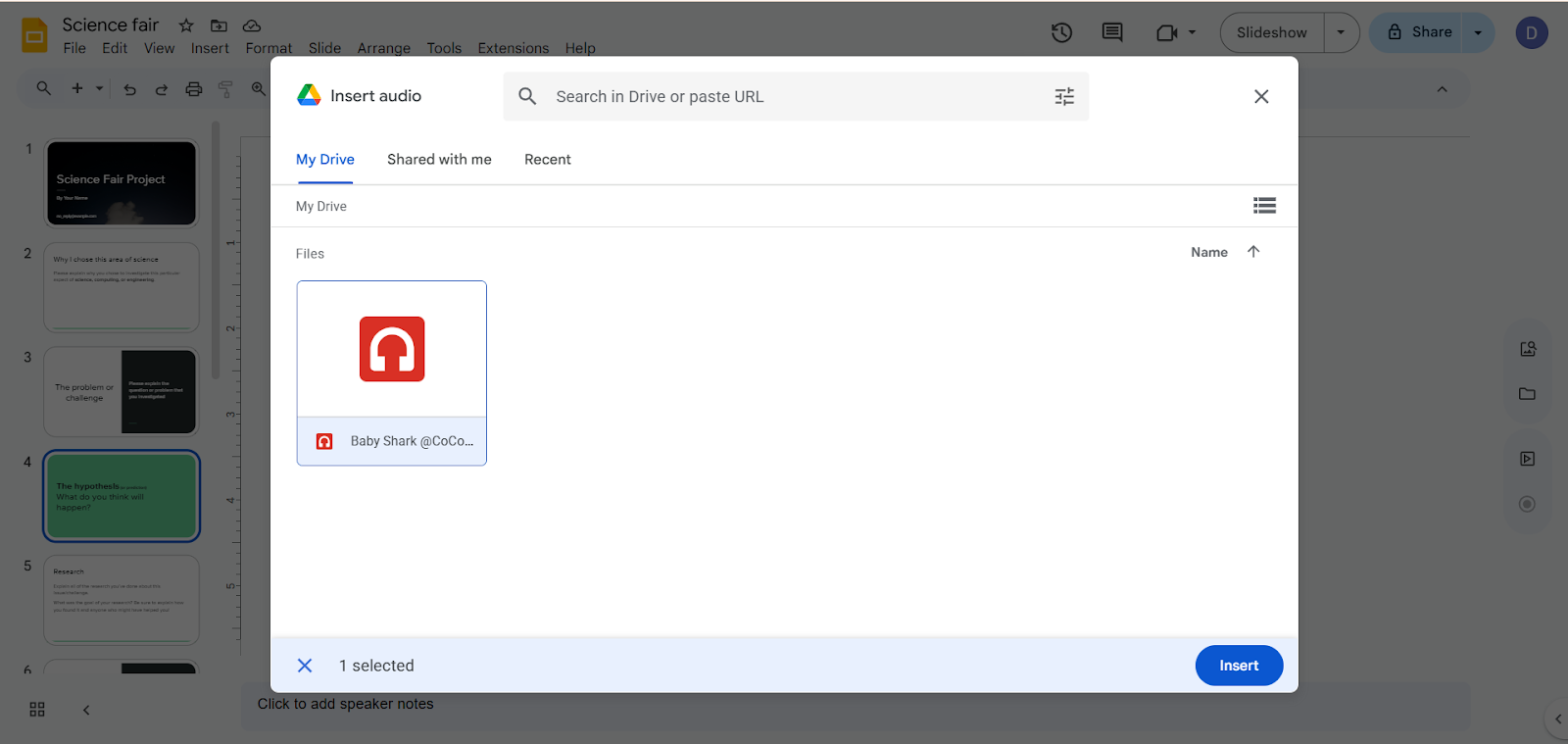
6. Click Insert.
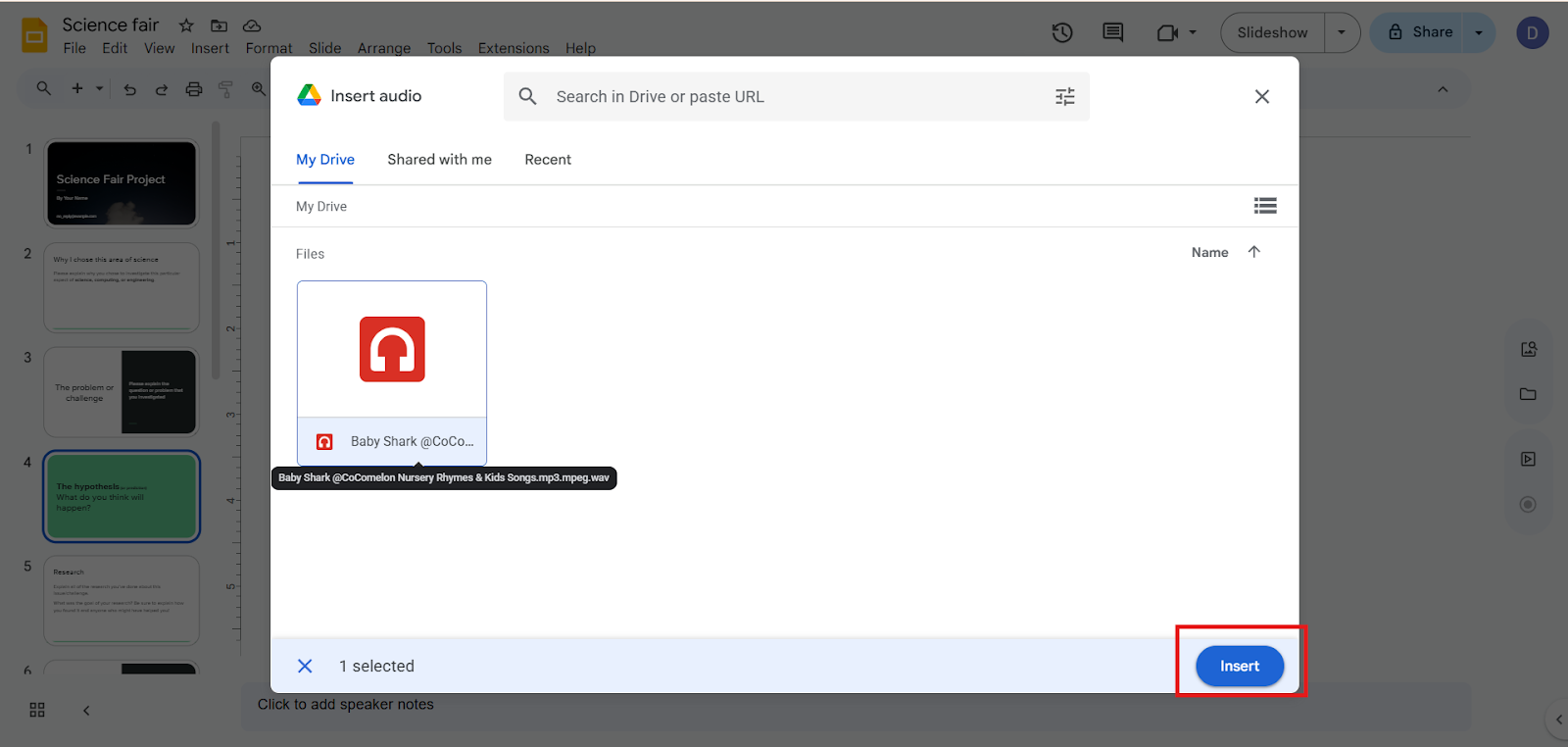
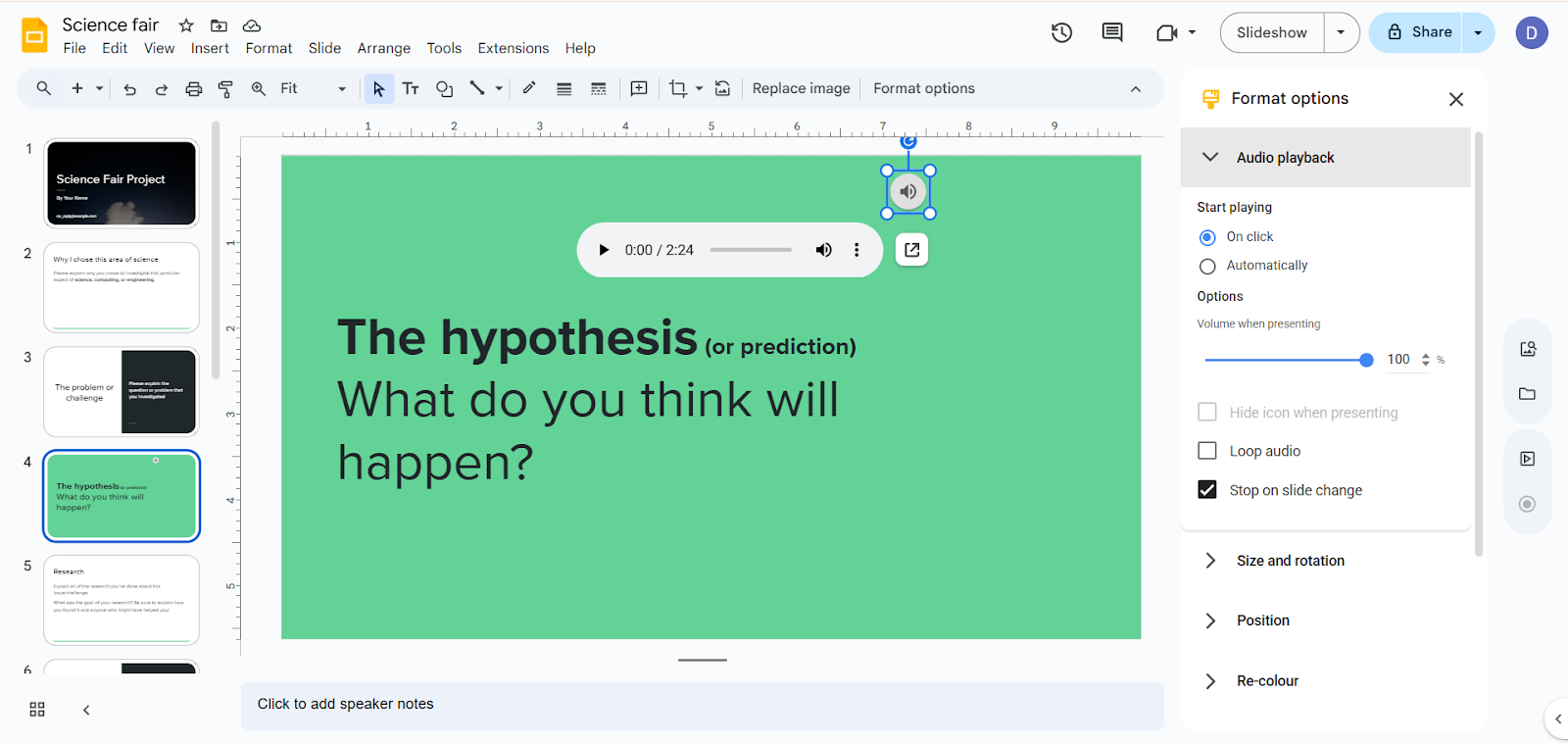
After adding, a speaker icon will appear on your slide. You can edit settings like autoplay, volume, etc.
2. How to Add Audio from YouTube
YouTube videos can also provide background music for your slides:
1. Find the YouTube video with the music you want to add.
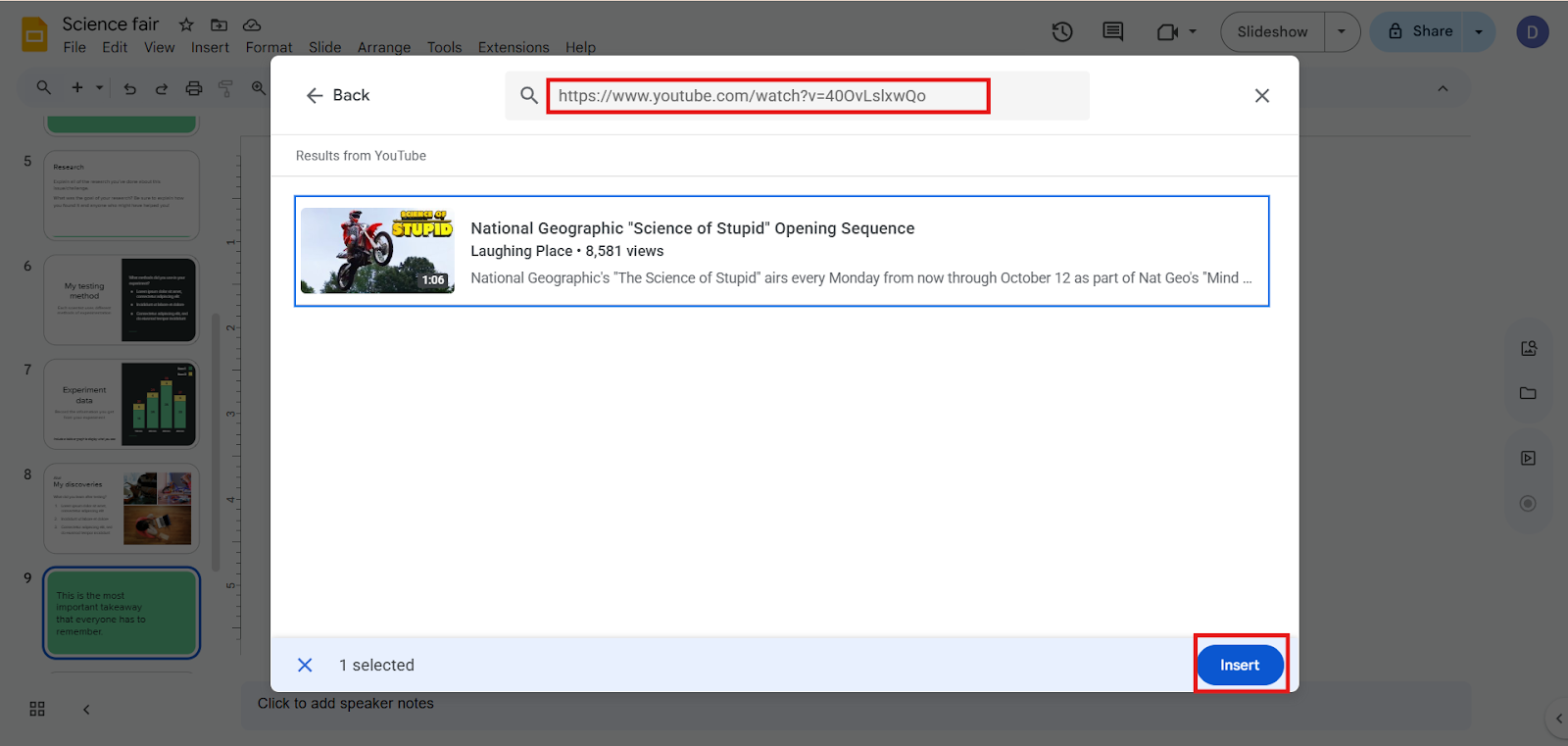
2. Copy the video link.
3. In Google Slides, click “Insert” from the top menu.
And select “Video” from the drop-down menu of the Insert tab.
4. Paste the link and click Insert.
5. Resize the video and move it to a corner of your slide where it is not visible.
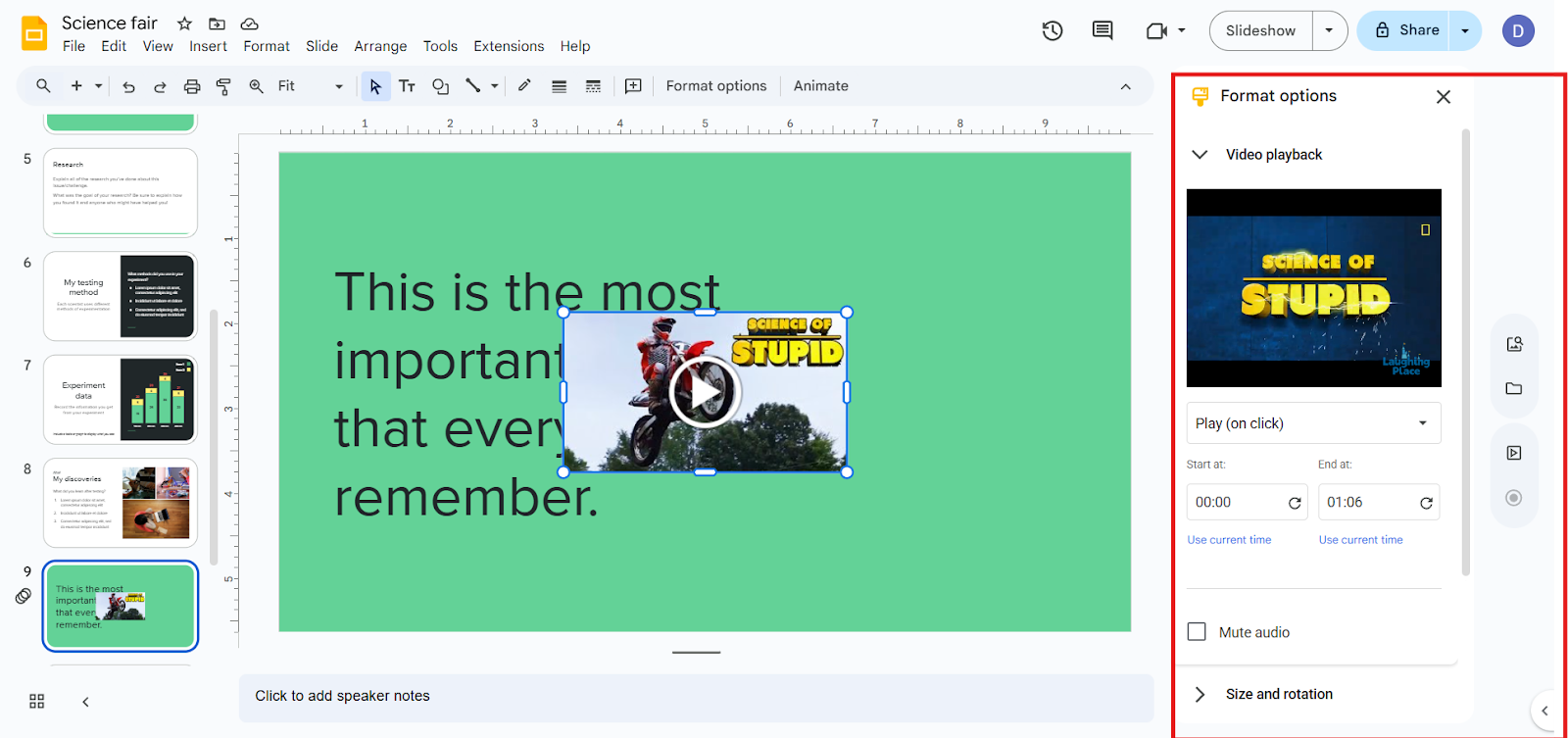
6. Use Format Options and select “autoplay” to play music when the slide appears.
Make your video small or hidden so it doesn’t distract from your content.
Be one step ahead: By adding a pie chart to your presentation:
Sometimes text, designs, and music are not enough to make a professional-looking presentation, especially when it includes statistical data.
For those presentations, we need a pie chart to make data instantly understandable, visually appealing, and the audience will remember it long-term. If you want to learn pie chart making, learn our guide on a step-by-step way to create perfect pie charts in Google Slides. Your presentations will never look the same!
Common Mistakes to Avoid While Adding Music:
Adding music seems to be simple, but there are a few common errors to note and make it right:
1. Music Too Loud or Distracting
If the tune is very loud, your audience may focus on the music instead of your content.
2. Unsupported File Types
Google Slides accepts only MP3 and WAV files, so convert other audio types before uploading.
3. Music Stops Soon
If you want the same music to play across many slides, make sure you set Stop on slide change off when inserting audio.
4. Forgetting to Test Before Presenting
Always run your slides first to ensure the music starts and continues exactly how you want it.
Take Your Google Slides to the Next Level with MagicSlides
Now you know how to add music to your presentation and make it more dynamic. Imagine having a tool that creates entire presentations in minutes, without leaving Google Slides.
That’s what MagicSlides.app, Google Slides extension exactly is, using this, you can make a stunning presentation with content, layout, and structure quickly, with an easy learning curve.
MagicSlides.app is a powerful Google Slides extension designed to make your workflow smooth, so you can focus on visuals, music, etc. Here is why you should use MagicSlides:
Combine MagicSlide’s professionally designed slides with the music techniques you just learned in your upcoming presentations. The result is an impressive presentation that grabs attention, sets the mood, and sticks in your audience’s mind.
Conclusion:
Adding music to your Google Slides is a simple but powerful way to set the mood, keep your audience engaged, and make your content memorable.
Whether you upload your own audio files or use YouTube, the right soundtrack can turn ordinary slides into an impressive experience.
But why stop at music? With MagicSlides, you can take your presentations to the next level. By combining MagicSlide’s professionally designed templates with well-chosen background music, you can craft presentations that are dynamic and engaging.
In short, when you pair music, design, and efficiency, your presentations stop being just slides; they become experiences your audience will remember.
Quick FAQ’s:
Q 1: Can music play across multiple slides?
Yes, enable “Stop on slide change” to keep music playing across slides.
Q 2: Can the music play automatically when a slide opens?
Yes, select autoplay in the audio or video format options.
Q 3: Can music distract my audience?
It can if it’s too loud or mismatched, so adjust volume and style carefully.
Q 4: Can I add multiple audio files to one slide?
Yes, you can insert more than one audio file per slide, but it makes the presentation messy, so it is not advisable.
Q 5: Can I trim or edit the audio in Google Slides?
No, Google Slides doesn’t allow editing audio directly; you will need to trim it before uploading.
Q 6: Is it possible to add background music without showing a speaker icon?
Yes, you can move the speaker icon off-slide or make it small, though it can’t be fully invisible.
Q 7: Can I use music from online sources other than YouTube?
Yes, you can use royalty-free music from websites, SoundCloud, or Google Drive, as long as it’s MP3 or WAV.
Q 8: Do I need an internet connection to play music from Google Drive?
No, if the file is already uploaded and accessible offline through Google Slides offline mode.
Q 9: Will music play if I convert Google Slides to PowerPoint?
Not always, audio may not transfer, so it’s best to text in the new format.
Q 10: Are there copyright concerns when using music in Google Slides?
Yes, always use royalty-free music or tracks you have rights to, especially for public presentations.