
How to Add Music to PowerPoint: A Complete Step-by-Step Guide for Stunning Presentations.

PowerPoint presentations have come a long way from simple text and image slides. Today, they are dynamic storytelling tools used in classrooms, boardrooms, webinars, marketing pitches, and online courses. One of the most effective yet often overlooked elements of a great presentation is music.
If you have ever think how to add music to PowerPoint to make your slides more engaging, memorable, and emotionally compelling, this blog is for you.
Music in a presentation can set the mood, emphasize key moments, and keep your audience focused. Whether you are creating a professional business presentation, a school project, a product demo, or a slideshow for a special occasion, adding the right audio can transform an average deck into a powerful experience.
Why Add Music to PowerPoint?
Before learning how to add music to PowerPoint, it is important to understand why music matters in presentations.
1. Music Creates Emotional Impact
Music triggers emotions faster than visuals or text. A soft background track can make your presentation feel calm and professional, while an upbeat tune can energize your audience. This emotional connection helps your message stick to audience.
2. Keep the Audience Engaged
Long presentations can feel monotonous. Background music, used correctly, keeps the audience attentive, especially during:
3. Enhances Storytelling
Great presentations tell stories. Music acts like a soundtrack, guiding viewers through your narrative and reinforcing your message.
4. Improves Professionalism
Well-placed music makes your presentation feel polished and intentional. It shows effort, creativity, and attention to detail-qualities that impress clients, teachers, and stakeholders alike.
5. Ideal for Online and Self-Running Presentations
If your PowerPoint will run automatically (for kiosks, webinars, or online sharing), music fills the silence and keeps viewers engaged without a live speaker.
How to Add Music to PowerPoint: 3 Methods Explained
There are several ways to add music to PowerPoint, and the right method depends on your needs. Factors like where your audio is stored, whether you want background music or narration, and how much playback control you need all play an important role.
In this guide, we will cover three simple and effective methods, which include an easy step-by-step walkthrough.
Method 1: Inserting a Pre-Recorded Audio File from Your PC
This is the most common and beginner-friendly method to add music to PowerPoint. It works perfectly for background music, sound effects, or narration files.
Supported Audio Formats in PowerPoint
Before starting, make sure your audio file is in a compatible format:
MP3 files are ideal because they balance quality and file size.
Step-by-Step: How to Add Music to PowerPoint from Your Computer
Step 1: Open your PowerPoint Presentation.
Open the presentation where you want to add music.
Step 2: Select the Slide
Click the slide where you want the music to start playing.
For background music across the entire presentation, choose the first slide.
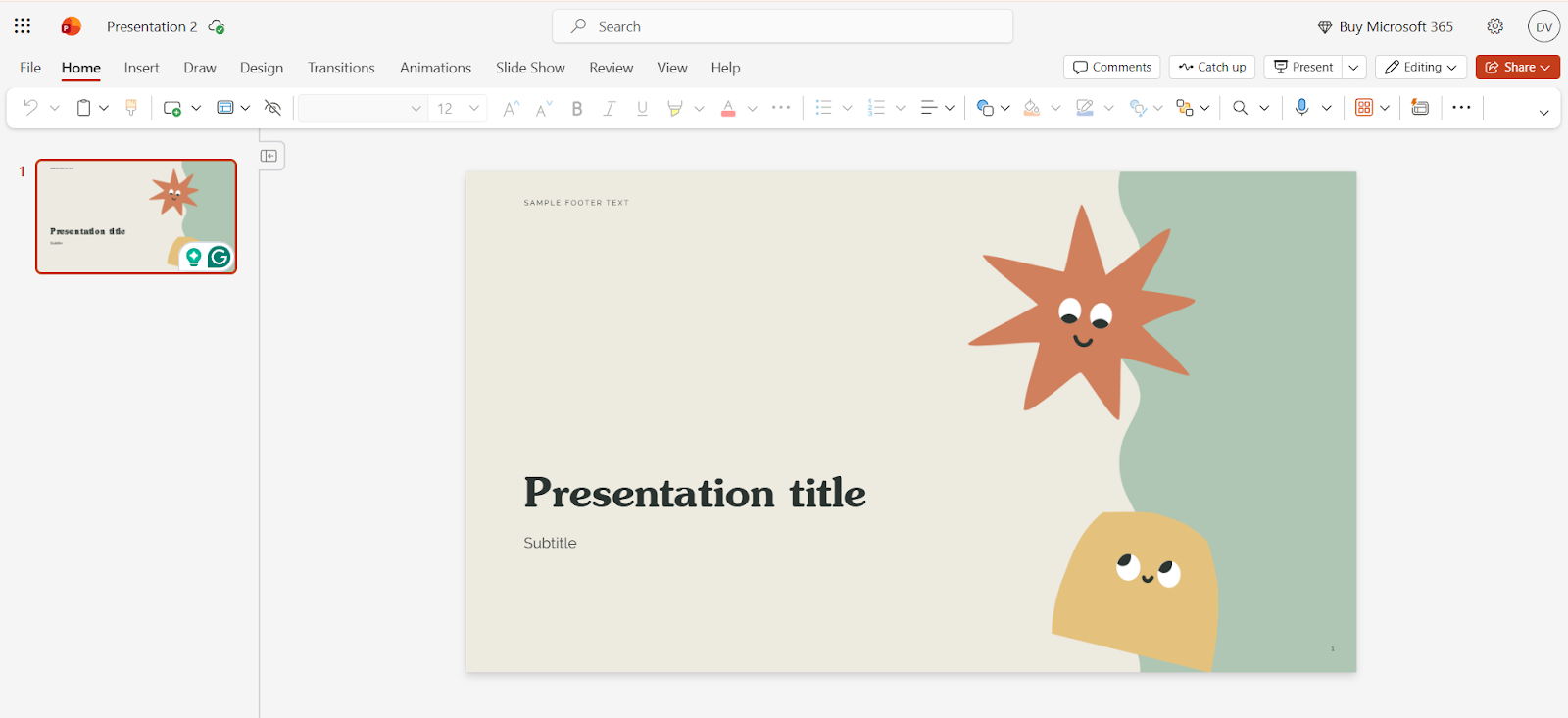
Step 3: Go to the Insert Tab
From the top menu, click Insert.
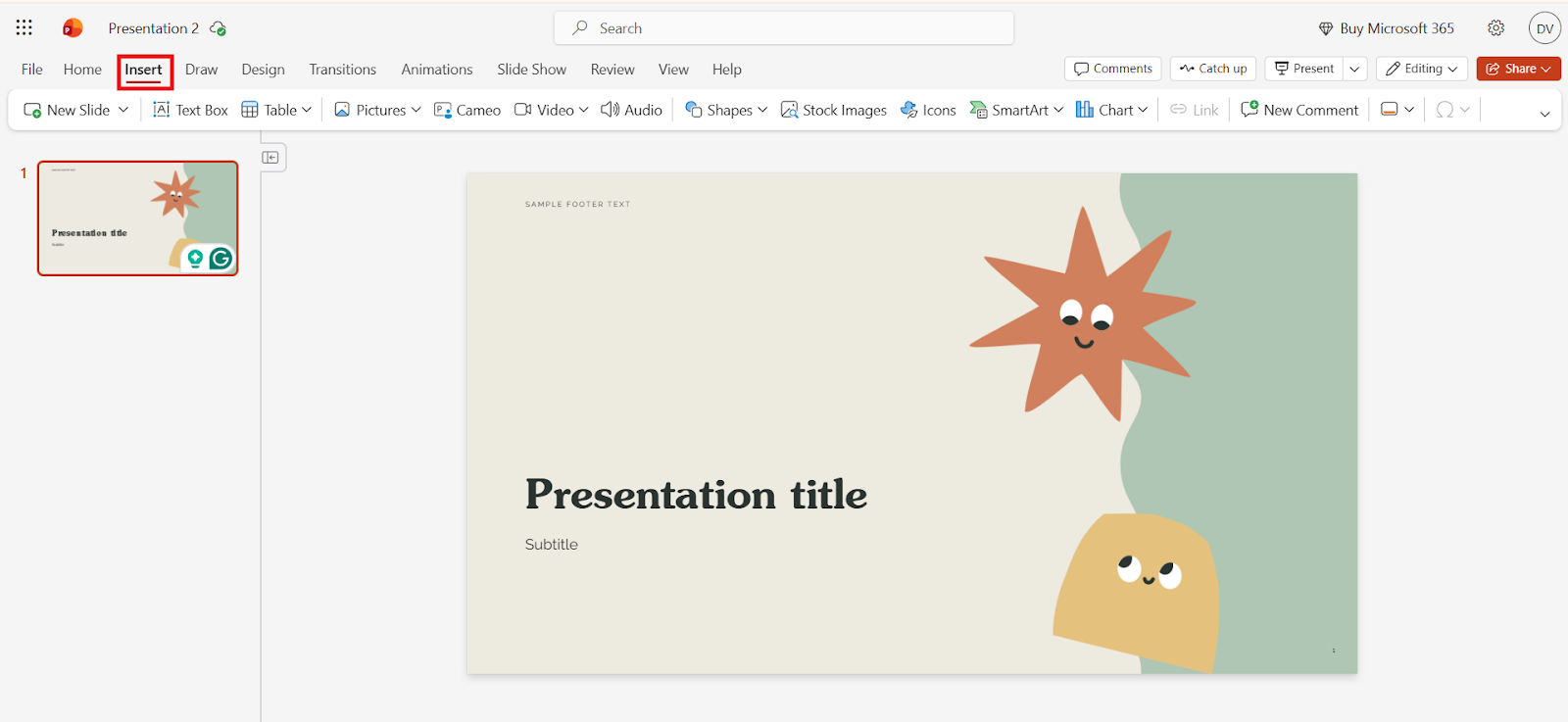
Step 4: Click on Audio
In the Media group, click Audio and select Audio on my PC.
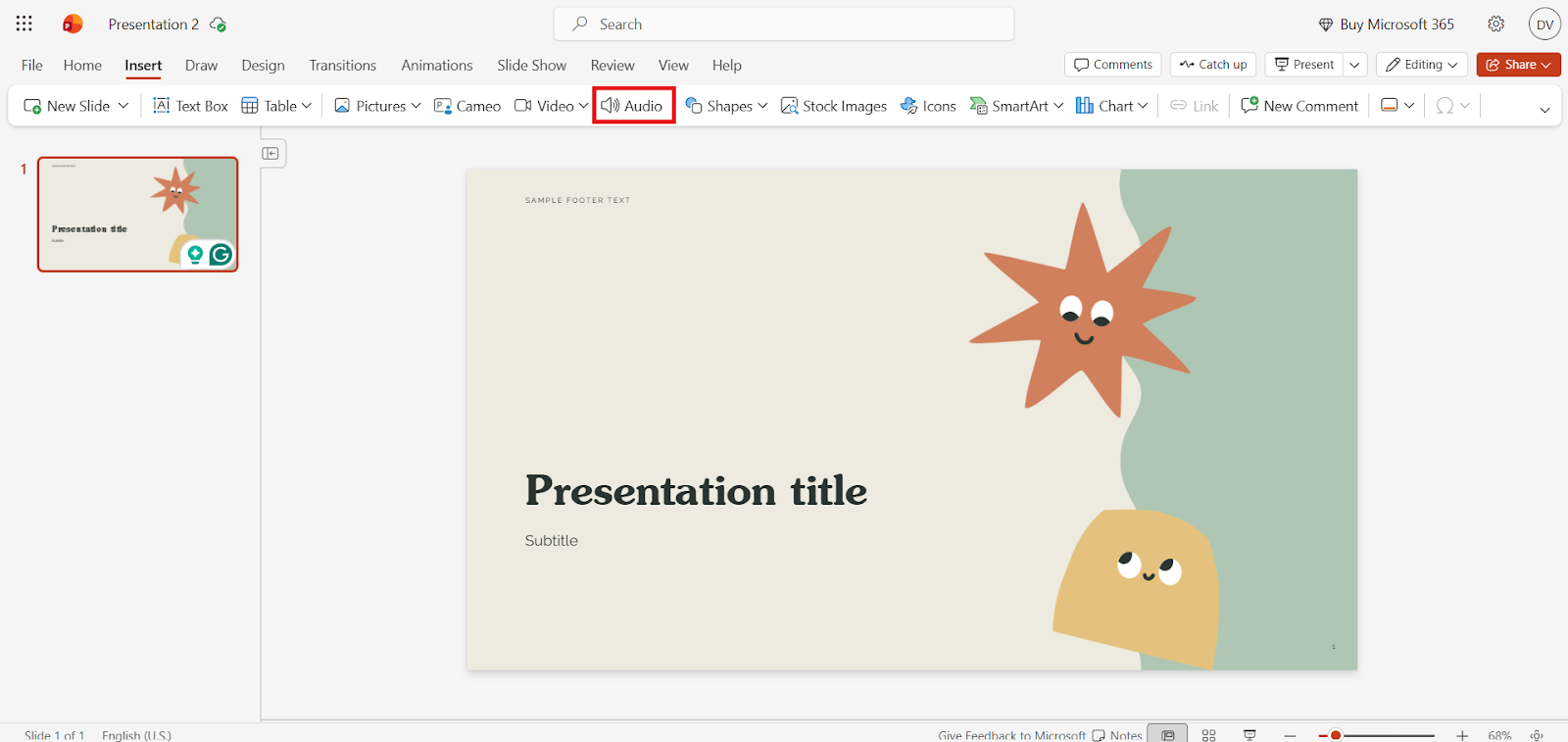
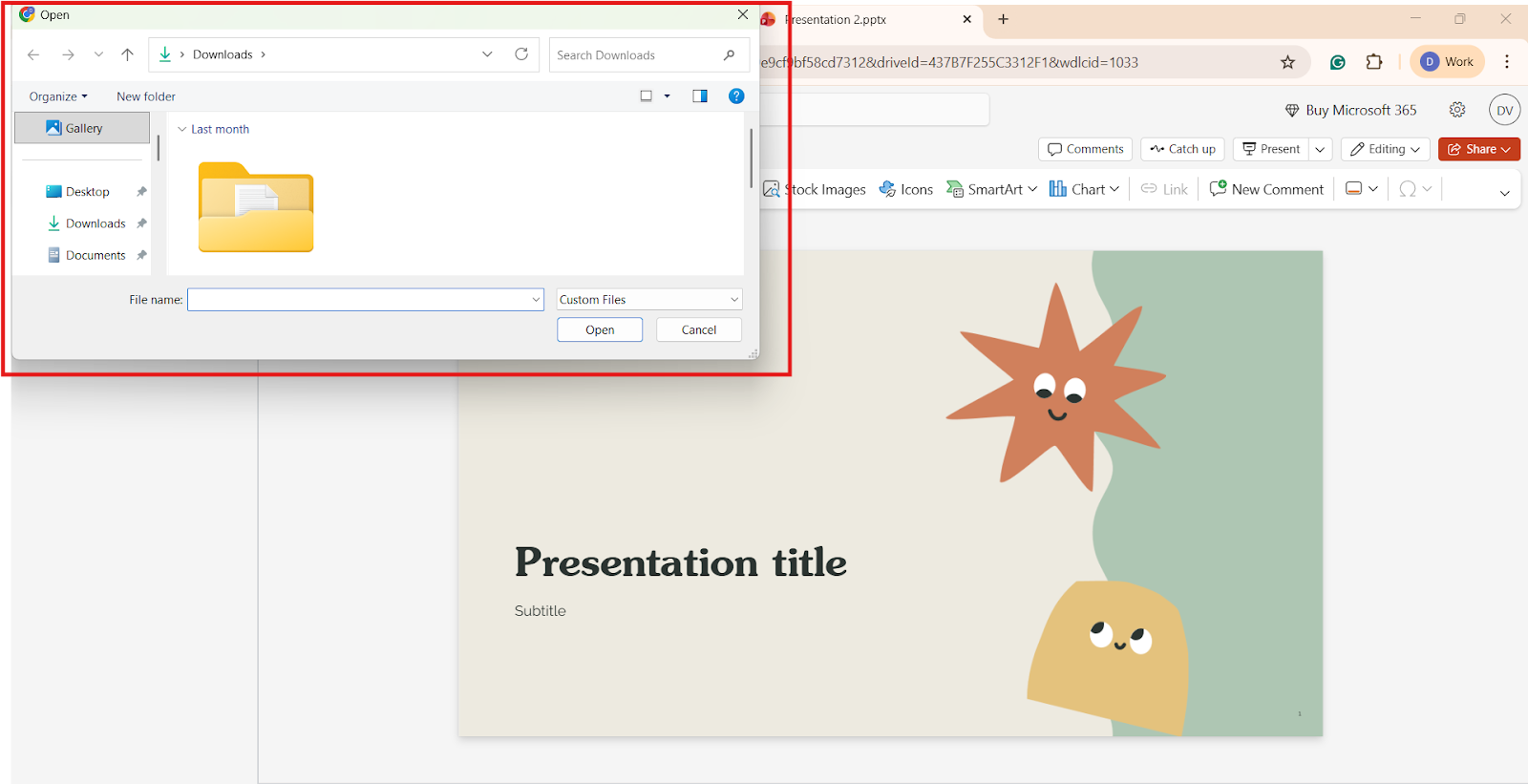
Step 5: Choose Your Music File
Browse your computer, select the audio file, and click Insert.
You will now see a small speaker icon appear on the slide.
Best Use Cases for this Method:
Method 2: Adding YouTube Music to PowerPoint
PowerPoint doesn’t allow direct insertion of YouTube audio files, but you can still include YouTube music using workarounds.
There are two common approaches.
Option 1: Insert YouTube Video (With Music)
This works best when:
Steps Involved:
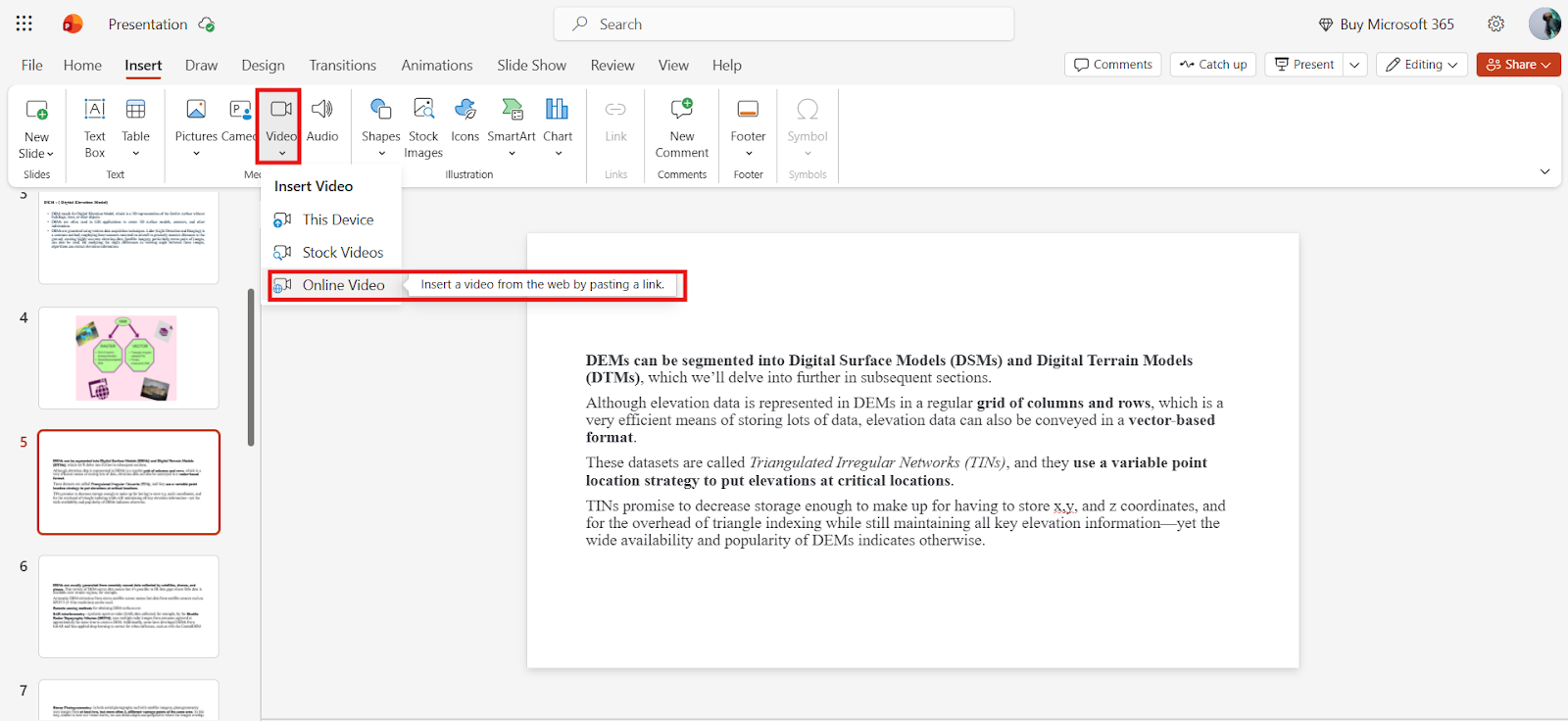
You can resize the video or place it off-screen while the audio plays.
Option 2: Download YouTube Audio and Insert It
Always respect copyright rules when downloading audio.
Steps Involved:
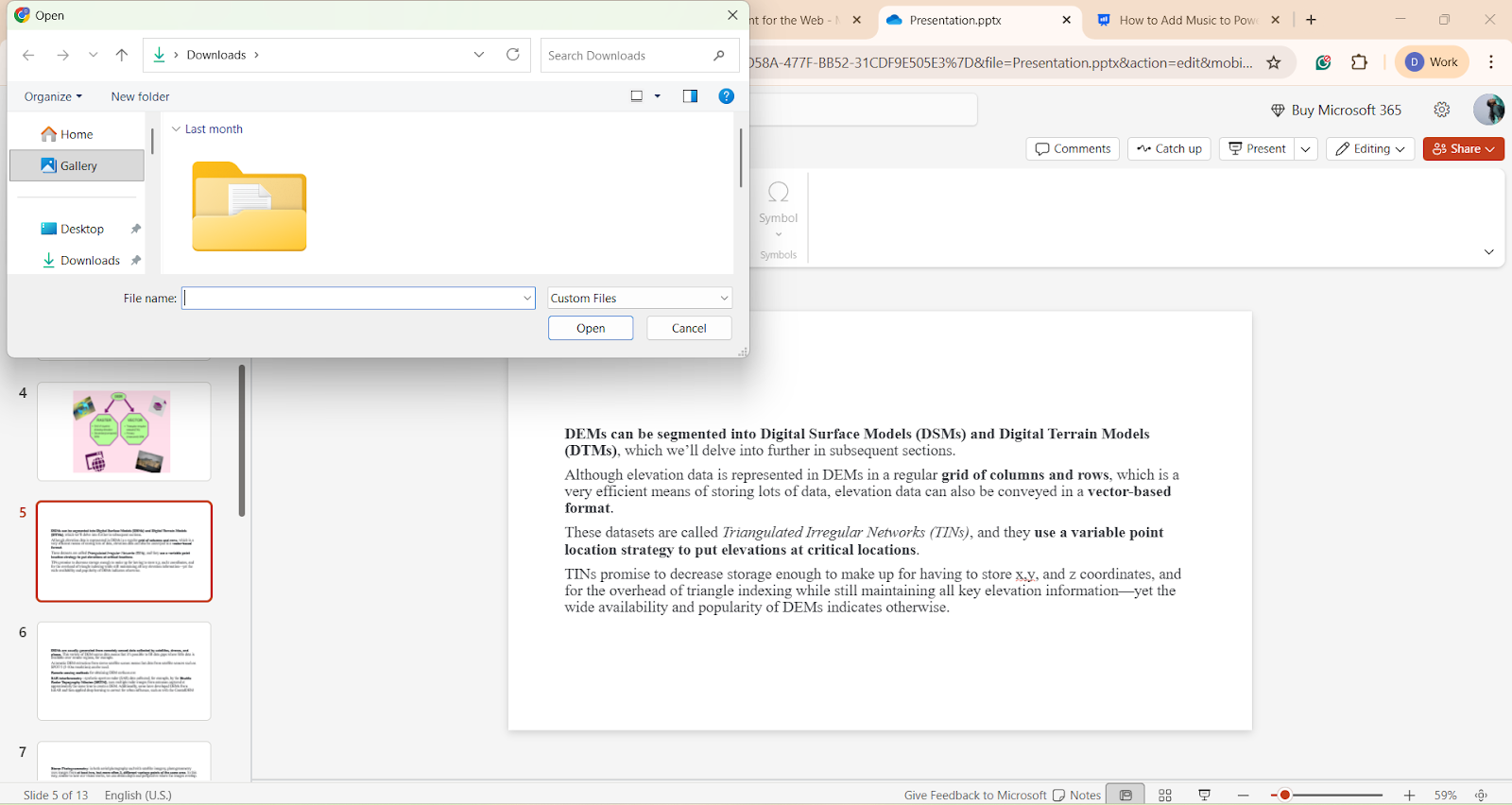
This method works offline and gives you full control over playback.
Best Use Cases for this Method
Method 3: Recording Audio Directly into PowerPoint
If you want to add voice narration, explanations, or commentary, recording audio directly in PowerPoint is an excellent option.
Step-by-Step: How to Record Audio in PowerPoint
Step 1: Open Your Presentation
Open the PowerPoint file where you want to record audio.
Step 2: Select the Slide
Choose the slide when you want the narration or audio to appear.
Step 3: Go to Insert
Click Insert, select audio, and choose Record Audio.
Step 4: Name your Audio
A dialog box will appear. Give your recording a meaningful name.
Step 5: Start Recording
Click the Record (red circle) button and start speaking.
Step 6: Stop and Preview
Click Stop, then use Play to preview the recording.
Step 7: Insert the Audio
Click OK to insert the recorded audio into your slide.
Best Use Cases for this Method
Why Slide Size Matters When Adding Music to PowerPoint:
While adding music to your PowerPoint makes your presentation more lively, it’s also important to ensure your slides are properly sized for the best viewing experience. A mismatched slide size can sometimes cut off animations, music, or visual elements, making your presentation look unprofessional.
If you haven’t already adjusted your slide dimensions, check our guide on how to change slide size in PowerPoint. This quick read will help you set up your slides perfectly before adding music or other effects.
How to Customize the Audio in PowerPoint
Once you have added music, customization is key to making it professional.
1. Adjust Start Options
Select the “Audio,” select “Playback tab,” and choose:
2. Trim Audio
Want to remove unwanted sections?
3. Control Volume
Under Playback:
4. Loop Music
Enable Loop until Stopped for continuous background music.
5. Hide Audio Icon
For a cleaner slide:
6. Fade In and Fade Out
Add smooth transitions using Fade In and Fade Out options.
Advanced Tip You Should Know: Create Presentations Faster with MagicSlides
Creating presentations manually can be time-consuming, especially when you are also figuring out how to add music to PowerPoint, adjust layouts, and design visuals.
This is where MagicSlides.app becomes a game-changer.
What is MagicSlides?
MagicSlides is an AI-powered presentation tool that helps you create complete PowerPoint presentations in minutes.
Instead of spending time on:
You can generate a ready-to-use presentation instantly and then focus on enhancing it with elements like music, audio, and animations.
Final Thoughts:
Knowing how to add music to PowerPoint can significantly improve the quality of your presentations. When used thoughtfully, music adds emotions, energy, and a professional touch that helps your message stand out.
If you want to work faster and focus more on creative details like music and visuals, MagicSlides is a smart companion. Combining strong content, clean design, and well-placed audio can turn a simple PowerPoint into a memorable experience.
Quick FAQ’s:
Q 1: Can I add YouTube music directly to PowerPoint?
Not directly, but you can insert the video or download the audio.
Q 2: How do I hide the audio icon during a presentation?
Enable “Hide During Show” in the Playback tab.
Q 3: Does adding music increase file size?
Yes, especially with WAV files, MP3 keeps the size smaller.
Q 4: Can I add different music to different slides in PowerPoint?
Yes, you can insert separate audio files on individual slides.
Q 5: Will music play when I convert PowerPoint to video?
Yes, all embedded audio is included when exporting to video.
Q 6: Will audio work on another computer?
Yes, as long as the audio is embedded in the presentation file.
Q 7: Does background music affect presentation performance?
Large audio files may show performance, so optimized MP3 files are best.
Q 8: Does PowerPoint support stereo sound?
Yes, PowerPoint supports stereo audio playback.
Q 9: Will music play when sharing via email?
Yes, embedded audio plays normally when the file is opened.
Q 10: Can I preview music without starting the slideshow?
Yes, you can preview audio directly from Normal view.