
How to Add a Decorative Border In Google Slides: Easy Methods Explained.
Google Slides is widely used for presentations because of its simplicity and flexibility. Whilecontent matters most, visual design plays a huge role in keeping your audience engaged. One simple design element that can instantly elevate your slides is a decorative border. Borders help frame your content, create structure, and make slides look more polished and professional.
In this guide, you will learn multiple ways to add decorative borders in Google Slides, whether you want something minimal, creative, or decorative, all without needing advanced design skills.
Why Add Decorative Borders
Decorative borders are more than just visual extras. When used correctly, they improve both aesthetics and communication.
Here’s why adding borders can be a smart design choice:
Borders are especially useful for educational presentations, business decks, portfolios, and social media-style slides.
How to Add Decorative Borders in Google Slides (Step-by-Step Guide)
Google Slides doesn’t offer a built-in “border” button, but there are several easy workarounds. Below are the most effective methods.
Method 1: How to add borders using a shape element
This is the most common and flexible way to add a decorative border.
Steps Involved
1. Open your Google Slides presentation
2. Select the slide where you want the border
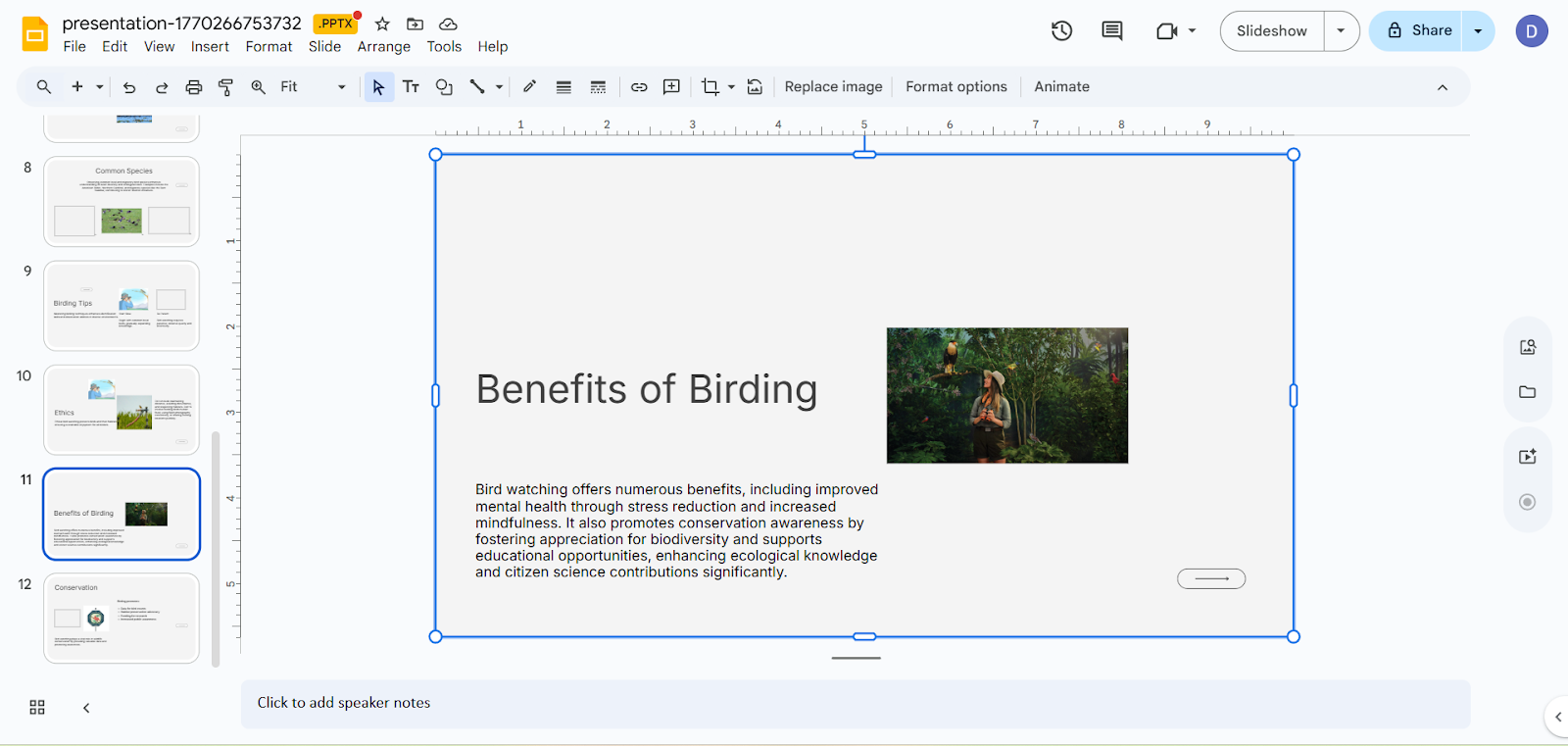
3. Click “Insert” and select “Shape.”
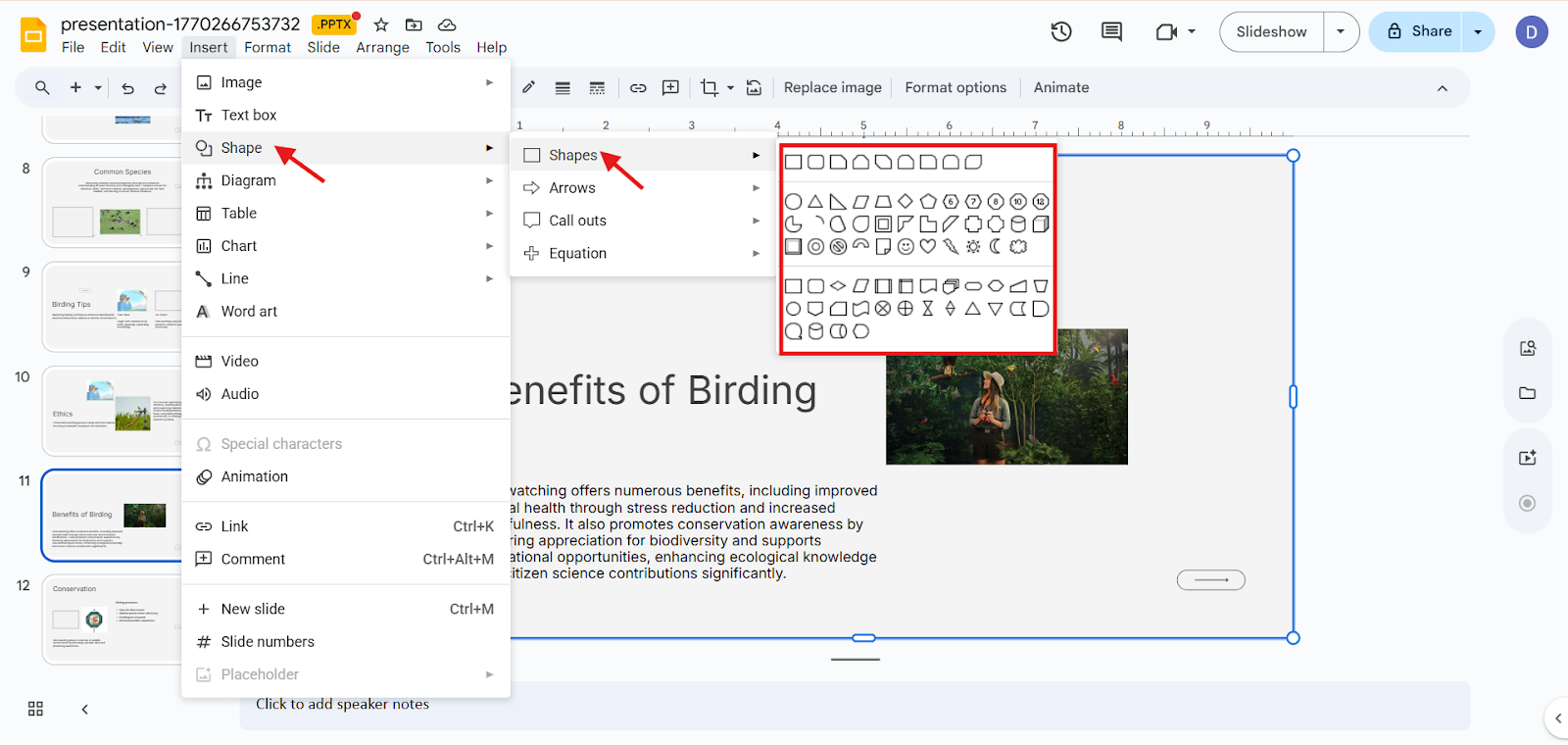
4. Choose a rectangle (or any shape you like)
5. Draw the shape around the edges of the slide
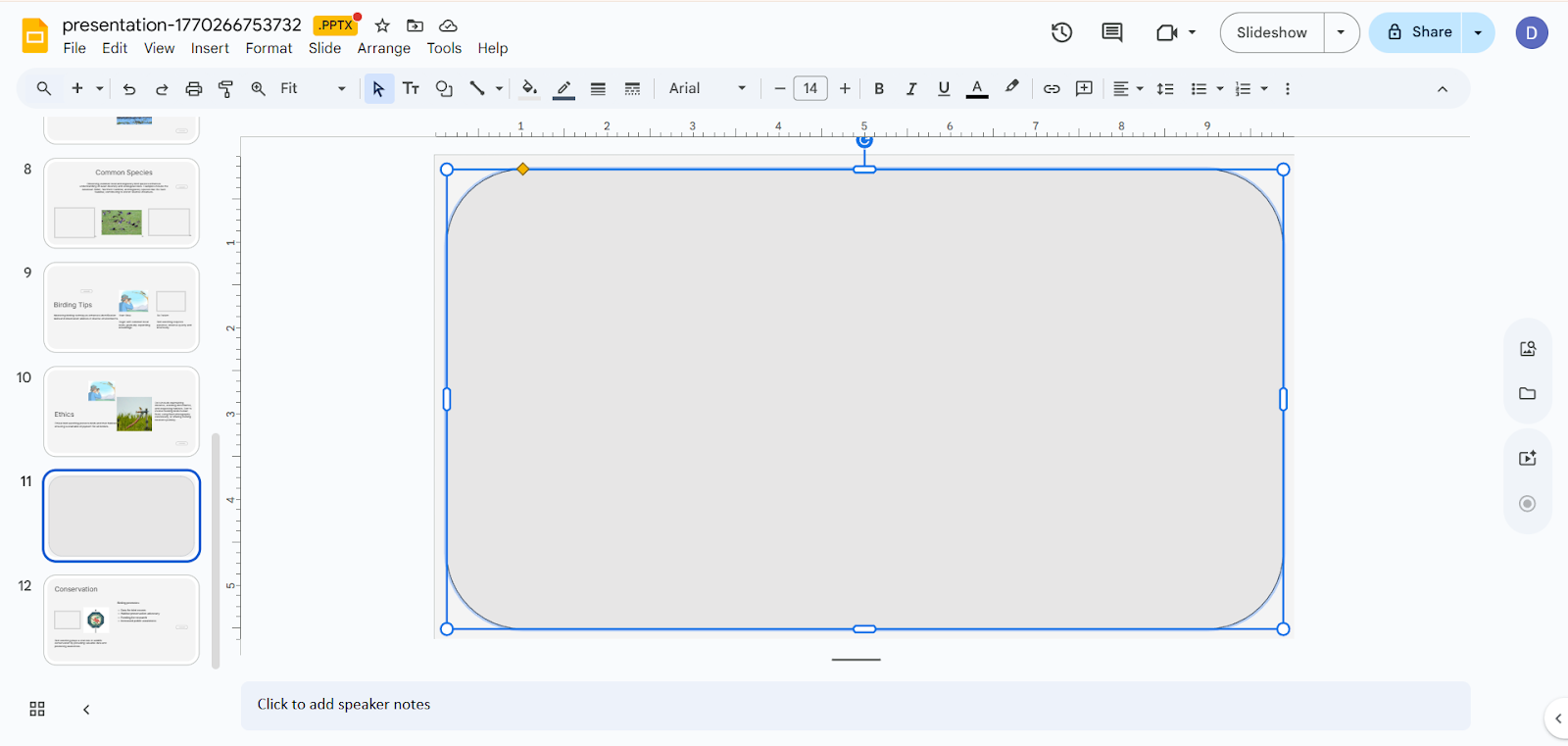
6. Set Fill color to Transparent
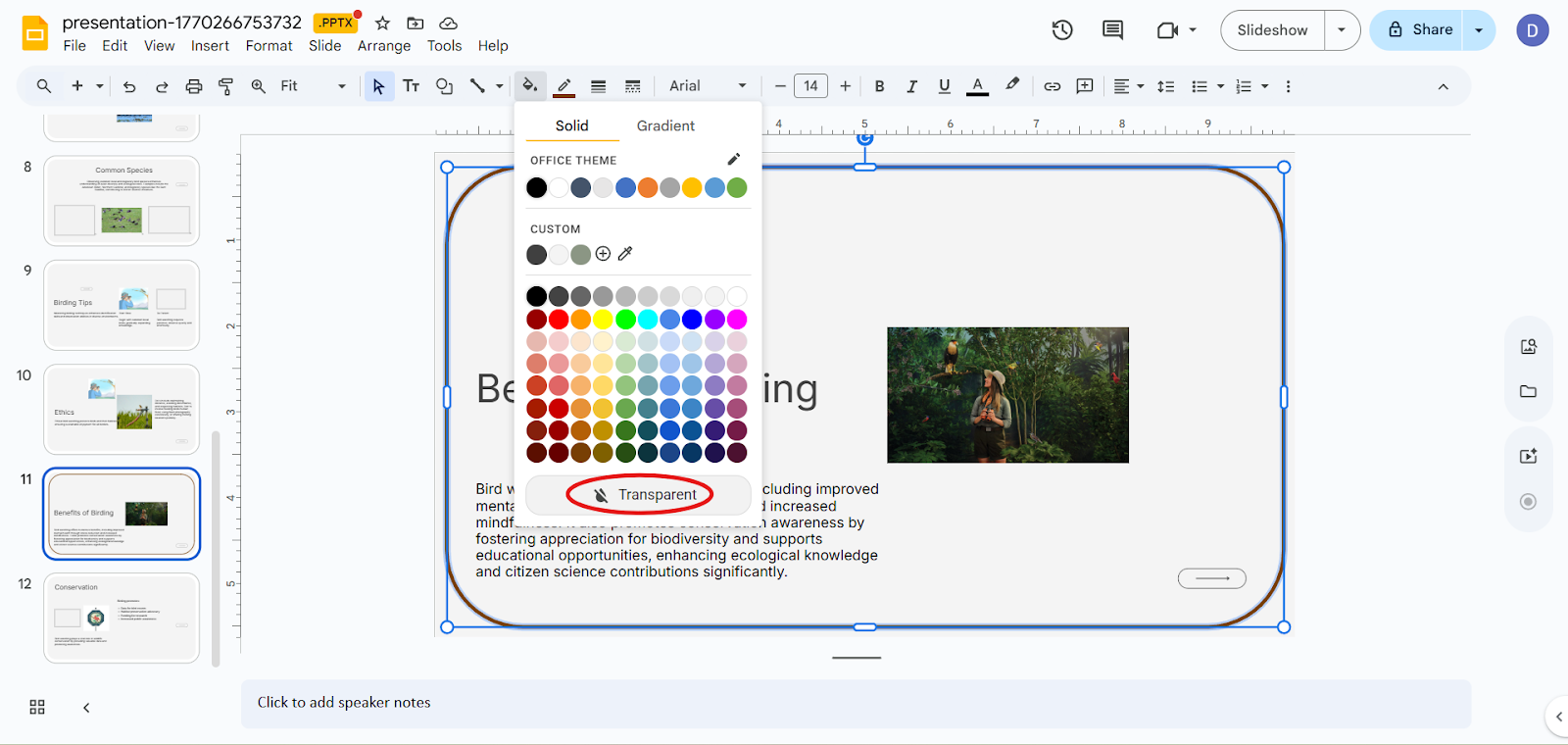
7. Adjust Border color, Border weight, and Border style
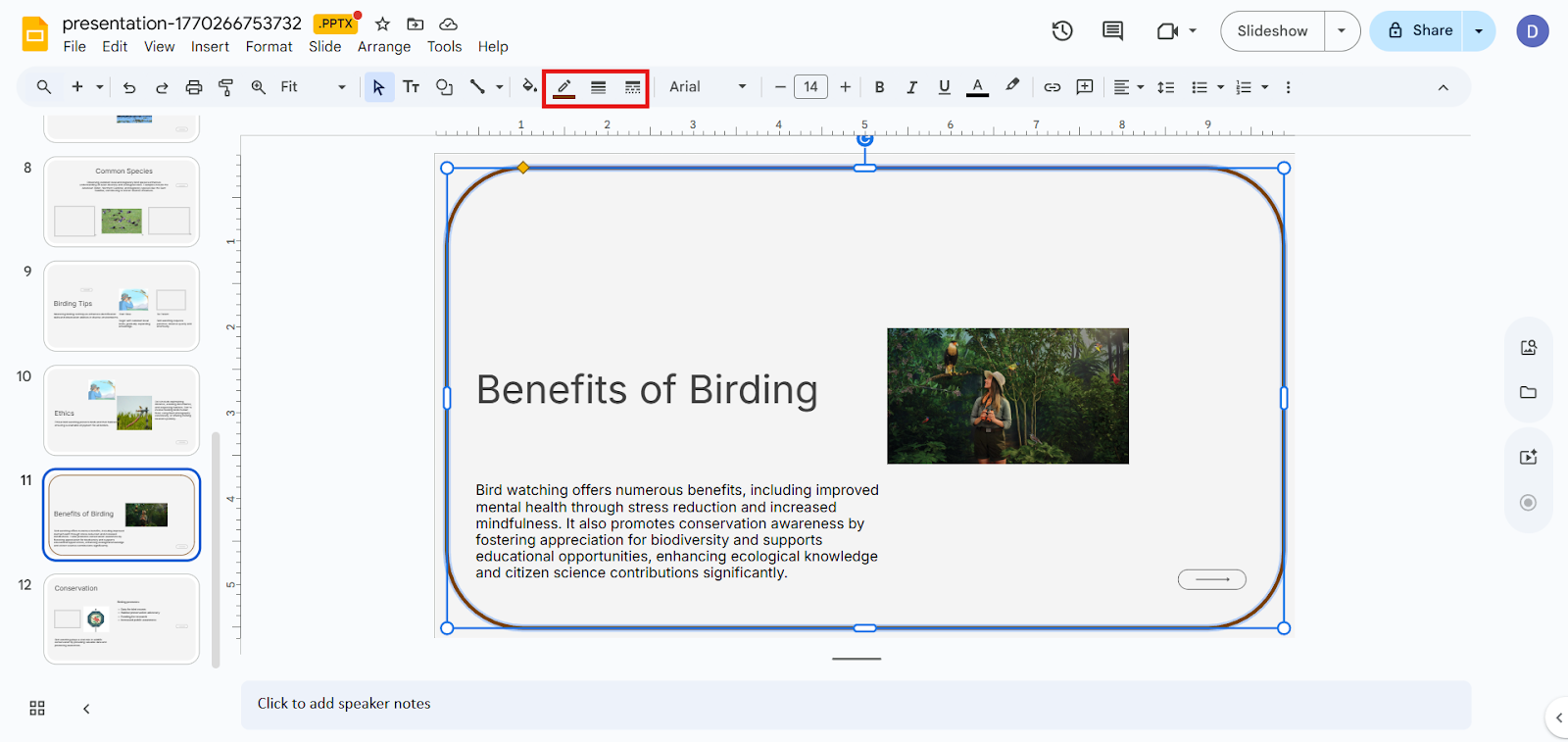
8. Resize and align the shape so it fits perfectly within the slide
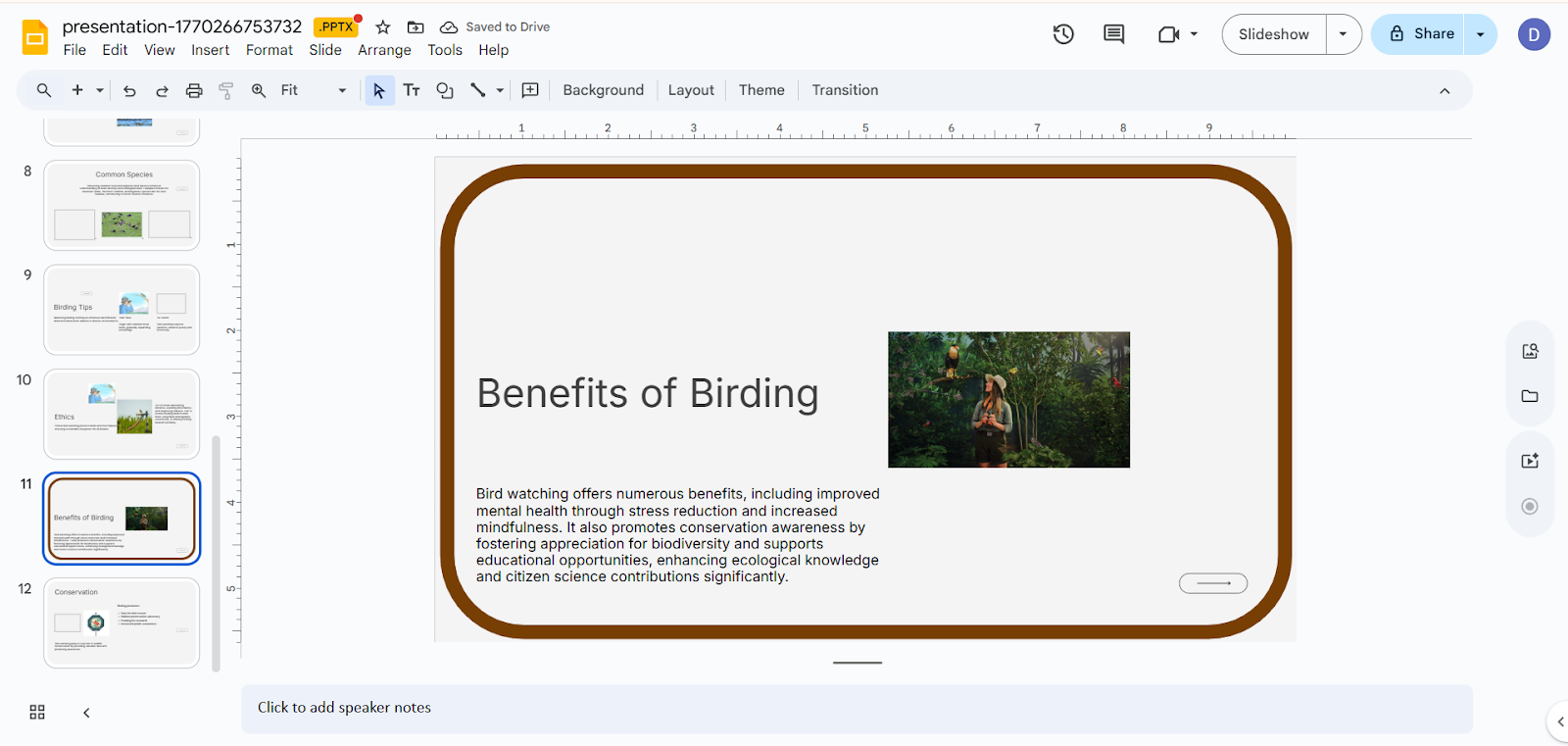
Method 2: How to add borders using a table element
Using a table is a clever trick for creating even, symmetrical borders.
Steps Involved
1. Go to “Insert” and Select “Table.”
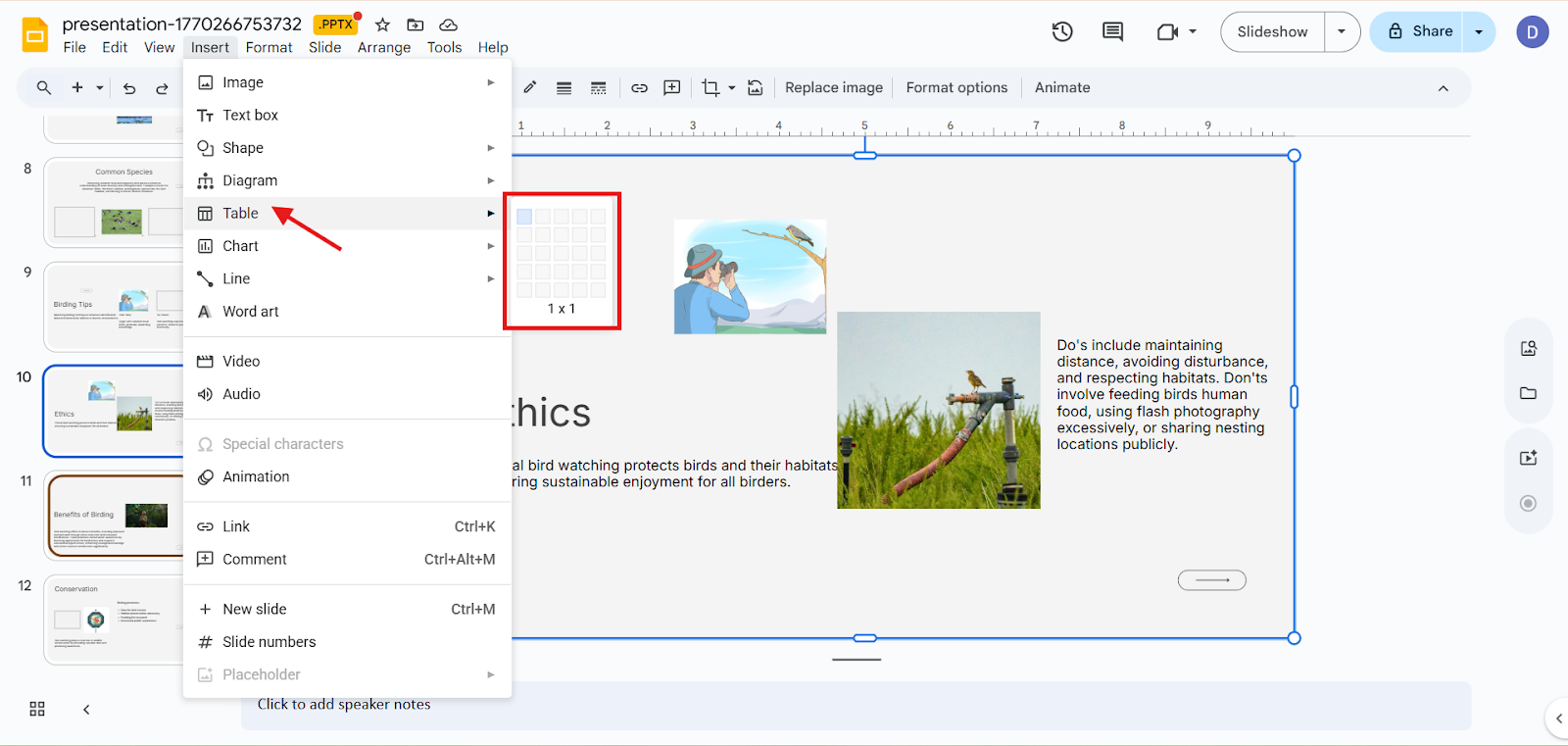
2. Choose a 1-to-1 table
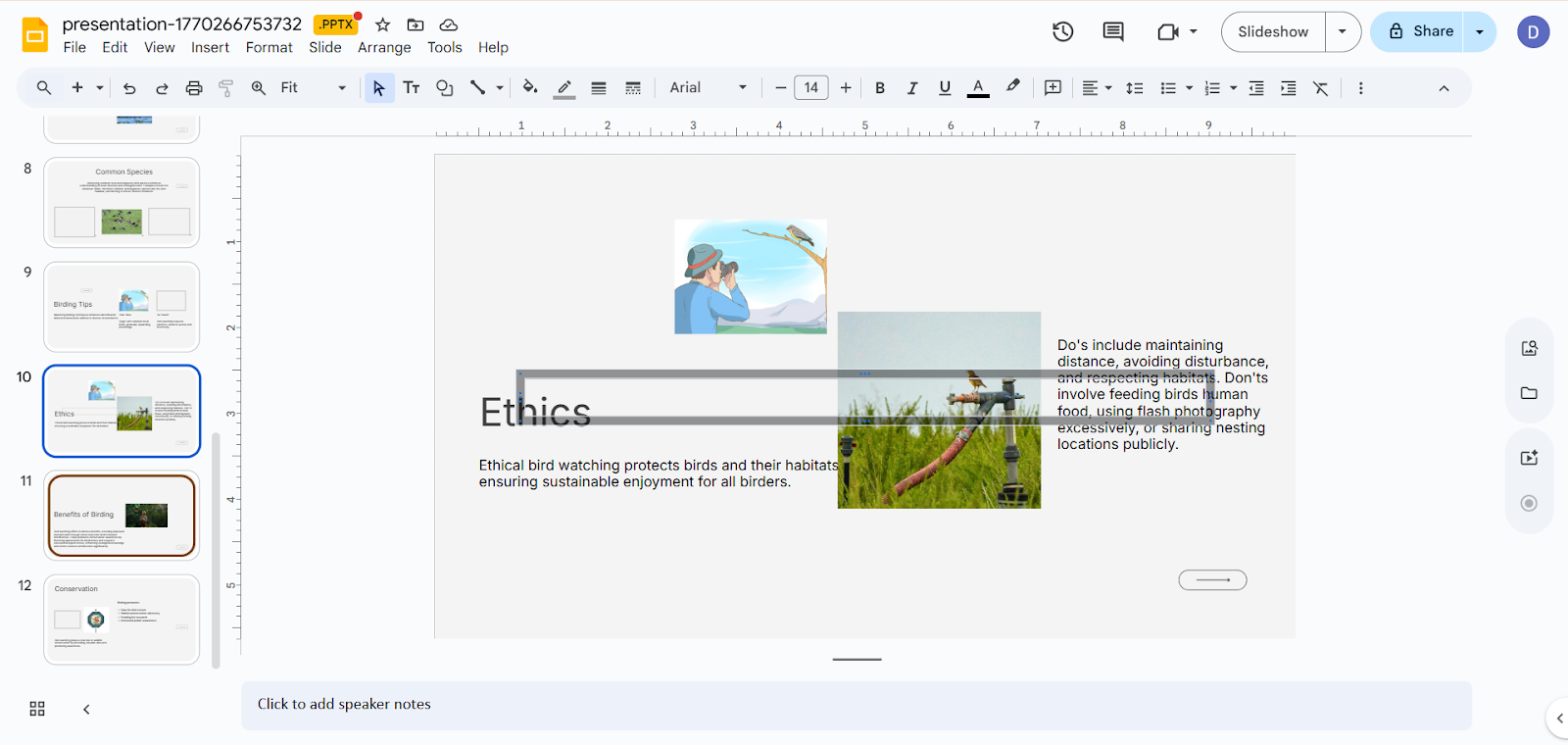
3. Stretch the table to cover the entire slide
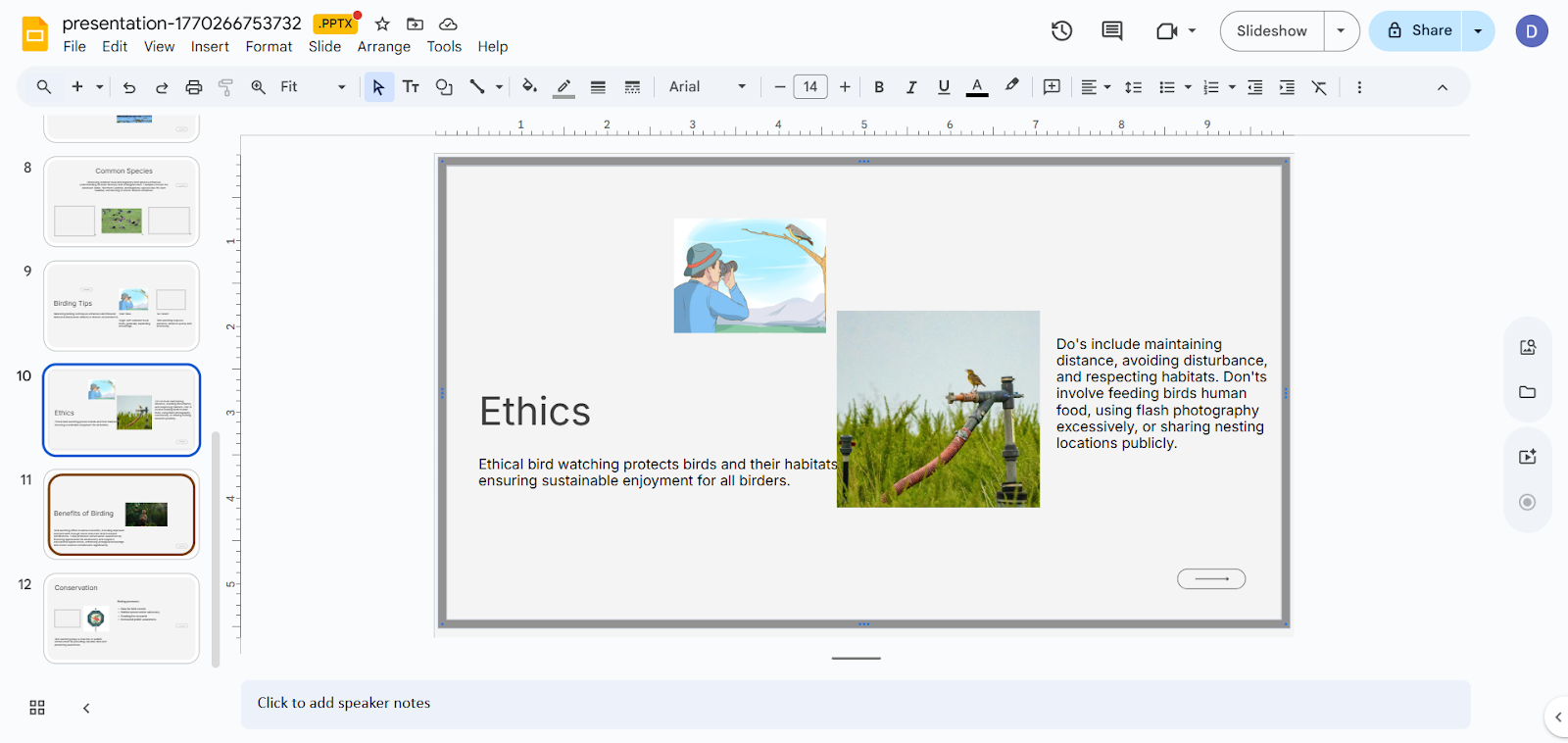
4. Click on the table borders:
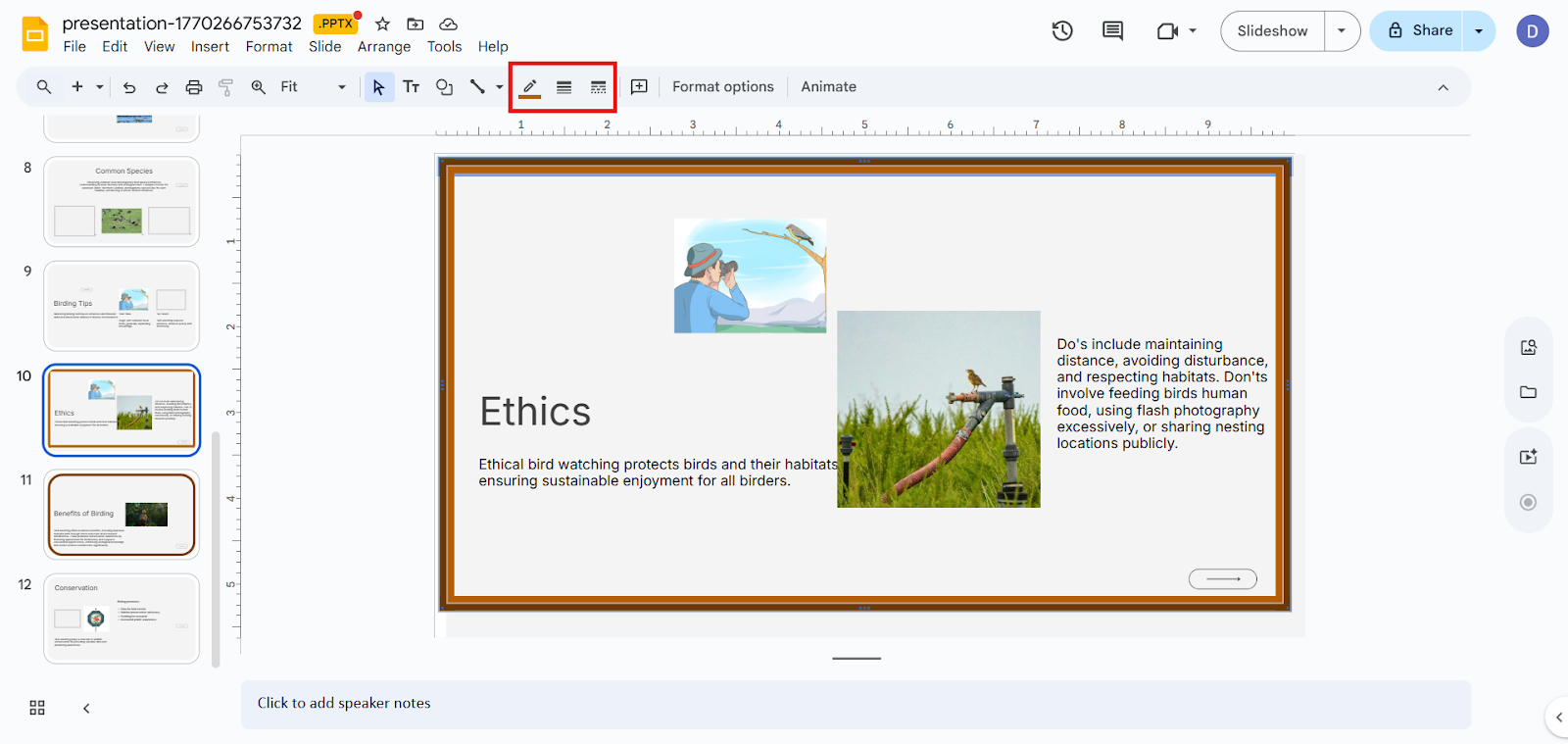
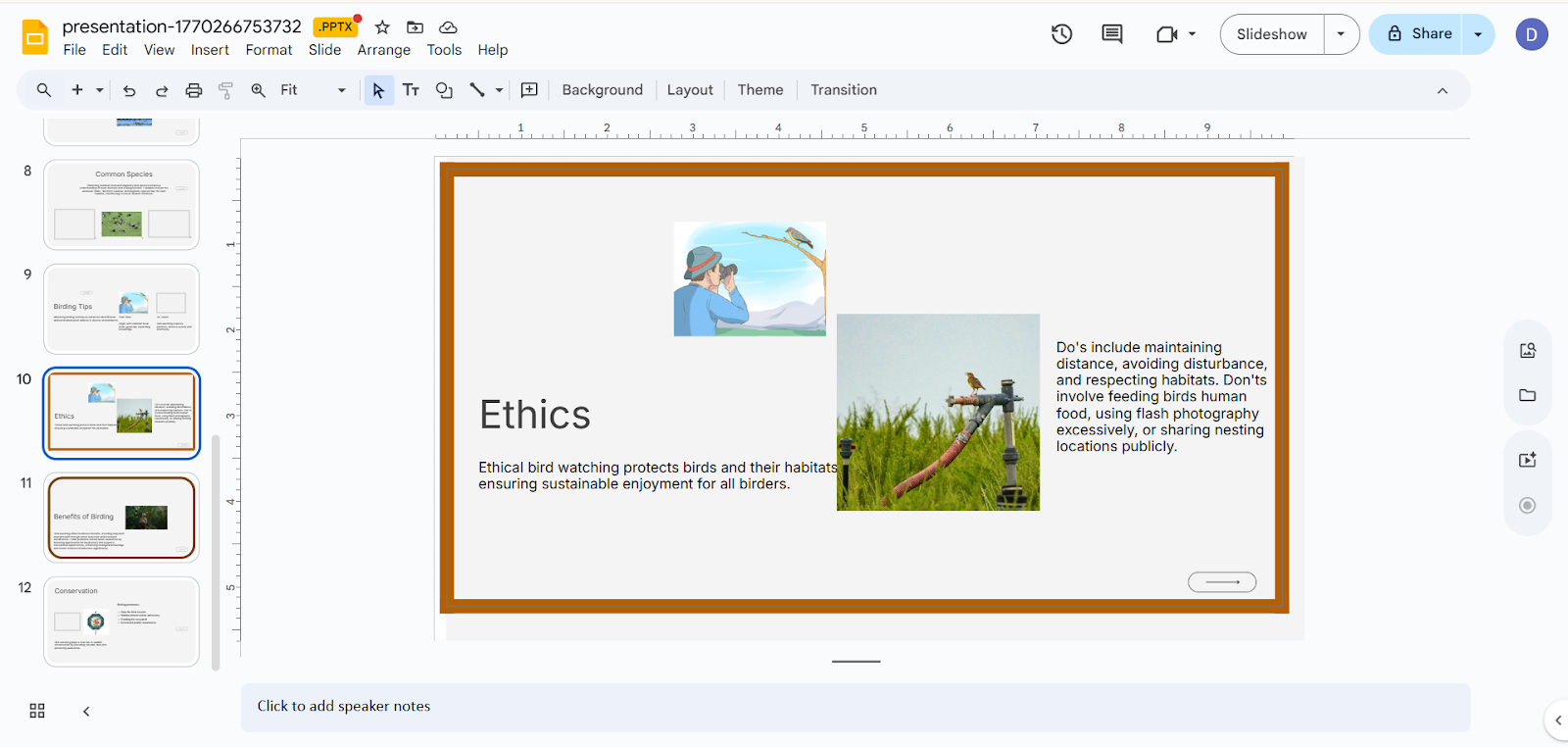
5. Make the table background transparent
Method 3: How to add an Image as a Border
If you want something more creative or decorative, image borders are a great option.
Steps Involved
1. Find or design a decorative border image (PNG works best)
2. Click “Insert” and add “Image.”
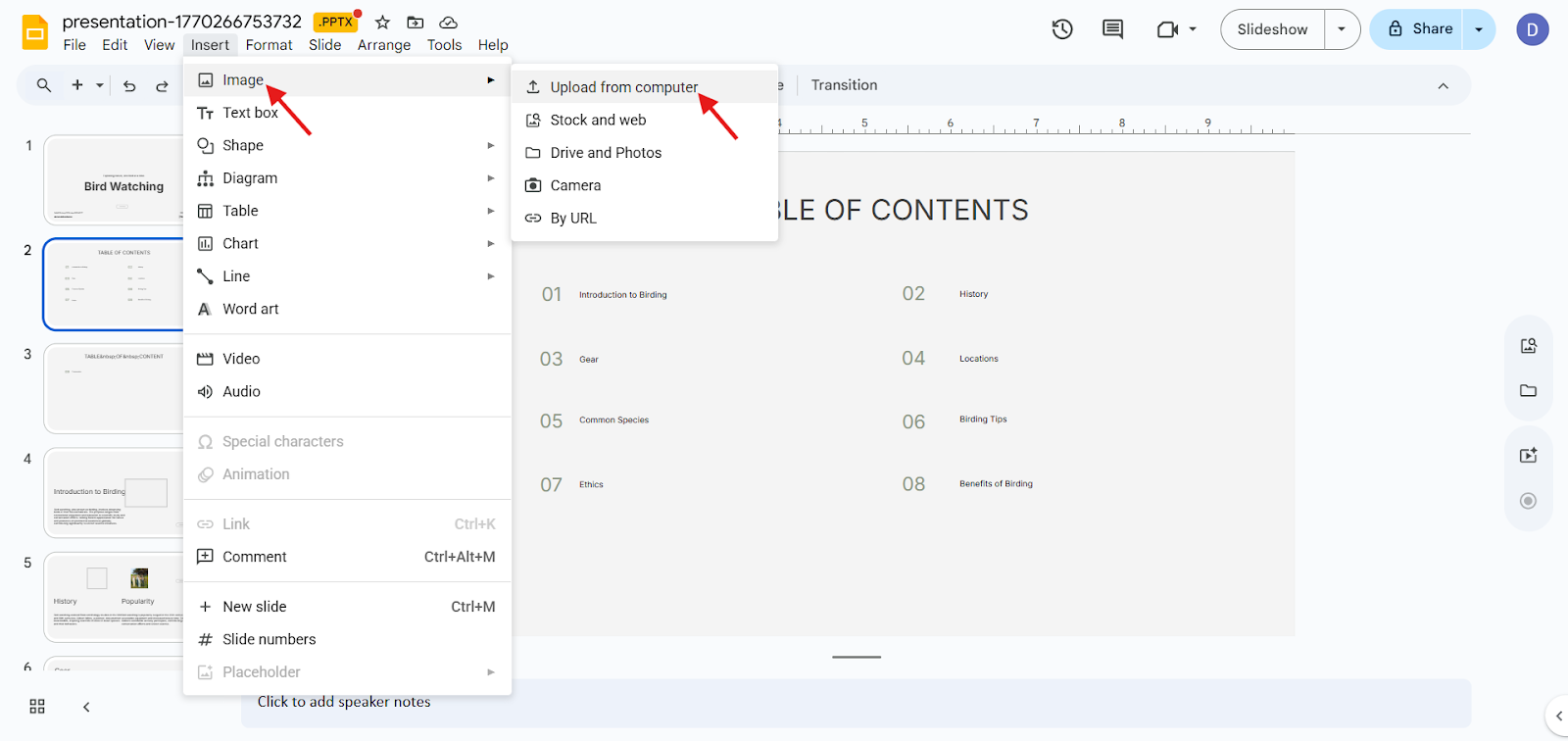
3. Resize the image to cover the slide edges
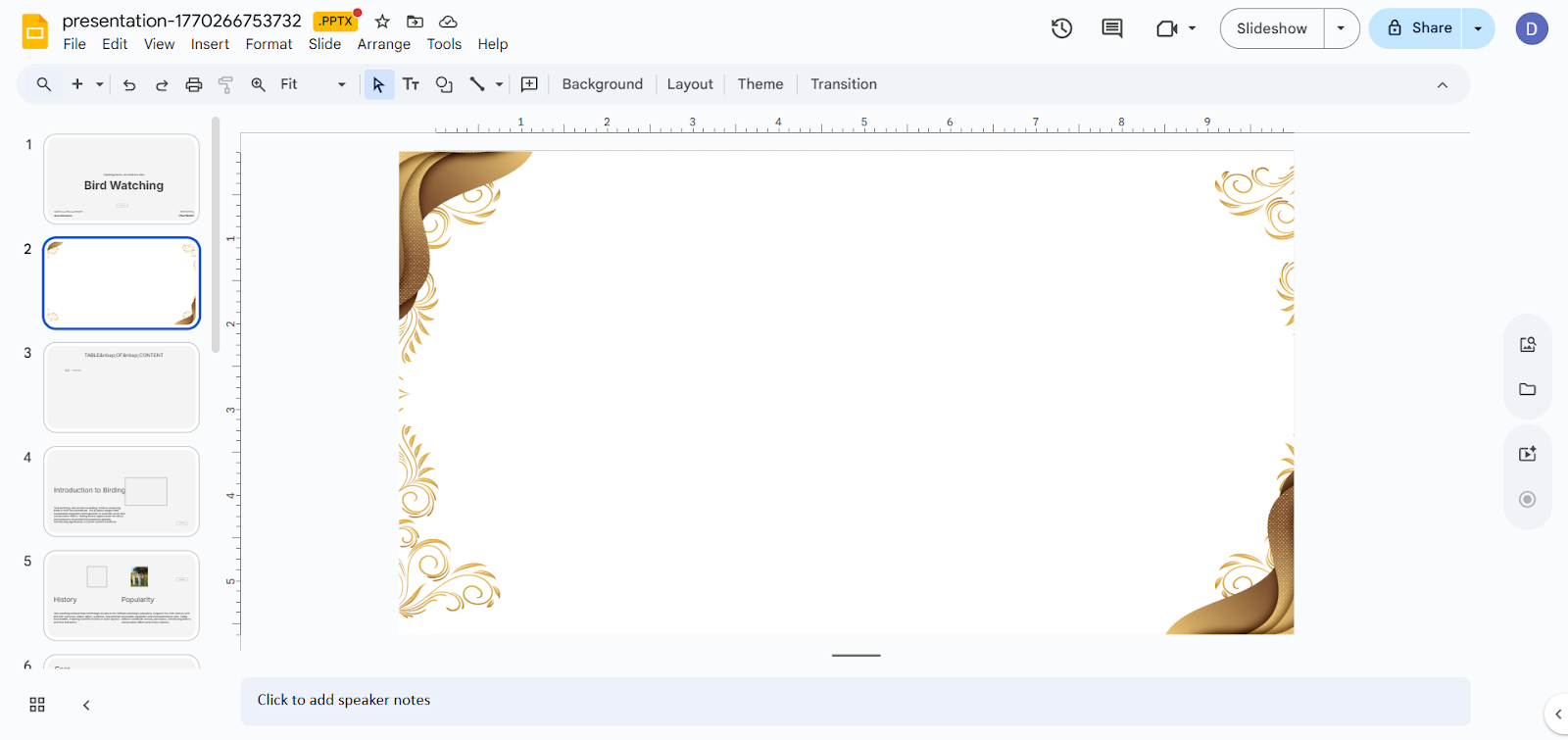
4. Right-click and select “Order,” then choose “Send to back.”
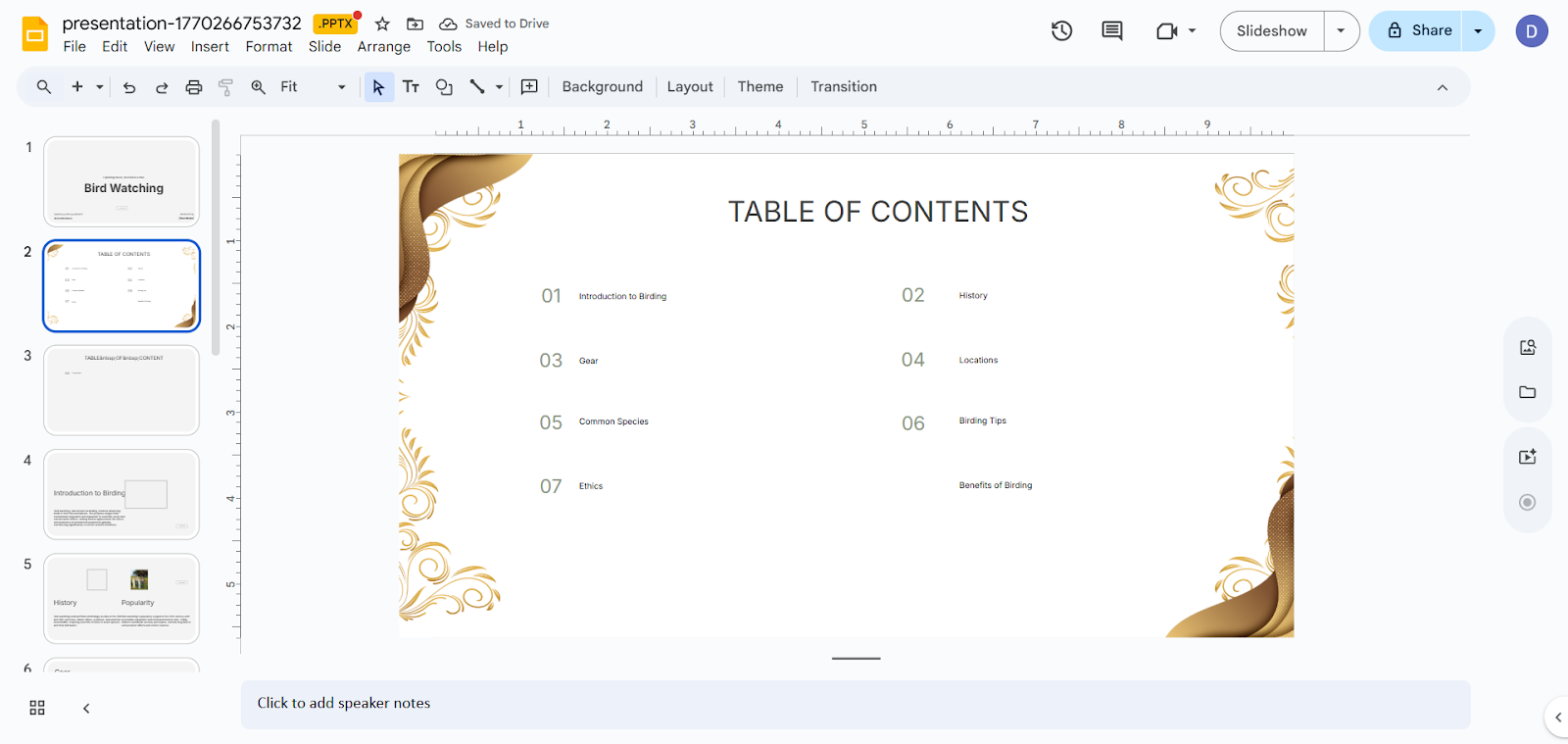
Method 4: How to Border an Image
You can also add borders directly to images within your slide.
Steps Involved
1. Click on the image you want to border
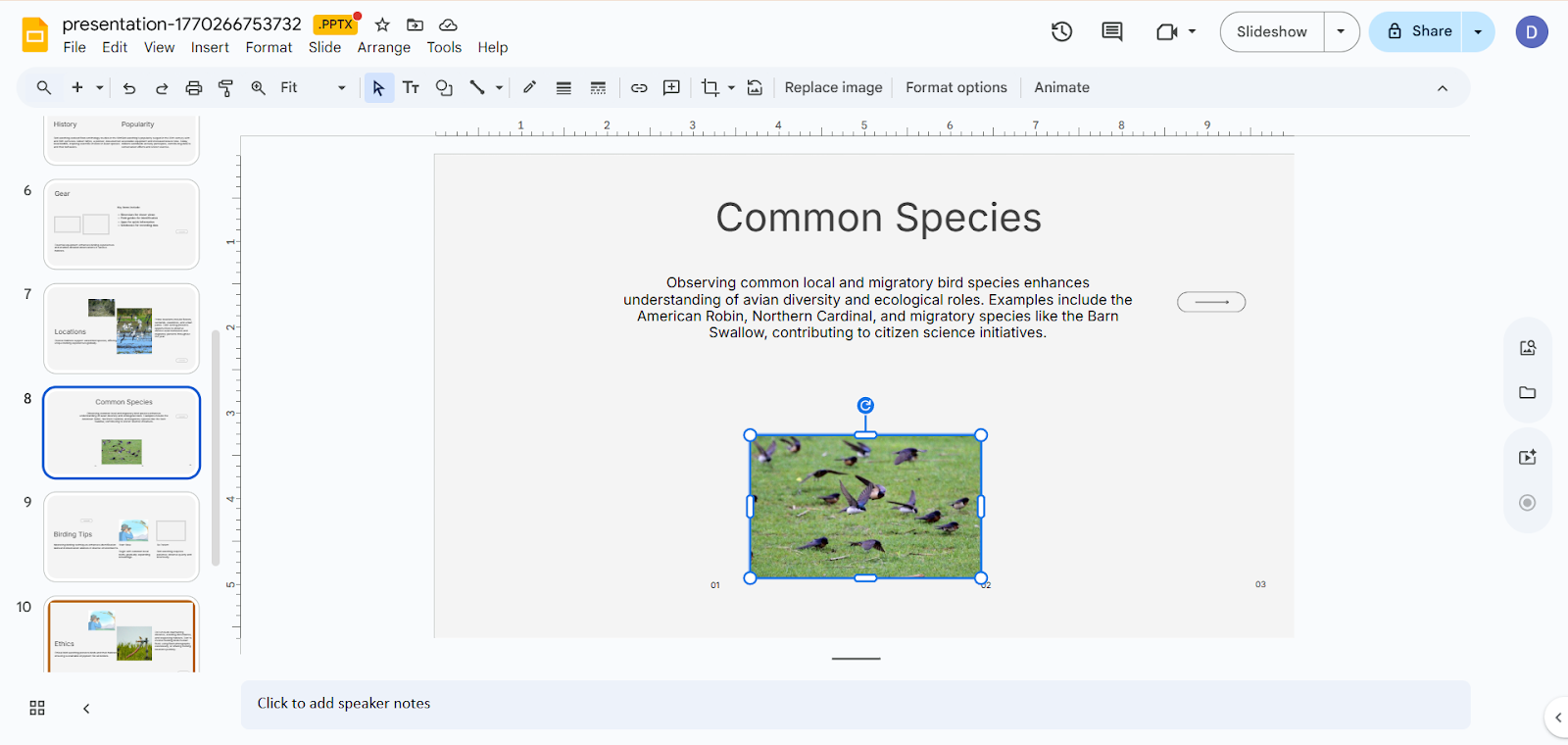
2. Use the toolbar options:
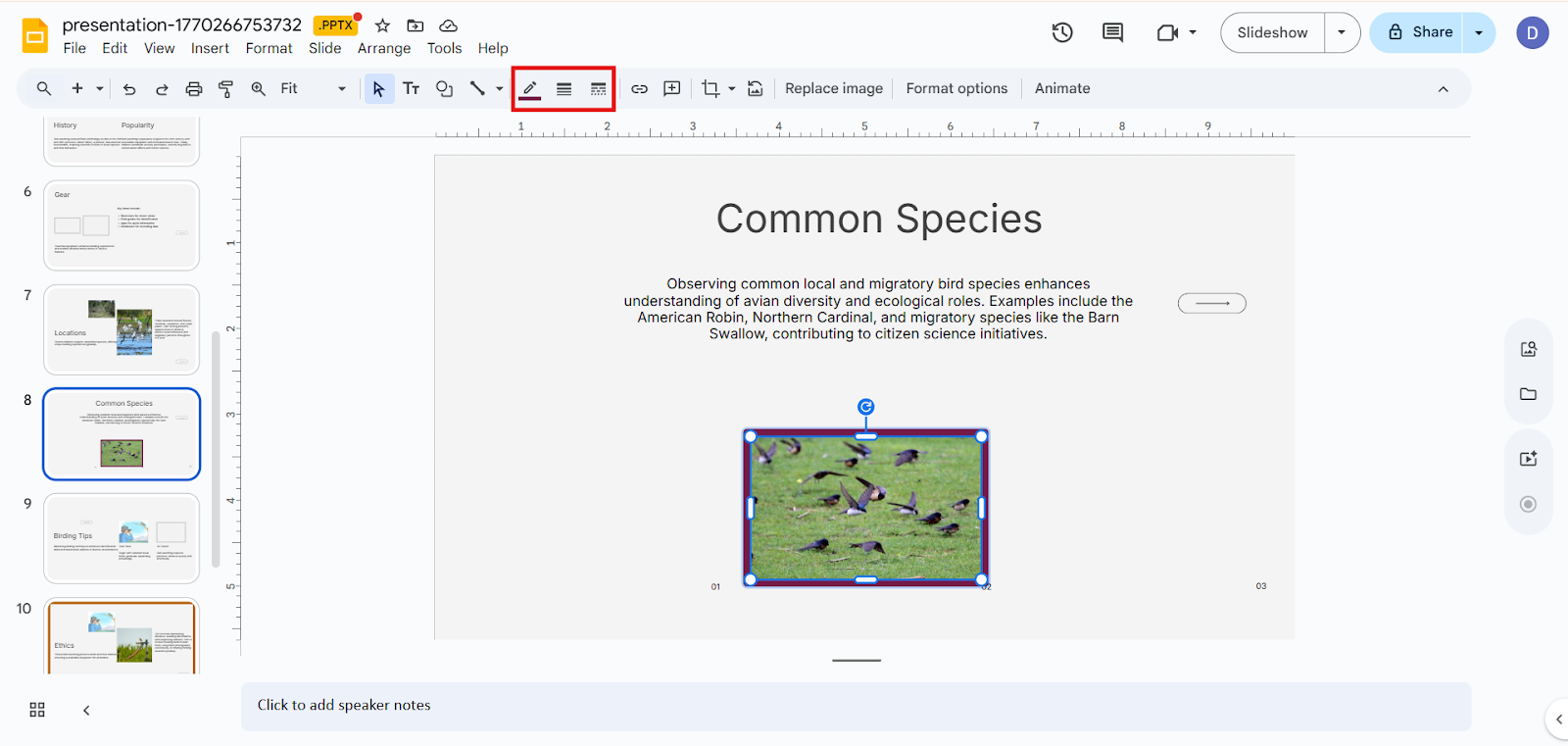
Common Mistakes to Avoid While Adding Decorative Borders
While borders enhance slides, overdoing them can spoil your design. Avoid these common mistakes:
Remember, borders should support your content - not distract from it.
Save Time with Smart Design Tools like MagicSlides
Creating decorative borders manually works well, but when you are designing multiple slides or working under a deadline, automation can be a lifesaver. This is where tools like MagicSlides.app, an AI Presentation maker, fit naturally into the workflow.
MagicSlides helps generate well-designed Google Slides quickly, often including clean layouts, balanced spacing, and visually consistent elements. Instead of starting from a blank slide, you can focus on refining and editing while the design stays polished and cohesive.
How to create a presentation using MagicSlides:
1. Log in or Sign up

2. Enter your content

MagicSlides supports different file formats like
3. Select the templates that fit your topic

4. Let’s AI analyze and create the content
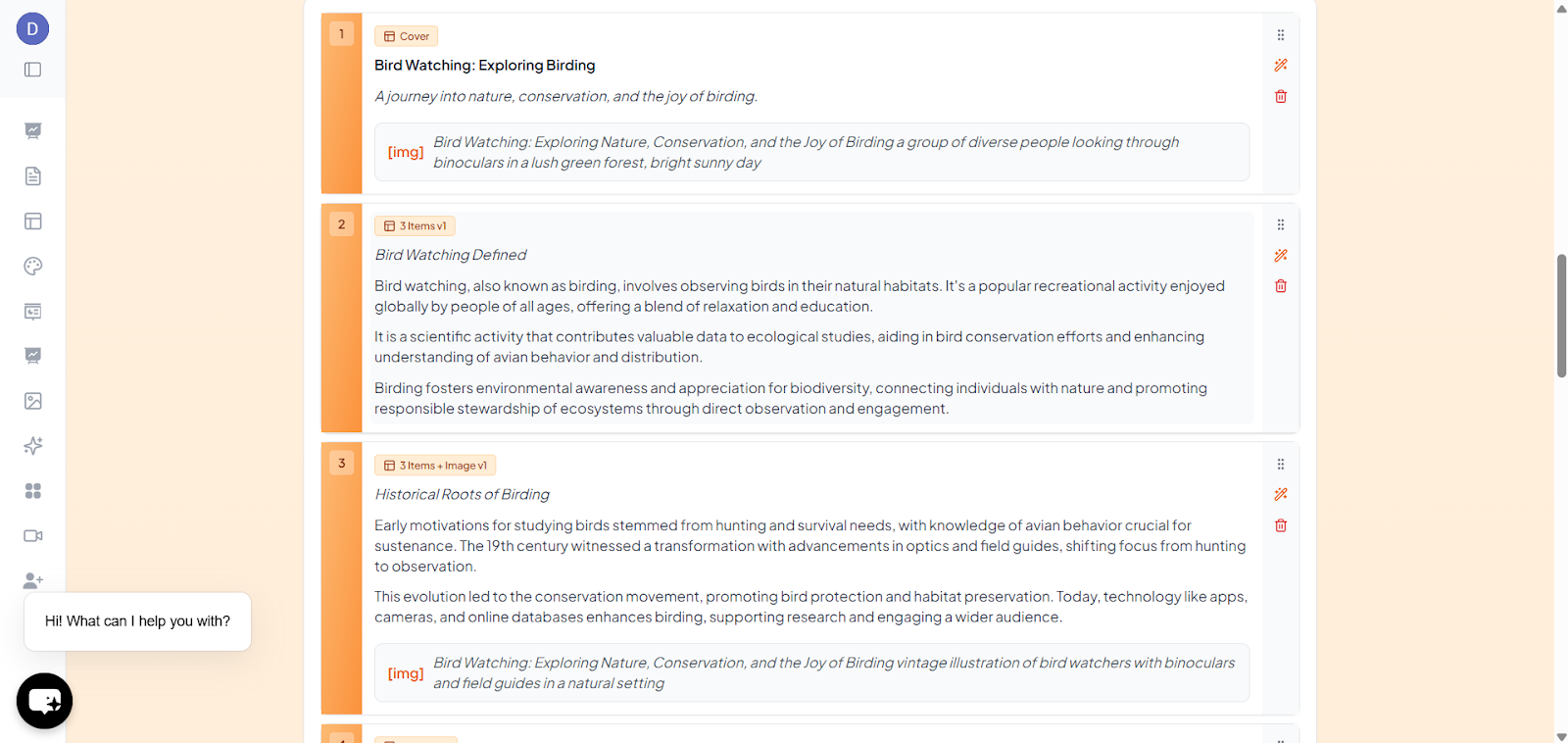
5. Refine it if needed
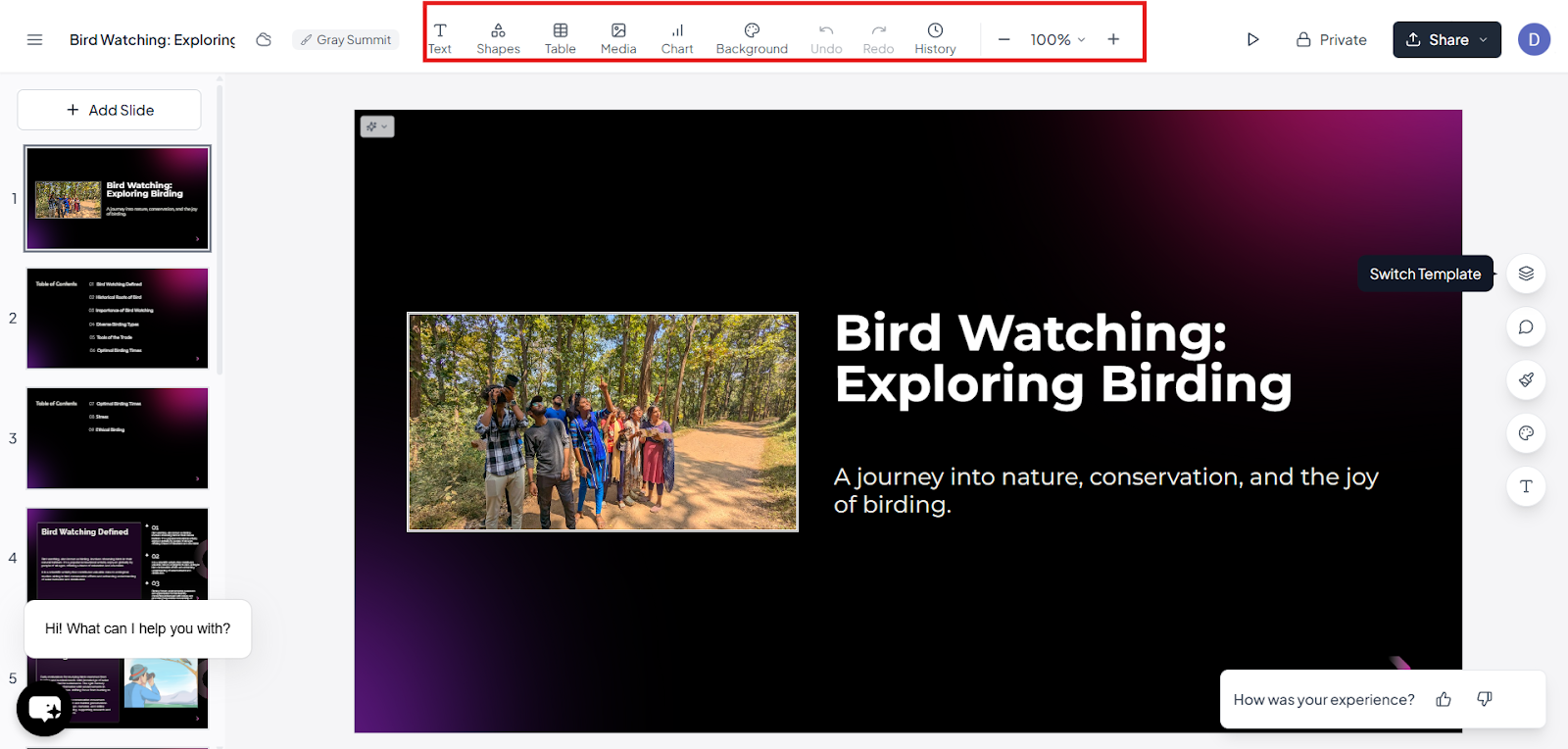
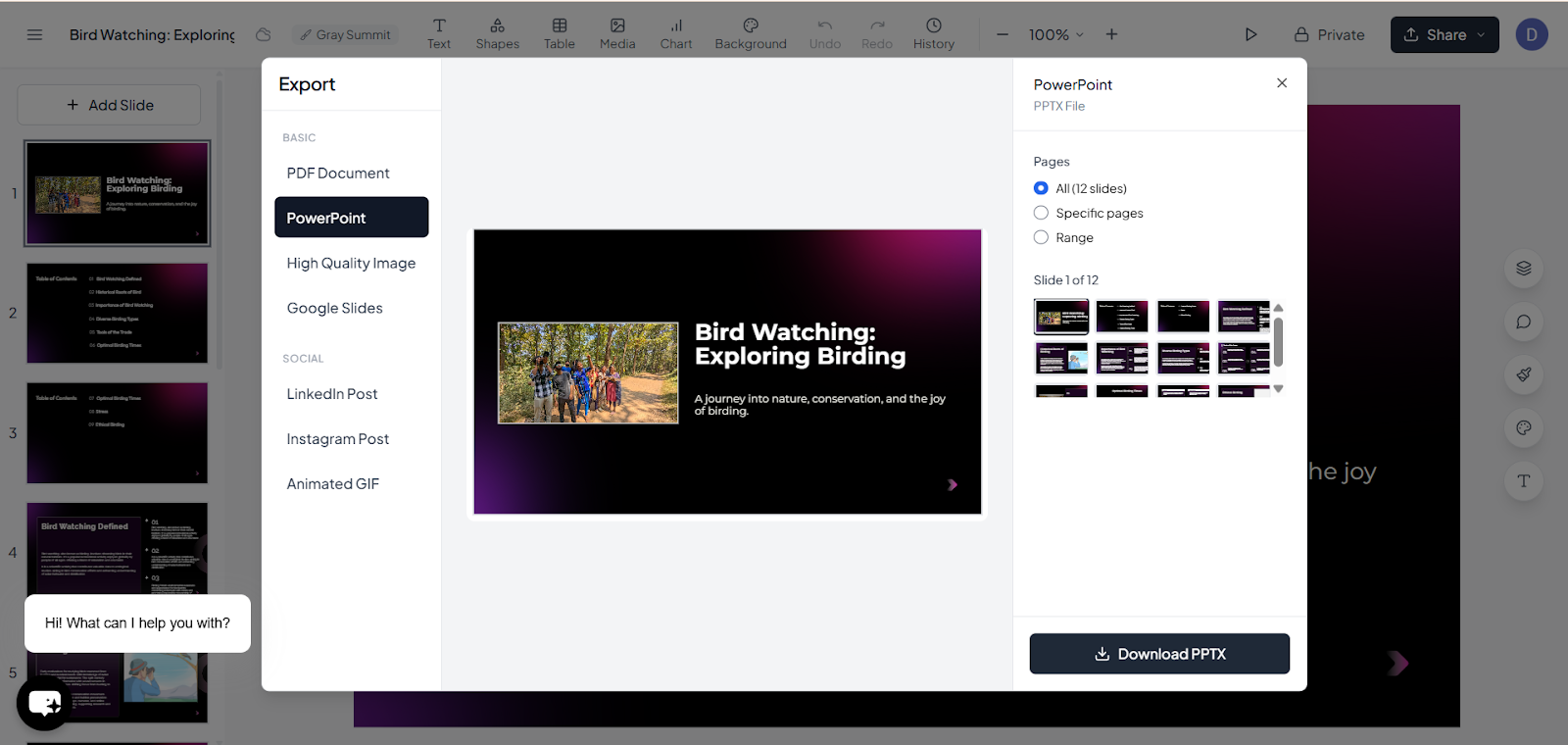
6. Download and use.
For users who regularly create presentations, whether for business, education, or content creation, using a smart slide generator can reduce repetitive design work and maintain a professional lookacross all slides. You can still customize borders, colors, and images afterward, but having a strong design foundation makes the process much faster and smoother.
Final Thoughts
Adding borders may seem like a small detail, but they can noticeably improve the structure and visual appeal of your Google Slides presentation. When used thoughtfully, borders help frame content and give your slides a clean, professional look.
To save time while maintaining good design, tools like MagicSlides can help you start with well-structured layouts and cohesive visuals, making it easier to focus on content rather than manual formatting. The key is to keep borders subtle and purposeful, so they enhance your slides without distracting from your message.
Also Read: How to Make a Pie Chart Using Google Slides - Step-by-Step Guide)
Quick FAQ’s
Q 1: Can I add a border to a slide in Google Slides without using third-party tools?
Yes, you can add borders using built-in options like shapes, tables, or images. These methods allow you to fully customize the border style, color, and thickness directly within Google Slides.
Q 2: What is the easiest way to add a decorative border for beginners?
Using shapes is the easiest method. You can draw a rectangle around the slide, make the full transparent, and adjust the border settings with just a few clicks.
Q 3: Can I apply the sameborder to all slides at once?
Yes, you can copy and paste the border to other slides or add it through the Slide Master to keep the design consistent across the entire presentation.
Q 4: Will decorative borders affect my presentation’s performance?
Simple borders created with shapes or tables won’t impact performance. However, using large or high-resolution
Q 5: Are there tools that can help automate slide design, including borders?
Yes, tools like MagicSlides help generate well-designed Google Slides layouts with consistent visual elements, reducing the time spent on manual formatting while still allowing customization.
Q 6: How do I make sure borders don’t distract from my content?
Stick to subtle colors, avoid overly thick borders, and maintain consistency across slides. Borders should support your content, not compete with it.