
How to Convert Any Link into a Professional Presentation: Step-by-Step Guide.
We rely on links for almost everything today: articles, reports, videos, tutorials, and even full presentations. But when it is time to present that information to an audience, sharing a link alone is not enough.
That’s where presentations come in
Converting a link into a presentation helps you turn online content into an organized, clear set of slides that are easy to explain, customize, and present. Whether you are preparing for a meeting, a class, or a webinar, knowing how to do this can improve how your message is delivered.
In this blog, we will go through why converting links to presentations is useful, the different ways to do it, and which methods work best for different needs.
Why Convert the Link to a Presentation?
You might have a doubt about why not just open the link during the presentation. Here are the reasons to clear your doubt and convince you why converting a link into slides is a better idea:
1. Better Storytelling:
Presentations allow you to organize content step-by-step and make it simple to understand the messages without distractions.
2. Offline Access:
A presentation works even without internet access, which is helpful during meetings or classrooms with poor connectivity.
3. Customization and Branding:
Once the content is converted to a presentation, you can:
4. Professional Appearance:
Slides look more polished and structured than switching between browser tabs.
5. Content Control:
Web content can change or be removed. A presentation gives you a stable version you can rely on.
Methods to Convert a Link to a Presentation
There’s no single method that fits every situation. The right approach depends on what type of link you are working with:
Common Methods Include:
Let’s explore each one in detail.
Method 1: Manual Conversion
1. Manual Conversion Using PowerPoint: Step-by-Step Guide
1. Open the link (webpage, article, or document) in your browser
(For example, I’m taking an article, “AI transformations in today’s world.”)
2. Read through the content and identify:
3. Open the Microsoft PowerPoint
4. Create New Presentation
You can createyour own presentation from scratch or use the PowerPoint template library
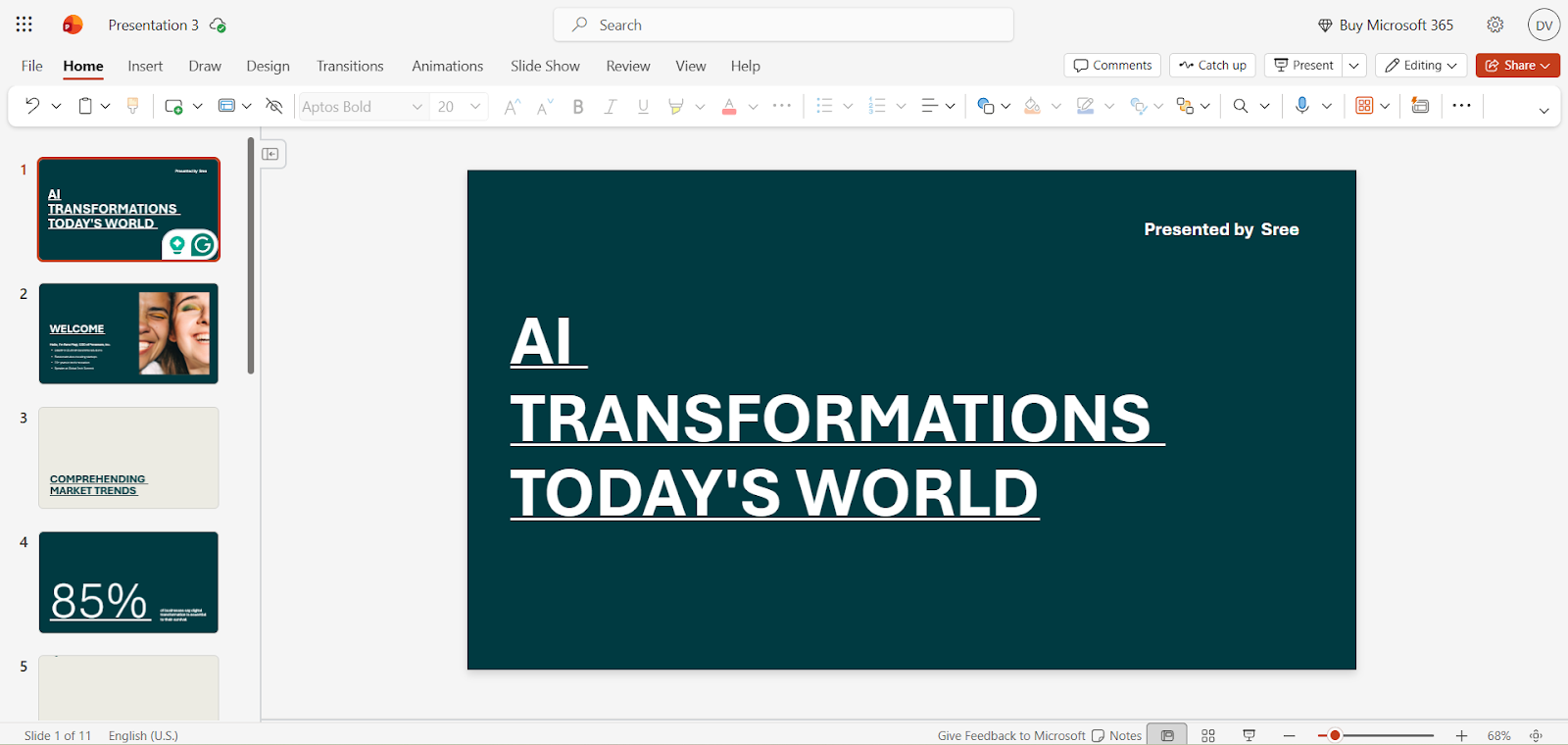
5. Add slides based on the main sections of the content
Copy-paste the content; each slide should contain one main section. Copy-paste the main Content and visuals into the slides.
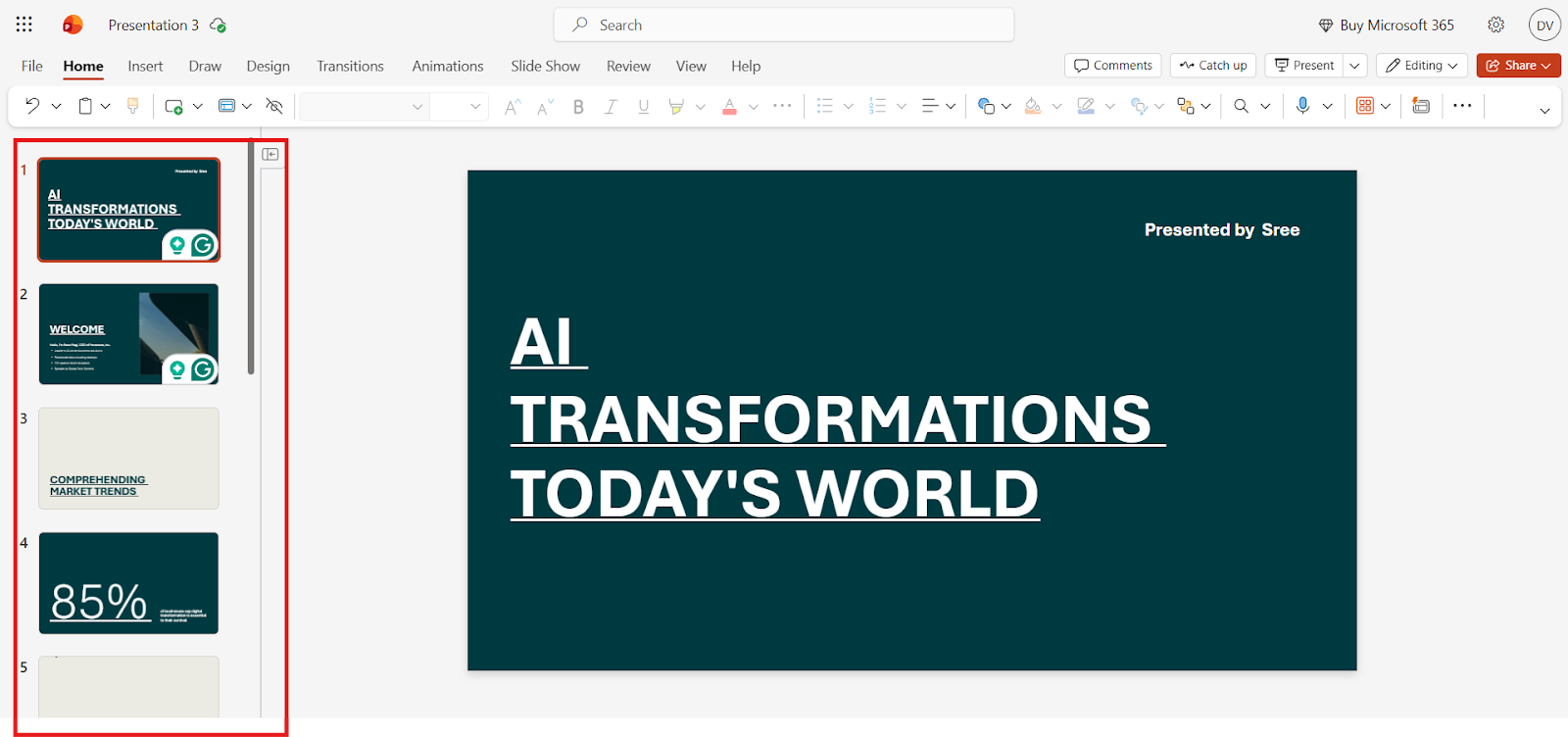
6. Adjust font size, layout, and slide design
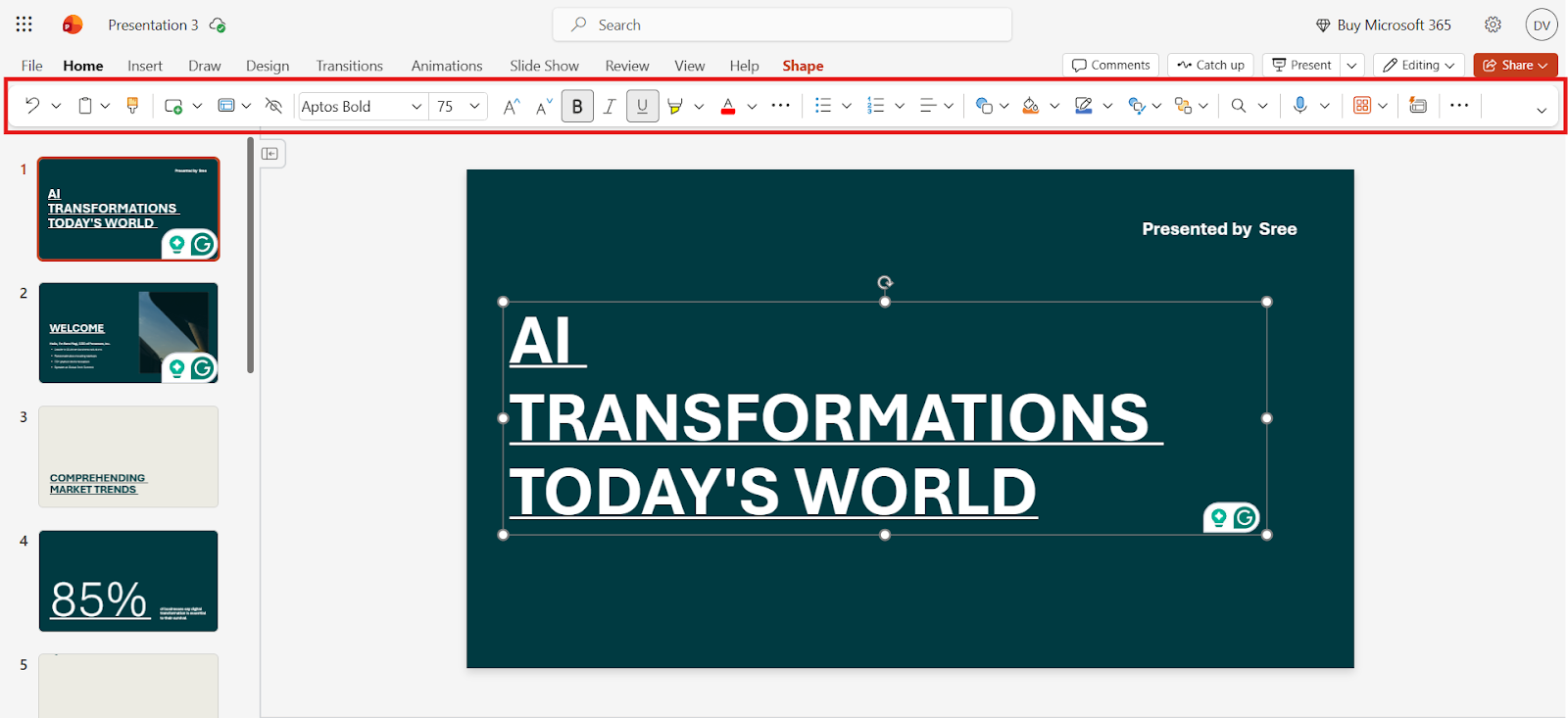
7. Review your presentation, and download it, or you can present it online.
Why Use PowerPoint
2. Manual Conversion Using Google Slides: Step-by-Step Guide
This is similar to PowerPoint and works best if you prefer cloud-based tools and easy collaboration.
1. Open the link that you want to make into a presentation
2. Open Google Slides and choose a template or Blank presentation.
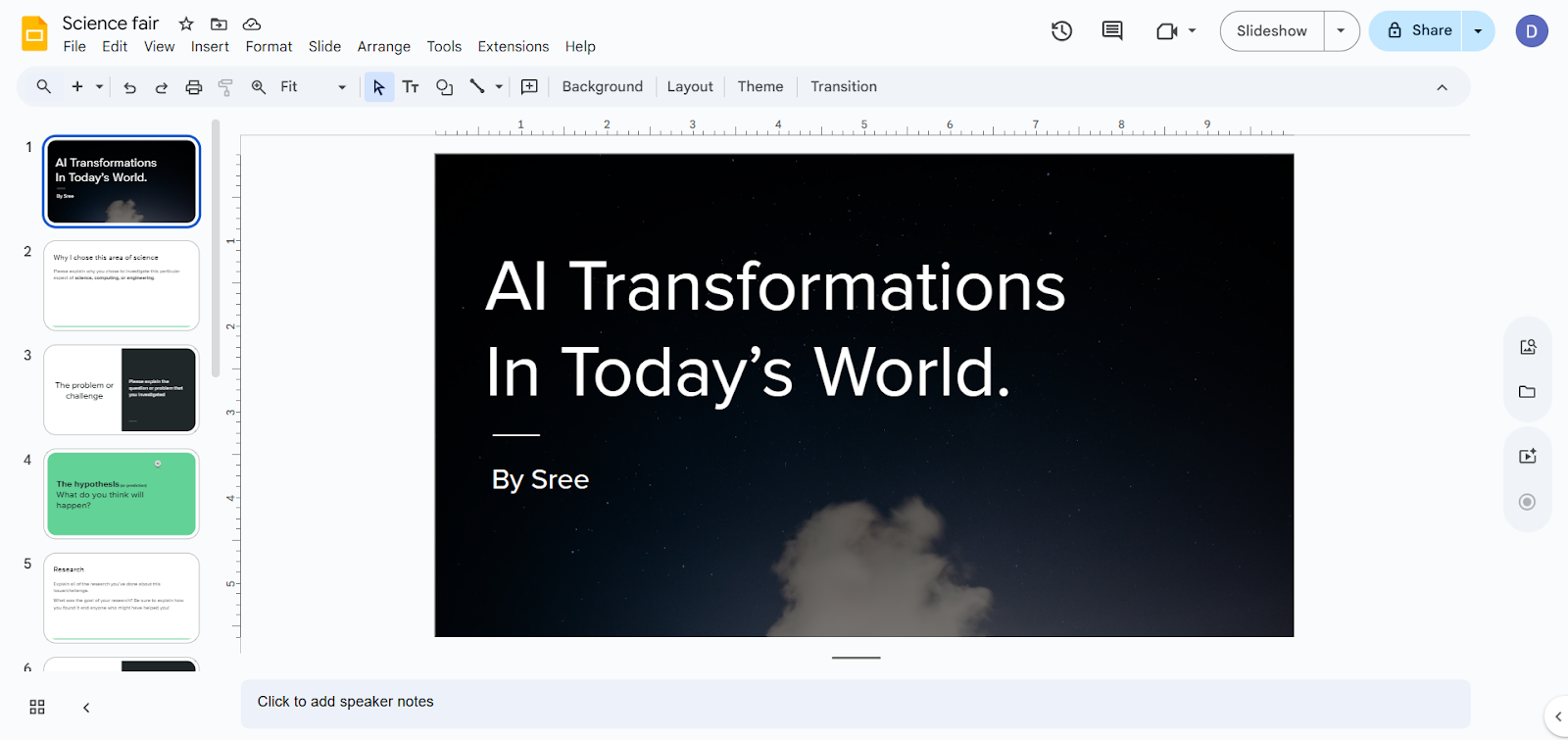
3. Create slides for each main topic.
4. Copy and paste content and images into slides.
5. Refine your presentation according to your needs
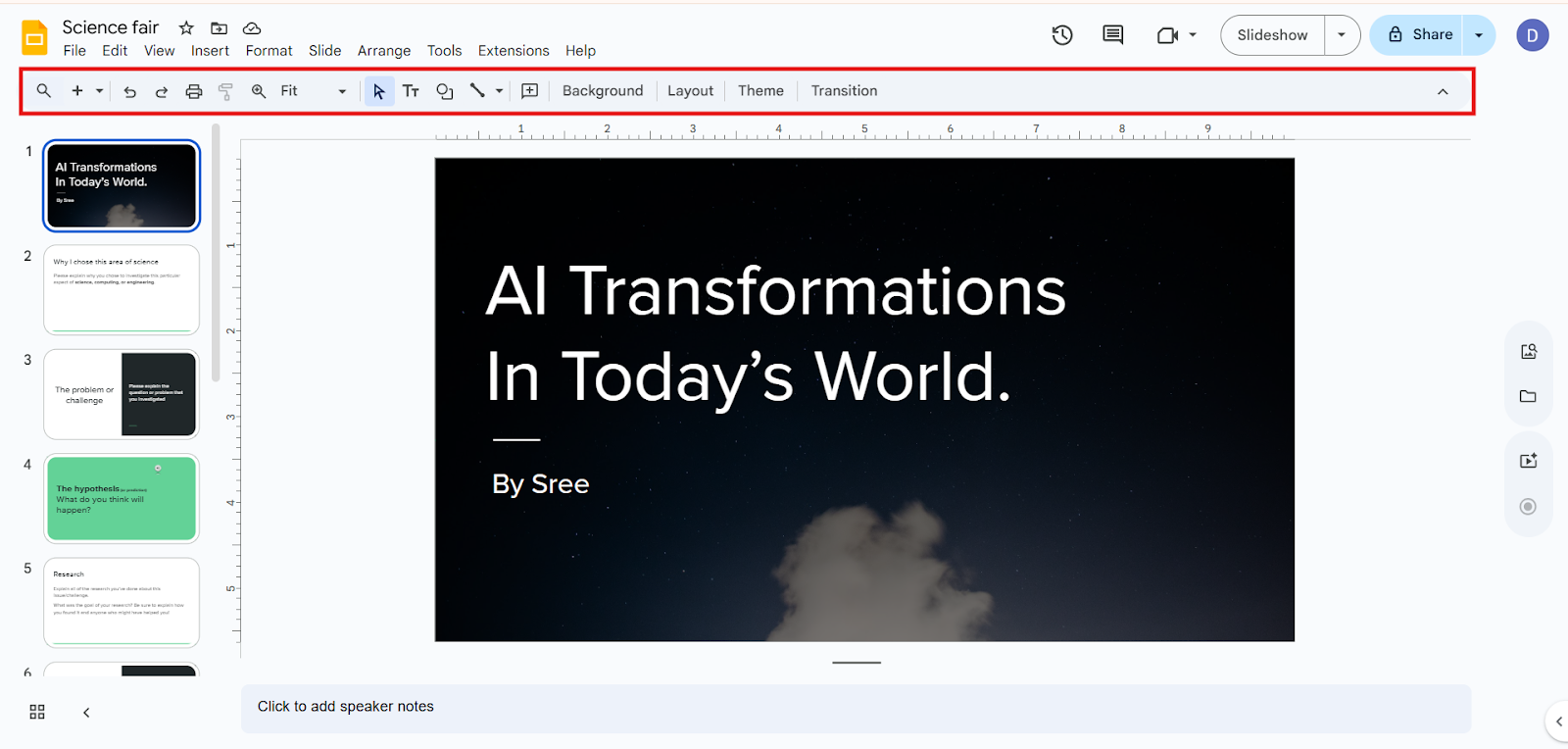
6. Once Done, Share or Download.
Why Use Google Slides:
Method 2: AI Conversion
AI Conversion Using MagicSlides: Step-by-Step Guide
MagicSlides.app helps convert links into presentations quickly by summarizing and structuring content automatically.
1. Open MagicSlides.app
2. Select MagicSlides Link to PPT Converter
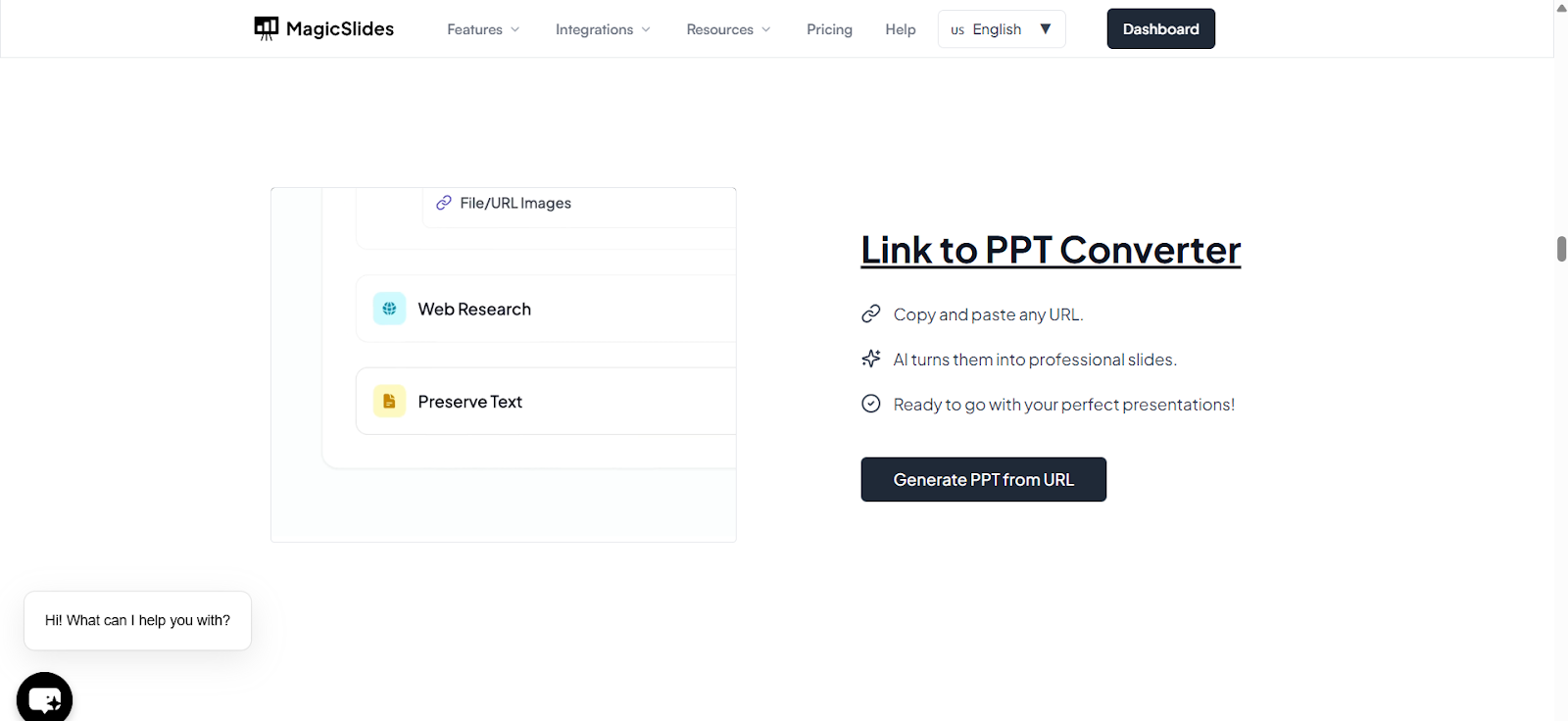
3. Paste the link
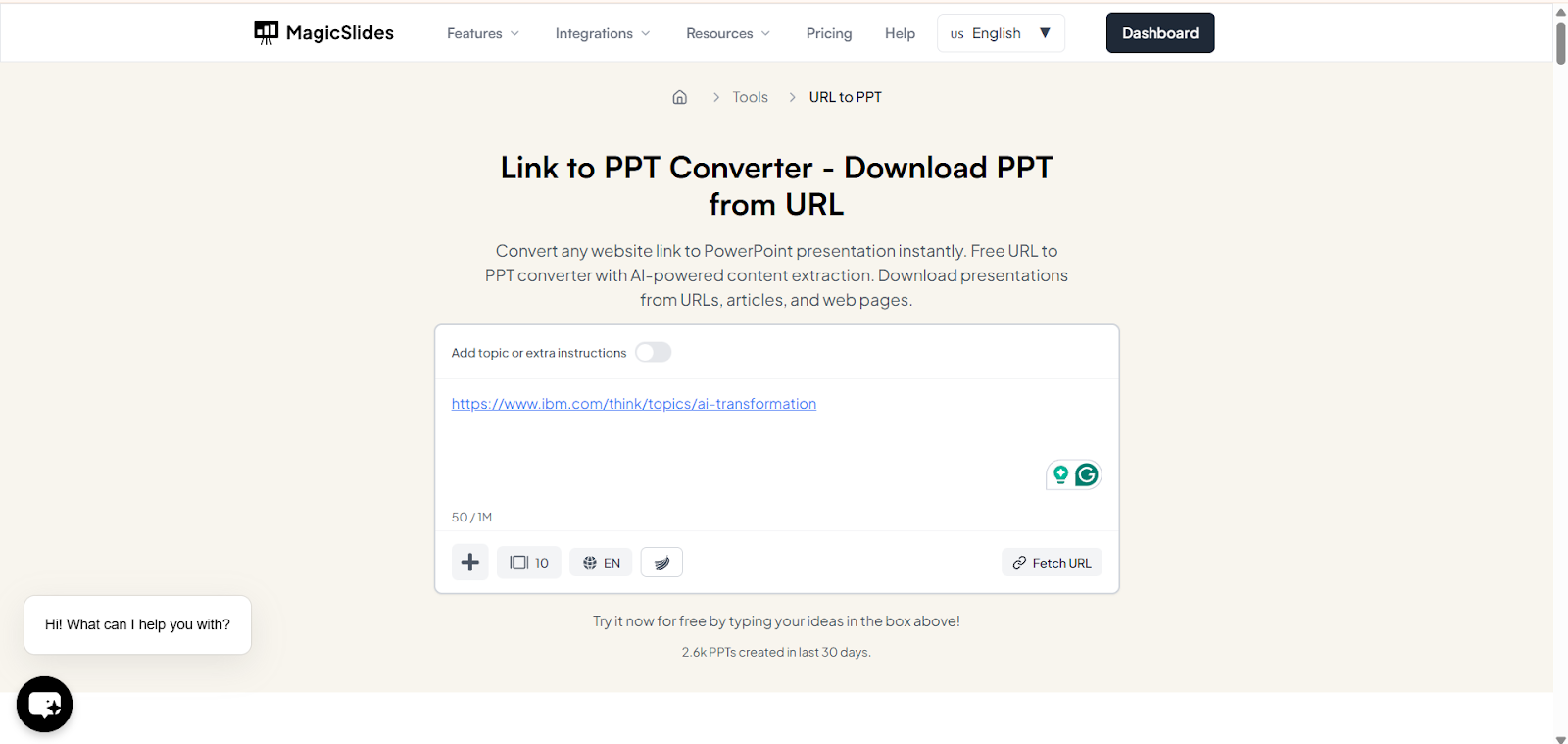
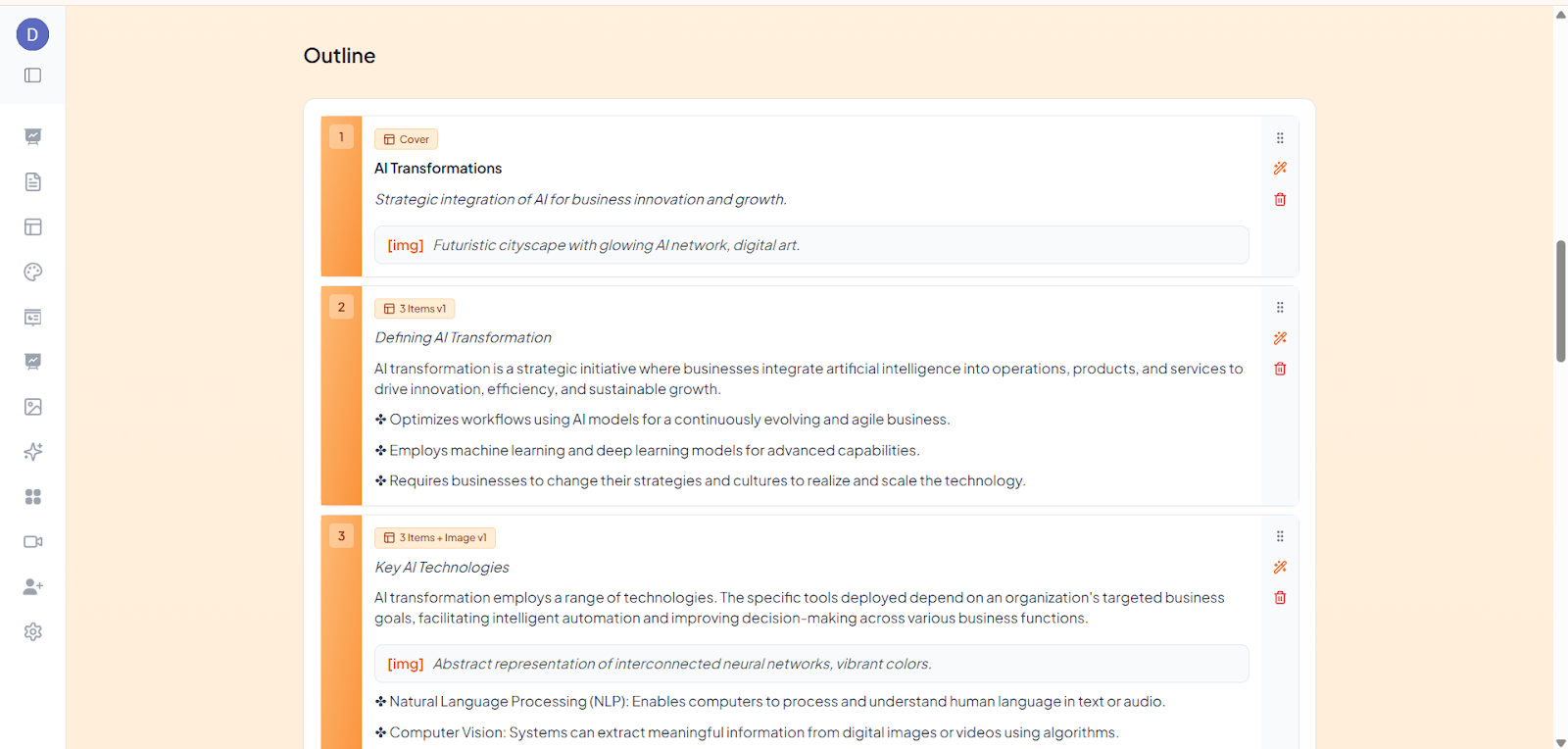
4. MagicSlides AI will fetch the important information from the given link and make it into a
Slides.
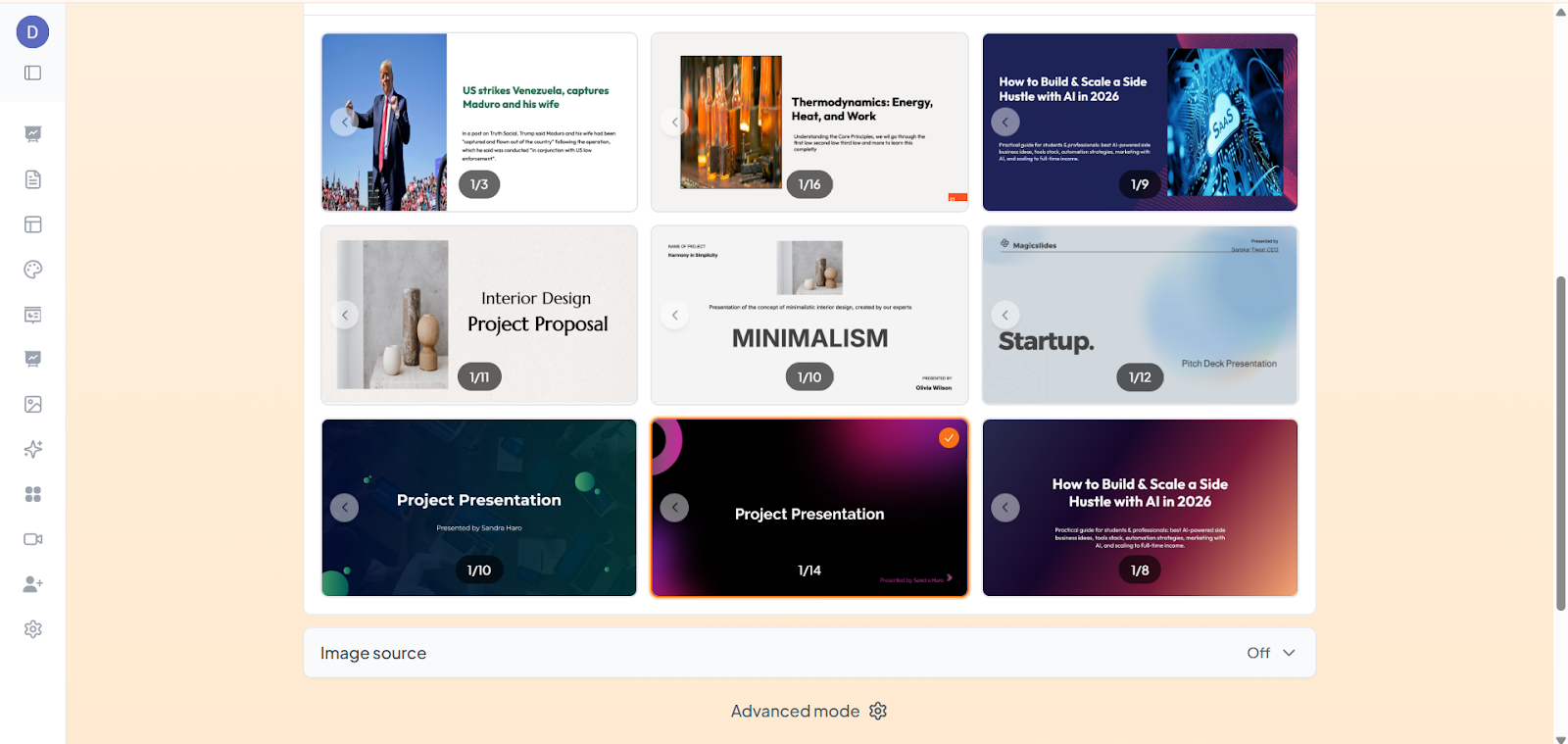
5. Select the template and generate it into a professional, ready-to-present slide deck in
Minutes.
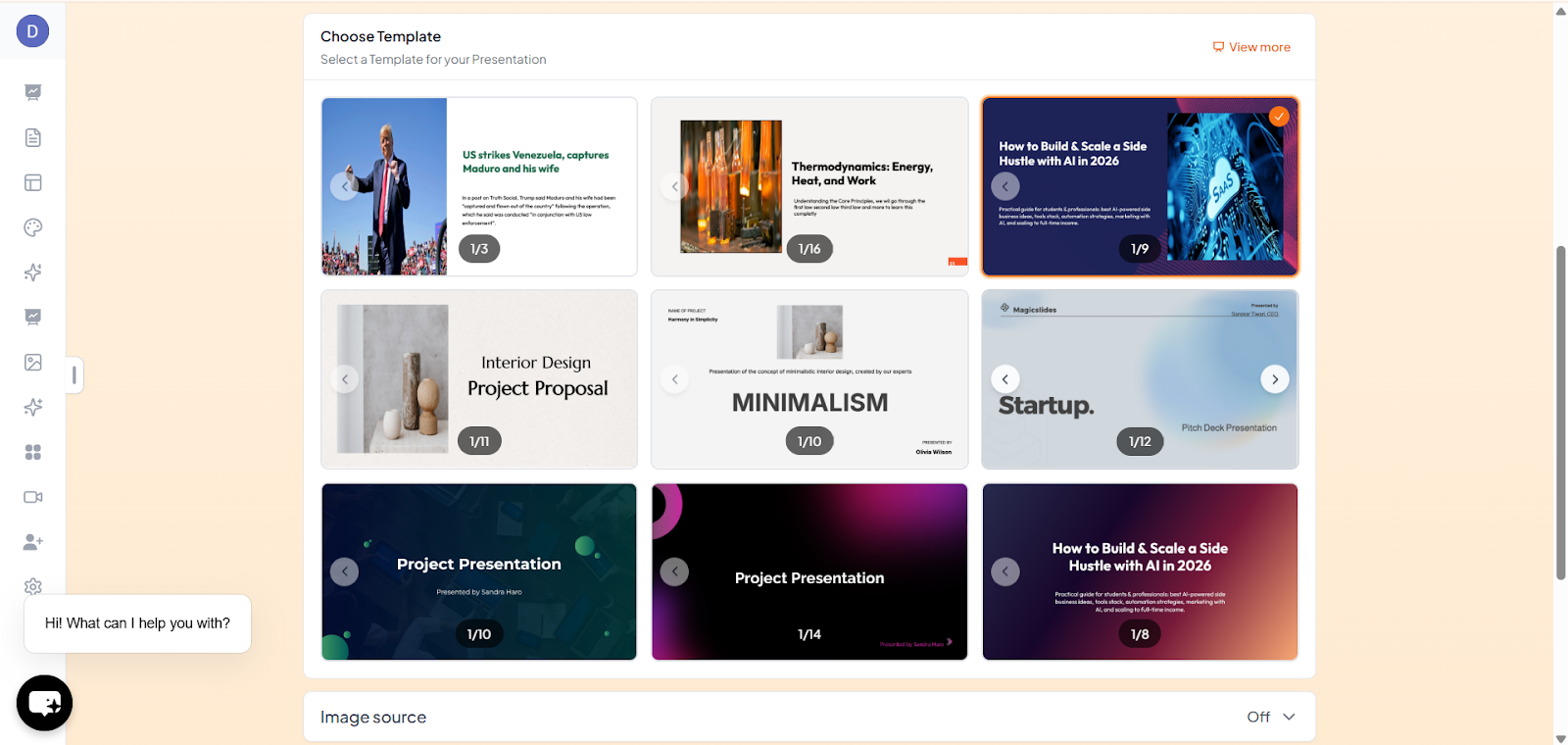
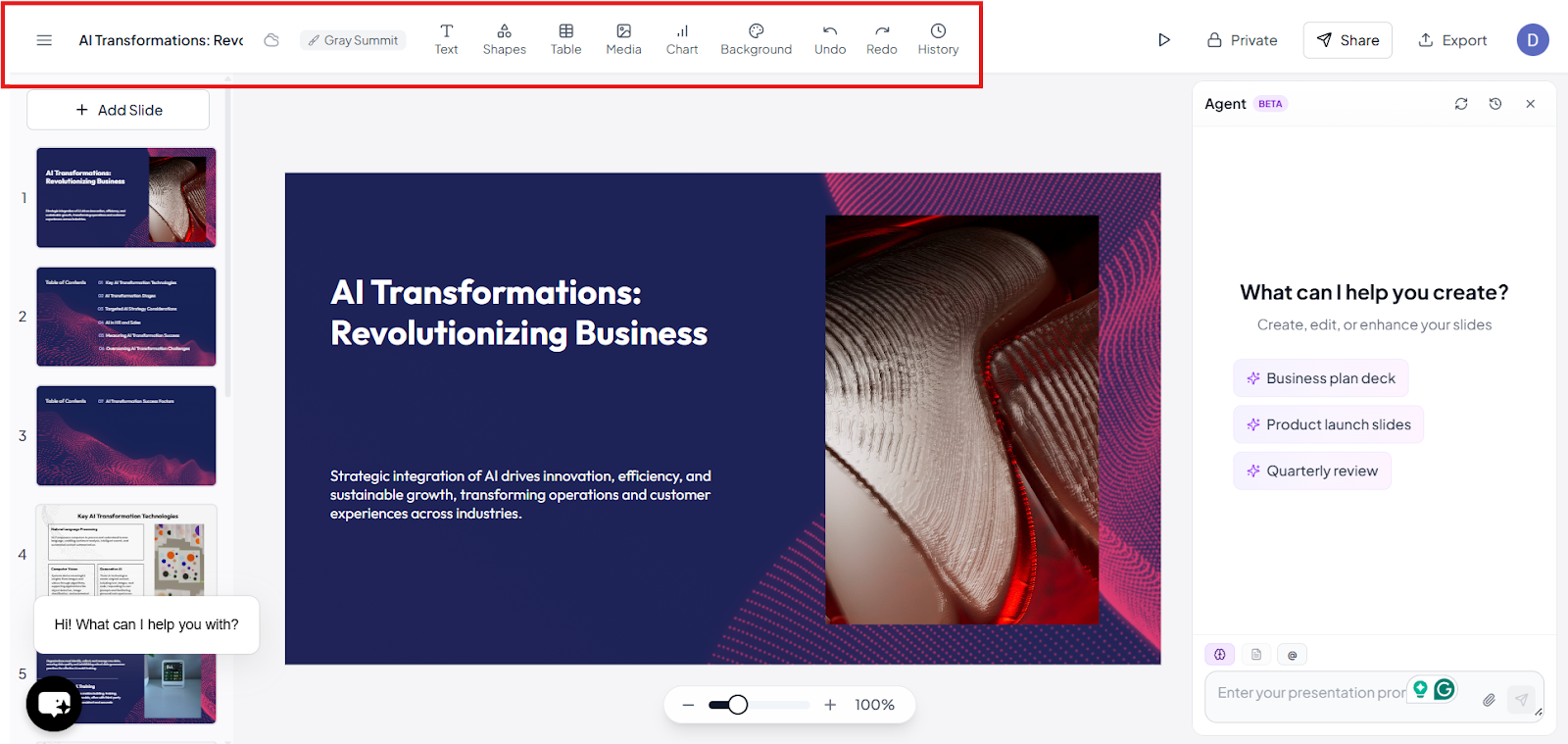
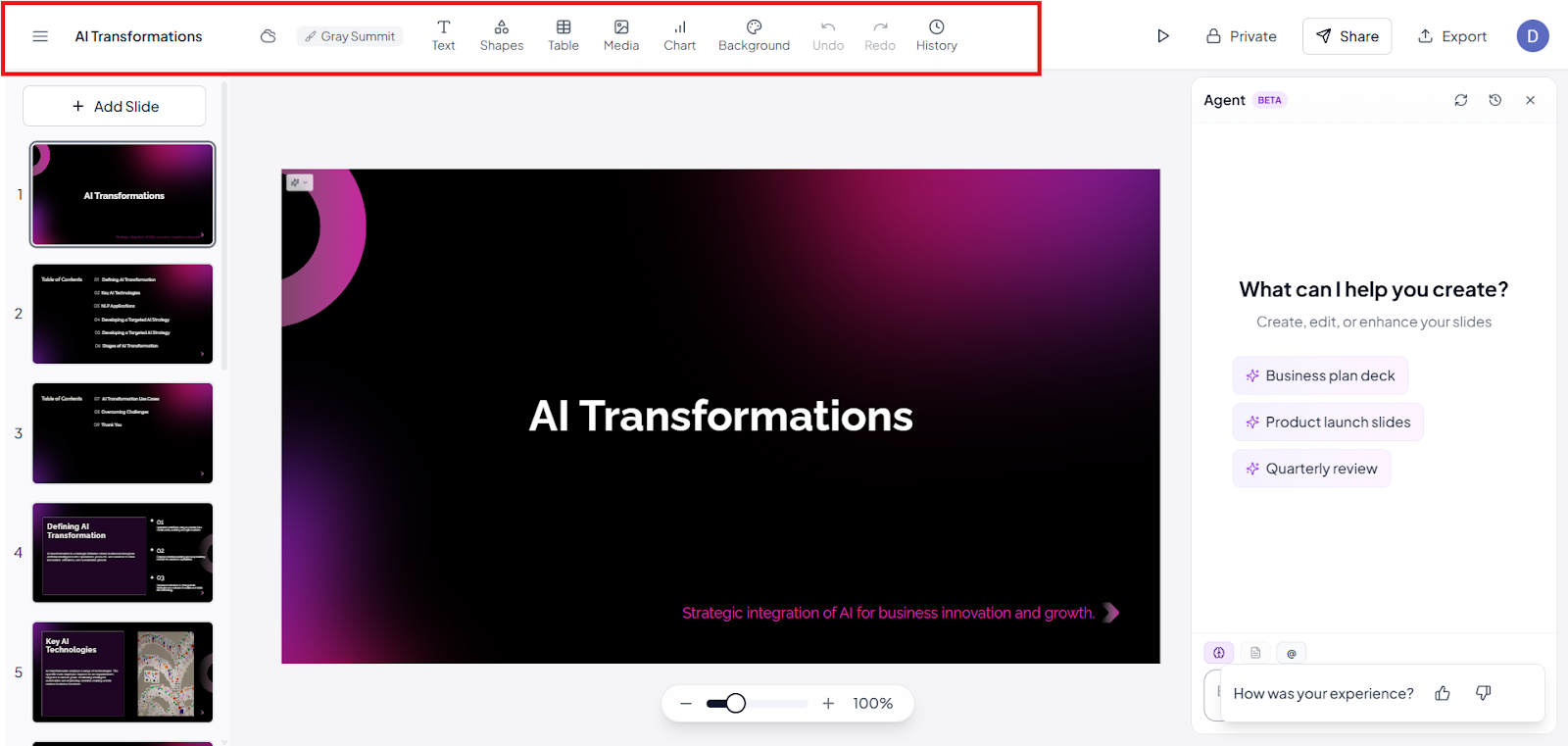
6. Edit text, visuals, and layout if needed.
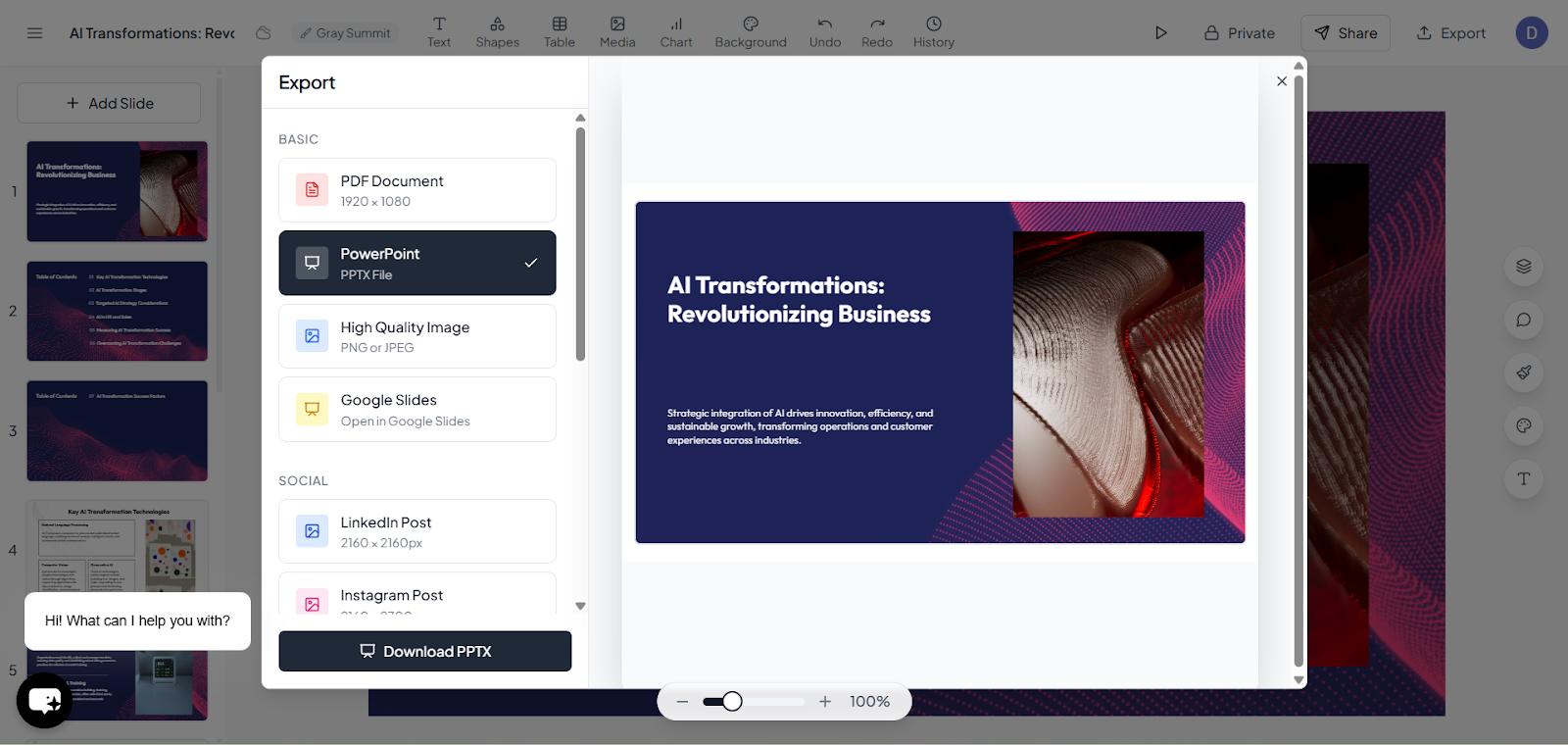
7. Download or present directly
Why Use MagicSlides.app
Method 3: YouTube Video Link to a Presentation
How to Convert a YouTube Video Link to a Presentation:
The Video contains a lot of information, but the presentations make it easier to explain.
Method 1: Manual Conversion
Method 2: AI-Assisted Conversion
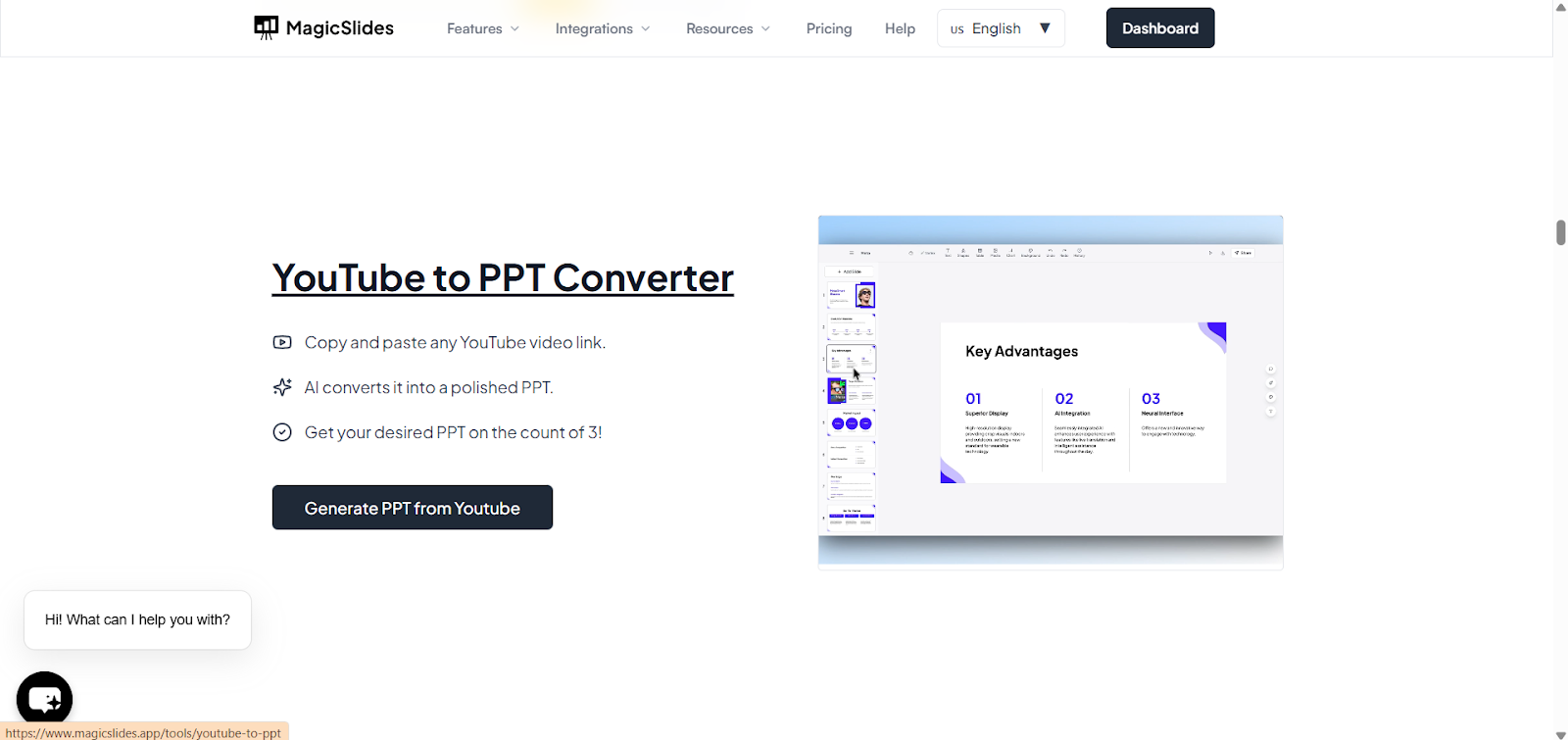
Open MagicSlides.app YouTube link to PPT Converter
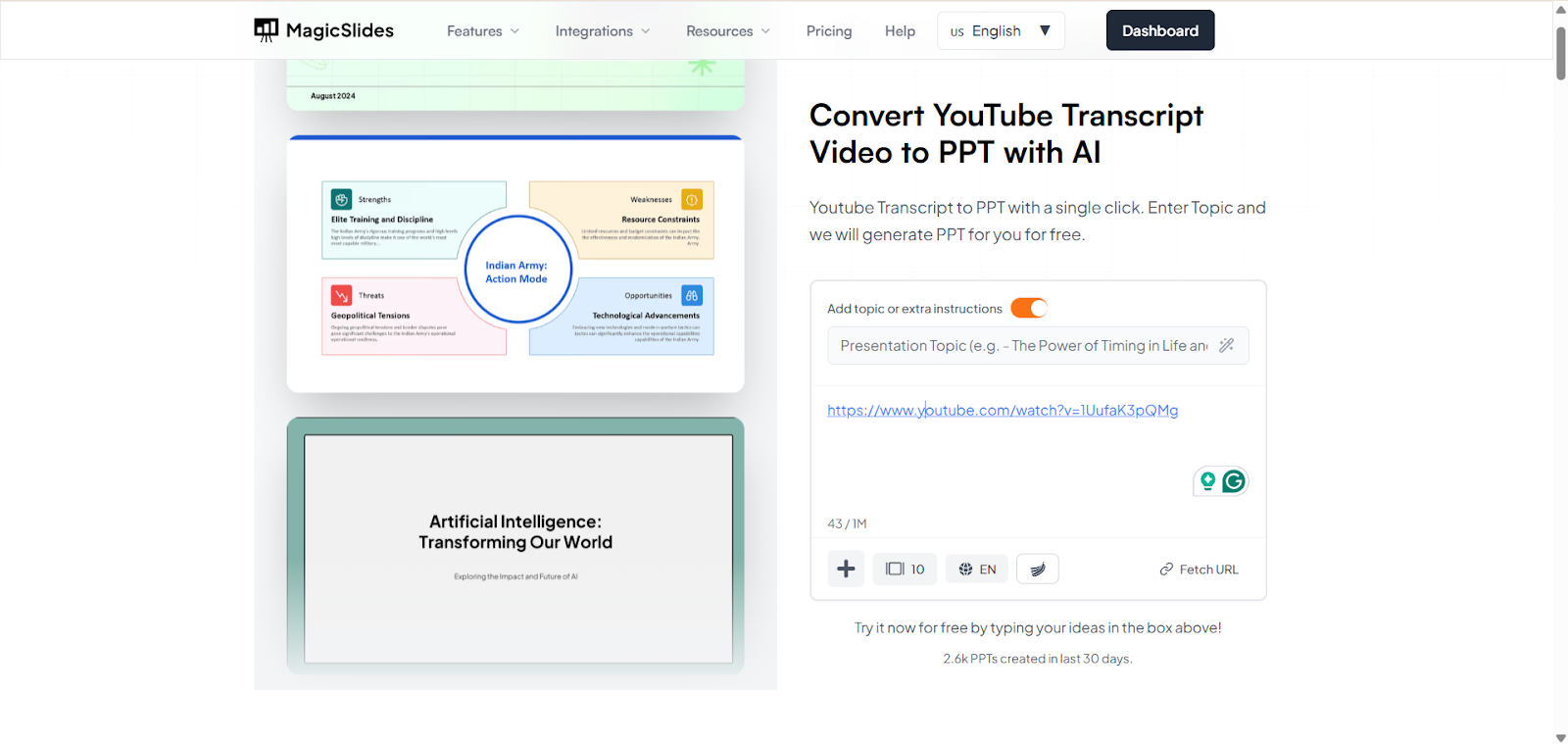
Paste the YouTube link
Select the theme and generate
MagicSlides.app will extract keypoints and make them
Review and edit into slides
Download and present
Which Method Is best for what?
For a fast and polished presentation, use the AI conversion method with MagicSlides.app; then refine it manually. This gives you a clean, professional, and ready-to-present slide in less time.
Final Thoughts:
Converting links into presentations is a smart way to turn online content like articles, documents, or videos into slides that are easy to present and understand. It saves time and makes your content more professional and organized.
Combining AI conversion with MagicSlides and manual refinement gives you the best speed and a clean, professional slide deck without spending hours.
Also Read: How to Make a Pie Chart Using Google Slides (Step-by-Step Guide) to enhance your presentation and stand out in the crowd.
Quick FAQ’s:
1. Can I convert any type of link into a presentation?
Yes! You can convert articles, blog posts, PDFs, documents, Google Slides links, and even videos. The method you choose depends on the type of content.
2. Which is better: manual conversion or AI tools?
It depends on your needs. Manual conversion gives full control, while AI tools like MagicSlides save time and generate slides quickly. Combining both gives the best results.
3. Can I use Google Slides instead of PowerPoint?
Yes. Google Slides is great for collaboration and cloud access. PowerPoint offers more advanced design features and works offline.
4. Will my presentation work offline?
PowerPoint presentations work offline once saved. Google Slides needs internet for editing, but can be downloaded for offline use.
5. How do I convert YouTube videos into slides?
You can summarize the video manually by noting keypoints and creating slides, or use MagicSlides.app to extract highlights and turn them into a presentation.
7. Can I customize AI-generated slides?
Absolutely, you can change text, visuals, colors, and layout to match your style or branding.