
Writing Alt Text for Hundreds of Images Without Doing It One by One
If you run an online shop or manage a media library, you probably have a long list of images with missing, empty or useless alt text. Fixing them one at a time in an admin screen is slow, and nobody wants to do it. This guide shows how to build an alt text generator in Google Sheets so you can write the text for a whole catalogue in one pass.
It is written for store owners, SEO people and content teams who already have their product data in a spreadsheet or can export it from their store or CMS.
One thing to be clear about before you start. The method here does not look at the image file. The formula writes alt text from the information in each row: the product name, the colour, the material, a short note on what the photo shows, and where the image sits on the page. That is why the quality depends on what you put in the row, and I will show you how to set that up. At the end I cover when you should use a vision-based tool or write the text by hand instead.
What Good Alt Text Looks Like
Alt text is the description attached to an image. Screen readers read it out for people who cannot see the picture, and search engines use it as one signal about what the image shows. It also appears in place of the image if it fails to load.
Good alt text:
- Describes the image for someone who cannot see it. What would you tell a friend over the phone about this photo?
- Is specific. "Oak serving board with cheese and fruit" is better than "board".
- Is short. Staying under about 125 characters is a common rule of thumb, because some screen readers handle long text badly.
- Does not start with "image of" or "photo of". Screen readers already announce that it is an image.
- Does not stuff keywords. "Water bottle best water bottle cheap steel bottle" helps nobody and reads as spam.
- Is empty for decorative images. If an image adds nothing, such as a divider or background flourish, the alt attribute should be empty so screen readers skip it. Do not write filler text for those.
Keep these rules in mind, because we will put them straight into the prompt.
What You Need
- A spreadsheet of your images. One row per image, with at least the image URL and the product title.
- SheetAI, a Google Sheets add-on. Install it from the Google Workspace Marketplace. It works in Google Sheets only, not in Microsoft Excel.
- Either your own API key from OpenAI, Anthropic Claude, Google Gemini, xAI Grok or Replicate (you pay the provider directly), or a hosted plan that needs no key. Hosted plans start at $12 per month, see the pricing page.
Open the sidebar with Extensions > SheetAI App > Launch and paste your key in the settings if you are using your own. New to the add-on? The get started guide walks through it.
Step 1: Export Your Images and Product Data
Most stores and content systems can export products to CSV. Look for the export option in your admin and include these fields:
| Column | What it holds |
|---|---|
| A | Product title |
| B | A short note on what the photo shows |
| C | The alt text (empty for now, this is what we generate) |
| D | Image URL |
| E | Any existing alt text |
Colour, material and size attributes are useful too, so add them if you have them. Import the CSV into Google Sheets with File > Import > Upload.
The Shot Note Is What Makes the Difference
Because the formula cannot see the photo, column B matters. A product title like "Linen throw blanket" gives the model nothing to say about the image beyond the product itself. A note such as "folded over the arm of a sofa" lets it write a description that is actually about the picture.
You do not need a note for every row. If your photos all follow one template (white background, product centred), the title and attributes may be enough. For lifestyle shots, write the note. A few words are fine: "worn by a model, side view", "close-up of the stitching", "two sizes side by side".
Step 2: Write the Alt Text Formula
In C2, enter:
=SHEETAI("Write alt text under 125 characters for a product photo. Product: "&A2&". Shot: "&B2&". Do not start with Image of.", 100, 0.3)
The arguments after the prompt are max tokens (100 is plenty for one sentence) and temperature (0.3 keeps the wording plain and consistent). Drag the formula down the column.
| A | B | C | D | |
|---|---|---|---|---|
| 1 | Product | Shot | Alt text | Photo |
| 2 | Ceramic pour-over coffee set | Dripper, carafe and two cups on a wooden tray | Ceramic pour-over coffee set with dripper, carafe and two cups on a wooden tray |  |
| 3 | Linen throw blanket | Folded over the arm of a sofa | Linen throw blanket folded over the arm of a sofa | 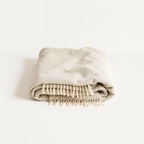 |
| 4 | Soy wax candle | Lit candle in a glass jar on a shelf | Lit soy wax candle in a glass jar on a shelf | 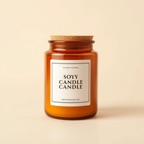 |
| 5 | Stainless steel water bottle | Bottle standing on a desk beside a laptop | Stainless steel water bottle standing on a desk beside a laptop | 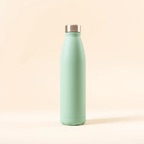 |
| 6 | Oak serving board | Board with cheese and fruit | Oak serving board with cheese and fruit |  |
Because results are cached, running the same prompt on the same row again does not bill you twice. If you change the prompt, the rows will regenerate.
Fill in Batches
Google Sheets custom functions time out after about 30 seconds per cell, so do not fill 5,000 rows at once. Fill 50 to 100 rows at a time, check them, then move on. This is also a good habit for quality control: it is much easier to fix a prompt after reading 50 rows than after 5,000.
Step 3: Check the Length
Models do not count characters precisely, so check it with a normal formula. In column F:
=LEN(C2)
Or flag the long ones directly:
=IF(LEN(C2)>125, "Too long", "OK")
Filter for "Too long" and either re-run those rows with a tighter prompt ("under 90 characters") or trim them by hand. Plain formulas are the right tool for counting. There is no reason to ask a model to do it.
Step 4: Read a Sample
Spot-check about ten rows per batch. Look for three things: text that starts with "Image of" anyway, details that are not in the row (the model may add a colour you never gave it), and wording that is too similar across rows. If you see problems, fix the prompt, not the cells.
This is where the limit of the method shows. If the model adds a detail that is not in your data, it is guessing. Add "Only use details given here" to the prompt, and it will stick to the row more closely.
Step 5: Freeze the Values and Import Back
Copy column C and use Paste special > Values only so the alt text stays put. There is a short guide on how to prevent formula recalculation.
Then export or copy the finished column back into your store or CMS. Every platform has its own import format, so check how yours handles image alt text. For example, many product CSV formats have a dedicated alt text column next to the image URL. Do a trial import with five rows before you upload the whole file, and keep a copy of the old alt text in case you need to roll back.
Variation 1: Alt Text for Blog Images
Blog images do not have a product name, but they do have a heading. Use the heading of the section the image sits in, plus a short note about the picture:
=SHEETAI("Write alt text under 125 characters for a blog image. It sits under the heading: "&A2&". The image shows: "&B2&". Describe the image, do not repeat the heading. Do not start with Image of.", 100, 0.3)
The page context helps the model decide what is worth mentioning. A chart in a pricing article and the same chart in a security article might call for different emphasis.
Variation 2: Translate Alt Text for Other Storefront Languages
If your shop has more than one language version, the alt text needs translating too. Put the language names in the header row and use SHEETAI_TRANSLATE:
=SHEETAI_TRANSLATE($A2, B$1)
| A | B | C | |
|---|---|---|---|
| 1 | English | Spanish | French |
| 2 | Ceramic pour-over coffee set with dripper, carafe and two cups on a wooden tray | Juego de café de cerámica con filtro, jarra y dos tazas sobre una bandeja de madera | Set à café en céramique avec filtre, carafe et deux tasses sur un plateau en bois |
| 3 | Linen throw blanket folded over the arm of a sofa | Manta de lino doblada sobre el brazo de un sofá | Plaid en lin plié sur le bras du canapé |
| 4 | Lit soy wax candle in a glass jar on a shelf | Vela de cera de soja encendida en un tarro de cristal sobre una estantería | Bougie à la cire de soja allumée dans un pot en verre sur une étagère |
| 5 | Oak serving board with cheese and fruit | Tabla de servir de roble con queso y fruta | Planche de service en chêne avec fromage et fruits |
Translate the finished English alt text, not the raw notes. That way the translation starts from clean, checked text. A native speaker should still read a sample, and the guide on translating Google Sheets with AI covers glossaries and keeping brand names untouched.
Variation 3: Flag Existing Bad Alt Text
You may not want to rewrite everything. A faster first step is to find the images that are actually a problem. Put the existing alt text in column A and classify it:
=SHEETAI_CLASSIFY(A2, "Good, Too vague, Keyword stuffed, Missing")
| A | B | |
|---|---|---|
| 1 | Existing alt text | Verdict |
| 2 | Stainless steel water bottle standing on a desk beside a laptop | Good |
| 3 | image | Too vague |
| 4 | water bottle steel bottle buy water bottle cheap best water bottle | Keyword stuffed |
| 5 | Missing | |
| 6 | IMG_2041.jpg | Too vague |
| 7 | Lit soy wax candle in a glass jar on a shelf | Good |
Now filter out "Good" and run the generator only on the rest. For a plain empty-cell check you can also use =IF(A2="", "Missing", "Present"), which is free and instant. The classify function is useful for the grey area in between, such as text that exists but says nothing. The guide on classifying data automatically in Google Sheets explains how to write category lists that give consistent results, and the SHEETAI_CLASSIFY docs list the options.
Prompt Tips for Alt Text
- State the length limit. "Under 125 characters" in the prompt, plus the
LENcheck afterwards. - Ban the usual openers. "Do not start with Image of, Photo of or Picture of."
- Allow only what is in the row. "Only use details given here" reduces invented colours and materials.
- Keep the keyword light. Let the product name appear naturally once. Do not ask the model to include a target keyword in every line.
- Handle decorative images separately. Add a column that marks decorative images and leave their alt text empty with
=IF(E2="Decorative", "", ...). - Keep temperature low. Around 0.3 gives plain, repeatable wording.
- Match your product copy. If you already have an AI product description generator set up in the sheet, reuse its attribute columns so the alt text and descriptions agree.
Limits and When to Use Something Else
Be realistic about what this method can and cannot do.
- It does not see the image. If a row has only a product name, the output will be generic. Add a shot note or accept that the alt text will be basic.
- It can guess. The model may add a detail you did not supply. Read a sample, and tell it to use only the details given.
- Complex images need a human. Charts, graphs, infographics and diagrams need alt text that explains the data or the idea. Someone who understands the content should write it, and long descriptions may belong in the page text instead.
- Images with text in them. If the picture contains words, the alt text should usually include those words. A row-based formula cannot know what the image says unless you type it in.
- No description at all. If the row has nothing about the image, a vision-based tool that analyses the actual picture is the better choice. You can use one to generate a first draft and then bring the results into the sheet for length checks and translation.
- Legal or accessibility audits. If you have a compliance requirement, treat generated alt text as a draft and have a person review it.
- Very large libraries. Process in batches of 50 to 100 rows because of the roughly 30 second per-cell timeout.
For a standard product catalogue with clear titles and a short shot note, the spreadsheet method is fast and cheap. For anything where the image carries information that is not in your data, write it yourself.
Frequently Asked Questions
What is the best bulk alt text generator for Google Sheets?
It depends on your data. If you have product titles and a short note about each photo, a formula-based generator like SheetAI works well and lets you check length, translate and audit in the same sheet. If your rows contain nothing about the pictures, a vision-based tool that reads the image file is the better fit.
Does SheetAI look at the image to write alt text?
No. The formula writes from the text in the cells you reference, such as product name, attributes and your shot note. It does not open the image URL. That is why a short note on what the photo shows improves the result.
How long should alt text be?
A common rule of thumb is to stay under about 125 characters. Describe what matters in the image in plain words. Shorter is fine if the image is simple.
Should I add keywords to alt text?
Include the product name or main term where it fits naturally, because it is also a good description. Do not repeat keywords or add lists of them. Alt text written for people tends to be better for search too.
What should the alt tag be for decorative images?
Leave it empty. An empty alt attribute tells screen readers to skip the image, which is what you want for dividers, backgrounds and purely visual flourishes. Use an alt tag generator only for images that carry meaning.
Start With Twenty Rows
Pick twenty images from your catalogue, write a shot note for each, run the formula and read the results as if you were using a screen reader. If they hold up, scale it in batches. You can install SheetAI from the Google Workspace Marketplace, and the documentation lists every function.