
How to Create a Visual Presentation: A Complete Guide
In today’s fast-paced world, a strong visual presentation can make or break your communication. Whether you are pitching a business idea, teaching a class, or presenting a project, visuals help convey your message clearly and effectively. This blog will guide you through everything you need to know about creating a visual presentation.
What is a Visual Presentation?
A visual presentation is a way of communicating ideas using images, charts, graphs, videos, and text in a structured format. Rather than plain text or spoken explanation, visual presentations combine multiple elements to make information more engaging and easier to understand.
Key benefits of visual presentations include:
Types of Visual Presentation
Visual presentations can take many forms, and each type serves a different purpose depending on your audience, the content, and the context. Choosing the right format is important for effectively communicating your message. Here are the most common types:
1. Slideshows:
Slideshows are the most widely used form of visual presentation. They combine text, images, charts, and animations to guide your audience through a structured narrative.
Best for: Business meetings, classroom lectures, webinars, or workshops.
2. Infographics:
Infographics are single-page visuals designed to simplify complex information. They use charts, icons, diagrams, and minimal text to communicate ideas quickly and effectively.
Best for: Marketing campaigns, educational content, and reports.
3. Videos:
Video presentations combine visuals, narration, text overlays, and animations to create a dynamic storytelling experience. They are particularly effective for engaging audiences who prefer visual and auditory learning.
Best for: Online courses, product demos, training sessions, or social media campaigns.
4. Interactive Dashboards:
Interactive dashboards are data-driven visual presentations. They allow users to explore real-time data with filters, graphs, and charts.
Best for: Corporate reporting, project tracking, and financial or operational analysis.
5. Posters and Charts:
Posters and Charts are static visual presentations used in academic, research, or conference settings. They highlight key information using visuals, bullet points, and concise summaries.
Best for: Academic presentations, research summaries, and educational displays.
Each type of visual presentation has its own strengths. Your choice should depend on your goal, audience, and the type of content you want to communicate.
Important Things to do Before Creating a Visual Presentation:
Step 1: Define Your Objective
Step 2: Outline Your Content
Step 3: Choose the Right Type of Visual Presentation
Step 4: Design Your Slides
Step 5: Add Animations and Transitions (Optional)
Method 1: How to Create a Visual Presentation Manually Using PowerPoint: Step-by-Step Guide:
PowerPoint is one of the most widely used tools for creating presentations. It is known for its flexibility, design options, and ease of use. Here is a step-by-step guide to help you create professional slides manually.
Step 1: Open PowerPoint and Choose a Template
Open a PowerPoint and click “New” to create a Presentation from scratch. (or)
Select a template that matches your presentation’s theme and purpose.
Step 2: Create a Title Slide
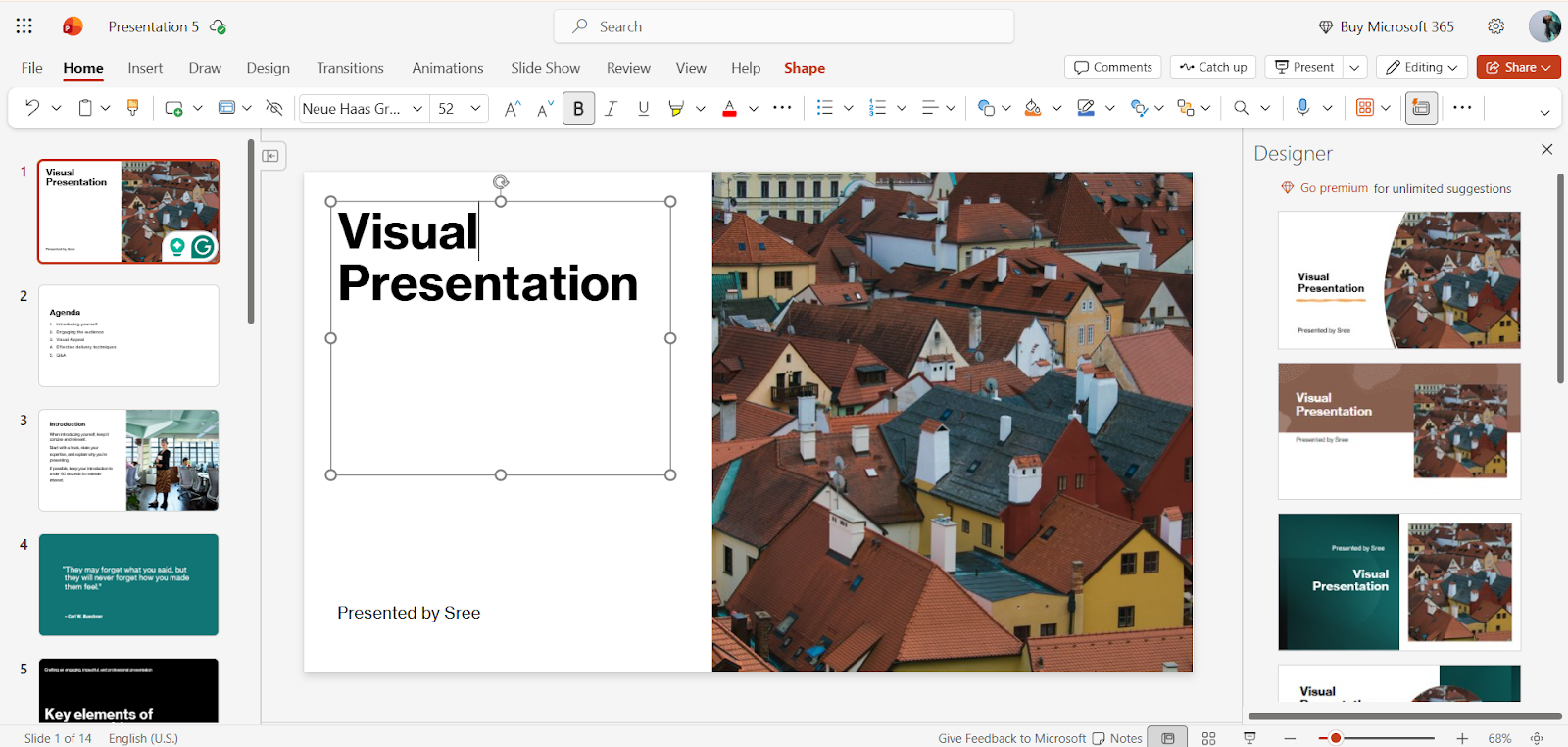
Step 3: Structure Your Content
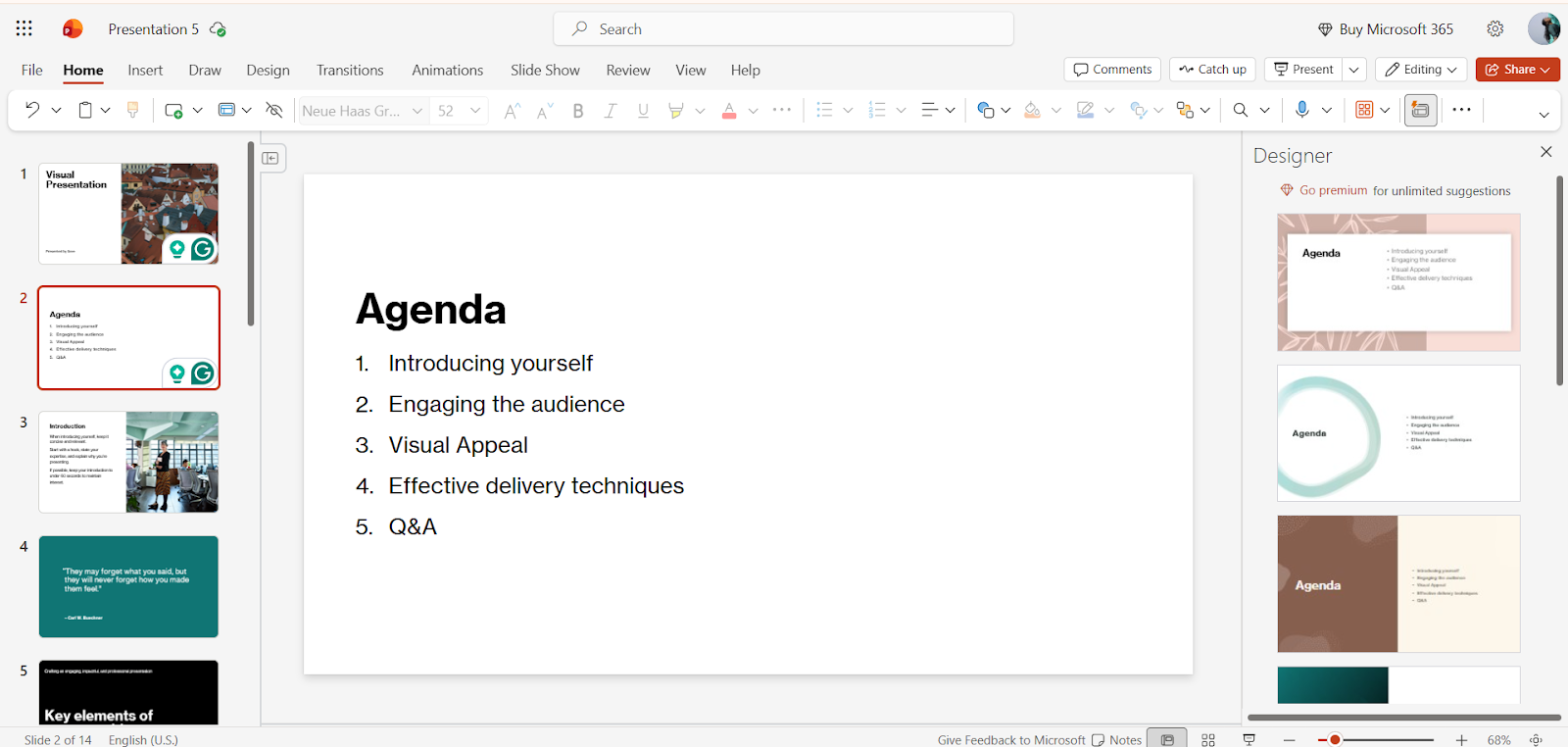
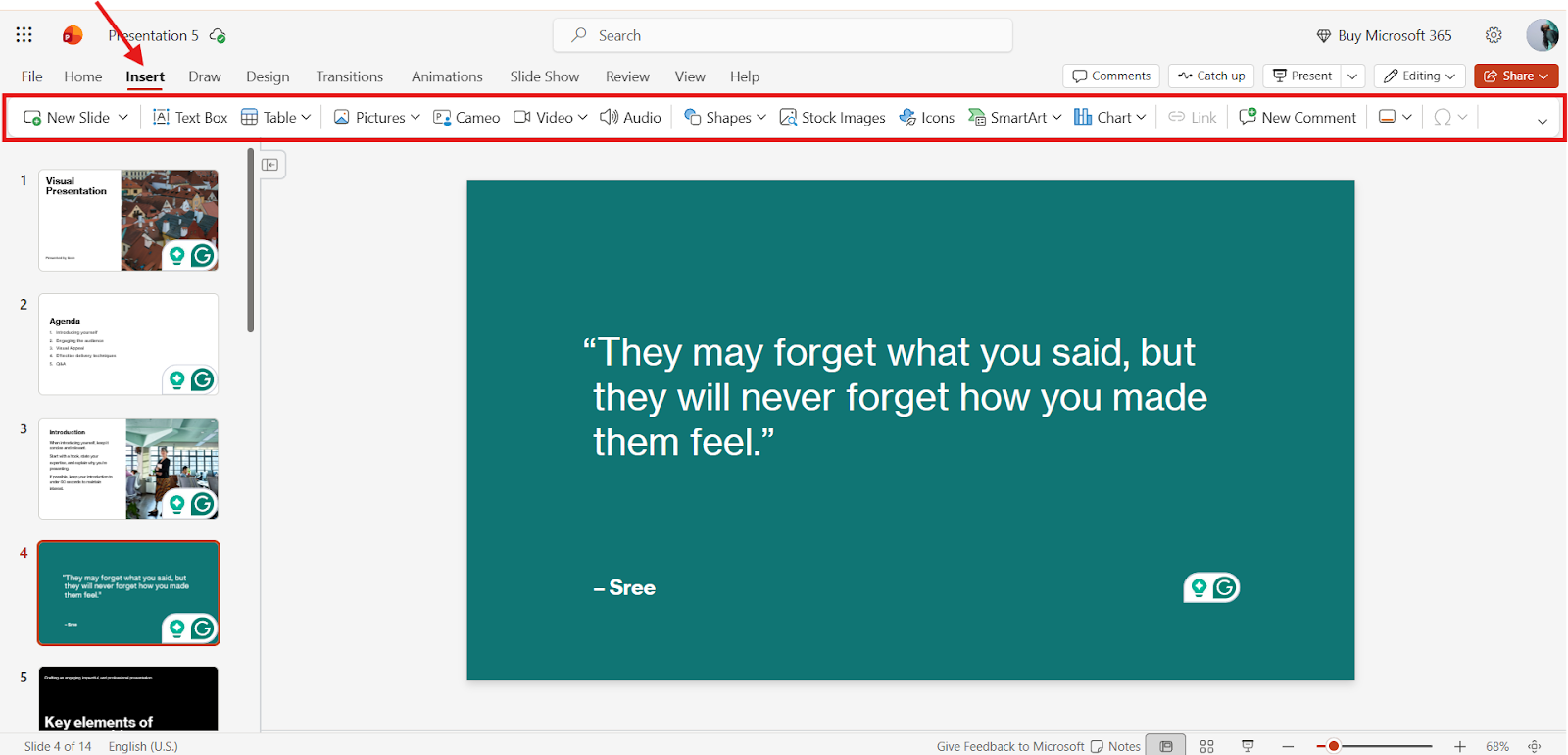
Step 4: Add Visual Elements
Note: Use Visuals to enhance your message, not to distract from it.
Step 5: Customize the Design
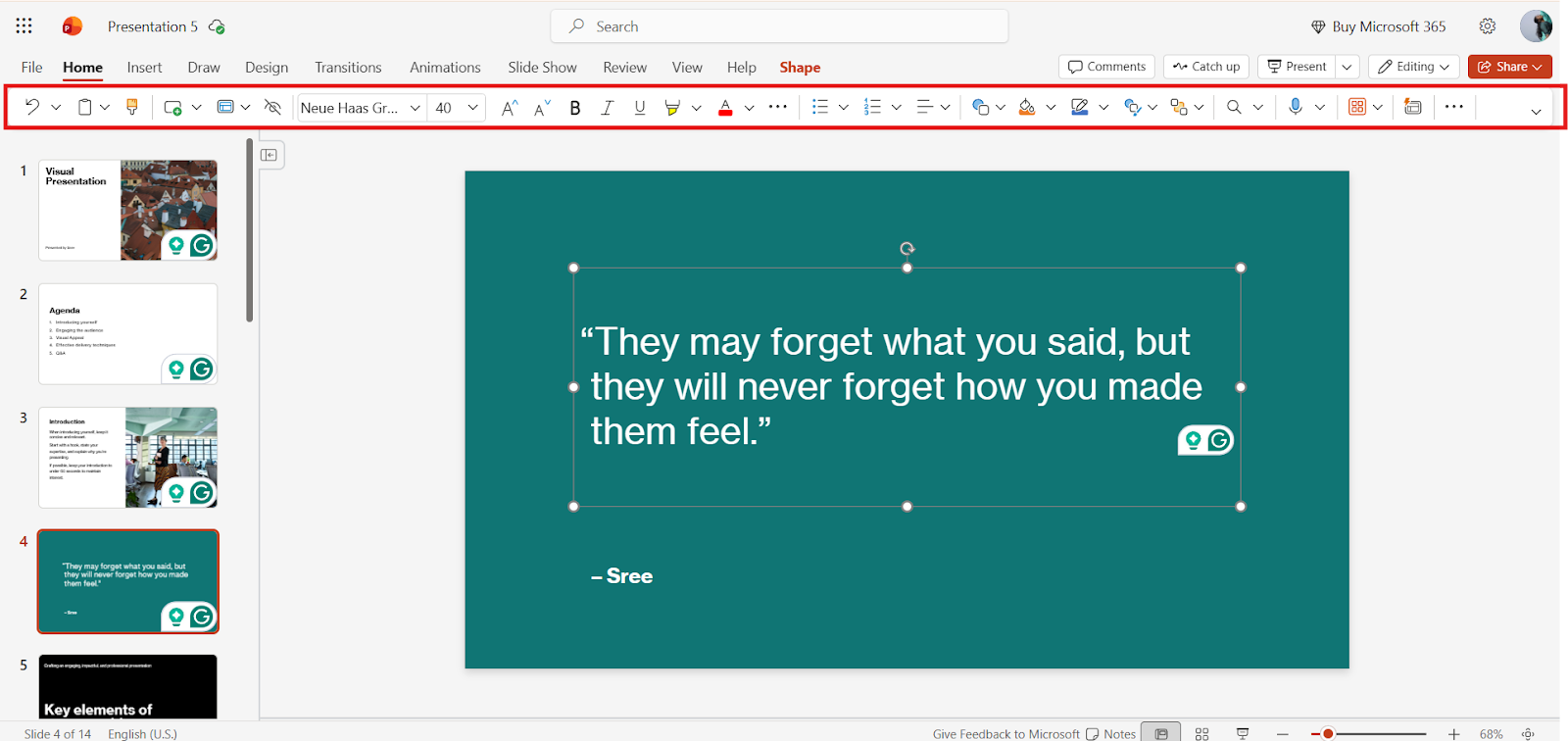
Step 6: Add Transitions and Animations (Optional)
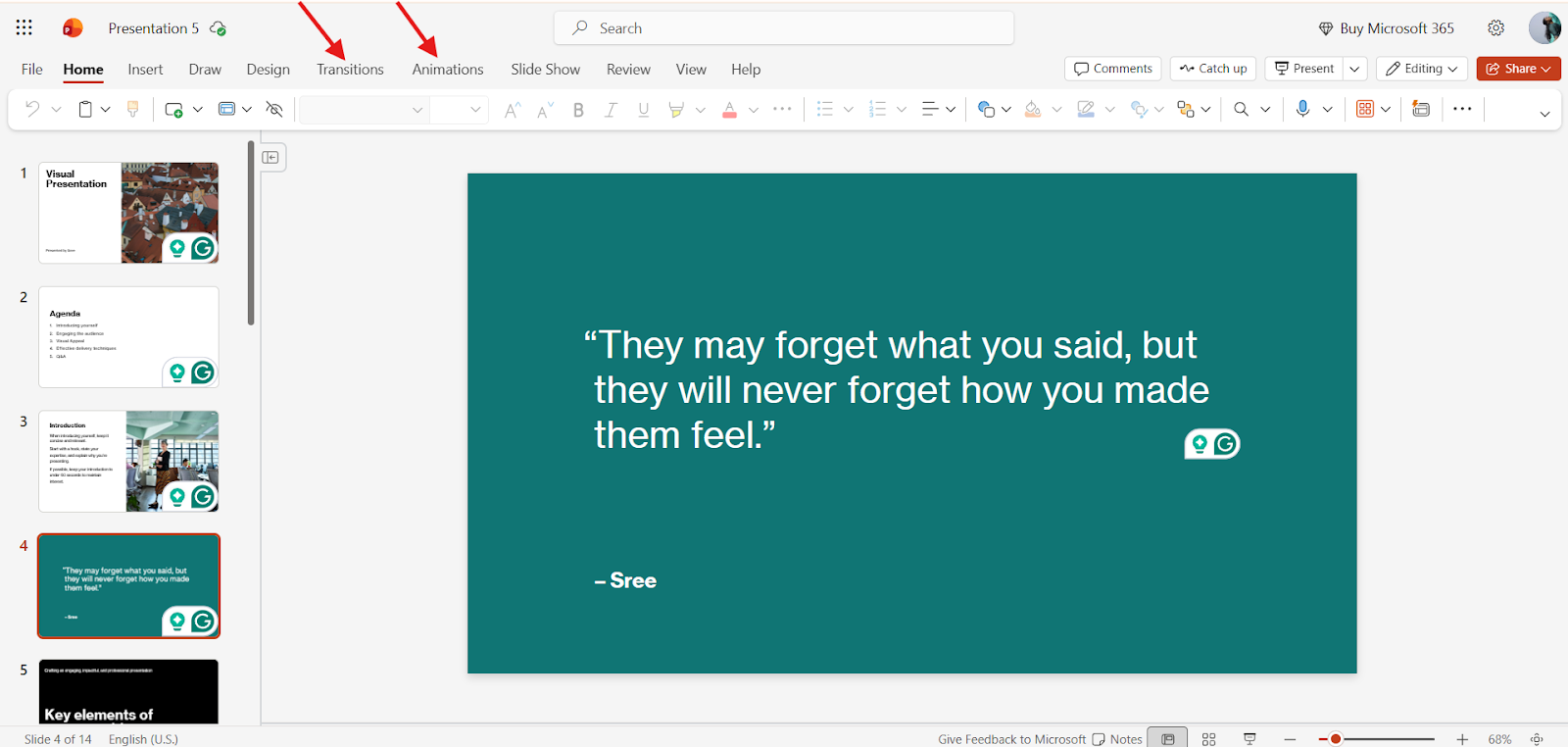
Step 7: Review and Practice
Method 2: How to Create a Visual Presentation Using AI in MagicSlides.app
Creating a polished visual presentation doesn’t have to be a time-consuming process. AI-powered tools like MagicSlides, an AI presentation maker, can help you automate and accelerate the process, while still giving you control over the final output. Here is how MagicSlides can transform your presentation workflow:
Step 1: Open MagicSlides Sign up or Log in
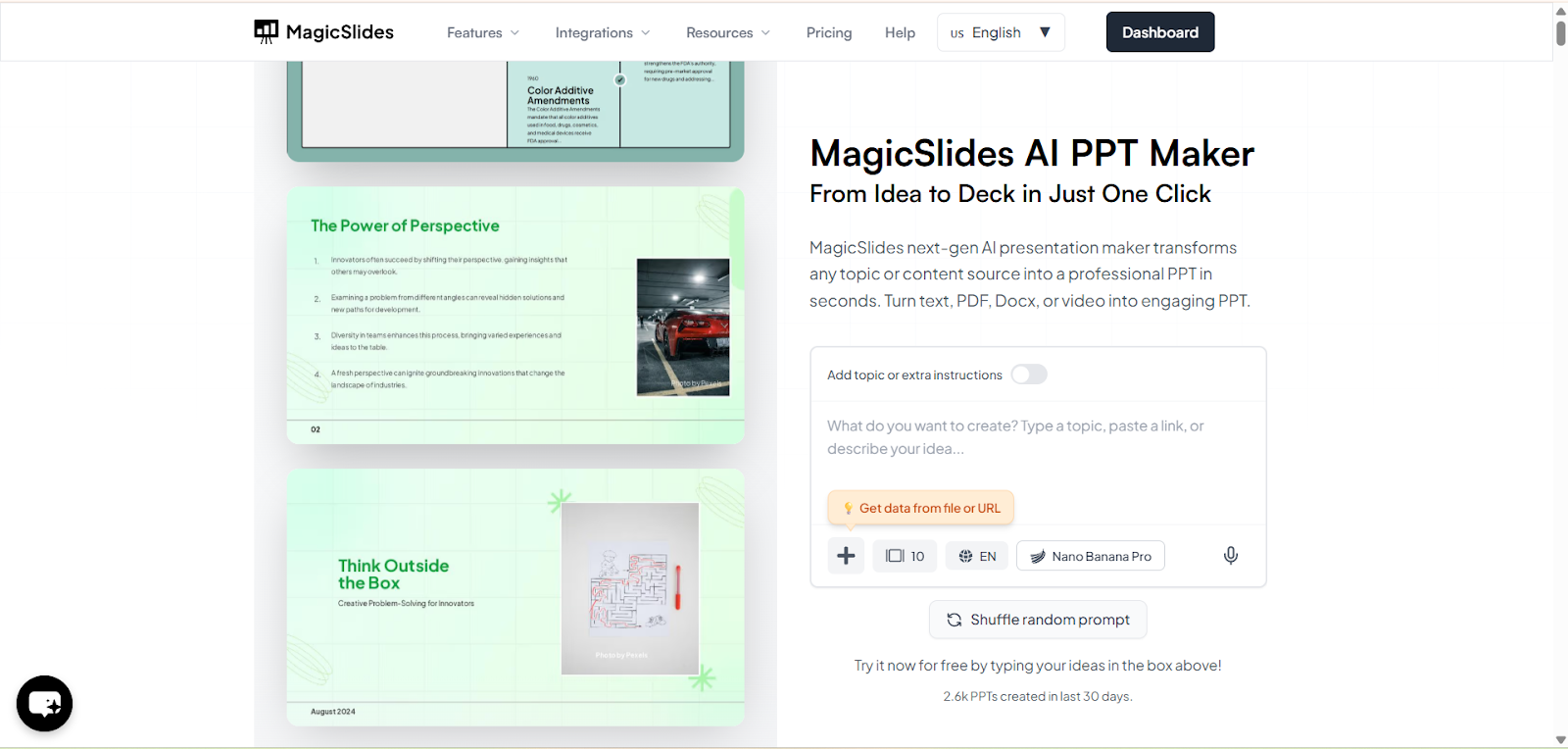
Step 2: Enter your content
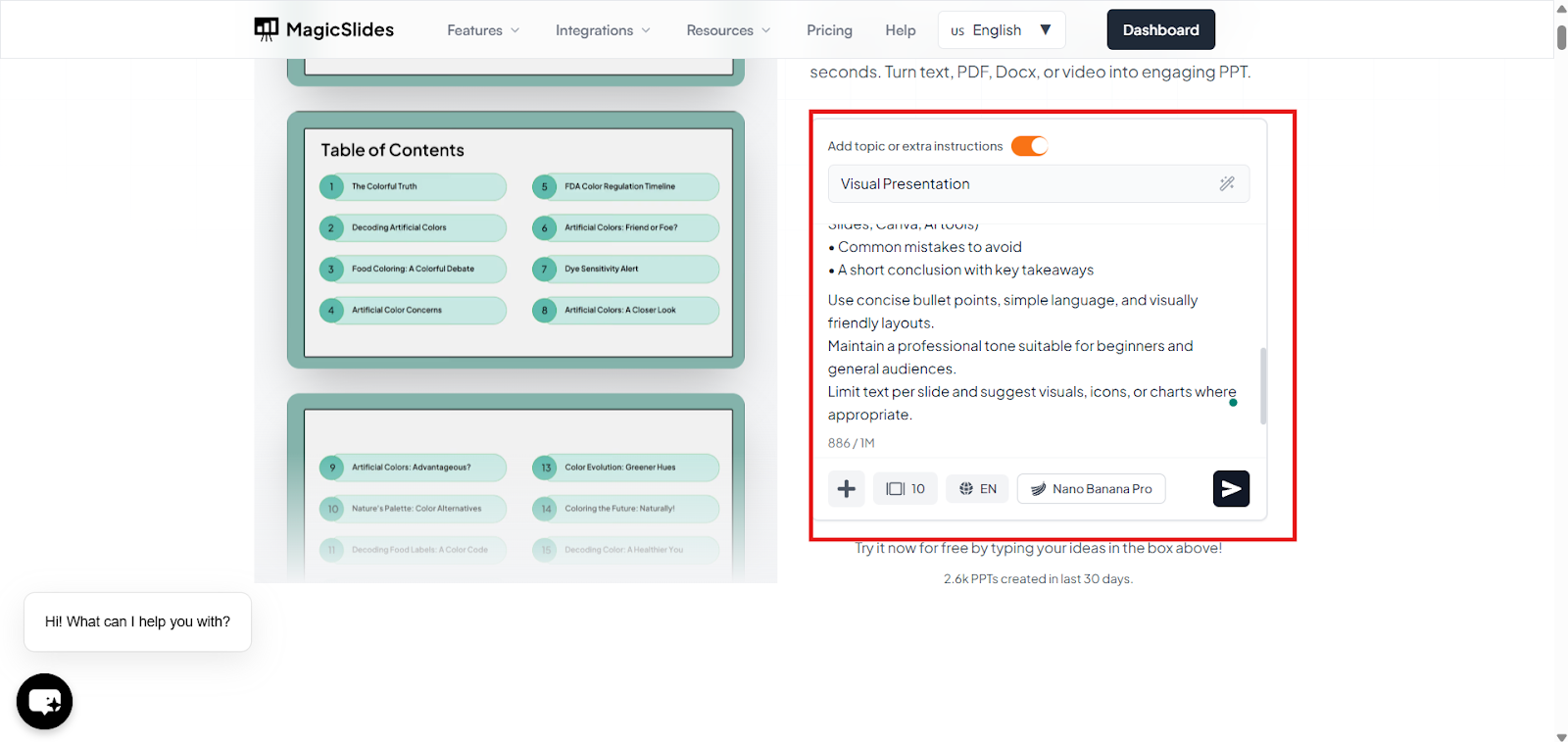
Step 3: Select your theme
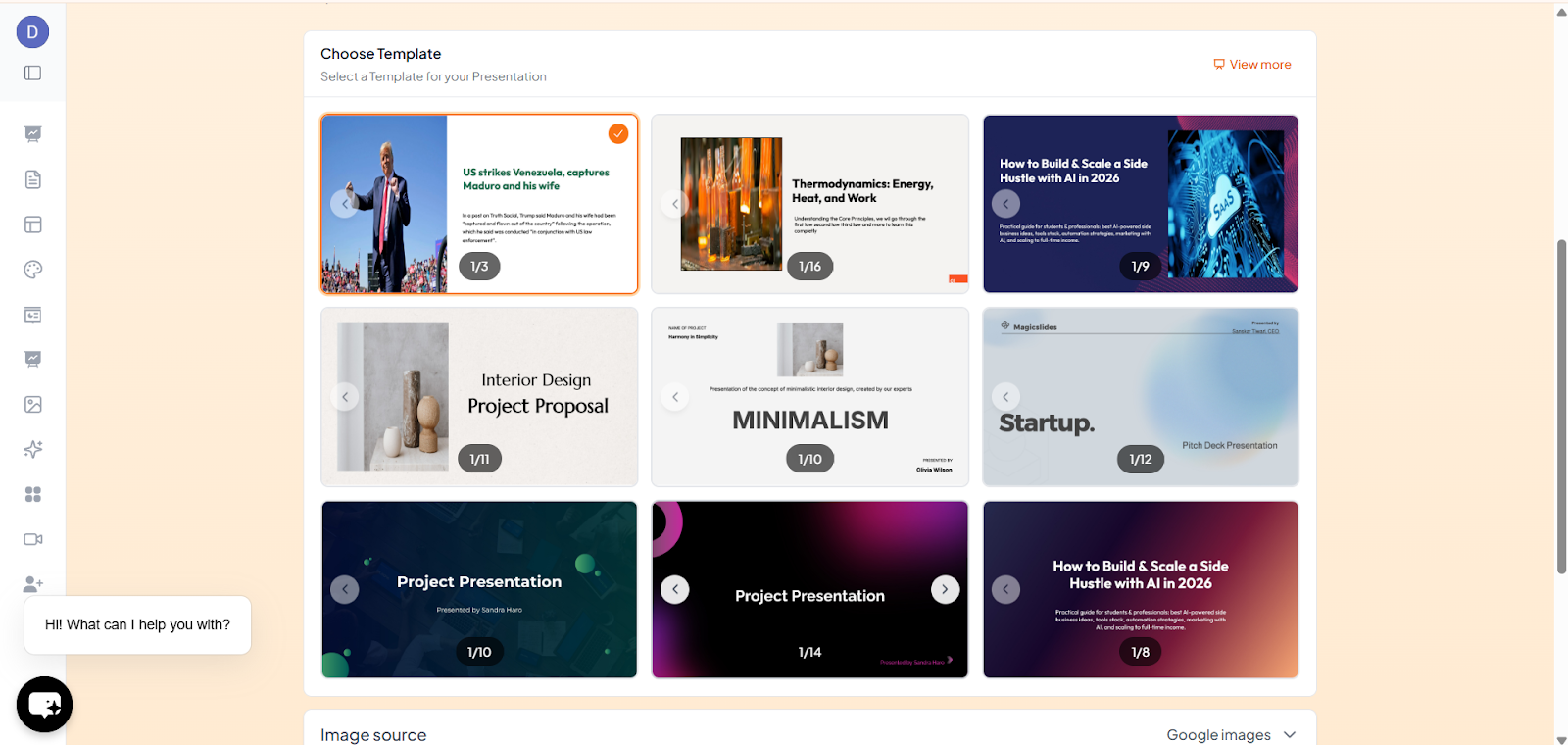
Step 4: AI generates content, layouts, color schemes, and images for you.

Step 5: Refine if needed
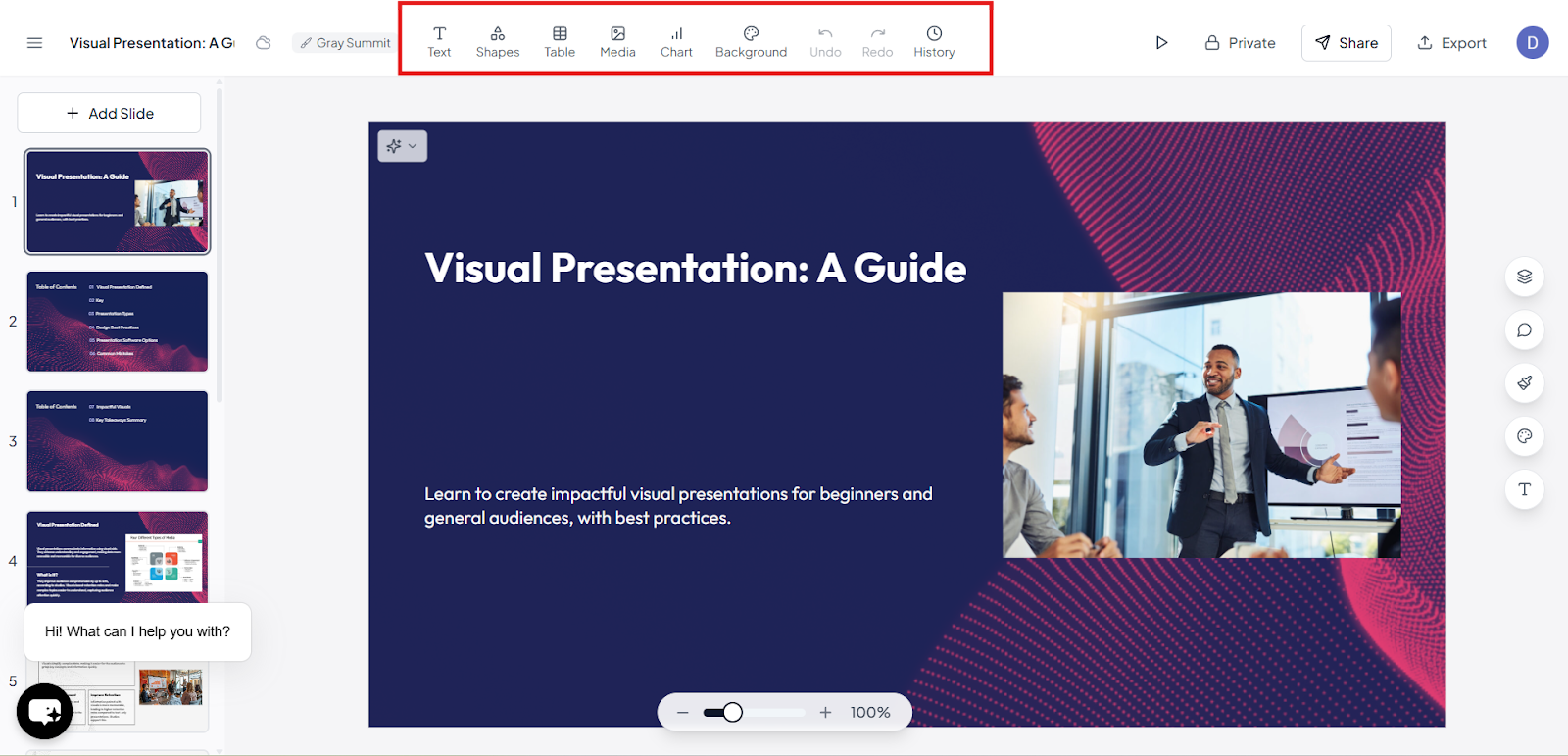
Step 6: Download or Present
Using MagicSlides.app can save time and improve the visuals and content quality of your presentation automatically with the help of AI.
Common Mistakes to Avoid During a Presentation Creation:
Even a well-designed presentation can fail if common mistakes are made. Avoid these errors:
Add Visual Impact with Curved Text in PowerPoint
When you create a visual presentation, small design details can make a big difference in how your slides are presented. Beyond layouts, colors, and images, creative text formatting can help highlight key ideas and improve visual appeal.
For example, learning how to curve text in PowerPoint can be useful for titles, headings, or callouts, allowing you to add emphasis without overcrowding your slides. If you want to explore more creative design techniques, it is worth learning this feature to enhance the look and impact of your presentation.
Final Thoughts:
Creating a strong visual presentation requires careful planning and thoughtful design. Whether you use slides, infographics, videos, or interactive dashboards, the goal is to communicate your message clearly, engage your audience, and make your content memorable.
By defining your objectives, organizing your content, choosing the right visuals, and using tools like PowerPoint or AI Platforms like MagicSlides, you can produce presentations that look professional and leave a lasting impression.
Quick FAQ’s:
Q 1: What makes a visual presentation effective?
An effective presentation is clear, concise, visually appealing, and tailored to the audience. It uses visuals to reinforce key points.
Q 2: How many slides should the presentation have?
There is no strict rule, but aim for one slide per keypoint or 1-2 minutes of speaking per slide. Focus on quality over quantity.
Q 3: Can I use AI to create presentations?
Yes, AI tools like MagicSlides can generate slide layouts, content suggestions, and visual themes automatically. You can refine the results to match your style and message.
Q 4: Should I include animations in my presentation?
Use animations here and there. Subtle effects like fade-ins or appear transitions can guide attention, but excessive animations can distract your audience.
Q 5: How can I make my presentation more engaging?
Incorporate visuals, ask questions, use stories or examples, and encourage audience interaction. Avoid reading slides word-for-word.
Q 6: How do I ensure my slides are readable?
Use high-contrast colors, large fonts, and minimal text. Keep consistent layouts and avoid cluttering slides with too much information.
Q 7: Can I make a presentation without technical skills?
Yes, AI tools or pre-designed templates in PowerPoint, Canva, or Google Slides make it easy for anyone to create professional presentations.