
How to Create the Perfect ‘Thank You’ Slide for Your Presentation
You are done with a presentation, and you want to be remembered well by your audience in a final impression. That is where a Thank You slide is introduced. A thank you slide is not just a nice conclusion, but demonstrates that you do not waste the time and attention of your audience. It also allows you a final opportunity to add helpful information such as a call to action, a quote to memorise, or your contact details.
This blog will cover what a thank-you slide is, what you need to say on it, and how you can easily create a thank-you slide.

What is a Thank You Slide?
The very last slide in your presentation is the Thank You slide, which thanks your audience. It demonstrates respect for their time and attention and normally contains warm closing text. This is the last slide that you normally have at the end of your deck, and it will enable you to close your talk in a professional manner.
What to Say in a Thank You Slide:
Though a thank you slide is simple, there are a few key things you can include to make it valuable:
1. A Warm Thank You Message
The most important part is a clear and heartfelt message, such as:
This shows respect and leaves your audience feeling appreciated.
2. Contact Details
Adding your contact info helps people reach out to you later. You can include:
3. Optional Extras
You can also add:
Creating a thank you slide with MagicSlide.
It can take extremely little time and effort to create a thank-you slide, particularly by using MagicSlide, a basic AI-assisted presentation tool. You just got into slides or are in a hurry,
MagicSlid makes you achieve a professional thank-you slide with less effort.
Step 1: Go to MagicSlide
Open MagicSlide. app MagicSlide allows you to make slides.

Step 2: Enter the Topic
Enter a prompt in the input box, something such as Thank you slide for presentation. Then MagicSlides.app will recognize the content and create a slide.

Step 3: Let the AI Generate
Press the button and create your slide. MagicSlide will automatically produce a well- designed slide containing a thank you message and a layout.
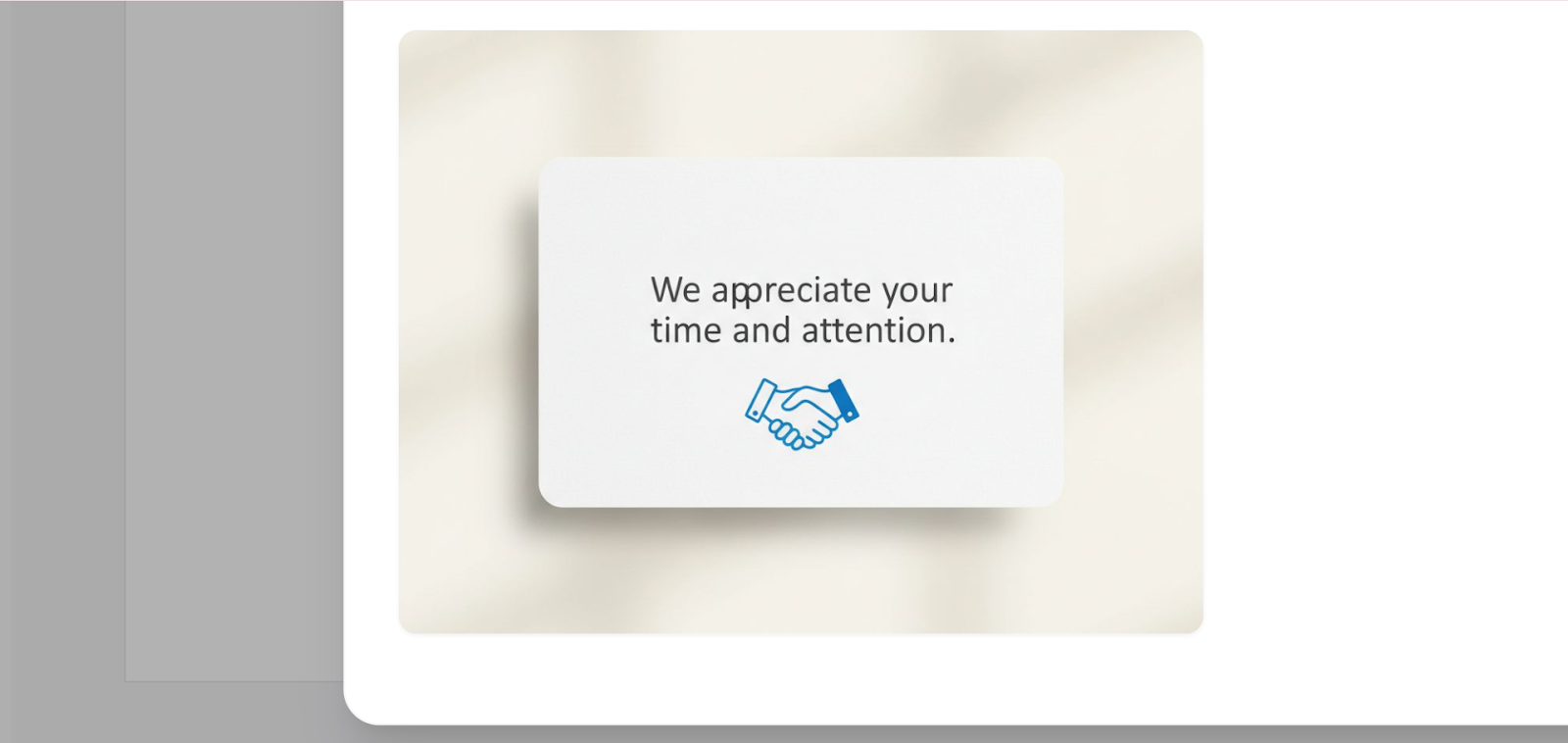
Step 4: Customize Your Slide( If Needed)
Step 5: Save or Download
Once you are satisfied with your slide, you can save it and proceed with it in your presentation.
Also Read: How to Access Free Resume Templates in Google Docs.
Conclusion:
The final and important little feature of a presentation is a Thank You slide. It can be appreciated, creates a positive final impression, and provides the audience with valuable follow-up information. You may make your Thank You slide on your own or with the help of such tools as MagicSlide.app, however, it does not mean that it will be difficult to create a brilliant one. Just add a warm message, Opted contact, and call to action, and close on a good note!
Quick FAQ’s:
Q 1: May I use images or logos on a Thanksgiving slide?
Yes, the slide will be more interesting and professional with the help of visuals.
Q 2: Can we add a quote on a Thank You slide?
Yes, a few lines quote can be like a lasting impression.
Q 3: Can we add social media links in the thank you slide?
Yes, it aids your audience to connect with you online.
Q 4: What is the number of words that a thank-you slide should have?
You can add 5-15 words, or so it should be sufficient.