How to Convert PowerPoint to Google Slides: Quick Guide

Mehjabi Khan

Published By

Sanskar Tiwari

Approved By

Sanskar Tiwari

Published On

Reading Time

7 min read

Learn how to convert PowerPoint to Google Slides in less than 5 steps. Check out this guide and learn the quickest PPT to Google Slide converter.

How to Convert PowerPoint to Google Slides ( Easy & Quick Guide )

Whether you are a student, teacher, business professional, or content creator, there are times when you need to move a presentation from Microsoft PowerPoint to Google Slides. Maybe you want to edit online, share easily with others, or collaborate in real time. The good news? It is simple to convert your PowerPoint files into Google Slides, and you don’t need advanced skills. In this guide, we will walk through the best ways to do it, which makes things easier.

Why Convert PowerPoint to Google Slides?

Here are some big reasons people convert their files:
  1. Edit Online from anywhere: No need to carry files around.
  1. Share and Collaborate in real time with others.
  1. Use Google’s free cloud tools and seamless sharing
  1. No software install: As long as you have a browser, you are good to go.

Method 1: Upload & Open in Google Drive

This is the easiest way to convert your PowerPoint files.
Steps:
  1. Go to Google Drive and log in to your Google account. Open your web browser, visit Google Drive, and sign in using your Gmail or Google account details.
  1. Click the “New” button. In the top-left corner of the screen, click the New button to upload files to your Drive.
  1. Choose “File Upload” and select your PowerPoint file. From the menu, click File Upload, then select the .ppt or .pptx file from your computer that you want to convert.
  1. Wait for the file to upload completely. Once uploaded, the PowerPoint file will appear in your Google Drive list.
  1. Right-click the PowerPoint file. Find the uploaded file, right-click on it, and a menu will open.
  1. Select “Open with” and Choose “Google Slides”. This will open your PowerPoint presentation in Google Slides and begin the conversion process.
  1. Save it as a Google Slides file. After the file opens, click File and Save as Google Slides to create a fully editable Google Slides version of your presentation.

What Happens:

Google Slides will convert your file into a Google Slides document. Most text, images, and basic formatting will stay intact. Some advanced animations or fonts might change slightly, so always double-check your slides after conversion.

Method 2 - Import Slides into an Existing Google Slides File

If you only want to convert some slides from a PowerPoint to Google Slides, this method is great.
Steps:
  1. Open Google Slides and create a new blank presentation. Go to Google Slides, sign in with your Google account, and click Blank to start a new presentation.
  1. Click on File and Import slides. From the top menu, click File, then select Import slides to bring content from another presentation.
  1. Upload your PowerPoint file. In the pop-up window, choose the Upload tab and select the .ppt or .pptx file from your computer.
  1. Select the slides you want to import. Google Slides will show previews of all slides in the PowerPoint file, choose specific slides or select all, depending on your needs.
  1. Click Import slides to finish. Once selected, click Import Slides, and the chosen slides will be added to your Google Slides presentation.
This lets you mix PowerPoint content with existing Google Slides decks without converting the whole file.

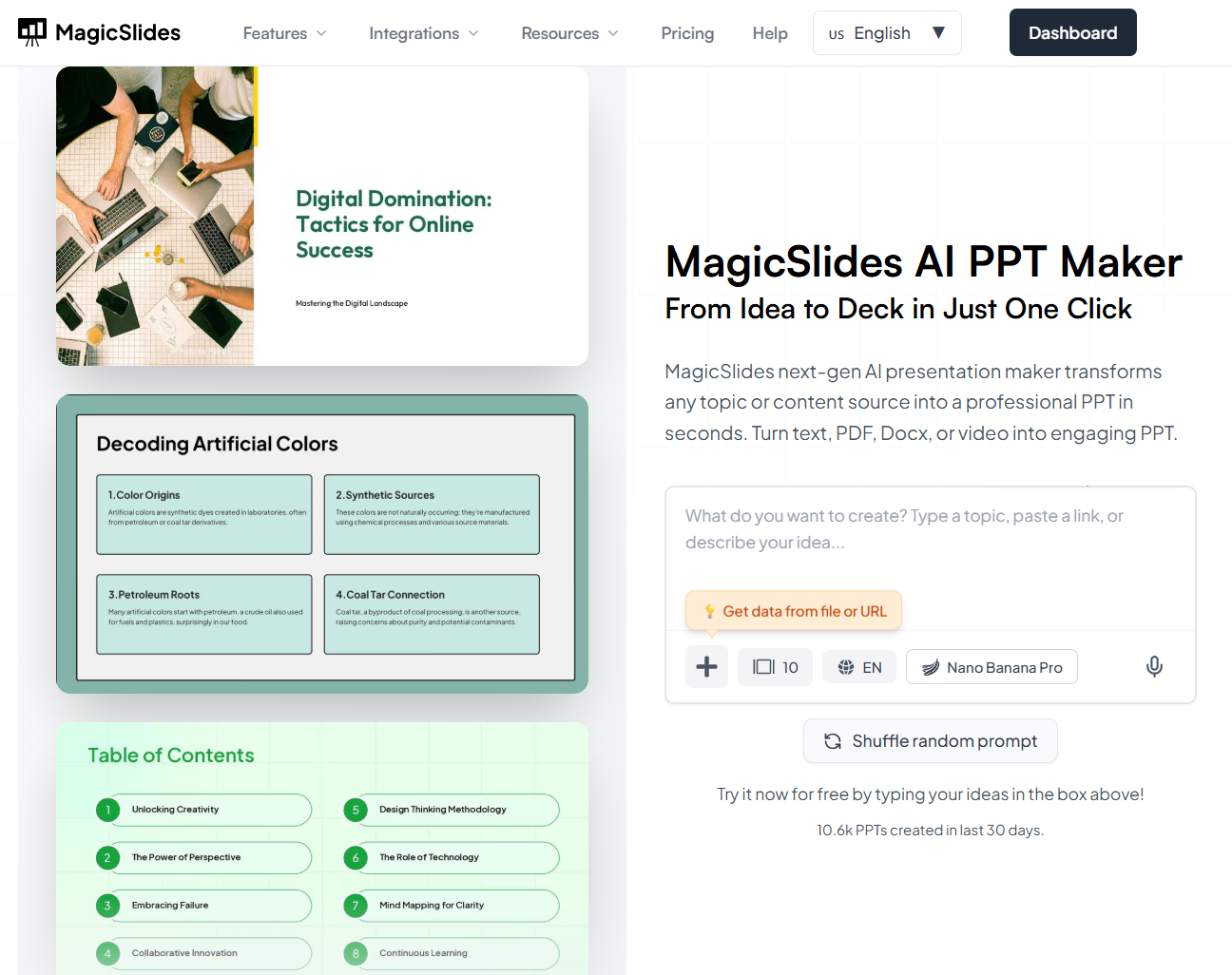
Method 3: Use MagicSlides to Convert PowerPoint to Google Slides

If you want even more power than basic conversion, MagicSlides is a fantastic AI PPT Maker worth mentioning.
notion image
Steps:
  1. Open Google Slides. Sign in to your Google account and open Google Slides to start a new presentation or open an existing one.
  1. Launch the MagicSlides add-on. From the Google Slides menu, open the MagicSlides add-on to access its AI-Powered features directly within Slides.
  1. Upload your PowerPoint file or use it as a reference. Upload your .ppt or .pptx file, or allow MagicSlides to use the content from your existing slides to recreate and enhance them.
  1. Let MagicSlides generate or improve the slides using AI. MagicSlides automatically organizes content, improves layouts, and creates clean, well-structured slides for better readability and design.
  1. Review the generated slides and make edits if needed. Check the slides, adjust text, images, or layouts, and customize them to match your style or brand.
  1. Save and Share instantly as a Google Slides file. Once you are happy with the result, save your presentation and share it easily with others using Google Slides’ built-in sharing options.
The result is not just a converted file, but a better-designed presentation that’s ready for meetings, classes, or online sharing.

Conclusion

Converting a PowerPoint to Google Slides is easier than you might think! Whether you use the simple upload method, import specific slides, or bring in smart AI tools like MagicSlides.app, you can quickly move your work into Google’s cloud environment.
And once your slides are in Google Slides, you can edit, share, and collaborate with anyone, from anywhere. It is a great way to work smarter and faster, especially in today’s remote, digital world.

Quick FAQ’s

Q1. Can I convert a PowerPoint file to Google Slides for free?
Yes, you can upload your PowerPoint to Google Drive and open it with Google Slides at no cost.
Q2. Will my PowerPoint formatting stay the same after conversion?
Most formatting remains intact, but complex fonts, animations, or transitions may change slightly.
Q3. Can I edit a PowerPoint after converting it to Google Slides?
Yes, once converted, the file becomes fully editable in Google Slides.
Q4. What is MagicSlides, and how does it help?
MagicSlides is an AI-powered tool that helps convert, improve, and create professional Google Slides presentations effortlessly.
Q5. Can MagicSlides work with existing PowerPoint files?
Yes, you can use MagicSlides to recreate or enhance content from an existing PowerPoint presentation.

Share on socials

About the author

Mehjabi Khan profile photo
Mehjabi KhanTechnical Writer & Sheets Automation Specialist

Mehjabi Khan is one of our talented technical writers with a background in creating spreadsheet solutions for major companies like Mahindra and Suzuki. She specializes in Google Sheets automation, custom functions, and workflow optimization. Her clear, step-by-step tutorials make complex spreadsheet concepts accessible to everyone.

More from the blog