
How to Add Music to a Canva Slideshow: A Complete Easy Guide.
Slideshows are one of the most powerful ways to present your ideas, stories, photos, or business content. But something is missing if your slideshow doesn’t have music; it can feel plain, lifeless, and forgettable. Adding music brings emotion, energy, and a professional touch to your Canva slideshow. In this blog post, we will learn everything you need to know about adding music in Canva presentation step-by-step. Whether you are a beginner or just looking for clarity, this guide makes the process simple and easy.
Let’s make your slideshow sound great.
Why Adding Music Matters:
Before we jump into how to add music, let’s talk about why you should do it.
1. Makes Your Slideshow More Engaging:
Music catches attention and keeps your audience interested longer. Words and visuals can communicate information, but music creates emotion; it connects with people on a deeper level.
2. Sets the Mood and Tone:
The right track can make your slides feel happy, inspiring, calm, motivational, or dramatic. Without music, your presentation might not send the emotional message you want.
3. Helps With Flow and Timing:
Background music gives energy to your slideshow. When the sound matches slide changes, your presentation feels smoother and more professional.
4. Make Your Work Stand Out:
Music sets your slides apart from a typical silent presentation, especially when you plan to publish or share online.
In short, music can transform your Canva slideshow from plain to powerful.
How to Add Music in a Canva Slideshow: Step-by-Step Guide:
Adding music to a Canva slideshow is very easy. Canva gives you two options:
Method 1: Add Music Using Canva’s Built-In Audio Library
This method is best if you want quick, free background music without uploading anything.
Step 1: Open Your Canva Slideshow
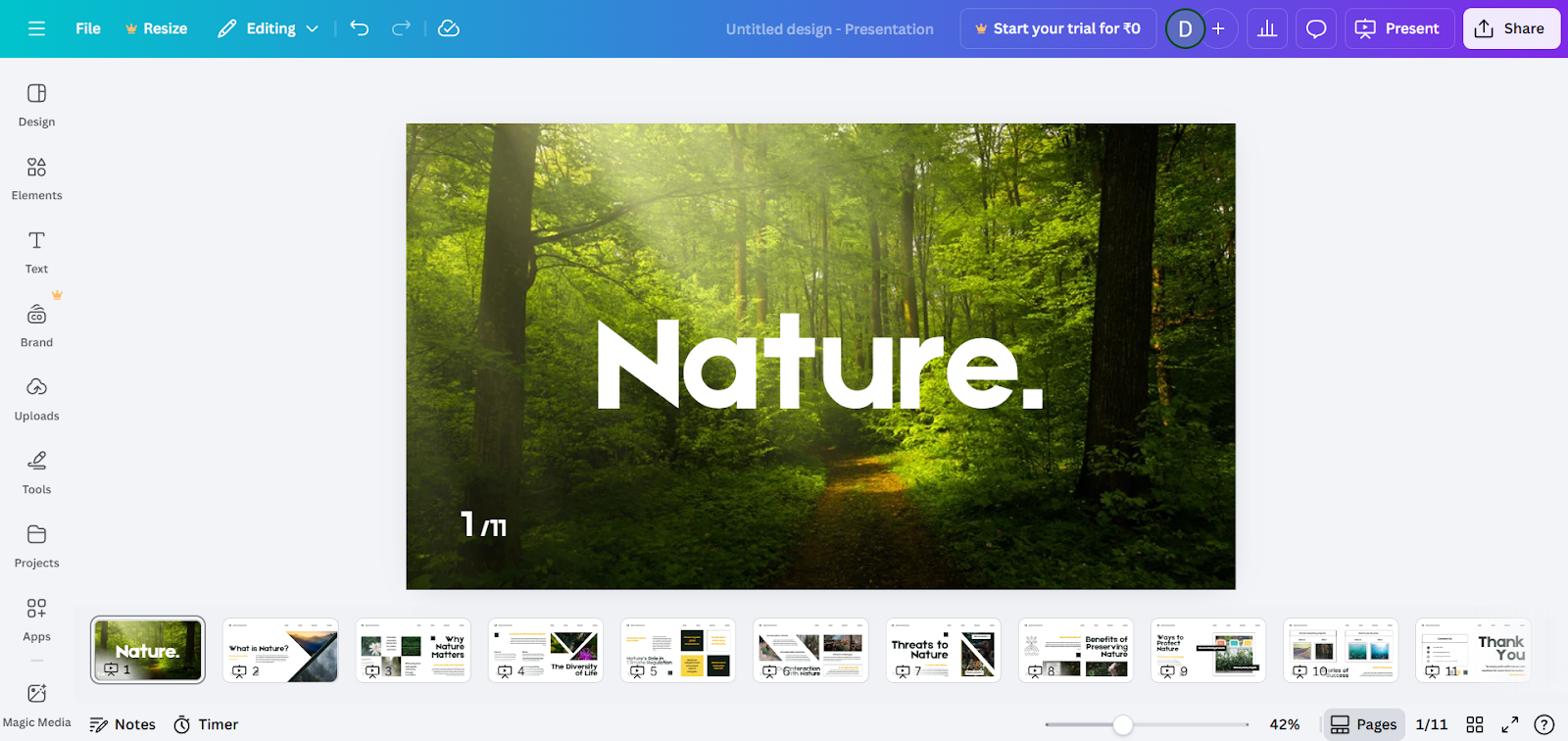
Step 2: Open the Audio Library
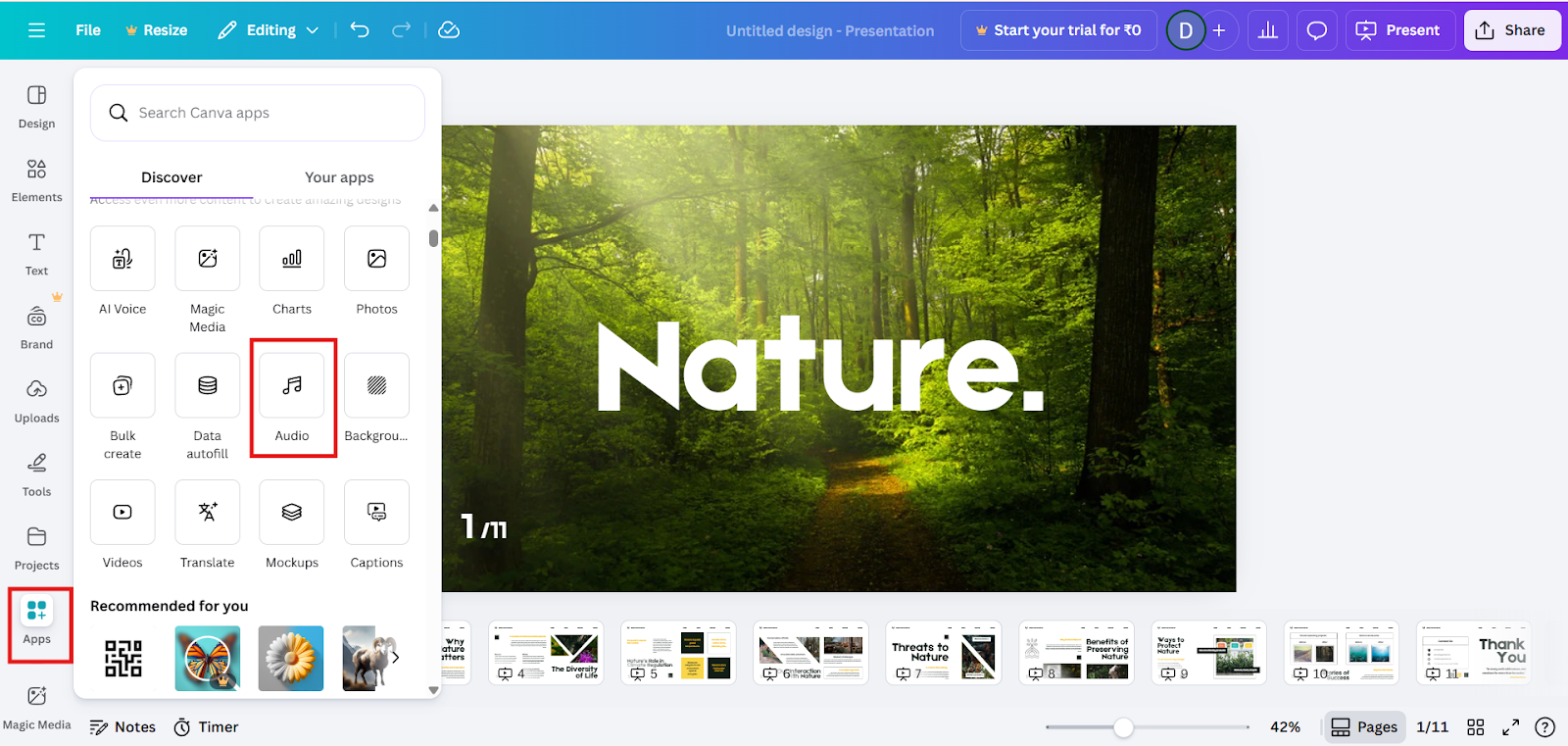
Step 3: Choose a Music Track
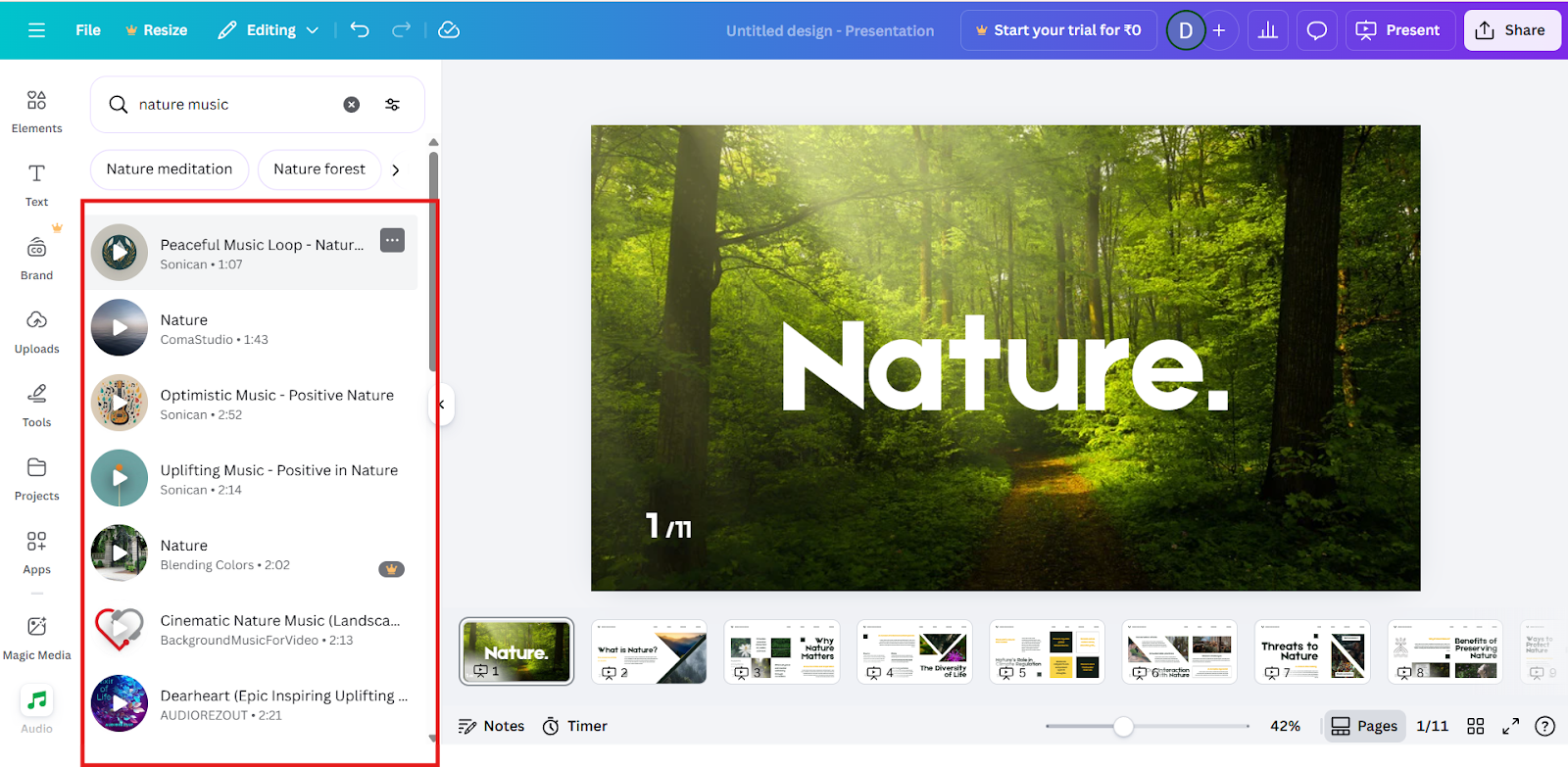
Step 4: Add Music to Your Slides
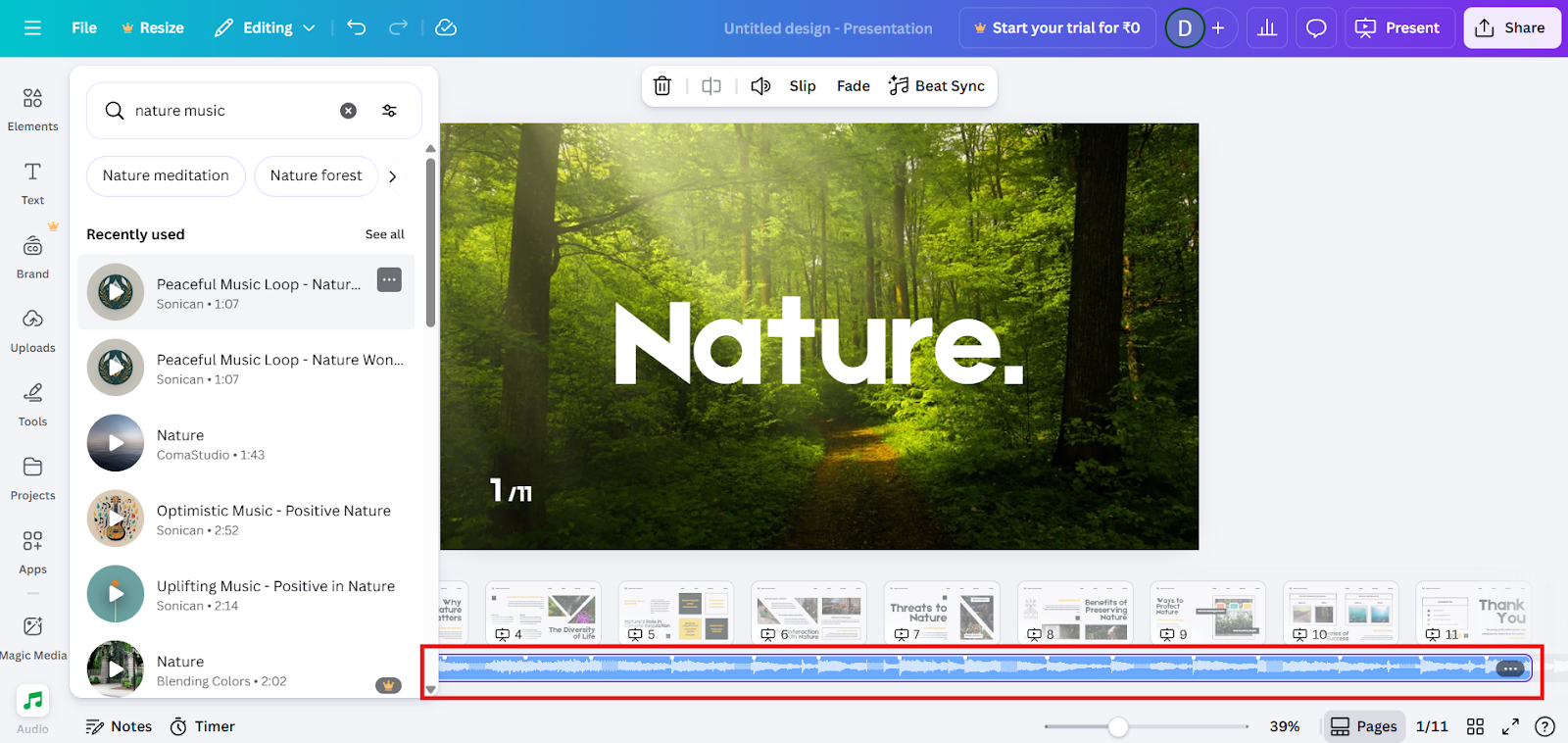
Step 5: Adjust the Music (Optional)
Click the music bar in the timeline to:
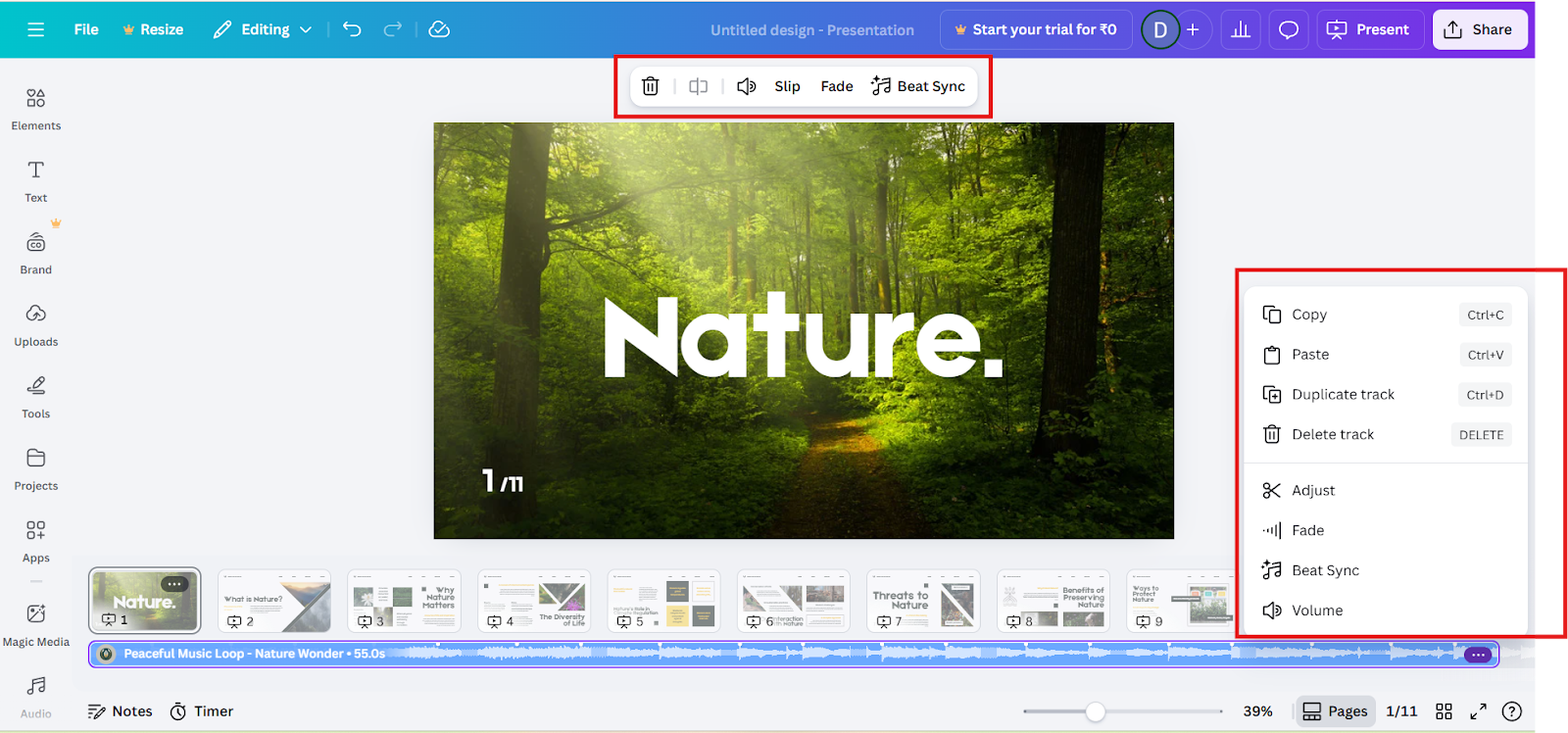
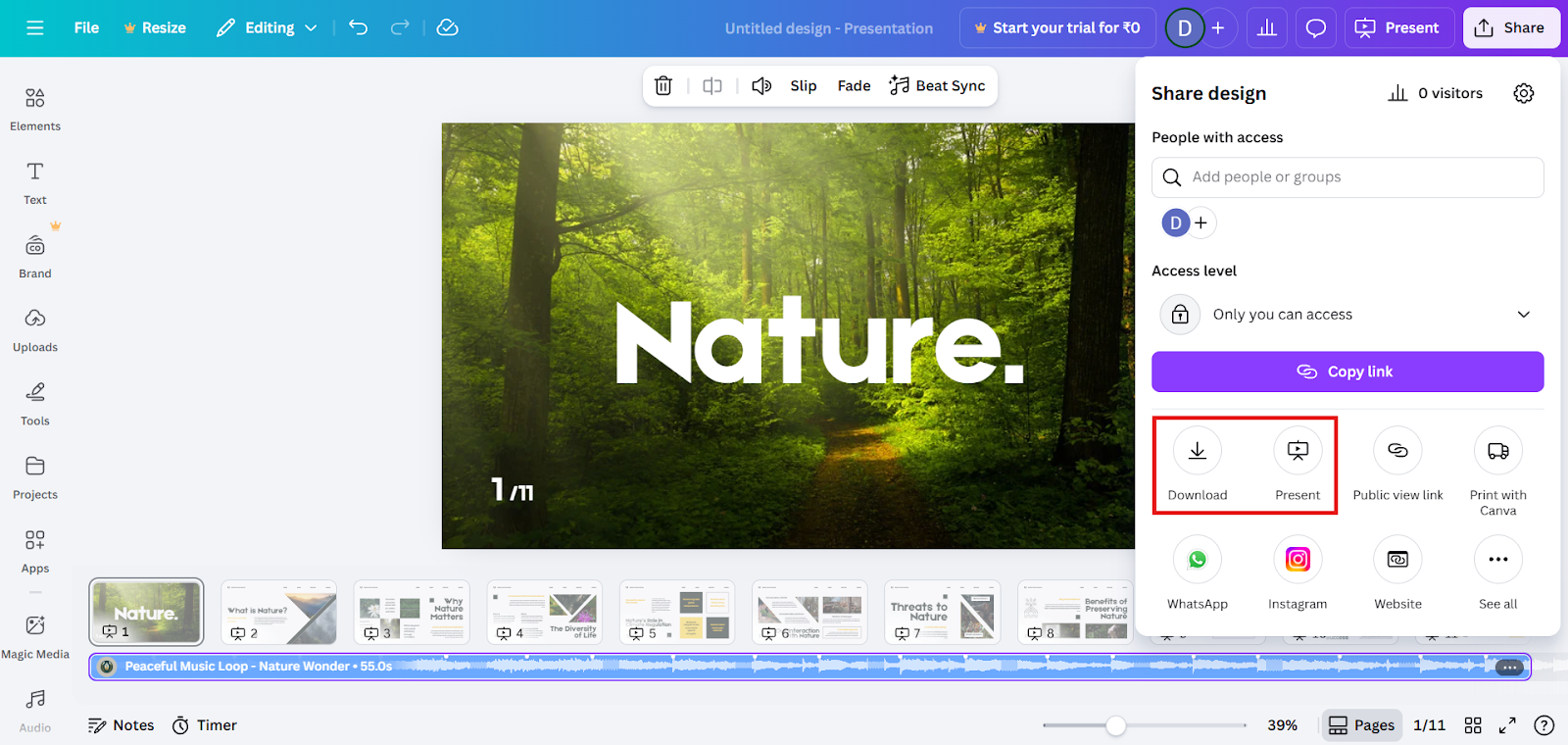
Step 6: Preview and Download
Method 2: Upload Your Own Music File to Canva:
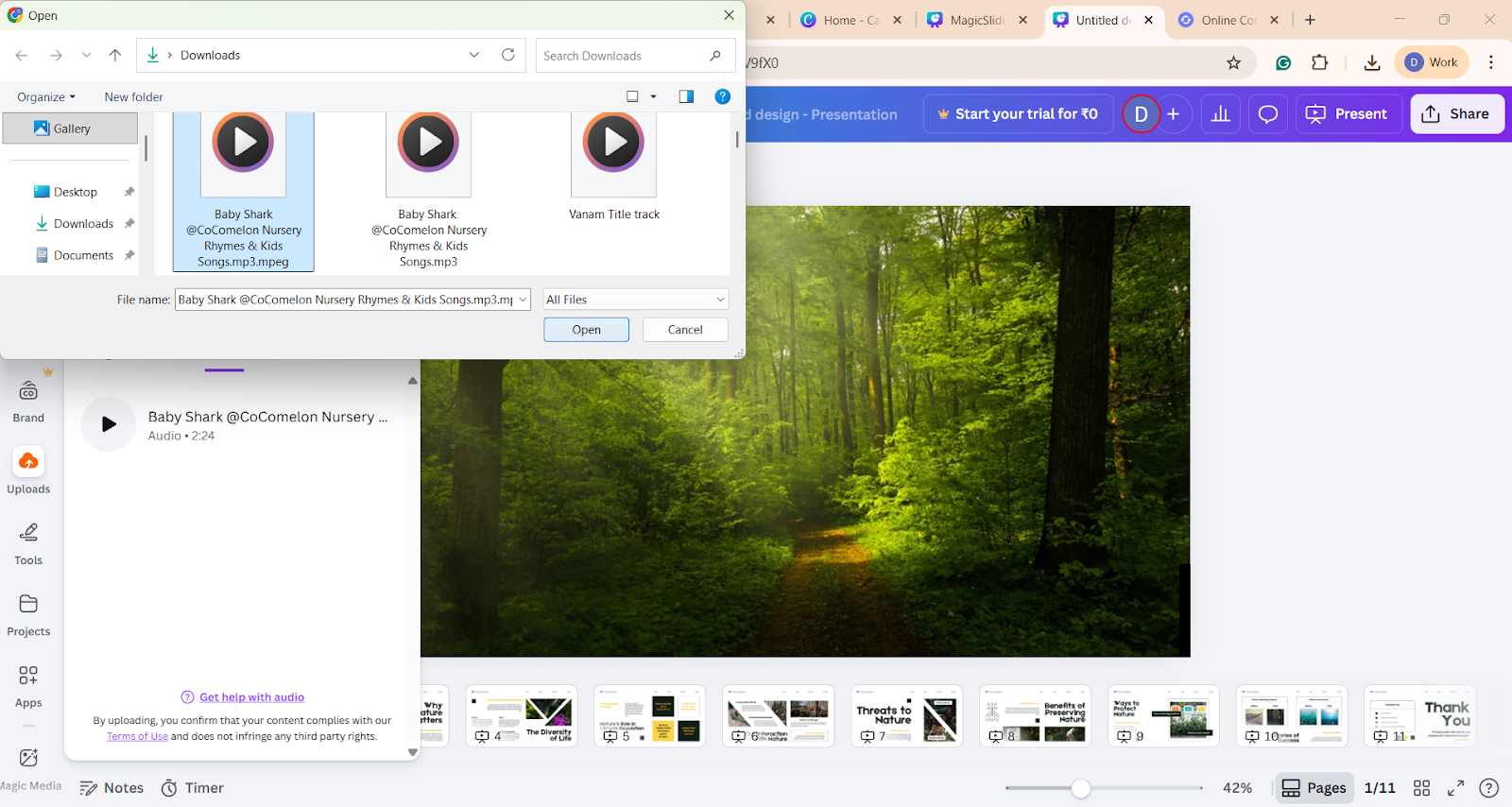
If you already have a music file you want to use, Canva lets you upload it and add it to your slideshow easily.
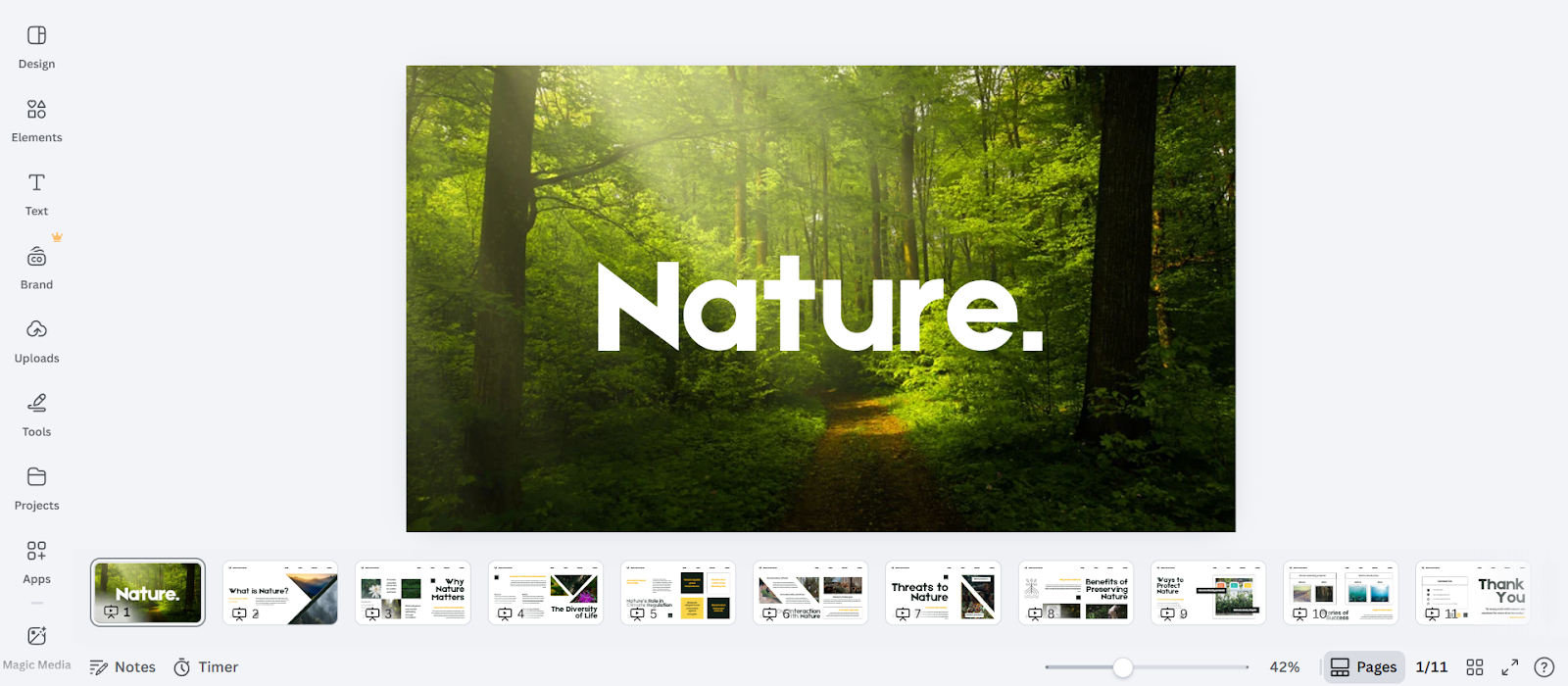
Step 1: Open Your Canva
Step 2: Upload Your Music
Step 3: Add Music to Your Slides
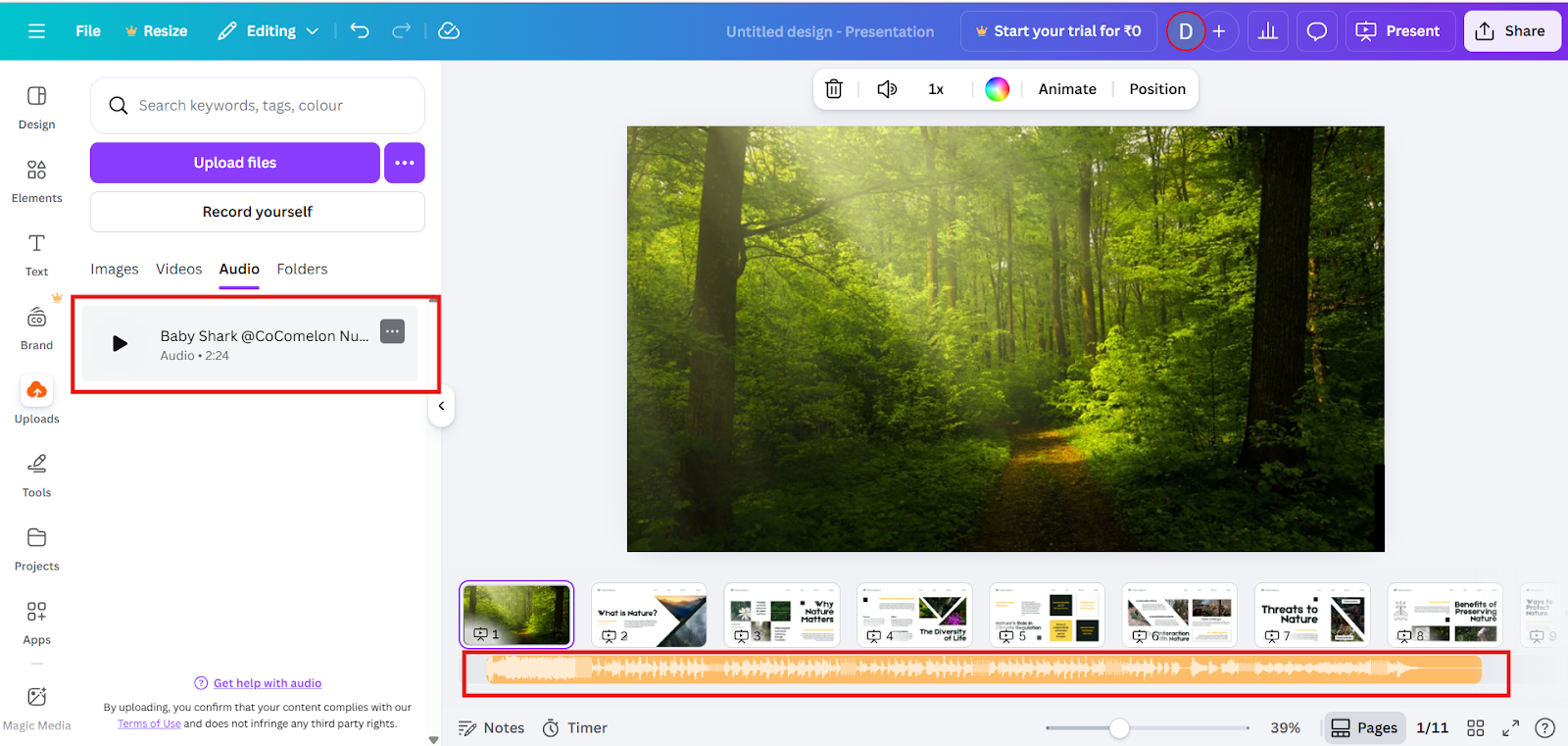
Step 4: Edit the Music:
Click the music track to:
Step 5: Download Your Slideshow
Note: Always make sure you have permission to use the music, especially if your slideshow will be shared online or used for business.
Common Mistakes to Avoid:
Adding music may seem easy, but there are some common mistakes that even experienced users make. Avoiding these will ensure your slideshow feels professional and polished.
1. Too Loud or Distracting Music
Choosing a very loud or busy track can distract your audience from your message. Pick music that supports your slides, not overwhelms them.
2. Not Matching the Mood
If your slideshow is serious and the music is overly playful, the message may get confused. Always choose music that fits your content tone.
3. No Volume Control
Leaving music at full volume can make text and visuals harder to follow. Always adjust the volume so it feels like background support, not the main focus.
4. Multiple Tracks Overlapping
Adding too many music tracks at once can create audio chaos. Stick to one main track unless you’re doing very specific sound design.
5. Forgetting Export Format
If you export your slideshows as PDF or PPT, the music won’t carry over. Always export as an MP4 video if you want the audio embedded.
Create Slides Faster with MagicSlides
Before you add music in Canva, you need your slides ready, and that sometimes takes time.
Creating slides from scratch can take a lot of time and effort, especially when you are working on tight deadlines. Planning content, structuring slides, and making everything look presentable can quickly become overwhelming. This is where MagicSlides AI presentation-making tool makes the process much simpler.
Once your slides are generated, you can focus on improving the design rather than building content from scratch. Import the slides into Canva, add visuals and background music, and polish your presentation easily. This smooth workflow helps you create professional presentations faster and with less effort.
Final Thoughts:
Adding music to a Canva slideshow is one of the simplest yet most impactful upgrades you can make. Music brings life and emotion to your slides and makes your work stand out, whether it’s a school project, business deck, or personal story.
Key Takeaways:
With these steps and tips, you will be able to create music-rich, engaging slideshows that your audience remembers.
Enhance your presentation further:
If you are enjoying adding music to your Canva presentations, you might also like to explore another engaging feature, creating GIFs in Canva. GIFs can make your slides even more dynamic and eye-catching, perfect for grabbing attention or adding a playful touch to your presentations. If you want to take your Canva presentation to the next level, check out this guide on how to make a GIF in Canva.
Quick FAQ’s:
Q 1: Can I add multiple music tracks?
You can, but it’s usually better to use one main track to avoid confusion.
Q 2: Does Canva let me fade music in/out?
Yes, fade effects are available in the audio settings.
Q 3: Is music helpful for viewer engagement?
Yes, music makes slideshows more engaging and emotional.
Q 4: Is it legal to use my own music in Canva presentations?
Only if you own the rights to the music or have a license for it, especially if you plan to share publicly.
Q 5: Can I add background music to only one slide?
Yes, you can trim the track or split it so it plays only on selected slides.
Q 6: Can I use Canva music for commercial projects?
Yes, but check Canva’s licensing rules to ensure the track is allowed for commercial use.
Q 7: Can I combine voiceover and background music in Canva?
Yes, you can record your voice and add music at the same time, adjusting volumes for balance.
Q 8: Can I edit MagicSlides content after exporting to Canva?
Yes, once you import into Canva, you can change text, images, design, and add music.
Q 9: Does adding music make the Canva file bigger?
Yes, audio increases file size, especially for long tracks or multiple slides.
Q 10: Will the music play if I share a Canva link instead of exporting?
Yes, shared Canva presentations retain audio when viewed online.